How to Convert ANSI Escape Codes to HTML: Render Terminal Logs with Perfect Colors
Turn raw ANSI escape codes into styled HTML with the ANSI to HTML Converter — colors, bold, italic, underline, strikethrough, 256-color, truecolor, dark or light live preview, fully client-side.
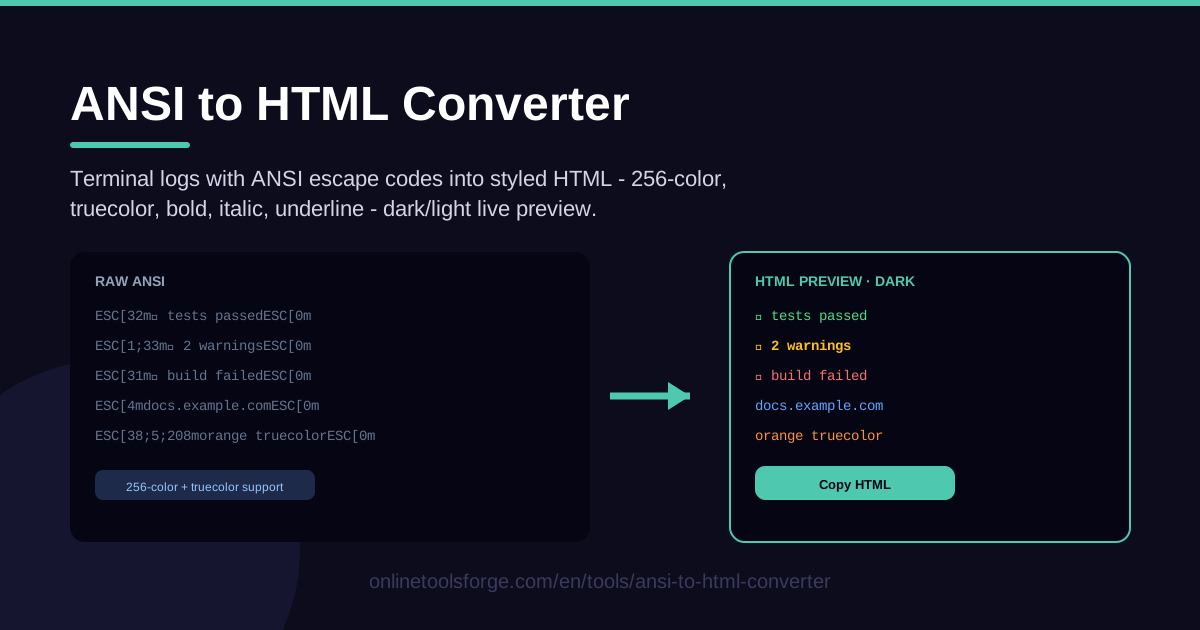
Table of Contents
Copy output straight out of a terminal and the colors rarely survive the trip. Green success lines, yellow warnings and red stack traces arrive in a wiki or bug tracker as unreadable noise like [32m✔ Tests passed[0m. The ANSI to HTML Converter fixes exactly that: paste a terminal log containing ANSI escape codes and get clean, styled HTML back in seconds.
The tool parses colors, bold, italic, underline and strikethrough — including the 256-color and truecolor extensions — then shows a live preview you can switch between dark and light themes before copying. This guide covers the workflow, what those escape codes mean, and where converting logs to HTML saves real time.
Everything runs fully client-side, so your logs never leave your browser — which matters when pasting production output or customer diagnostics.
Why Use ANSI to HTML Converter?
- Readable CI logs in documentation — CI output leans on color: green passes, red failures, yellow skips. Converting logs to HTML preserves that visual language, so runbooks, wikis and internal docs stay instantly scannable instead of becoming a wall of escape sequences.
- Preserve meaning, not just text — a red ERROR line still jumps out in HTML as it did in the terminal; plain text flattens that away.
- Skip manual styling — hand-wrapping hundreds of log lines in <span> tags is tedious; the converter does it in one paste.
- Judge the result in context — the dark or light live preview shows how output looks against its destination background before you copy.
- Keep sensitive logs private — parsing happens entirely in your browser, so production logs and customer data never leave your machine.
- Zero setup — no install, no account, no build step: open the page, paste, copy.
Key Features
| Feature | What it does |
|---|---|
| ANSI escape parsing | Converts terminal logs with ANSI escape codes into styled HTML |
| Complete style coverage | Renders colors, bold, italic, underline and strikethrough as the terminal shows them |
| 256-color and truecolor | Supports the extended 38;5;n and 38;2;r;g;b forms |
| Dark or light live preview | Toggle the background to match your destination and check contrast |
| Copy-paste output | One click copies the generated HTML for docs, wikis or bug trackers |
| Fully client-side | All rendering happens in your browser — no uploads, no accounts |
A few details worth calling out:
- Faithful modern colors. Test runners, linters and build tools increasingly emit 256-color and truecolor output; the converter maps those to CSS so results match your terminal.
- Standard, portable HTML. Styles use ordinary HTML and CSS, so the output works anywhere HTML is accepted.
- Instant feedback. The preview updates as you paste, so you can verify every line before copying.
How to Use ANSI to HTML Converter
- Paste the raw terminal log. Copy the output exactly as it appeared, escape codes and all, in complete lines — partial pastes can leave a sequence unterminated.
- Pick the preview theme. Choose dark or light to match the destination page's background.
- Verify the rendered styles. Scan for red errors, green passes and bold headers; confirm every line looks right.
- Copy the HTML output. One click grabs the generated markup.
- Embed it where you need it. Paste into your wiki, documentation, CMS, blog post or bug report, ideally inside a monospace-styled container.
What Those Escape Codes Mean
If you have ever wondered what [32m actually is, this section is for you. A little anatomy makes raw logs readable and shows what the converter is really doing.
The Anatomy of a CSI Sequence
Every sequence starts with the ESC character (byte 0x1B) followed by [ — the familiar ESC[...m pattern. The [ opens a Control Sequence Introducer (CSI), followed by numeric parameters separated by semicolons and a final byte saying what to do. When that byte is the letter m, the sequence is an SGR (Select Graphic Rendition) code that changes text appearance, so [1;32m reads as "bold, then green."
The Eight Base SGR Colors
The original standard defined eight foreground colors numbered 30 to 37 — black, red, green, yellow, blue, magenta, cyan, white — with backgrounds at 40 to 47 and bright variants at 90–97 and 100–107. The numbers only name a slot; your terminal theme fills in the actual color, which is why every theme looks slightly different.
Bold, Italic, Underline and Strikethrough
SGR 1 turns on bold, 2 sets dim, 3 italic, 4 underline and 9 strikethrough, each with a cancel code (22, 23, 24 and 29). SGR 0 is the master reset, clearing every attribute and color back to defaults.
256-Color and Truecolor Extensions
The 256-color extension added 38;5;n for foreground and 48;5;n for background: 0–15 are the standard and bright colors, 16–231 a 6×6×6 color cube, and 232–255 a grayscale ramp. Truecolor goes further with 38;2;r;g;b and 48;2;r;g;b — exact red, green and blue values from 0 to 255 that modern test runners and progress bars lean on heavily.
Reset Codes and Defaults
Sequences are cumulative — a color persists until something changes it. ESC[0m clears everything, while ESC[39m and ESC[49m restore only the default foreground or background. A log that never resets smears its last color across every following line, and the live preview makes that instantly visible.
Dark Preview vs Light Preview
The same codes can look great on one background and invisible on another: bright yellow is easy on a dark terminal but nearly invisible on a white wiki page, and dark blue is the opposite. The dark and light previews let you check both before pasting the HTML somewhere it cannot be fixed.
Practical Use Cases
Sharing Colored CI Output in Docs and Wikis
Post-mortems and runbooks live or die by clarity. Convert the failing pipeline log and drop it into the incident document; reviewers instantly see red failure lines among hundreds of green ones, and wikis that accept raw HTML render it perfectly.
Bug Reports That Keep Their Colors
Maintainers often ask for exact CLI output. A converted HTML block keeps the bold, colors and error emphasis the tool intended, often removing a round of "can you paste that again with color?" follow-ups.
Blog Posts About Terminal Tools
Screenshots are unsearchable and hard to maintain. Converted HTML keeps example output as real text — selectable, translatable, indexable — while still looking like a terminal.
Preserving CLI Tutorial Formatting
Training docs quote interactive CLI sessions with prompts, flags and colored hints. Converting the session log once means every reader sees identical formatting, whatever their terminal theme.
Best Practices
- Paste complete logs, not fragments. Cutting mid-sequence produces artifacts; include the command line through the final reset.
- Redact secrets first. Anything embedded in a document can be shared onward — strip tokens, passwords and internal hostnames before converting.
- Match the preview to the destination background. Light pages need light-mode checks; dark dashboards need dark mode.
- Keep context around errors. The lines before a failure usually explain it; trim noise, not context.
- Wrap output in a monospace container. If the destination does not style code blocks, add a pre-style wrapper so alignment survives.
- Regenerate instead of hand-editing. When the log changes, paste the new version and copy fresh HTML.
Ready to make your terminal output travel well? Open the ANSI to HTML Converter, paste a log, flip between the dark and light previews, and copy HTML that keeps every color and style — free, instant and entirely in your browser.
Related Tools You Might Like:
- ANSI Color Code Generator — build and preview ANSI color sequences for your own scripts.
- Log Viewer — inspect and analyze log files with structured filtering.
- CSV Validator — validate CSV structure and data before it hits your pipeline.
Happy converting!
Frequently Asked Questions
Q: Will the converter handle truecolor and 256-color logs? A: Yes. It renders colors, bold, italic, underline and strikethrough, including 256-color (38;5;n) and truecolor (38;2;r;g;b), so modern CLI output keeps its exact shades.
Q: Is my terminal log uploaded to a server? A: No. The converter runs fully client-side in your browser; your log content never leaves your machine, making it safe for production and confidential output.
Q: Why does my output look wrong in the light preview? A: Some colors have low contrast on white — bright yellow is the usual culprit. Pick the preview matching your destination, or adjust the surrounding container styles.
Q: Can I paste the generated HTML into a Markdown document? A: Usually yes. Many Markdown engines accept raw HTML blocks, so converted output renders directly in wikis, READMEs and static site generators that permit inline HTML.