Apple App Site Association Generator: Build Trusted Universal Links
Generate the apple-app-site-association JSON for iOS Universal Links and Shared Web Credentials — add app IDs, path rules, and optional webcredentials, fully client-side.
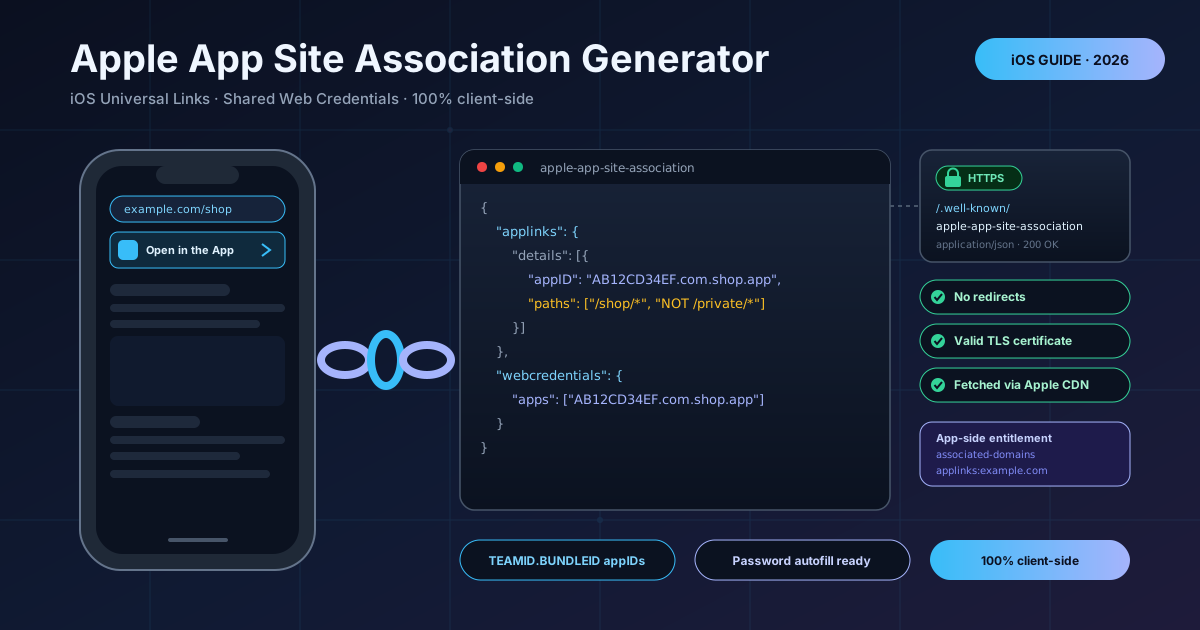
Free Interactive Tool
Apple App Site Association Generator
Generate the apple-app-site-association JSON for iOS Universal Links and Shared Web Credentials, right in your browser.
Table of Contents
Tap a product link in Messages and, instead of a browser tab, the iOS app slides straight to that product. That handoff is Universal Links: plain HTTPS URLs that iOS routes into your app when your domain says the app may speak for it. Users without the app see the same page in Safari, so nothing dead-ends.
Apple only grants that trust when your server publishes a claim file — the apple-app-site-association JSON — at a well-known location over HTTPS. Apple's CDN retrieves it, and devices match each URL against your app IDs and path patterns. One malformed key, and links silently fall back to the browser with no error anywhere.
The Apple App Site Association Generator removes the guesswork: enter your app IDs, add path rules with NOT exclusions, optionally enable webcredentials for password autofill, and copy a valid file — generated entirely in your browser. This guide covers generation, patterns, the entitlement, and the hosting details that trip developers up.
Why Use Apple App Site Association Generator?
- The JSON is structurally unforgiving. Invalid JSON or a misspelled key means iOS ignores the whole file. The generator always emits valid, correctly structured output.
- appIDs must match to the character. Each entry uses the TEAMID.BUNDLEID format with a ten-character uppercase team prefix — one lowercase letter or missing dot and iOS never matches your app. The tool validates as you type.
- Path patterns have subtle rules. Wildcards, NOT exclusions, and query handling are easy to get wrong; a bad pattern either over-matches or never matches.
- Password autofill is one toggle away. The optional webcredentials section enables Shared Web Credentials, so passwords saved on the website are offered in the app and vice versa.
- Fully client-side. Team IDs and bundle identifiers never leave your browser — safe even for unreleased apps.
Key Features
| Feature | What it does |
|---|---|
| appID builder | Adds TEAMID.BUNDLEID entries into the applinks details array |
| Path rules | Maps URL paths such as /shop/* to your app |
| NOT patterns | Excludes private or administrative routes from deep linking |
| webcredentials section | Enables Shared Web Credentials password autofill for your apps |
| Copy and download | Outputs a ready-to-host apple-app-site-association file |
- Format-validated appIDs. Rows are checked against the official shape — ten alphanumeric characters, a dot, and a valid bundle identifier — so malformed entries never reach the output.
- Standards-true webcredentials. The apps array stays a plain list of app IDs, because associated domains are declared on the app side, not in this file.
How to Use
- Find your Team ID and Bundle ID. In Xcode, the Team ID is under Settings, Accounts (Membership Details), and the Bundle Identifier on each target's Signing and Capabilities tab. Together they form the appID — for example AB12CD34EF.com.example.shop.
- Enter your app IDs. Open the Apple App Site Association Generator and add one row per app; rows become entries in the details array.
- Add your path rules. List paths users should land on, such as /shop/_ or /article/_, and exclude sensitive routes with NOT lines like NOT /private/*.
- Optionally enable webcredentials. If your website and app share logins, toggle it and list your domains; the section is generated with your app IDs.
- Host the file correctly. Serve the JSON at https://yourdomain.com/.well-known/apple-app-site-association over HTTPS with no redirects and an application/json content type, then install fresh on a device and tap a link to confirm.
Paths, Patterns, and the Associated Domains Entitlement
Each entry in the applinks section pairs one appID with the paths it claims:
{
  "applinks": {
    "details": [
      {
        "appID": "AB12CD34EF.com.example.shop",
        "paths": ["/shop/*", "/article/*", "NOT /private/*"]
      }
    ]
  },
  "webcredentials": {
    "apps": ["AB12CD34EF.com.example.shop"]
  }
}
Reading the file. The appID is your Team ID, a dot, and the bundle identifier; iOS compares it against the signing team of the installed app. The paths array decides which URLs route into the app — omit it and every URL matches, an empty array matches nothing.
Pattern syntax. The asterisk matches any number of characters; the question mark matches exactly one. Since ? is itself a wildcard, a literal query must be escaped — /search?q=_ targets URLs with a q parameter. Patterns apply top to bottom, first match wins, so put NOT exclusions before broad wildcards like /_.
webcredentials and password autofill. The apps array lists the app IDs that share credentials with your domain. With the service declared in the app's entitlement, autofill treats website and app as one identity: passwords saved in Safari are suggested in the app and vice versa, synced through iCloud Keychain.
The app-side entitlement. The file alone does nothing until the app declares the Associated Domains capability: applinks:example.com for Universal Links, webcredentials:example.com for autofill. Every domain and subdomain listed there needs its own claim file.
Apple's CDN fetch requirements. Devices read Apple's CDN copy, fetched at install and refreshed periodically. It must be served over HTTPS with a valid certificate, return 200 with no redirects, and use the application/json content type. Changes are not instant — reinstall the app to trigger a fresh fetch.
Practical Use Cases
E-commerce deep links
Users with the app tap /shop/* and land straight on the product page with their cart intact; everyone else sees the same URL on the website. One link serves every device.
Password autofill across app and website
With webcredentials enabled, users save each password once and autofill offers it in both surfaces — fewer support tickets, and stronger passwords become practical because iCloud Keychain remembers.
Marketing campaign attribution
Universal Links preserve the original URL, so utm tags and campaign IDs reach the app where analytics can read them — unlike custom URL schemes, which carry no referrer and can be claimed by any app.
QR-to-app flows
QR codes on posters or packaging encode ordinary HTTPS URLs: on an iPhone with the app they open the content directly in the app; on any other device the same code opens the website.
Best Practices
- Exclude private routes with NOT. Admin panels and password resets should never be pulled into the app — put NOT /private/*-style exclusions before any catch-all pattern.
- Keep the file updated with every app release. New targets, extensions, or renamed bundle IDs need new appID entries; a stale file is the top cause of links that suddenly open in Safari.
- Verify with Apple's AASA validator. Run the live URL through Apple's validation tooling after each deploy; it pinpoints JSON errors and fetch failures.
- Never serve over HTTP or through redirects. Valid TLS, status 200, application/json, and zero 301/302 hops are non-negotiable.
- Cover every host you link from. Each subdomain in your entitlement needs its own file; example.com and shop.example.com verify independently.
- Test on a freshly installed device. The CDN fetch happens at install time, so a clean reinstall is the only honest test.
Open Your Links in the App, Not the Browser
One small JSON file decides whether taps land in your app or a browser tab. The Apple App Site Association Generator builds it in under a minute, entirely client-side — add your app IDs, host the file in /.well-known, and let iOS trust your links.
Related Tools You Might Like:
- Assetlinks JSON Generator — the Android counterpart for verified App Links
- JSON Formatter — validate and pretty-print the file before deploying
- URL Parser — break deep-link URLs into scheme, host, path, and query
May every tap open the app it was meant for!
Frequently Asked Questions
Q: Where exactly does the apple-app-site-association file need to be hosted?
A: At https://yourdomain.com/.well-known/apple-app-site-association — note there is no .json extension — served over HTTPS with a valid certificate, no redirects, and the application/json content type.
Q: Where do I find my Team ID and Bundle ID?
A: In Xcode — Team ID under Settings, Accounts, Membership Details; Bundle Identifier on each target's Signing and Capabilities tab. The appID is the Team ID, a dot, then the bundle ID.
Q: I updated the file but my device still opens the browser. Why?
A: Devices receive the file through Apple's CDN, which caches it and re-fetches periodically. Reinstall the app to force a fresh fetch, and meanwhile check the live URL with Apple's validator.