Base64 to Image Converter: Decode Data URIs Back into Real Image Files
Learn how the Base64 to Image Converter turns Base64 strings and data URIs back into viewable, downloadable images with automatic format detection, decoded size details, and PNG or JPG export — entirely in your browser.
Free Interactive Tool
Base64 to Image Converter
Decode Base64 strings and data URIs back into viewable PNG, JPG, GIF, WebP, or SVG images with format detection and one-click download.
Table of Contents
Data URIs hide everywhere in modern web work: inside CSS background-image declarations, HTML templates, JSON payloads from APIs, and email markup. A Base64-encoded image is unreadable to human eyes — a wall of letters tells you nothing about what the picture shows, how large it is, or whether it is even valid. Decoding is the only way to find out, and the Base64 to Image Converter shows you in seconds.
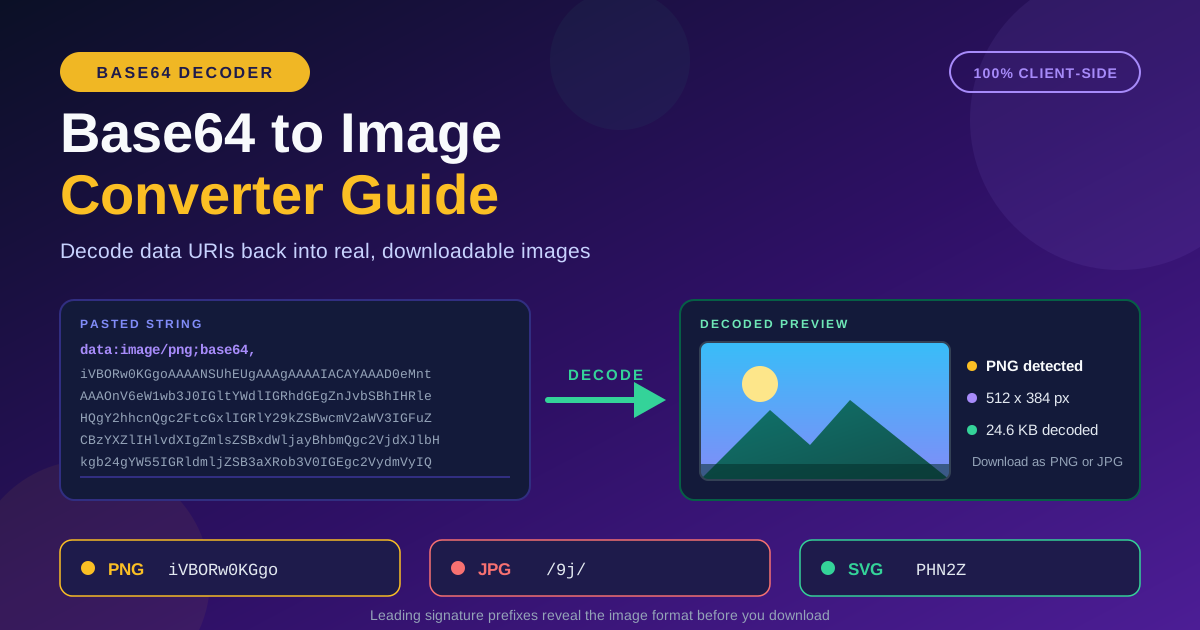
This tool does the reverse of an encoder. Paste a Base64 string or a full data URI, and it renders the underlying image with a live preview, automatic format detection based on the file's binary signature, the decoded byte size, and the pixel dimensions. Like what you see? Download the result as a PNG or JPG with one click.
Everything runs client-side. No string is uploaded to a server and no account is required — which matters when the string comes from a production log, a customer payload, or a proprietary design file.
Why Use the Base64 to Image Converter?
- See what is actually inside a data URI. A Base64 string embedded in CSS, HTML, or JSON is opaque until decoded. The converter renders it instantly so you can confirm it is the right logo, chart, or screenshot.
- Automatic format detection by signature. No need to know whether the payload is PNG, JPEG, or SVG — the tool identifies the format from well-known file signatures.
- Verify size and dimensions before saving. The decoded byte count and pixel dimensions appear beside the preview, so a bloated payload or tiny placeholder is obvious immediately.
- One-click PNG and JPG download. Save a real image file without command-line tools, decoder scripts, or pasting into a browser address bar and hoping.
- Handles full data URIs and bare Base64. Paste data:image/png;base64,... exactly as copied, or just the encoded portion — the tool strips the prefix and decodes either way.
- Private by design. Decoding happens in JavaScript on your device, so sensitive screenshots and customer images never leave your machine.
Key Features
| Feature | What It Does |
|---|---|
| Live image preview | Renders the decoded image as you paste, so verification takes seconds. |
| Automatic format detection | Recognizes PNG, JPEG, and SVG payloads from their binary signatures. |
| Decoded size and dimensions | Shows the exact decoded byte size plus pixel width and height. |
| Prefix handling | Accepts a complete data URI or a bare Base64 string and strips the header when present. |
| PNG and JPG download | Saves the decoded image to a real file with a single click. |
| 100% client-side | All decoding happens in your browser — nothing is uploaded or stored. |
- Signature detection beats extensions. An extension is just a label; reading the actual leading bytes reveals the truth about a mislabeled string.
- The preview doubles as a validator. A truncated or corrupted payload fails to render — an immediate signal your source data is incomplete.
How to Use
- Copy the string — a Base64 string or data URI from a CSS file, JSON response, email template, or code snippet.
- Paste it into the input field on the Base64 to Image Converter page; full data URIs and bare encoded strings are both accepted.
- Review the live preview with the detected format, the decoded byte size, and the pixel dimensions.
- Confirm the details match expectations — right content, reasonable size, sensible dimensions for where you plan to use it.
- Download the image as PNG or JPG, ready for your project, a ticket, or your archive.
Signatures, Data URIs, and Size Math
File signatures hide in plain sight
Every common image format begins with a recognizable byte sequence — a magic number — and it survives Base64 encoding as a fixed leading string:
- PNG files begin with the bytes 89 50 4E 47, and every Base64-encoded PNG starts with iVBORw0KGgo — spot those characters and you are looking at a PNG.
- JPEG files begin with FF D8 FF, which encodes to the prefix /9j/; every Base64 JPEG starts that way.
- SVG is text rather than binary, so an encoded SVG starts with the Base64 of its XML opening — the prefix PHN2Z decodes to an SVG document's opening tag.
The converter works exactly this way: it decodes the first few bytes and compares them against these signatures, the same trick forensic tools use to identify renamed files.
Anatomy of a data URI
A data URI has four parts: the data: scheme, a MIME type such as image/png, an optional ;base64 marker, and a comma followed by the encoded payload. Before the comma is metadata; after it is the image itself. The tool splits off the prefix, decodes the payload, and cross-checks the declared MIME type — if the prefix says PNG but the bytes say JPEG, the bytes win.
Why Base64 inflates size by about a third
Base64 encodes every 3 bytes of binary data as 4 characters of text, so the payload is roughly 33% larger than the original file, plus padding and sometimes line breaks. A 300 KB photograph becomes about 400,000 characters. Decoding before inspection matters because the decoded size is the size that counts on disk, in bandwidth, and in your build output.
When inline Base64 helps — and when it hurts
- Good: tiny icons, logos, and placeholders under a few kilobytes, where saving an HTTP request outweighs the size increase and lost caching.
- Not good: photographs and anything over roughly 10–20 KB — inlining those bloats your documents, delays first paint, defeats separate caching, and adds a third more page weight.
Decoding is how you audit that boundary: paste the string, read the decoded size, and decide whether the asset belongs in a real file.
Practical Use Cases
Inspecting email-embedded or CSS-inlined images
Email templates and CSS themes routinely arrive with images hidden inside walls of Base64. Before you approve a template or inherit a stylesheet, decode each embedded string to see exactly which images ship with it — and whether any are larger or older than expected.
Extracting images from JSON payloads
APIs frequently return images as Base64 fields inside JSON — avatars, generated charts, document scans, report thumbnails. Instead of writing a throwaway script, paste the value and get the image, its format, and its dimensions immediately.
Verifying downloaded data URIs
When a data URI arrives from a vendor, an export, or a migration script, a quick paste confirms the payload is complete, the format matches the label, and the image renders as intended.
Recovering images from code snippets
Found a great icon embedded in a tutorial or an old codebase? The Base64 string in that snippet is the whole image. Decode it, download it as a proper file, and the asset is recovered.
Best Practices
- Never decode untrusted data blindly. Preview inside the browser tool only; do not open unknown payloads with system viewers. A sandboxed local preview keeps malicious files at arm's length.
- Check the decoded size before saving. If a "small icon" decodes to megabytes, something is wrong — the payload is bloated or not what it claims to be.
- Prefer real files for large images. Once a decoded image exceeds a few kilobytes, store it as a file and reference it by URL for proper caching and compression.
- Do not double-convert formats. If the signature says JPEG, save it as JPG to keep the original bytes; converting between lossy and lossless formats costs quality or size for nothing.
- Keep the data URI prefix when sharing. The MIME type helps the next person understand the payload and is required if the string will be a URI again.
- Decode in your browser, not in production. Client-side tools are safe; pasting unknown payloads into server-side shells is not.
Decode Your First Data URI Now
Stop squinting at walls of Base64. Open the Base64 to Image Converter, paste any data URI or encoded string, and see the image, its format, its size, and its dimensions in under a second — then download it as a PNG or JPG and move on.
Related Tools You Might Like:
- Base64 Tool — encode and decode any text or file with full UTF-8 support.
- Image to Base64 Converter — go the other direction: turn image files into data URIs for CSS, HTML, and JSON.
- Image Format Converter — convert extracted images between PNG, JPG, WebP, and more.
Happy decoding!
Frequently Asked Questions
Q: Is my Base64 string uploaded anywhere?
A: No. Decoding and previewing happen entirely in your browser using JavaScript. You can disconnect from the internet after loading the page and the tool still works — no string ever leaves your device.
Q: What is the difference between a data URI and a bare Base64 string?
A: A data URI includes a header such as data:image/png;base64, before the encoded payload, while a bare string is just the encoded bytes. The tool accepts both, strips the prefix when present, and detects the real format from the decoded signature either way.
Q: Which image formats can the converter detect and preview?
A: It detects PNG, JPEG, and SVG payloads by their binary signatures, and previews anything your browser can render, including GIF and WebP — reading actual bytes rather than trusting labels.
Q: Why is my decoded image smaller than the Base64 string?
A: Base64 encoding makes data about 33% larger than the original binary — every 3 bytes become 4 text characters. The decoded size shown by the tool is the true size of the underlying image file.