EML Header Viewer: Read Email Headers Like a Security Investigator
Use the EML Header Viewer to open .eml files in your browser and inspect headers, SPF/DKIM/DMARC verdicts, Reply-To mismatches, and the Received chain - with no upload required.
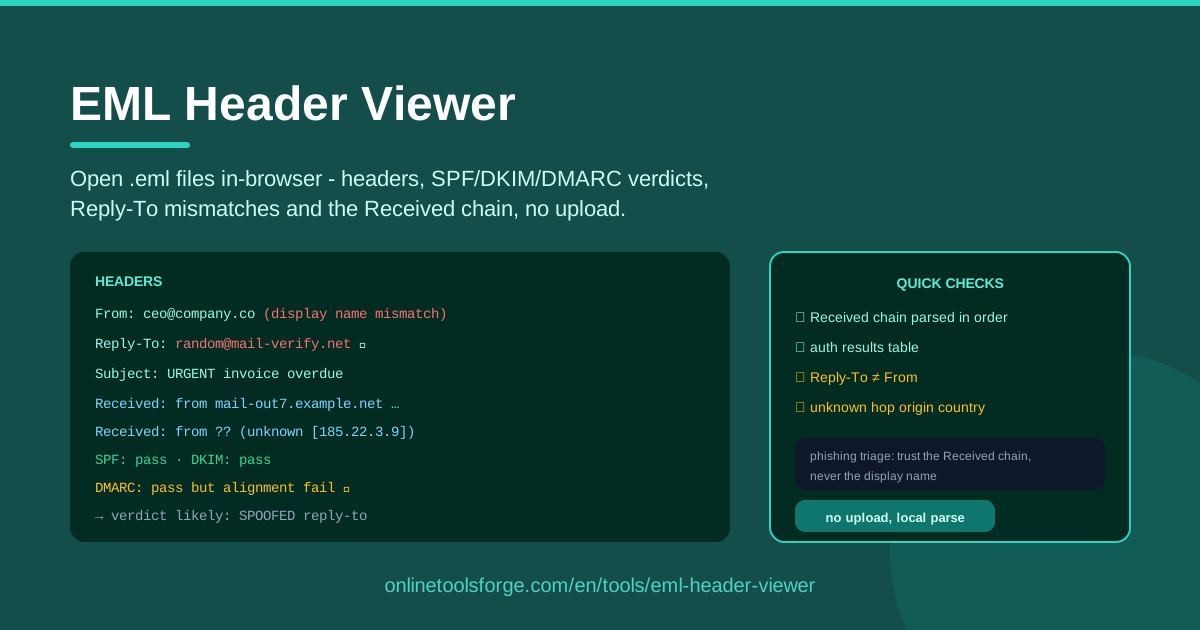
Table of Contents
Every phishing attack tells its story twice: once in the body, which is written to manipulate you, and once in the headers, where the technical truth usually leaks out. The problem is that mail clients bury those headers behind "show original" menus and dense jargon. The EML Header Viewer fixes this by opening .eml email files directly in your browser and laying out the evidence clearly: full headers, SPF/DKIM/DMARC verdicts, Reply-To mismatches against From, and the complete Received chain - all parsed locally, with nothing ever uploaded.
An .eml file is the raw text of an email exactly as it traveled across the internet. When a colleague forwards something suspicious, or finance receives a fake invoice, saving that message as .eml preserves every header your mail app hides. Drop it into the viewer and you can triage the message the way an analyst would: who really sent it, where it really came from, and whether the authentication records line up.
This guide covers how to use the tool, how to read what it shows you, and how to turn a handful of headers into a confident go/no-go decision.
Why Use EML Header Viewer?
- Local phishing triage with zero upload. The file is parsed entirely in your browser, so sensitive emails - invoices, contracts, internal threads - never leave your machine while you investigate them.
- Authentication verdicts without the guesswork. Instead of digging through Authentication-Results strings yourself, you get a readable summary of the SPF, DKIM, and DMARC outcomes for the message.
- Reply-To mismatch detection. One of the oldest phishing tricks is displaying a trusted From address while pointing replies at an attacker-controlled mailbox; the tool compares Reply-To against From and flags mismatches instantly.
- A walkable Received chain. Follow each hop from the sender's server to your mailbox and spot unexpected relays, odd countries, or a sender domain that does not match the network it actually connected from.
- Full headers, nothing hidden. Message-ID, X-Mailer, DKIM signatures, and custom X- headers all stay in view, so nothing the sender smuggled in escapes notice.
- Free, instant, and training-friendly. No account, no setup, and no risk, which makes it ideal for security awareness sessions where staff practice investigating real samples safely.
Key Features
| Feature | What it does |
|---|---|
| Local .eml parsing | Opens .eml files in the browser and parses them entirely on your device - no upload, no server processing |
| Full header inspection | Displays the complete header set, from From and Reply-To through Message-ID and custom X- headers |
| SPF/DKIM/DMARC verdicts | Reads Authentication-Results and surfaces the pass/fail outcome for each email authentication check |
| Reply-To mismatch detection | Compares the Reply-To address against From and warns when replies would be directed somewhere else |
| Received chain walker | Presents each Received hop so you can trace the message's delivery path from origin to inbox |
- The verdict view condenses the three authentication checks into one glance, so you immediately see whether the message would have failed your mail provider's policy checks.
- The Received chain view keeps the order and detail of every hop - timestamps, server names, and IP addresses - which is exactly the material an investigator needs to reconstruct the delivery path.
How to Use EML Header Viewer
- Save the suspicious email as a .eml file. In Gmail, open the message, open the three-dot menu, and choose "Download message". In Outlook, use "Save As" and pick the .eml format. A .eml file preserves the original headers untouched; forwarding the message instead can strip or rewrite them.
- Open the file in EML Header Viewer. Visit the tool in your browser and load the .eml file. Parsing happens on your device within seconds.
- Read the authentication verdicts. Start with SPF, DKIM, and DMARC. A DMARC fail combined with a lookalike From domain is close to a smoking gun - while a clean verdict is not yet an all-clear.
- Walk the Received chain. Read the hops bottom-up, where the earliest hop sits at the bottom. Check where the message truly originated, which servers relayed it, and whether the timestamps make sense.
- Make the go/no-go decision. Combine the verdicts, the Reply-To comparison, and the chain into a judgment: safe to ignore, report as phishing, or escalate to your security team.
Reading Headers Like an Investigator
Headers reward a specific reading order. Once you know where attackers cut corners, most phishing messages identify themselves within a minute.
Start with the From versus Reply-To comparison. Mail clients reply to the Reply-To address, not the From address, and many phishing kits deliberately set them to differ. A message claiming to come from the CFO while its Reply-To points at a free webmail domain is a classic business email compromise setup. Legitimate services do occasionally separate the two for support routing, but unrelated domains - especially a Reply-To resembling your company name with a swapped letter - should be treated as hostile. This is precisely the mismatch the tool highlights for you.
Read the Received chain bottom-up. This surprises newcomers: each server that handles a message appends its own Received header, so the first hop (the true origin) sits at the bottom of the chain and your own mail server sits at the top. Reading bottom-up reveals the message's actual birthplace before any laundering through relays. Watch for a sender claiming a corporate domain while the first hop comes from a residential IP range or a hosting provider in a country the company does not operate in. Timestamps should march forward smoothly; gaps or backwards time suggests tampering.
Interpret SPF, DKIM, and DMARC together - and check alignment. SPF verifies that the sending server is authorized for the envelope domain. DKIM verifies the content was signed with a domain's key. DMARC checks that whichever of those passed actually aligns with the From domain you see. A message can technically pass DKIM and still be phishing if the signature belongs to an unrelated domain - the pass simply does not align with the visible From. That is why the DMARC verdict is usually decisive: it ties authentication to the identity you were shown.
Beware display-name spoofing. The friendly name - "Microsoft Support [email protected]" - is pure decoration that anyone can set to anything. Always read the actual address inside the angle brackets; the display name is the least trustworthy part of the entire header block.
Translate findings into a decision. A DMARC fail, an unaligned DKIM pass, and a mismatched Reply-To together are a no-go: report the message and move on. A clean pass from a recognized domain, a matching Reply-To, and a sane Received chain is usually safe to process normally. The gray zone - passing verdicts but an odd first hop or suspicious X-Mailer values - deserves escalation rather than a solo verdict.
Practical Use Cases
Invoice Fraud Checks
Finance teams are prime targets for fake supplier invoices and changed bank details. When an invoice arrives with "updated payment information," save it as .eml and inspect it before anyone acts. A Reply-To pointing at a personal mailbox, a From domain one letter off from the real supplier, or a first Received hop from a residential IP turns a routine payment into an escalation - and may stop a wire transfer to a criminal.
Security Awareness Training
The best way to teach people about phishing is to let them investigate one. Give trainees a saved .eml sample from a simulation or an anonymized real incident, and have them find the Reply-To mismatch, locate the failing DMARC verdict, and walk the Received chain. Because parsing is local, staff can practice on genuine samples without any data leaving the room - converting abstract warnings into skills they have actually used.
Helpdesk Attachment Triage
Helpdesk staff are often the first to receive "is this email legit?" reports. Instead of opening risky attachments to see what is inside, they can ask the reporter for the .eml file and make a fast, defensible call from the headers alone. The attachment itself stays unopened - exactly where you want it during triage - while the reporter still gets an answer within minutes.
Forensics First-Pass
For incident responders, the viewer is a fast first pass before heavier analysis. Headers yield immediately useful artifacts: the Message-ID domain, originating IP addresses from the Received chain, DKIM selector names, and any Reply-To infrastructure. Those artifacts feed directly into a broader investigation, and the results pair naturally with a homoglyph check to reveal lookalike characters hiding in the From domain.
Best Practices
- Trust the Received chain over display names. Display names are free-form text; the chain of servers that physically handled the message is not. When the two disagree, believe the chain.
- Never open attachments during triage. Extract what you need from the .eml file itself. The document inside may be the payload, and opening it on a production machine is how triage becomes an incident.
- Report confirmed phishes. Use your mail client's report button and notify your security team. Triage without reporting leaves everyone else exposed to the same campaign.
- Keep samples for training. With sender details anonymized, confirmed phishing samples are the highest-value teaching material a security program can collect.
- Correlate multiple weak signals. One odd header is noise; a failing DMARC plus a Reply-To mismatch plus an unexpected first hop is a pattern. Decide on patterns, not single data points.
- Verify money requests out-of-band. No matter how clean the headers look, confirm payment or credential changes through a known phone number or in-person contact - never through addresses found in the message itself.
Ready to inspect a suspicious message? Open the EML Header Viewer, drop in your .eml file, and get a full set of verdicts in seconds - without uploading a byte.
Related Tools You Might Like:
- Email Authentication Chain Checker - validate SPF, DKIM, and DMARC configuration for your own domain
- Email Header Parser - paste raw headers for a quick, structured breakdown
- Homoglyph Detector - reveal lookalike characters hiding inside deceptive domains
Stay safe out there!
Frequently Asked Questions
Q: Is my email uploaded anywhere when I use EML Header Viewer? A: No. The tool parses the .eml file entirely in your browser using local processing, so the message never leaves your device. That makes it safe for confidential emails, incident samples, and regulated data.
Q: Where do I get a .eml file from Gmail or Outlook? A: In Gmail, open the message, click the three-dot menu, and choose "Download message". In Outlook desktop, open the message and use File > Save As with the .eml format. Both produce a file containing the original, unmodified headers.
Q: If SPF, DKIM, and DMARC all pass, is the email definitely safe? A: Not necessarily. Passing verdicts prove the message was properly authenticated for whichever domain was signed - but anyone can register their own legitimate-looking domain, configure it perfectly, and still phish you. Authentication confirms the sender is who the headers claim, not that the content is trustworthy.
Q: Can I use the tool on emails from mobile mail apps? A: Yes, as long as you can export the message as a .eml file. Most desktop clients and webmail interfaces offer this option; on mobile it is often easiest to forward the sample to a desktop client first and export it from there.