How to Encrypt Files Online Safely: A Complete Guide to Browser-Based AES-256 Encryption
File Encryptor locks down any file with AES-256-GCM entirely inside your browser — encrypt with a passphrase, verify the round trip, and never upload a single byte.
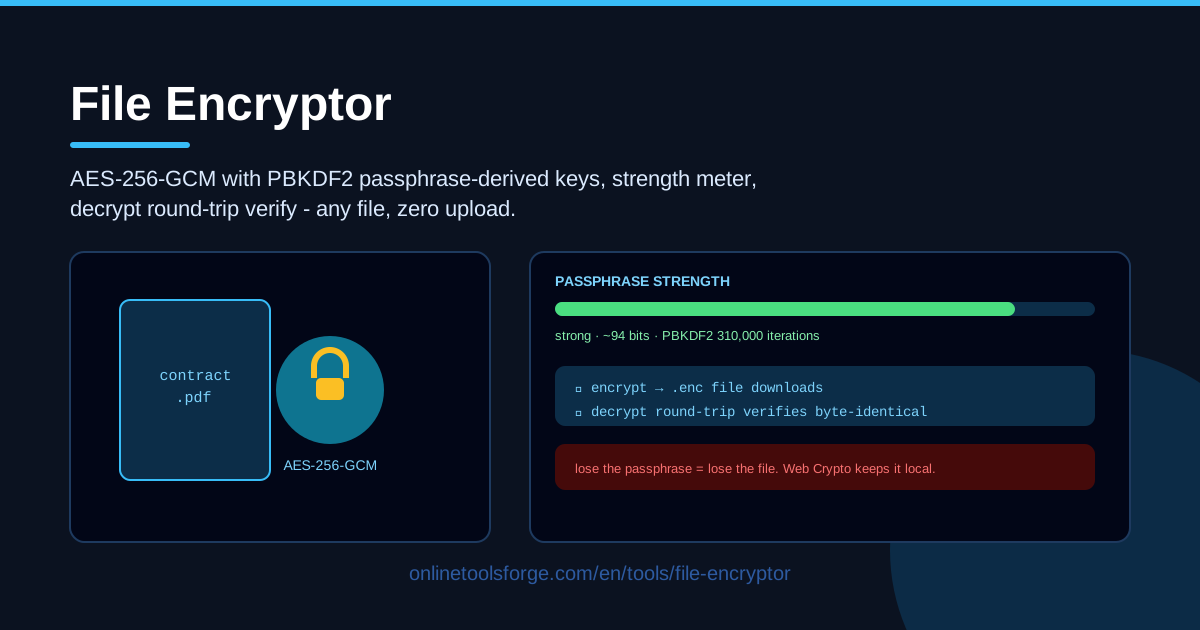
Table of Contents
Most of us keep at least a few files we would never hand to a stranger: tax documents, scanned IDs, medical reports, signed contracts, client records, private photos. The classic advice — "just encrypt it" — is good advice, but it usually stalls on a practical question: which tool can you trust? Desktop software demands an install, while most "encrypt file online" websites work by uploading your document to their server first. The moment that happens, your secret has already left your hands.
File Encryptor flips that model. Everything happens inside your browser: your file is read into local memory, encrypted with AES-256-GCM using a key derived from your passphrase via PBKDF2, and handed back as a downloadable .enc file. There is zero upload — no server ever sees your data, no account is required, and the page even keeps working offline once loaded.
This guide covers why in-browser encryption matters, a five-step walkthrough of the tool, what AES-256-GCM and PBKDF2 actually do for you, and the habits that keep encrypted files both uncrackable and recoverable.
Why Use File Encryptor?
Plenty of tools claim to protect your files. Here is what makes this one different:
- Zero-upload encryption. Your file is processed entirely in browser memory — nothing is transmitted, stored, or logged anywhere. This is the defining feature of the tool.
- Serious cryptography, no installation. AES-256-GCM is the authenticated cipher trusted by banks, governments, and TLS itself, and you get it without installing a thing.
- Passphrase-derived keys. You never handle raw keys. Choose a memorable passphrase and PBKDF2 stretches it into a full 256-bit encryption key.
- A strength meter that coaches you. The passphrase field scores your input live, so weak choices are caught before you encrypt, not after.
- Round-trip verification. After encrypting, the tool decrypts its own output and compares it byte-for-byte with the original, proving the process is lossless.
- No accounts, no cost, no tracking. Open the page, encrypt your file, close the tab. That is the entire experience.
Key Features
A quick overview of what the tool offers:
| Feature | What it does |
|---|---|
| Local encrypt and decrypt | Handles any file type — PDF, DOCX, JPG, ZIP, video — without ever uploading it |
| AES-256-GCM encryption | Industry-standard authenticated cipher providing both secrecy and tamper detection |
| PBKDF2 key derivation | Converts your passphrase into a strong key hardened against brute-force attacks |
| Passphrase strength meter | Rates passphrase quality in real time as you type |
| Round-trip verification | Decrypts the encrypted output and confirms it matches the original file exactly |
| Zero-upload architecture | All processing happens on your device; the file never touches a server |
- The .enc output is self-contained. It bundles the encrypted data with the random salt and IV needed to decrypt it, so one file is all you archive or share.
- Any file your browser can open works. From a short text note to a large archive, the tool treats your file as raw bytes, so format never matters.
- Verification catches silent corruption. A truncated download or failing disk mangles files quietly; the byte-for-byte comparison makes that impossible to miss.
How to Use File Encryptor
Using the tool takes under a minute. Follow these five steps:
- Load your file. Open File Encryptor and pick any file from your device — a contract, a photo set, a backup archive. The file is read straight into your browser.
- Set a strong passphrase. Type a long, unique passphrase and watch the strength meter. Aim for four unrelated words or 16+ characters, and wait for a strong rating before continuing.
- Encrypt and download the .enc file. Click encrypt. The tool derives the key with PBKDF2, encrypts with AES-256-GCM, and gives you a .enc file to save.
- Decrypt to verify. Load the .enc file, enter the same passphrase, and decrypt. The round-trip check confirms the output matches your original byte-for-byte.
- Store everything safely. Keep the .enc file wherever needed and save the passphrase in a password manager. Only after a verified decrypt should you delete the original.
AES-GCM and What Happens to Your File
What AES-256-GCM protects. AES-256 is the Advanced Encryption Standard with a 256-bit key — the algorithm approved for protecting classified government data. GCM mode adds two properties at once: confidentiality (the ciphertext reveals nothing about the content) and authenticity (it produces an authentication tag, a cryptographic seal over the data). If even one bit of the encrypted file changes — through corruption, tampering, or a truncated download — decryption fails loudly instead of silently returning damaged data. That authenticity bonus is why GCM is the preferred mode of modern encryption, including TLS 1.3.
How your passphrase becomes a key. AES needs a 256-bit key, but humans remember words, not 78 random characters. PBKDF2 (Password-Based Key Derivation Function 2) bridges that gap by running your passphrase through many thousands of hashing iterations together with a random salt, producing a key that is uniform and hard to guess. The salt also guarantees that two people using the identical passphrase get entirely different keys and ciphertexts, defeating precomputed rainbow-table attacks.
Why the strength meter matters more than the algorithm. Here is the uncomfortable truth: AES-256 has never been broken and almost certainly will not be. The weak link is nearly always the passphrase. An attacker who steals your .enc file does not attack AES — they guess passphrases, testing millions per second on ordinary hardware against the PBKDF2 derivation. "Summer2024!" falls in minutes, while four random dictionary words such as "granite-lantern-mosque-drift" stretch into centuries. The meter exists because your passphrase choice, not the cipher, decides whether the file is safe.
What round-trip verification proves. Encryption you cannot verify is a leap of faith. The tool closes that gap by decrypting the ciphertext it just produced and comparing the result with your original input. A match means the passphrase was accepted, the derivation worked, and every decrypted byte is identical to what you started with.
The one rule with no workaround. There is no recovery key, no reset link, and no backdoor; the key exists only inside your passphrase. Lose it and the file is, for every practical purpose, gone forever. That is the honest price of zero-upload encryption: nobody — including us — can bring your data back.
Practical Use Cases
Emailing Sensitive Documents Safely
Email is not designed for secrets: attachments linger in sent folders, get indexed by servers, and pass through countless relays. A freelancer sending a signed NDA, or an accountant mailing a client's tax file, can encrypt the document first and attach only the .enc copy. Send the passphrase by phone or chat — a different channel from the email — and even a compromised inbox reveals nothing readable.
Encrypting Backups Before Cloud Upload
Cloud storage is convenient and not private by default. Uploading scans of your passport, health records, or financial spreadsheets means trusting the provider, its employees, and its security history. Encrypt the archive locally first, then upload the resulting .enc file. The provider stores meaningless ciphertext, you keep control, and a breached account no longer exposes your documents.
Sharing Files Through Untrusted Channels
Group chats, public file-sharing links, USB sticks at a print shop, and support ticket systems all handle your file without promising privacy. Encryption turns any of them into an acceptable route: recipients download the .enc file from anywhere, and only someone holding the passphrase can open it. It is the same pattern secure journalism platforms and whistleblower drop boxes rely on.
Protecting Personal Archives
Old letters, diaries, scanned family documents, investment records — archives you intend to keep for decades deserve protection that outlives your current laptop. Encrypt them into .enc files, keep the passphrase in your password manager, and store copies on any drive or service you like. Years from now, those files remain sealed to everyone but you.
Best Practices
- Use long, unique passphrases. Four or more random words beat clever symbol substitutions; length is what resists automated guessing.
- Never reuse a passphrase across files. If one passphrase leaks, every file encrypted with it is exposed. One file, one passphrase.
- Verify the decrypt before deleting the original. Confirm the round trip succeeds first, then remove or shred the plaintext copy.
- Share the passphrase over a different channel. If the .enc file travels by email, send its passphrase by phone or chat so both halves cannot be intercepted together.
- Store passphrases in a password manager. Memory fades; a manager does not. Back up the vault itself.
- Rehearse on a harmless file first. Encrypt and decrypt a practice file once so the workflow is familiar before it matters.
Ready to lock down a file right now? Head to File Encryptor, drop in any document, choose a passphrase the meter rates as strong, and download your .enc copy in seconds. No sign-up, no upload, no excuses — your files can start staying private today.
Related Tools You Might Like:
Encryption works best as part of a routine. These companion tools round it out:
- Hash Generator — create MD5, SHA-1, SHA-256 and other hashes for text or data.
- File Hash Checker — verify a downloaded file's integrity against its published hash.
- Password Generator — produce strong random passphrases when you need maximum entropy.
Stay safe out there!
Frequently Asked Questions
Q: Does File Encryptor upload my file to a server? A: No. Encryption and decryption run entirely in your browser through the Web Crypto API. Your file is read into local memory, processed on your device, and never transmitted anywhere — you can even disconnect from the internet after the page loads and the tool still works.
Q: What happens if I forget my passphrase? A: The file becomes permanently unrecoverable. There is no backdoor, recovery key, or reset mechanism, because with zero-upload encryption nobody — not even the tool's operators — holds your key. That is exactly why you should store the passphrase in a password manager and run the round-trip verify before deleting the original.
Q: Can I encrypt large files like videos or disk images? A: Yes. The tool accepts any file type and treats it as raw bytes, so format and extension are irrelevant. Practical limits come from your device's available memory, since processing happens in the browser, but typical documents, photo archives, and sizable videos work without trouble.
Q: Can the recipient open my .enc file without this tool? A: They need software that understands the same format, and the simplest option is opening this same page. The .enc file contains standard AES-256-GCM ciphertext with a PBKDF2-derived key, so any compatible implementation can decrypt it given the passphrase. What they never need is an account or a server connection.