File Type Detector: Verify the Real File Type From Magic Bytes in Your Browser
Identify the real file type from magic-byte signatures entirely in your browser. Detect fake or mismatched extensions, view the file header bytes, and verify what a file actually is before opening it. 100% client-side.
Free Interactive Tool
File Magic Byte Identifier
Check a file's real type from its magic-byte signature before opening it. Detect mismatched or fake extensions, view header bytes in hex, and confirm what the file actually is, entirely in your browser.
Table of Contents
Your operating system identifies files by their extension — the letters after the final dot. That label, however, is just text anyone can retype. Rename a text file to report.jpg and every file manager will describe it as a JPEG image. The label can lie; the content cannot, because every format begins with a fixed byte sequence written by the software that created the file.
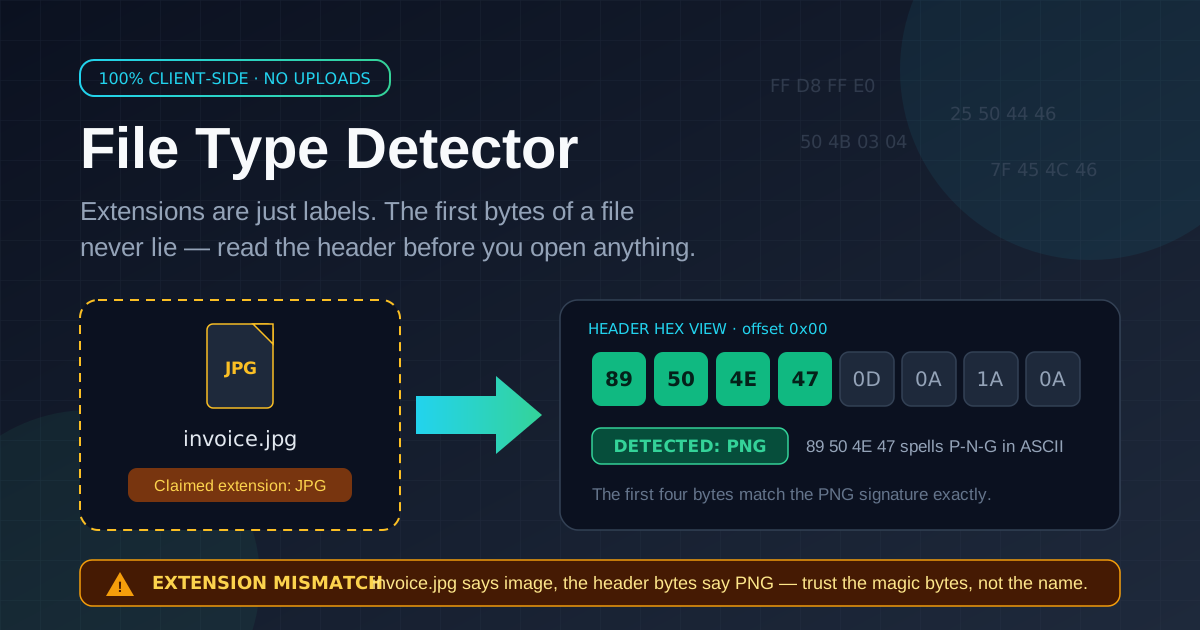
The free file type detector reads those opening bytes — the magic bytes — and matches them against known signatures: PNG, JPEG, PDF, ZIP, ELF, and more. It reports what the file actually is, compares that with the claimed extension, and flags any mismatch before you double-click. A readable hex view shows the evidence, not just a verdict.
Everything runs 100% client-side in your browser: no upload, no account, and results the moment you drop the file in. That makes it a fast first checkpoint for suspicious attachments and questionable downloads.
Why Use File Type Detector?
- Extensions are trivially easy to fake. Renaming malware.zip to invoice.pdf takes two seconds; the extension reflects intent, not content.
- Magic bytes are far harder to forge. The header must be structurally valid or the target application cannot open the file.
- Mismatch detection at a glance. When a .jpg is really a ZIP archive, the tool calls it out immediately.
- Total privacy. All parsing happens in the browser, which matters when the file is confidential.
- A readable hex view. You see the actual leading bytes and learn to read headers yourself.
Key Features
| Feature | What It Does |
|---|---|
| Magic-byte detection | Matches the first bytes against known signatures (PNG, JPEG, PDF, ZIP, ELF, and more) |
| Mismatch detection | Flags files whose claimed extension disagrees with the detected content |
| Header hex view | Displays the raw leading bytes for your own verification |
| Broad format coverage | Recognizes images, documents, archives, executables, and media |
| Client-side operation | Runs entirely in the browser; nothing reaches a server |
- Detection is instant — the check reads only the first few kilobytes.
- Unknown formats are reported honestly rather than guessed; the hex view covers the rest.
How to Use
- Open the tool and drop in a file. Visit the file type detector and drag a file onto the drop zone. Nothing is uploaded.
- Read the detected type. The tool matches the first bytes against its signature database and names the real format.
- Compare against the claimed extension. A match is good news; a mismatch is a warning worth taking seriously.
- Inspect the header hex view. A genuine PNG starts with 89 50 4E 47; a genuine PDF starts with 25 50 44 46 — %PDF.
- Decide. If the types agree and the source is trustworthy, open it; if not, quarantine, rescan, or delete.
Magic Bytes: The File's Fingerprint
What magic-byte signatures are
Nearly every binary format begins with a constant byte sequence called a magic number or signature. A PNG always starts with 89 50 4E 47 — and 50 4E 47 is simply the ASCII for P, N, G. A JPEG starts with FF D8 FF, a PDF with 25 50 44 46, a ZIP with 50 4B, and a Linux ELF executable with 7F 45 4C 46. Because the creating software writes these bytes, they act as a fingerprint that survives any renaming.
How extension spoofing works
Spoofing works because people trust labels. An attacker renames an executable to something harmless — invoice.pdf, photo.jpg — and emails it. The file manager repeats the lie, and the double-click happens before skepticism does. Checking magic bytes breaks the trick, because a renamed executable still begins with its real signature.
Reading the header hex view
The hex view shows the first bytes in hexadecimal, one byte per pair of characters — the same notation forensic analysts use. Drop in a file claimed to be a PDF and see 50 4B 03 04 instead of %PDF, and you are looking at a ZIP archive in a PDF costume.
Common mismatches the tool catches
Two cases dominate. First, plain text renamed to .exe fails instantly, because it lacks the MZ header (4D 5A) every Windows executable must carry. Second, the sprawling ZIP family: .docx, .xlsx, .pptx, .jar, and .apk files are all ZIP containers, so they all start with 50 4B. That is not an attack by itself, but it explains why a spreadsheet renamed to .zip opens fine — and why context matters.
Practical Use Cases
Email attachment screening
Before opening an attachment from a stranger — or an unexpected one from a hijacked account — drop it into the detector. An invoice.pdf that is really an executable announces itself through its header bytes in seconds.
Download verification
Files from forums and file-sharing sites arrive mislabeled constantly: an installer that is a text file, a codec pack that is a renamed archive, a wallpaper that is an HTML page. The detector identifies each one before you run anything.
Forensics triage
Responders need to know what files really are, not what they claim to be. Magic-byte checks expose data hidden by renaming — exfiltration archives staged as media, payloads dressed as documents — with the hex view as first-look evidence.
Dataset audits
Large collections accumulate junk: bulk renames, exports saved with the wrong extension, images that are secretly bitmaps. Spot-checking samples quickly reveals systemic mislabeling before it corrupts a training pipeline or migration.
Best Practices
- Verify before opening anything from strangers. The two-second header check belongs in front of every unsolicited attachment and download.
- Pair the verdict with an antivirus scan. Magic bytes confirm what a file is, not whether it is benign; a valid PDF can still carry an exploit.
- Remember valid magic bytes do not mean safe content. Crafted malware can carry a legitimate signature; the header is one signal, not a clearance certificate.
- Treat every mismatch as hostile until proven otherwise. Innocent renames happen, but the safe default is quarantine and rescan.
- Check files after transfer, not before. Gateways and download managers sometimes alter or wrap files; inspect the copy you actually received.
- Learn the signatures you meet most. Knowing 89 50 4E 47, FF D8 FF, 25 50 44 46, and 50 4B turns the hex view into instant comprehension.
Verify Every File Before You Open It
An extension is a rumor; the header is testimony. Open the file type detector, drop in any file you are unsure about, and read its true identity straight from the first bytes — privately and instantly.
Related Tools You Might Like:
- Hash Type Identifier — recognize which hash algorithm produced a given digest when verifying downloads.
- Base64 Tool — encode or decode Base64 data in your browser when inspecting embedded content.
- Image Format Converter — convert images client-side once you have confirmed what an image really is.
Stay curious, verify first — and let the bytes tell the truth.
Frequently Asked Questions
Q: What exactly are magic bytes?
A: The fixed opening bytes of a file format, also called a file signature. PNG starts with 89 50 4E 47, JPEG with FF D8 FF, PDF with 25 50 44 46, and ZIP with 50 4B — the real format, regardless of the filename.
Q: Can the tool detect every file type?
A: It covers the common signatures for images, documents, archives, and executables, including PNG, JPEG, PDF, ZIP, and ELF. Formats without a distinctive header — plain text is the classic case — are reported honestly rather than guessed, and the hex view lets you inspect the bytes yourself.
Q: Is my file uploaded anywhere?
A: No. Detection runs entirely in your browser — the file never leaves your device, no account is needed, and nothing is logged.
Q: A file has matching magic bytes — is it safe to open?
A: Not necessarily. Matching signature bytes prove the container format, not the content: a genuine PDF can exploit a vulnerable reader. Treat the header check as one layer, and scan anything untrusted with antivirus software before opening it.