Image OCR Tool: Extract Text from Images in Your Browser, Privately
Image OCR Tool extracts printed text from images directly in your browser with Tesseract.js, multi-language support, and copy or TXT export — no upload required.
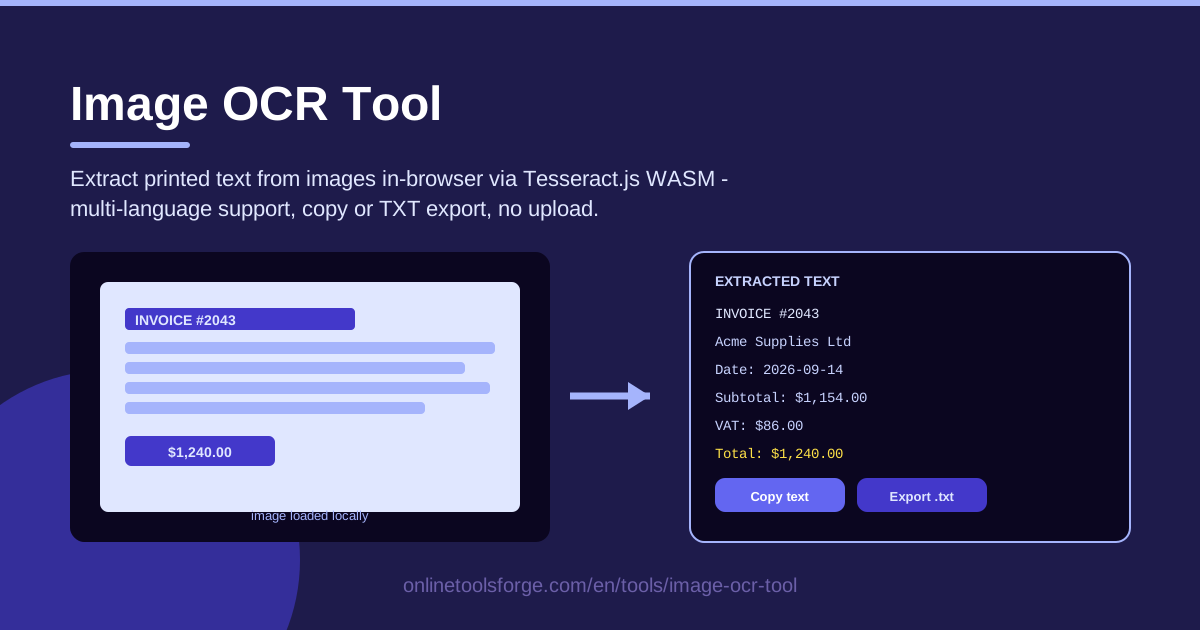
Table of Contents
We all run into text trapped inside images: a photo of a receipt, a screenshot of an error message, a scanned contract page. Getting that text out traditionally means retyping it by hand, or uploading the image to an online OCR service and trusting a stranger's server with your documents.
The Image OCR Tool ends that dilemma. It runs Tesseract.js — a mature, open-source OCR engine compiled to WebAssembly (WASM) — entirely inside your browser. Your image never leaves your device. No upload, no account, no queue. Load an image, pick the language of the text, run the recognition, and you get editable text you can copy to the clipboard or export as a .txt file.
This guide covers what the tool does, how to use it step by step, where OCR genuinely shines (and where it struggles), and the habits that separate a messy transcription from a clean one.
Why Use Image OCR Tool?
- Private documents are never uploaded. The image is read by code running in your own browser, and the OCR engine executes locally as WASM. Invoices, contracts, IDs, and internal reports stay on your machine — nothing is sent to a server.
- No sign-up, no cost, no limits. Nothing to install, no account to create. Open the page and start extracting, as often as you like.
- Multi-language support built in. Select the language model that matches your document — essential for accurate recognition of non-English text and mixed-language pages.
- Copy or export in one click. Send the extracted text straight to your clipboard, or save it as a .txt file for records and further editing.
- Resilient on weak connections. Once the language model has loaded, recognition happens on your device, so a flaky connection will not interrupt it.
- Fast enough for real work. With no round-trip to a remote server, a clean page of printed text is typically recognized in seconds on a modern laptop.
Key Features
| Feature | What it does |
|---|---|
| Local image loading | Open an image file from your device; nothing is transmitted anywhere. |
| Tesseract.js WASM engine | Full OCR runs in your browser via WebAssembly. |
| Multi-language recognition | Match the language model to your document for accurate characters. |
| Copy to clipboard | One click puts the extracted text wherever you want to paste it. |
| TXT export | Save the recognized text as a plain .txt file. |
| No-upload architecture | Images stay on the device end to end, keeping sensitive documents private. |
Worth knowing:
- The first recognition in a given language fetches the language model once; later extractions are quicker because the model is already in memory.
- Results appear in an editable panel, so you can fix an obvious misread before copying or exporting.
How to Use Image OCR Tool
- Load your image. Open the tool and load the image you want to process from your local device. A sharp scan or a steady photo works best.
- Pick the language. Choose the language model that matches the text in the image. For mixed-language documents, select the primary language and proofread the rest.
- Run the OCR. Start recognition. Tesseract.js analyzes the layout, segments text regions, and decodes the characters — usually within seconds for a standard page.
- Review the extracted text. Check the output for classic trouble spots: lowercase l versus uppercase I, 0 versus O, and punctuation at line ends.
- Copy or export. When the text looks right, copy it to your clipboard or export it as a .txt file — editable and reusable immediately.
What OCR Does Well (and Badly)
How Tesseract reads printed text. Tesseract first cleans the image (binarizing it to black and white and removing noise), then analyzes the layout to find blocks, lines, and words, and finally matches each character shape against statistical models of the letters it was trained on. Clean print produces near-magical results because every glyph looks the way the models expect.
Why printed beats handwriting. The training data is overwhelmingly typeset text, and printed characters have consistent shapes. Handwriting varies between people and even within a single word, which breaks shape matching. Expect excellent output on books, invoices, and forms, weak output on cursive notes, and reasonable results on neat block capitals.
Image quality decides everything. Three properties matter most:
- Resolution: every character needs enough pixels to be recognizable — around 300 DPI is the sweet spot for scans, and a distant photo simply does not contain that detail.
- Contrast: dark text on a light, even background is ideal; shadows, gray paper, faded ink, and watermarks add noise.
- Skew: a few degrees of tilt is tolerated, but a photo taken at an angle distorts letter shapes and accuracy drops fast.
Multi-language notes. Choosing the right language model is the single most impactful setting. An English model knows Latin letters and will mangle Thai script; a Thai model will garble English. For genuinely mixed documents, process each language's section separately, or run the primary language and correct the rest by hand.
WASM speed trade-offs. Running in the browser means the work happens on your CPU through WebAssembly, which is slower than native code. Large, high-resolution images take longer; small crops are nearly instant. The price is small next to what you get: total privacy, zero upload bandwidth, and no per-page fees.
Local processing is the privacy feature. Because everything happens on your device, there is no server log of your documents, no retention policy to trust, and no breach to worry about.
Practical Use Cases
Invoice and Receipt Digitization
Pull dates, vendor names, totals, and line items out of photographed or scanned receipts so they can go into a spreadsheet or expense report. Since the image never leaves your machine, financial documents stay private — but proofread the digits, because OCR occasionally transposes numbers.
Screenshots into Editable Text
Text in a screenshot cannot be selected, searched, or quoted without retyping. Run the screenshot through the tool and the error message, code snippet, or chat message becomes normal text you can paste into documentation, a ticket, or a search engine.
Printed Forms into Notes
Application forms, questionnaires, and printed checklists flatten into plain text in one pass, making them searchable in your notes app and far easier to reference than a folder full of photos.
Whiteboard Captures
After a workshop, photograph the board and extract printed or clearly printed block-letter text — titles, action items, URLs. Flowchart labels and headings usually come out well; freehand cursive will not, so treat those parts as images or retype them.
Best Practices
- Crop before OCR. Cut away borders, fingers, and desk surfaces; the less non-text area, the fewer stray characters in the output.
- Straighten the image. Rotate until text lines are horizontal — a few degrees is tolerable, more visibly damages accuracy.
- Pick the right language model. Match it to the document's actual language; it is the highest-impact setting you control.
- Proofread numbers carefully. Totals, invoice numbers, and phone numbers are where small OCR errors hurt most — watch for l/1, O/0, and S/5.
- Shoot in good light. Capture scans and photos straight on, evenly lit, with the text filling the frame.
- Keep the original image. If a transcription looks wrong, re-run a better version of the source instead of hand-fixing a long document.
Ready to turn pictures into paragraphs? Load an image into the Image OCR Tool, pick the language, and get editable text — copied or exported as .txt — in seconds, with the document never leaving your device.
Related Tools You Might Like:
Happy extracting!
Frequently Asked Questions
Q: Is my image uploaded to a server when I use the Image OCR Tool? A: No. The image is processed entirely in your browser by Tesseract.js running as WebAssembly. Nothing is transmitted or stored, so even confidential documents are safe to process.
Q: Which languages can the OCR recognize? A: The tool supports multiple languages through Tesseract language models. Select the model that matches your document — this choice has the biggest effect on accuracy, especially for scripts other than English.
Q: Can it read handwriting? A: Not reliably. Tesseract is trained on printed text, so typeset pages, clean printouts, and block capitals work well, while cursive handwriting produces poor results. For handwritten notes, expect to transcribe most of it yourself.
Q: Why is a large image slower to process than a small one? A: The engine runs locally on your CPU inside the browser, so processing time scales with image size and text volume. Cropping to the relevant area and using a reasonably sized image keeps recognition fast.