nmap Command Generator: Build Network Scan Commands Without Memorizing Flags
Use the nmap Command Generator to compose nmap scan commands from visual pickers with plain-English explanations for every flag, built for authorized network reconnaissance.
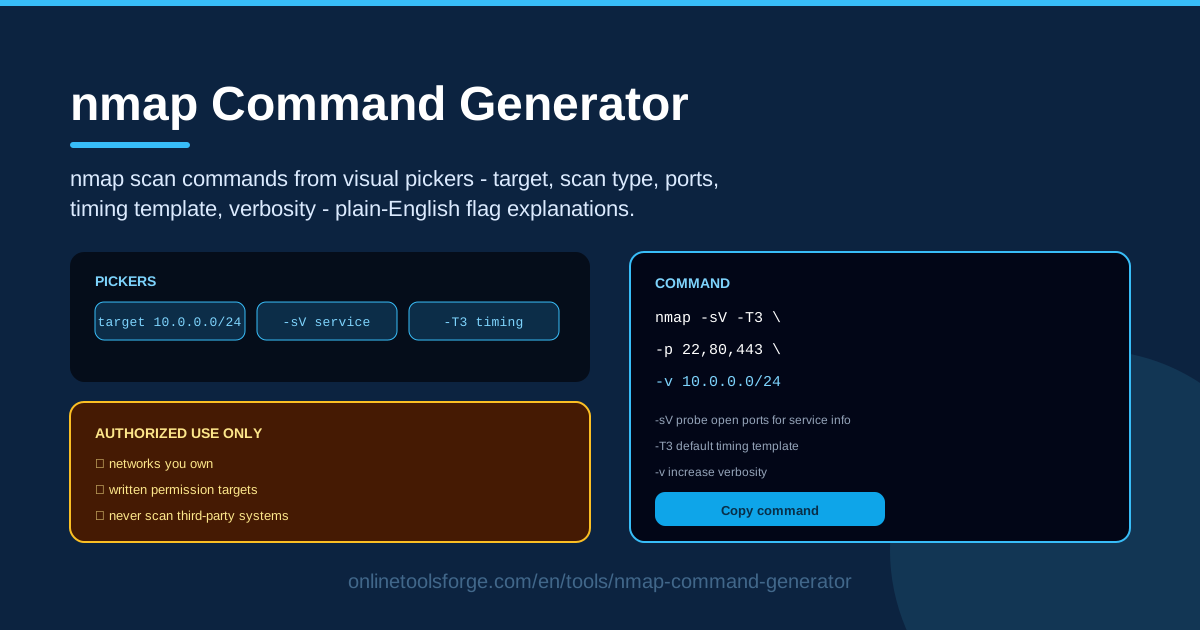
Table of Contents
nmap is the gold standard for network reconnaissance: one command line discovers live hosts, probes open ports, and fingerprints running services. The catch is its famously cryptic syntax — flags like -sS, -T4, and -p- look like secret codes, and one mistyped option turns a five-second check into an hour-long sweep you never intended.
That is why we built the nmap Command Generator. Instead of memorizing syntax, you compose your scan visually — pick the target, scan type, ports, timing template, and verbosity — and the tool assembles the complete command, explaining every flag in plain English beside it.
Like every security tool on our site, it is built strictly for authorized network reconnaissance — scanning hosts and networks you own or have permission to test. Used that way, it is one of the fastest ways to understand your network and the tool that protects it.
Why Use nmap Command Generator?
- No memorization required. Pick options from clear menus and the correct syntax appears — no recalling whether version detection is -sV or which scan type needs which privileges.
- Learn while you build. Every choice comes with a plain-English explanation of its flag, so each scan teaches you more of nmap's vocabulary.
- Fewer typos, fewer wasted scans. A mistyped flag yields an error at best, an unintended scan at worst; the generator emits correct commands every time.
- Timing without guesswork. The timing picker explains each template's speed-versus-noise trade-off, so choosing between -T0 and -T5 is never a guess.
- Copy-paste ready output. Copy the finished command, paste it, run it — no re-typing, no transcription errors.
- Reinforces authorization. Built around authorized use, it keeps the habit of scanning only what you may test front and center.
Key Features
| Feature | What it does |
|---|---|
| Visual target picker | Enter an IP, hostname, or range for one host or a subnet |
| Scan type selector | Pick SYN scan, TCP connect scan, or version detection |
| Port selector | Target specific ports, a list, the default set, or all 65,535 ports |
| Timing template picker | Select -T0 through -T5 with trade-offs explained |
| Verbosity controls | Add -v or -vv for richer output on long scans |
| Per-flag explanations | Every flag explained in plain English beside the command |
| Copy-paste output | The final command pastes straight into your terminal |
Two details stand out:
- Explanations sit next to the command, not in a manual, so you never leave the page to understand what you built.
- The pickers encode real nmap behavior — for example, that omitting -p scans only the top 1,000 ports — so the command matches the scan you expect.
How to Use nmap Command Generator
- Set your target. Enter the IP address, hostname, or range you are authorized to scan; for a first look, a single IP is the safest start.
- Choose your scan type. Pick a discovery scan to see which ports answer, or version detection to learn what software is listening; each option notes what its flag does.
- Pick your ports and timing. Select a port list, the default set, or all ports, then a timing template — for most local work -T3 or -T4 balances speed and reliability.
- Read the flag explanations. Review the plain-English breakdown of each flag; after a few sessions you will recognize the patterns yourself.
- Copy the command and run it. Paste it into a terminal where you have permission, review the results, then adjust and repeat as needed.
The Flags That Matter
A handful of flags covers most real-world nmap use. Here is why each choice matters.
Scan types. -sS performs a SYN or "half-open" scan: it sends SYN packets and reads responses without completing the TCP handshake — fast and relatively quiet, but needing elevated privileges. -sT is the TCP connect scan: a full handshake, no special privileges, works everywhere, but more visible in target logs. -sV interrogates each open service to report likely software and version — invaluable for patch management, though slower and louder.
Port selection. By default, nmap scans only the 1,000 most common ports — a classic surprise for beginners who assumed they checked everything. -p 22,80,443 scans exactly the ports you name; -p- scans all 65,535. Full-range scans find services on unusual ports but take far longer, so pair them with patience.
Timing templates. -T0 (paranoid) and -T1 (sneaky) space probes far apart to avoid detection — useful in IDS-evasion labs, too slow for real work. -T2 is polite, -T3 the balanced default, -T4 the everyday choice for fast, reliable results, and -T5 insane: fast enough to miss services or trip alarms. Faster is not better — match the template to the network's tolerance.
Verbosity. -v shows progress and discovered hosts as the scan runs instead of only at the end; -vv multiplies the detail — the difference between silence and useful output on long scans.
Authorization. None of these flags matter without permission. Scan traffic looks identical to an intruder's reconnaissance, and running it against systems you may not test can violate law, policy, and trust — written authorization is the line between professional and attacker.
Practical Use Cases
Auditing Your Own Homelab
Homelabs drift: an old Raspberry Pi, a NAS, a forgotten test VM — each may listen on ports you no longer remember. Run a version-detection scan (-sV, -T4) against your home subnet quarterly and compare with what you expect. Anything unexpected gets investigated or switched off.
Verifying Firewall Rules
After writing a new firewall rule — block everything except 443, allow SSH only from your management subnet — the only honest test is a scan from outside. Build a TCP connect scan (-sT, -p 22,80,443,3389) and confirm the closed and filtered results match your rules exactly. An open port that should be blocked is a gap the scan just exposed.
Inventorying a Lab Network
Before a security class or capture-the-box exercise, everyone needs to know what is live. A SYN scan across the lab range gives a quick map, and a follow-up -sV pass documents each discovered host's services — a baseline to hand out and re-check later.
Teaching Network Security Concepts
Nothing teaches timing templates like watching -T0 crawl while -T5 races past. Run the same scan at several templates in a controlled lab and compare results and noise, then add packet capture so students see a half-open handshake versus a full connect — abstract flags become visible behavior.
Best Practices
- Get written authorization before every scan. A short email naming targets, time window, and scan types counts.
- Start gentle and narrow. Begin with -T3 and a short port list; widen only when needed.
- Scan what you own — or have explicit permission to test. Cloud instances you rent and lab VMs you run count; your ISP and your employer's network do not, without approval.
- Document findings. Save the command, date, and results — a scan you cannot reproduce is one you cannot act on.
- Escalate gradually. Discovery first, then version detection, deeper probes only where needed.
- Respect the environment. Printers, IoT, and OT equipment can misbehave under aggressive scans; when in doubt, slow down.
Ready to build your next scan without flipping through the man page? Open the nmap Command Generator, pick your target, scan type, ports, and timing, and copy a command you fully understand.
Related Tools You Might Like:
- Port Number Lookup — check which service typically listens on a port before scanning it.
- SSRF URL Checker — see how SSRF turns an open port into an attack path.
- Cron Gap Simulator — schedule recurring scans while tracking the windows they leave open.
Scan smart, scan authorized, and stay safe out there!
Frequently Asked Questions
Q: Is scanning a network with nmap legal? A: Scanning systems you own or have written permission to test is standard professional practice; scanning systems you have no authorization for is illegal in many jurisdictions. Always secure permission first.
Q: What is the difference between -sS and -sT? A: -sS is a SYN (half-open) scan that never completes the TCP handshake — faster and quieter but needs root privileges. -sT is a full TCP connect scan that works without special privileges but shows up more in target logs.
Q: Why does a default scan miss some open ports? A: Without -p, nmap tests only the 1,000 most common ports, so services moved to unusual ports will not appear. Scan specific ports with the picker, or choose all (-p-) for full coverage.
Q: Which timing template should I use? A: -T3, the default, suits most situations; -T4 is the common choice for fast results on healthy internal networks. Reserve -T0 through -T2 for labs; avoid -T5 unless you accept missed services and alarms.