PDF Form Flattener: Lock Your Filled PDF Fields Permanently
Flatten fillable PDF form fields into uneditable, static page content right in your browser with PDF Form Flattener — private, fast, and no upload required.
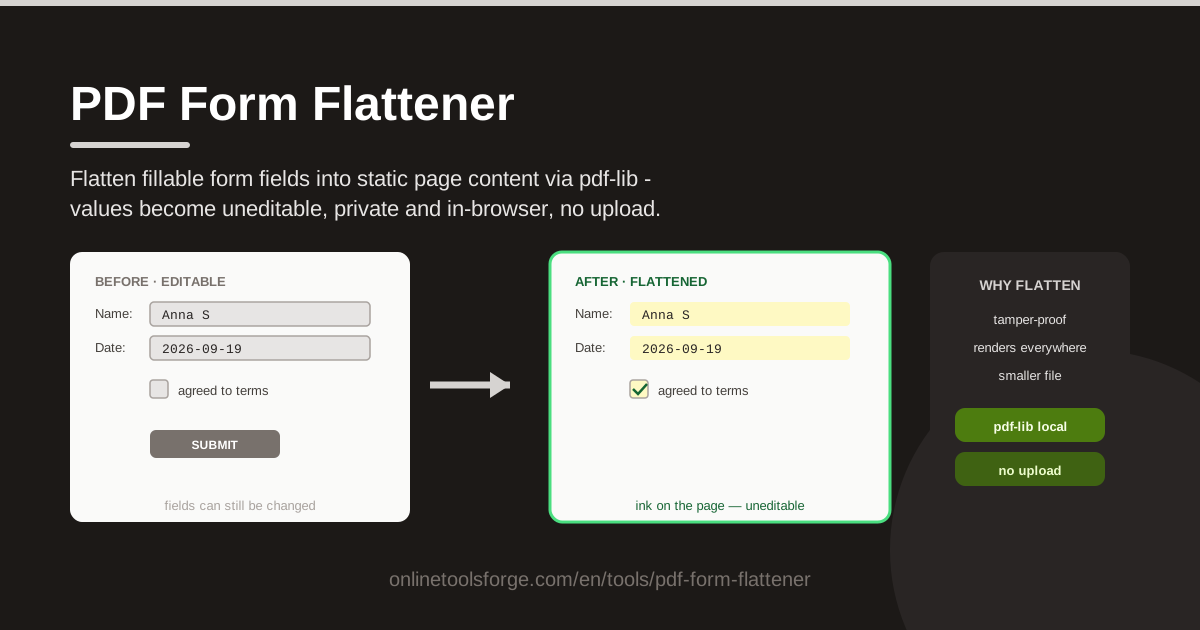
Table of Contents
If you have ever filled out a PDF application, booking form, or government paperwork, you already know the hidden problem: the file you send is not always the file the recipient sees. Filled values live inside special AcroForm fields, and until those fields are flattened, almost anyone with a PDF editor can open the document and change your name, your dates, your checkbox selections, or your declared amounts. A filled form is not a finished document — it is still an editable questionnaire.
PDF Form Flattener solves this in a single step. It takes your filled, fillable PDF and bakes every form field — text boxes, checkboxes, and similar inputs — into static page content, so the values become ordinary ink on the page rather than live, editable objects. The result looks identical to the original, but the data can no longer be typed over, cleared, or silently swapped out.
The best part is how the tool works. Everything happens in your browser, powered by pdf-lib, with no server round-trip and no upload. Your filled forms — often the most sensitive documents you handle, full of personal details and financial figures — never leave your device. This guide walks through why flattening matters, exactly what it changes inside the file, and how to use the tool correctly so your finalized documents stay finalized.
Why Use PDF Form Flattener?
- Tamper-proof submissions. Once form fields are flattened, the filled values are part of the page content itself. Recipients cannot type over your answers, clear a checkbox, or edit an amount before the document reaches its final destination — whether that is a client, a regulator, or an archive.
- No-upload privacy. The entire flattening process runs locally in your browser. Because there is no upload step, sensitive forms — contracts, medical paperwork, tax documents, ID applications — are never transmitted to a third-party server. What happens on your computer stays on your computer.
- Guaranteed appearance across devices. Unflattened forms can render differently depending on the viewer: some readers display field values with their own styling, others hide values entirely if form rendering is disabled. Flattened text is plain page content, so it renders the same everywhere.
- Works even in form-unaware viewers. Lightweight viewers, some mobile apps, and many browser previews do not fully support AcroForm fields and can show a blank page where your carefully typed answers should be. Flattening removes that dependency completely.
- Cleaner file for archiving. Flattened PDFs no longer carry an interactive form layer with field names, default values, and JavaScript actions. What remains is a straightforward document that is simpler to store, index, and share.
- Free and instant. No account, no subscription, no watermark. Load the file, flatten it, and download the result in seconds — as many times as you need.
Key Features
| Feature | What it does |
|---|---|
| Local PDF loading | Opens fillable PDFs directly from your device — nothing is transmitted anywhere |
| AcroForm flattening | Converts live form fields into static page content via the pdf-lib library |
| Uneditable output | The filled values in the flattened file can no longer be edited or cleared as form fields |
| Checkbox support | Handles text boxes and checkboxes alike, baking selections into the page |
| One-click download | Saves the flattened PDF to your device as a new file |
| In-browser processing | All work happens client-side, keeping the workflow private end to end |
A few of these deserve extra context:
- pdf-lib does the heavy lifting. The tool uses pdf-lib, a well-regarded open-source PDF library, to perform the flattening. This means the process follows the PDF specification rather than approximating it with screenshots or rasterization — your text stays sharp, selectable page content.
- Your original file is untouched. The tool produces a new flattened copy for download; the PDF you load remains exactly as it was, so you always keep an editable master if you need one.
- No form-aware reader required afterward. Because the output has no live fields, it displays consistently in every viewer from full desktop suites to minimal mobile apps.
How to Use PDF Form Flattener
- Load your filled PDF. Open PDF Form Flattener and select the fillable PDF you have already completed. The file loads locally in your browser, so make sure the version you pick is the one with all values entered — flattening freezes whatever is currently in the fields.
- Review the fields. Before you flatten, skim the document and check that every text box, checkbox, and entry looks the way you want it to look in the final file. Fix any typos or missed checkboxes now, because after flattening the values are fixed page content and no longer editable as fields.
- Flatten the form. Start the flattening process. The tool bakes each field's current value into the page content, converting live AcroForm objects into ordinary text and graphics. This takes only a moment, even for multi-page documents.
- Download the flattened file. Save the resulting PDF to your device. It will look identical to the filled original, but the interactive field layer is gone and the values are locked in place.
- Verify and share. Open the downloaded file once to confirm everything rendered correctly, then send it, archive it, or attach it wherever it needs to go. Keep the original editable PDF on hand in case you ever need to revise it.
What Flattening Actually Changes
To understand why flattening is worth doing, it helps to know how PDF forms work under the hood. A fillable PDF is really two things living in one file. First, there is the page content: the fixed text, lines, and graphics that make up the form's layout — the labels, the boxes, the fine print. Second, there is the AcroForm layer: a set of interactive field objects positioned on top of the pages, each with a name, a type (text field, checkbox, radio group, and so on), and a current value.
Here is the crucial part: the values you type are stored in that field layer, not in the page content. A field's value is data attached to a form object, and the viewer you use is responsible for reading that data and drawing it on screen. That design is what makes forms fillable — and it is also what makes filled forms fragile. Anyone with an editing tool can open the field layer and change a value, because the value is just a property of an object. Some viewers can even reset all fields back to their defaults with a single command, erasing everything you typed without leaving a trace in the visible layout.
Flattening collapses this two-layer structure into one. When the tool flattens your document with pdf-lib, each field's current value is rendered as ordinary page content — real text objects and graphics placed on the page exactly where the field used to be — and the interactive field objects are removed from the AcroForm. The visual result is identical, but structurally the document has changed character completely. There is no longer a field named "Amount" holding the number 1,250; there is simply the number 1,250 printed on the page like any other piece of static text.
This brings real compatibility benefits. Because the values are now plain page content, the document no longer depends on the viewer's form-rendering engine. Old readers, minimal mobile viewers, and basic browser previews that ignore AcroForm data will still display every answer correctly. Print workflows behave the same way: a flattened form prints exactly as displayed, with no risk of fields being omitted because a driver or renderer mishandled the form layer.
It is worth knowing the limits, too. Flattening is about form fields, not about every interactive feature a PDF can contain. The tool targets the AcroForm field layer — text boxes and checkboxes — and bakes their values in. Digital signature fields are a different mechanism with their own cryptographic structure, and flattening does not extend to them. If your document relies on signature fields, treat flattening as a separate step and handle signatures through the appropriate signing workflow. And of course, a flattened PDF is not encrypted: the text is still readable page content, it just is not an editable form anymore.
Practical Use Cases
Archiving signed applications
When an application or request form has been filled and signed, the record is final — but if you archive the unflattened version, the underlying fields remain editable in the archive. Someone reviewing the file years later, or anyone who gains access to the folder, could alter a field and quietly change the record. Flattening before archiving freezes the submitted values into the page, so the stored document matches what was actually submitted, checkbox for checkbox, line for line.
Sending confirmed booking forms
Travel agencies, clinics, event organizers, and rental businesses routinely send clients a filled PDF confirming dates, times, prices, and selected options. If that confirmation still contains live form fields, an accidental keystroke or a deliberate edit can scramble the details — and disputes follow. Flattening the confirmation before sending guarantees the client sees exactly the agreed details, and any printed or forwarded copy stays faithful to the original.
Delivering invoices to clients
An invoice generated from a fillable template carries amounts, tax rates, and totals in form fields until it is flattened. Sending it unflattened invites awkward situations: a client's PDF reader might display the fields differently, or the document could be altered and forwarded with changed figures. A flattened invoice is a finished commercial document — the numbers are printed on the page, consistent in every viewer, and ready for the client's own archiving and accounting systems.
Compliance and audit records
Regulated industries often must retain evidence of what was submitted and when. Compliance officers flatten submitted forms before filing them so the record cannot be modified after the fact, and auditors receive documents whose contents are fixed. This also simplifies evidence handling: a flattened PDF has a single, stable visual state with no hidden field layer to interrogate, which makes "what did the document say?" an easy question to answer.
Best Practices
- Verify every value before flattening. Flattening freezes the current state of the fields, so treat the pre-flatten review as your final proofread. Check names, dates, amounts, and checkbox selections one last time.
- Keep the editable original. Always retain the unflattened, filled PDF as your working master. If a detail changes later, you edit the original and flatten a fresh copy — you cannot un-flatten a file.
- Check the output renders correctly. After downloading, open the flattened file and scroll through it. Confirm the text sits where it should and nothing shifted, especially on complex layouts.
- Flatten once, at the end. Make flattening the last step in your workflow, after all edits and reviews are complete. Repeatedly flattening intermediate versions only creates confusing file variants.
- Use descriptive file names. Name the flattened copy clearly — for example, adding "-final" or "-flattened" — so you can tell at a glance which file is the locked version and which is still editable.
- Handle signatures separately. If a form includes digital signature fields, remember flattening addresses form fields, not signatures. Complete your signing workflow through the proper channel and flatten the form content as appropriate for your process.
Ready to lock down your filled forms? Load a PDF into PDF Form Flattener, flatten the fields, and download a version whose values cannot be edited, cleared, or quietly changed — all without uploading a single byte.
Related Tools You Might Like:
- PDF Metadata Editor — inspect and clean up the metadata your PDFs carry before you share them.
- PDF Page Numbering — add clear, consistent page numbers to reports, contracts, and long documents.
- PDF Text Redactor — remove sensitive text from PDFs before they leave your device.
Happy flattening!
Frequently Asked Questions
Q: Will flattening change how my PDF looks?
A: No. Flattening converts the current field values into static page content at the same positions, so the document appears identical to the filled original — the difference is structural, not visual.
Q: Can I undo flattening and get editable fields back?
A: No. Flattening is one-way: the field objects are removed and their values become ordinary page content. This is why you should keep the original filled, unflattened PDF as your editable master.
Q: Is my document uploaded to a server?
A: No. The tool processes everything in your browser using pdf-lib. Your PDF is loaded locally, flattened locally, and downloaded locally, so sensitive forms never leave your device.
Q: Does flattening work on checkboxes as well as text fields?
A: Yes. Text boxes and checkboxes are both part of the AcroForm layer, and the tool bakes both kinds of values into the page — checked boxes become fixed graphics just like typed text becomes fixed text.