Safelink Decoder: Unwrap Outlook SafeLinks Back to the Real URL
Learn how the Safelink Decoder tool unwraps Microsoft Outlook SafeLink URLs back to the original destination, exposing the region prefix, tracking parameters, and phishing red flags like IP hosts, punycode lookalikes, and double encoding — fully in your browser.
Free Interactive Tool
Outlook SafeLink Decoder
Decode Microsoft Outlook SafeLink wrapper URLs (safelinks.protection.outlook.com) back to the original destination - see the region, tracking parameters, and phishing red flags, entirely in your browser
Table of Contents
If your company runs on Outlook or Microsoft 365, every link in every corporate email has been rewritten. What arrives is not the destination the sender typed — it is a wrapper pointing at safelinks.protection.outlook.com first, with the real address buried in a percent-encoded parameter behind a region prefix. Fine inside Outlook; pasted into chat, a wiki, or a ticket it becomes noise: it can break, leaks where the mail traveled, and hides the destination you care about.
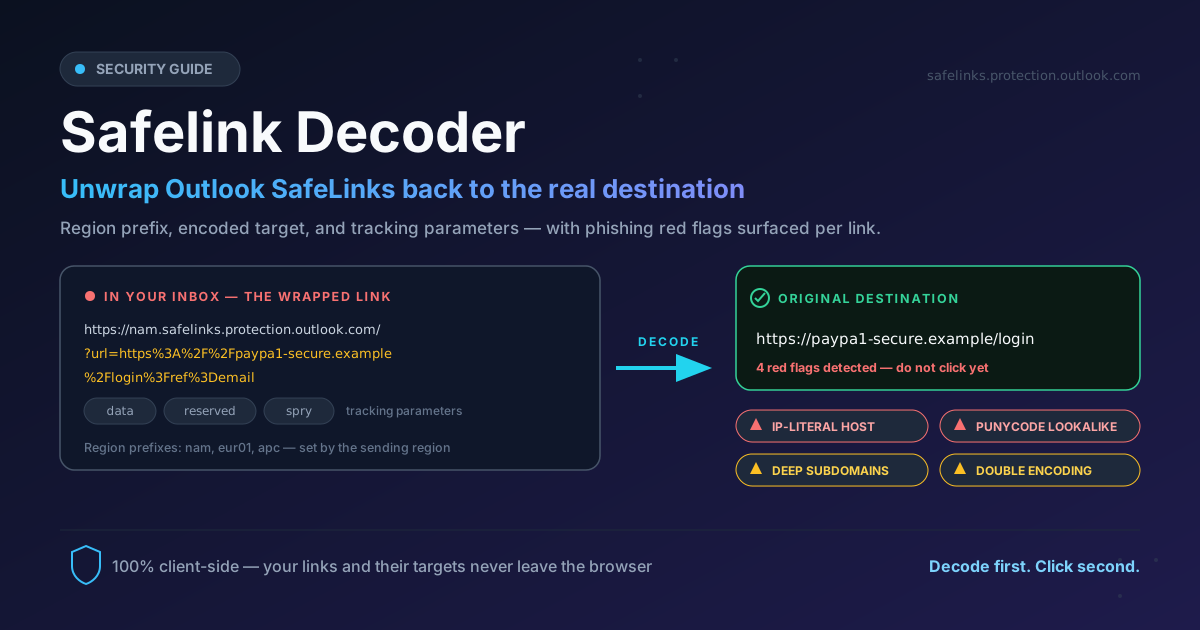
The Safelink Decoder fixes that in one paste. Drop in a wrapped SafeLink URL and the tool extracts the original destination immediately — and goes further: it shows the region prefix (nam, eur01, apc), lists the tracking parameters Microsoft attaches, and runs phishing red-flag checks on the target — IP-literal hosts, punycode lookalikes, deep subdomains, double encoding. Everything runs 100% client-side, so links you inspect never leave your device.
This guide covers why SafeLinks exist, what they hide, and how to decode them safely.
Why Use Safelink Decoder?
- Read the real destination before you click. A wrapped link gives no idea where it leads. Decoding first shows the URL your browser will land on.
- Make wrapped links usable outside Outlook. Links pasted into chat, documentation, or tickets often fail when left wrapped. Unwrapping produces a clean, portable URL.
- Surface the tracking baggage. SafeLinks carry parameters such as data and reserved — showing what Microsoft records about each click.
- Catch lookalike phishing on sight. The tool inspects the destination for IP-literal hosts, punycode domains, stacked subdomains, and double encoding — classic signatures of credential-harvesting links.
- Keep everything on your device. No server round-trip, no logging — the decode happens entirely in your browser.
- Save time at triage. Instead of decoding a 400-character URL in a console, you get the destination, metadata, and red-flag verdict in one glance.
Key Features
| Feature | What It Does |
|---|---|
| One-paste decoding | Extracts the original destination from any safelinks.protection.outlook.com URL instantly |
| Region prefix display | Shows the nam, eur01, apc prefixes identifying the scanning region |
| Tracking parameter listing | Lists parameters such as url, data, and reserved separately |
| Phishing red flags | Flags IP-literal hosts, punycode lookalikes, deep subdomains, and double encoding per link |
| Multi-link handling | Paste several wrapped links; each is analyzed individually |
| Fully client-side | All parsing and checking happens in your browser — nothing is uploaded or logged |
- Works with any Outlook variant. Consumer Outlook, Microsoft 365, and Exchange Online produce SafeLinks in the same wrapper shape.
- Red flags are explained, not just flagged. Each warning names its category, so you know why the link deserves suspicion.
How to Use
- Copy the wrapped link. In Outlook, right-click the link and choose "Copy link". The tell is safelinks.protection.outlook.com somewhere in the string.
- Paste it into Safelink Decoder. Open the Safelink Decoder and paste the URL — one link or several at once, each analyzed separately.
- Read the original destination. The unwrapped target appears immediately, ready to copy — the URL the sender intended you to visit.
- Review the region prefix and tracking parameters. The tool breaks the wrapper apart so you can see which region scanned the mail and what rides along with the click.
- Check the red-flag panel before clicking. If the destination shows an IP-literal host, punycode lookalike, deep subdomains, or double encoding, treat the link as hostile and verify through another channel first.
What SafeLinks Hide (and Add)
SafeLinks exist for a good reason: Microsoft rewrites every URL so clicks can be scanned at click time, blocking known-bad destinations even after delivery. Understanding the wrapper lets you see through it:
https://nam.safelinks.protection.outlook.com/?url=https%3A%2F%2Fexample.com%2Flogin&data=05%7C02%7C&reserved=0
Three parts matter. The region prefix — nam for North America, eur01 for Europe, apc for Asia-Pacific — tells you where the mail was scanned. The url parameter holds the entire original destination percent-encoded into one opaque string. The tracking parameters (data, reserved) correlate the click with the specific email and recipient. Unwrap the url parameter and the destination is restored:
https://example.com/login
Now the security value becomes visible. Suppose a malicious link decodes to http://203.0.113.77/paypa1-secure.example.com.secure-login.xn--pypal-4ve.com/verify?id=1%253A4423. The IP-literal host means there is no legitimate domain — banks never send you to a bare IP address. The punycode segment (xn--) decodes to a non-ASCII character crafted to look like a familiar brand — a homoglyph of "paypal". The stacked subdomains bury the real registrable domain under padding chosen so your eye catches paypa1-secure first. And the double-encoded fragment (%253A instead of %3A) smuggles characters past filters that decode only once.
Wrapped links also hide things more mundanely: they strip anchor fragments, break when scanning infrastructure changes, and turn a short link into a 400-character line in a ticket. Hence the habit: decode before you click. If the destination looks wrong, confirm with the sender out-of-band.
Practical Use Cases
Cleaning links for documentation and tickets
When an email contains a link your team needs in a runbook, wiki page, or ticket, pasting it wrapped guarantees friction: the link is enormous, may not resolve from non-corporate networks, and reveals nothing readable in plain text. Decode first, paste the clean destination.
Phishing triage
Help-desk staff constantly receive "is this link legit?" questions. Instead of clicking and hoping, the wrapped URL goes into the decoder: destination, scanning region, and any red flags appear in seconds. A bare IP host or punycode lookalike ends the investigation before any browser is involved.
Support escalation
When a user reports "the link in the email does not work," the wrapped URL is often the culprit — it may reference a tracking domain blocked by the destination site, or it was truncated in transit. Decode it to see whether the destination is valid and what a corrected link should look like.
Security awareness training
The fastest way to teach people about wrapped links is to let them unwrap one. Decode a real SafeLink from your own inbox with the team and walk through the region prefix, the encoded destination, and the tracking parameters — the click-tracking revelation lands harder than any slide.
Best Practices
- Decode before sharing into chat or docs. A wrapped link is a liability outside Outlook; paste the unwrapped destination instead.
- Treat every red flag seriously. One warning is interesting; two or more is a near-certain phish.
- Never enter credentials through a wrapped link. If a flagged wrapped URL led you to a login page, close the tab and type the site's known address.
- Watch for double encoding. %25 sequences are rare in legitimate traffic and common in filter-evasion payloads.
- Check the destination, not the link text. Email clients display whatever text the sender chose; only the decoded url parameter tells you where the click really goes.
Try Safelink Decoder Now
The next wrapped link lands in your inbox within minutes, so make the habit stick: open the free Safelink Decoder, paste a SafeLink, and see the destination, region prefix, tracking parameters, and red-flag verdict in one screen. Decode first, click second.
Related Tools You Might Like:
- URL Parser — break down any non-SafeLink URL into host, path, and query parameters
- PII Redactor — strip emails, phone numbers, and identifiers from text before sharing
- Hash Type Identifier — identify unknown hash strings found during phishing triage
Frequently Asked Questions
Q: Is it safe to paste wrapped links into this tool?
A: Yes. Decoding runs 100% in your browser — the URL and its embedded destination never leave your device, even offline.
Q: Can the tool tell me a link is definitely malicious?
A: No tool can prove a link is safe. The decoder flags high-confidence phishing patterns — IP-literal hosts, punycode lookalikes, deep subdomains, double encoding — but a clean-looking destination can still be a fresh phishing page. Red flags mean stop; no flags mean you know what you are clicking.
Q: Why does the same link look different for different recipients?
A: SafeLinks embed per-recipient tracking data in the data and reserved parameters, and the region prefix varies with where the mail was scanned. The destination inside the url parameter is the same.
Q: Does decoding bypass my company's email security?
A: No. The wrapper rewrite happens at delivery time, and the click-time scan happens when the wrapped URL is visited. Decoding for inspection triggers neither.
Q: What if the link is not a SafeLink wrapper?
A: The tool only unwraps safelinks.protection.outlook.com URLs. For ordinary URLs — long tracking links, redirect targets, odd query strings — use the URL Parser tool.
Happy decoding!