SAML Decoder: Decode SAMLRequest and SAMLResponse XML in Your Browser
Decode Base64 and DEFLATE-compressed SAMLRequest and SAMLResponse messages into pretty-printed XML with the free SAML Decoder, and inspect Destination, Issuer, and StatusCode fields entirely client-side.
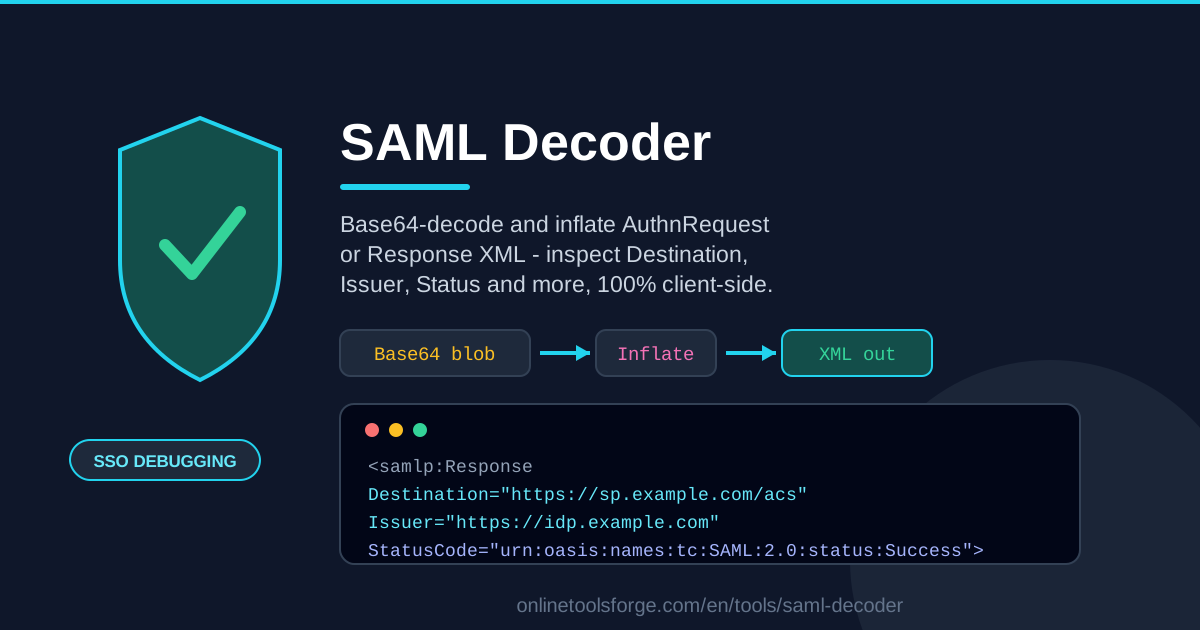
Table of Contents
If you have ever configured single sign-on (SSO), you know the routine: a login fails, the screen shows a vague error, and the real clue hides inside a long Base64 string labeled SAMLRequest or SAMLResponse. That string is unreadable at a glance, and pasting authentication tokens into random online converters feels risky. The SAML Decoder solves both problems at once — paste the message, get readable XML in seconds, and see exactly which fields the receiving service will evaluate.
SAML, the Security Assertion Markup Language, still powers identity federation at countless universities, enterprises, and SaaS platforms. Every SAML message is Base64-encoded, and redirect-bound requests are usually DEFLATE-compressed on top of that. That combination makes messages completely opaque to the naked eye, which is exactly why a dedicated SSO debugging tool belongs in every identity engineer's toolkit.
Best of all, the decoder runs entirely client-side. Your SAML tokens — signed statements about real users — never leave your browser. No uploads, no server logs, no accounts. Just paste, decode, and inspect.
Why Use SAML Decoder?
- Complete privacy for security tokens. SAML assertions are signed statements about users, and many organizations classify them as sensitive. Because decoding happens 100% in your browser, nothing is transmitted, stored, or logged anywhere else.
- Decoding and inflating in one step. Base64 decoding alone often yields gibberish, because the underlying payload is DEFLATE-compressed. The tool detects and inflates compressed payloads automatically.
- Pretty-printed XML output. Decoded SAML usually arrives as one enormous line. The tool reformats it into clean, indented XML you can scan element by element.
- Automatic field inspection. Instead of hunting through the XML yourself, the Message fields panel surfaces the Root element, Destination, Issuer, IssueInstant, StatusCode, and AssertionConsumerServiceURL in a labeled summary.
- No installation, no accounts. It is a web page, not a plugin or CLI. Open it on any machine, including a customer's laptop during a support call.
- Fast enough for live debugging. The paste-decode-inspect loop takes seconds, so you can iterate while reproducing the login problem.
Key Features
| Feature | What it does |
|---|---|
| Base64 decode and inflate | Accepts SAMLRequest/SAMLResponse values, decoding Base64 and transparently inflating DEFLATE-compressed payloads |
| Pretty-printed XML | Reformats the decoded message into indented, readable XML in the Decoded XML panel |
| Message fields panel | Extracts Root element, Destination, Issuer, IssueInstant, StatusCode, and AssertionConsumerServiceURL |
| Client-side processing | All decoding happens in your browser; the token never leaves your machine |
A few details worth knowing:
- The tool handles both SAMLRequest (the AuthnRequest a service provider sends to an identity provider) and SAMLResponse (the assertion that comes back the other way).
- If the Base64-decoded bytes are not readable XML, the decoder inflates them with raw DEFLATE before rendering, matching how the HTTP-Redirect binding packages messages.
- Destination and AssertionConsumerServiceURL are shown verbatim, so you can compare them character by character against your configured URLs — mismatches there are among the most common SSO failures.
How to Use SAML Decoder
- Capture the message. With your browser's developer tools open, copy the SAMLRequest parameter from the query string of the redirect to your identity provider, or the SAMLResponse field from the POST body the IdP sends back.
- Paste it into the decoder. The tool accepts the raw Base64 value, with or without surrounding whitespace.
- Decode and inflate. The tool decodes the Base64 and, when needed, inflates the DEFLATE-compressed payload automatically.
- Read the Decoded XML panel. The pretty-printed output shows the full message structure, from the root element down to the assertion contents.
- Check the Message fields panel. Compare Root element, Destination, Issuer, IssueInstant, StatusCode, and AssertionConsumerServiceURL against the values your configuration expects.
Understanding SAML Messages
A SAML exchange involves two parties: an identity provider (IdP) that authenticates users, and a service provider (SP) that relies on that authentication. Two message types dominate the protocol. An AuthnRequest travels from SP to IdP asking that the user be authenticated; a Response travels back carrying a signed assertion plus the outcome of the exchange. Because the SAML Decoder handles both, you can follow the full round trip instead of guessing from error pages.
The encoding is the first wall you hit. XML messages are long, so the HTTP-Redirect binding DEFLATE-compresses the message before Base64-encoding and URL-encoding it, while the HTTP-POST binding relies on Base64 alone. Plain Base64 decoding without inflation produces binary noise — a detail that trips up almost everyone the first time.
Then there are the fields that decide whether a message is accepted. Destination names the URL the message is addressed to; receivers reject anything addressed elsewhere, so a stale value fails immediately. Issuer identifies the sender's entity ID and must match the metadata registered on the receiver. StatusCode reports the outcome — the value urn:oasis:names:tc:SAML:2.0:status:Success means all went well, while codes like Requester or Responder reveal which side failed. IssueInstant carries the message timestamp, where clock skew of more than a few minutes can invalidate an otherwise perfect response. AssertionConsumerServiceURL tells the IdP where to deliver the response, and a mismatch with SP metadata triggers an error before anything else is checked.
Practical Use Cases
Debugging SSO login redirect loops
If users log in successfully and are bounced straight back to the login page, the SP usually did not accept the response. Grab the SAMLResponse from the POST body, decode it, and compare Destination and AssertionConsumerServiceURL against your SP configuration. If the loop URL contains a fresh AuthnRequest instead, the SP likely never received a valid response at all — decode the request and confirm the Issuer matches what the IdP expects.
Verifying the IdP issuer
When you swap identity providers or add a second one, the entity ID in the Issuer element must match the metadata your SP registered. Decode a live response and compare the Issuer value directly. This catches test-environment values leaking into production faster than any amount of certificate re-uploading.
Checking ACS URL mismatches
After moving a site between environments — staging to production, http to https — the AssertionConsumerServiceURL in responses often still points at the old address, producing errors that look unrelated to SSO. Decode the response and compare the value with your registered callback URL; the fix is usually a one-line metadata change.
Reading status errors
When an IdP refuses to authenticate someone, the StatusCode explains why at a glance. Sub-statuses like RequestDenied or InvalidNameIDPolicy point at user permissions or identifier formats rather than protocol configuration, so you know whether to call the identity team or fix your own metadata.
Best Practices
- Treat every decoded token as sensitive. Even with client-side processing, SAML responses can contain names, emails, and group memberships. Close the tab when you finish and avoid screenshotting assertions.
- Verify Destination and Issuer first. These two fields cause the majority of SSO misconfigurations.
- Compare IssueInstant against your server clock. Excessive clock skew invalidates otherwise valid messages.
- Decode both directions. Inspect the AuthnRequest when the login never reaches the IdP, and the Response when it never completes.
- Check StatusCode before blaming configuration. Sub-status codes can reveal locked or disabled accounts rather than protocol errors.
- Never paste raw tokens into tickets or chats. Share the decoded field values, not the token itself.
The next time a single sign-on flow misbehaves, skip the guesswork. Open the SAML Decoder, paste the message, and read exactly what is being exchanged — securely, entirely in your own browser.
Related Tools You Might Like:
- JWT Decoder — inspect JWT headers and claims the same client-side way.
- Base64 Encoder — encode or decode any Base64 string on the spot.
- XML Formatter — pretty-print and validate any XML document.
Happy debugging, and may your StatusCode always be Success!
Frequently Asked Questions
Q: What is a SAML decoder used for? A: It converts the Base64-encoded, often DEFLATE-compressed SAMLRequest or SAMLResponse strings exchanged between service providers and identity providers into readable, pretty-printed XML, so you can inspect fields such as Destination, Issuer, and StatusCode while debugging single sign-on.
Q: Is it safe to paste a SAML response into this tool? A: Yes. The SAML Decoder runs entirely client-side in your browser, so your token is never uploaded, stored, or logged. Still, treat tokens as sensitive and avoid sharing them once you have extracted the values you need.
Q: Why does my SAMLRequest look like garbage after Base64 decoding? A: Messages sent through the HTTP-Redirect binding are DEFLATE-compressed before being Base64-encoded, so plain Base64 decoding produces binary noise. The SAML Decoder inflates the compressed payload automatically and shows you the underlying XML.
Q: What is the difference between SAMLRequest and SAMLResponse? A: A SAMLRequest is an AuthnRequest generated by the service provider asking the identity provider to authenticate the user. A SAMLResponse is what the identity provider sends back, carrying the signed assertion and the StatusCode for the exchange.