SSH Config Generator: Stop Memorizing ssh Flags and Start Using Aliases
Generate ready-to-paste ~/.ssh/config Host blocks from a simple form — hostname, user, port, key and ProxyJump included. A free, client-side SSH config generator with copy-paste output.
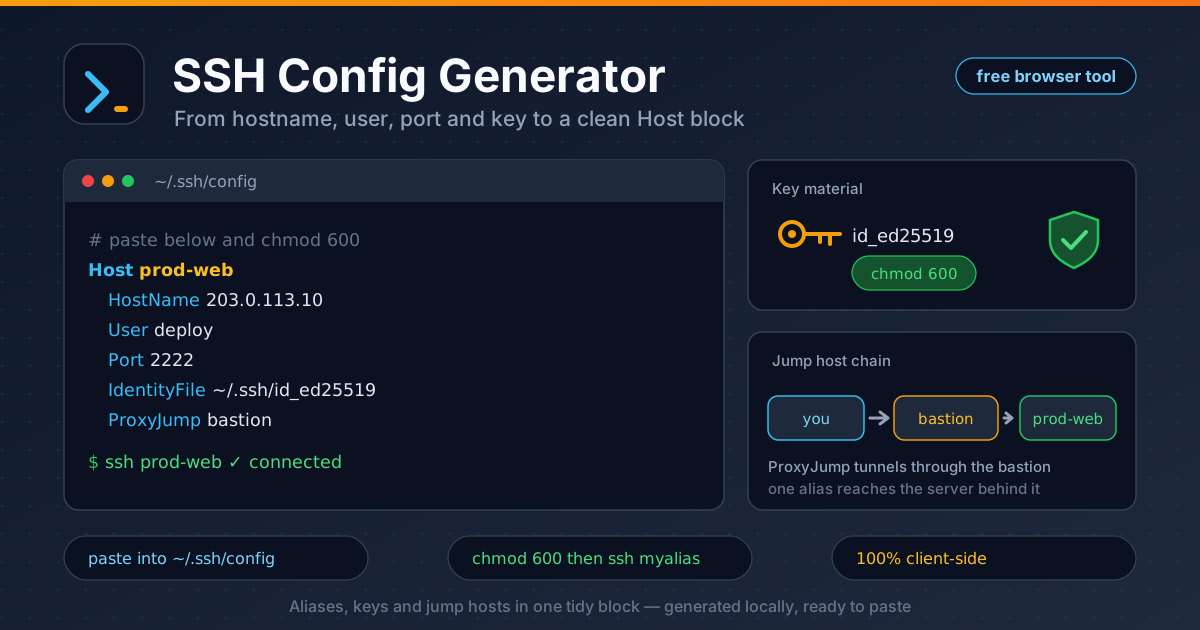
Free Interactive Tool
SSH Config Generator
Build ~/.ssh/config Host entries with hostname, user, port, key, and jump-host options — copy or download the finished config, 100% in your browser.
Table of Contents
Nobody should have to memorize ssh -i ~/.ssh/id_ed25519 -p 2222 [email protected]. Yet that is what many developers type daily: one server on a non-standard port, another under a different username, a third behind a bastion. One forgotten -p turns a routine login into a dig through shell history.
OpenSSH has shipped the answer for decades: the ~/.ssh/config file. Define a Host block once — alias, hostname, user, port, key, jump host — and the whole command collapses into ssh myalias. Hand-writing those blocks is fiddly, though: exact keywords, two-space indentation, values that must be escaped correctly. The SSH Config Generator removes that friction — fill in a short form and it emits a valid, ready-to-paste Host block, or a whole fleet of them. This guide covers how to use it and what every generated line buys you.
Why Use SSH Config Generator?
- No syntax guesswork. Keywords, indentation and value escaping are handled for you, so the pasted block is exactly what OpenSSH expects to parse.
- Every parameter in one form. Alias, hostname, user, port, identity file and jump host sit in one row of fields — no man-page archaeology required.
- Build a fleet at once. Add as many host entries as you need, plus a shared Host * block for global defaults, and copy the whole multi-server config in one go.
- Validation before paste. Invalid ports, non-numeric intervals and illegal alias characters are flagged — and excluded — before they can corrupt your config.
- Private by design. The tool runs 100% client-side, so hostnames, usernames and key paths never leave your browser.
Key Features
| Feature | What it does |
|---|---|
| Form-to-Host mapping | Turns alias, HostName, User, Port, IdentityFile and ProxyJump fields into a valid block |
| Multiple host entries | Generates a complete multi-server config in one pass |
| Global Host * options | AddKeysToAgent, IdentitiesOnly, StrictHostKeyChecking, IPQoS, LogLevel and more |
| Input validation | Rejects bad ports (outside 1-65535), bad intervals and illegal alias characters |
| Escaped values | Backslashes and quotes in values are escaped so they survive parsing |
| Copy, download, reset | Grab the whole file as text, download it, or start over |
- Host cards without an alias are skipped, so scratch entries never pollute the output.
- A dated header comment reminds you to review before applying and to test with ssh -G.
- The output is plain text, so it diffs cleanly if you keep your dotfiles in version control.
How to Use
- Open SSH Config Generator and fill in the first host card: a short alias such as prod-web, the real hostname, the username, and the port if it is not 22.
- Add your private key path under IdentityFile (for example ~/.ssh/id_ed25519_prod) and, if the server lives behind a bastion, put the bastion alias or address in ProxyJump.
- Copy the generated block — or download it if you are building a fresh config from scratch.
- Paste it into ~/.ssh/config (create the directory with mkdir -p ~/.ssh if needed), then run chmod 600 ~/.ssh/config so only you can read it.
- Connect with ssh prod-web. To verify which settings OpenSSH resolved without connecting, run ssh -G prod-web — it prints the effective configuration and exits.
What Each Line Buys You
Host aliases. The word after Host is a pattern you invent, not the server's real name. Every OpenSSH-family tool honors it: ssh, scp, sftp, rsync, even git and ansible.
User, HostName and Port. These three erase per-command details: HostName is the real address, User fixes the login name, and Port covers servers moved off 22 during hardening. After that, ssh prod-web is the whole command.
IdentityFile. This pins the connection to one private key — essential once one server expects ed25519 and another RSA, because ssh stops guessing which key to offer first. Pair it with IdentitiesOnly yes when your agent holds many keys.
ProxyJump. The magic line for bastions. ProxyJump bastion tunnels the TCP connection through the given host — which can itself be a configured alias — before reaching the target. It replaced ProxyCommand in OpenSSH 7.3: ProxyCommand made you shell out with ssh -W %h:%p and nail the quoting by hand, while ProxyJump is a first-class directive that understands config aliases and chains hops as a comma-separated list.
Wildcard Host patterns. Host * matches everything and is the natural home for global defaults. Patterns like Host *.lab.internal or Host web-* apply one set of settings to a whole group of machines.
First match wins. ssh reads the file top to bottom, and for each parameter the first value obtained sticks — later blocks cannot override it. That is why specific blocks belong above generic wildcards: a leading Host * setting User deploy would lock the user for every server below. Specific first, catch-all last.
Here is a realistic bastion-plus-two-servers config, the kind of output the generator produces:
Host bastion
  HostName bastion.example.com
  User ops
  IdentityFile ~/.ssh/id_ed25519

Host prod-web
  HostName 10.0.0.5
  User admin
  Port 2222
  IdentityFile ~/.ssh/id_ed25519_prod
  ProxyJump bastion

Host prod-db
  HostName 10.0.0.6
  User admin
  Port 2222
  IdentityFile ~/.ssh/id_ed25519_prod
  ProxyJump bastion

Host *
  AddKeysToAgent yes
  IdentitiesOnly yes
With that file, ssh prod-db authenticates to the bastion with the ops key, then continues to 10.0.0.6 on port 2222 with the prod key — resolved automatically. Two words instead of a paragraph of flags.
Practical Use Cases
Bastion and Jump Host Setups
Define the bastion once as its own alias, then give every internal server a ProxyJump bastion line. Multi-hop chains are comma-separated values like ProxyJump edge,core. When the bastion address changes, you edit one block instead of twenty shell aliases.
Many-Server Fleets
Generate one block per server and let wildcards carry shared settings: Host web-* can set User deploy and ServerAliveInterval 60 for a whole tier, keeping idle sessions alive through NAT.
Git over SSH with Per-Host Keys
A work and a personal GitHub account on one machine is a classic key collision. Create aliases github-work and github-personal, each with its own IdentityFile, then point remotes at git@github-work:org/repo.git. Git inherits ssh resolution and always offers the right key.
IoT Boards on Custom Ports
Raspberry Pis and dev boards often run ssh on odd ports like 2222 with default usernames. A generated block per board — Host pi-garage — turns each into a two-word login, with relaxed host key checking scoped only to reflashed boards.
Best Practices
- chmod 600 ~/.ssh/config after every edit. The file references key paths and internal hostnames; loose permissions invite tampering on shared machines.
- Use one key per purpose. A distinct IdentityFile per host or role limits the blast radius of a compromised key.
- Keep aliases stable. Scripts, git remotes and CI jobs depend on them, so treat an alias like an API name — pick it once and leave it alone.
- Test with ssh -G. It prints the fully resolved config without opening a connection — the fastest way to see which block won.
- Order blocks specific-first. Because the first obtained value wins, narrow Host patterns must sit above broad wildcards or the wildcard silently shadows them.
Retire the Giant ssh Command Today
Long connection strings are a choice, not a requirement. SSH Config Generator turns details you already know into a clean Host block you can paste and forget — free, browser-based, and client-side. Build your config once, and let every future connection be two words long.
Related Tools You Might Like:
- OpenSSL Command Generator — build openssl commands for keys and certificates without memorizing flag combinations.
- Basic Auth Generator — create HTTP Basic Auth credentials and headers for quick API testing.
- UFW Rules Generator — lock down the servers you ssh into with correct firewall rules.
Happy connecting!
Frequently Asked Questions
Q: Where does the ssh config file live?
A: At ~/.ssh/config on Linux and macOS, and %USERPROFILE%\.ssh\config on Windows. Create the file if it is missing, paste your blocks, and set permissions with chmod 600.
Q: Do I need to restart anything after editing the file?
A: No. OpenSSH reads the file for every connection, so your next ssh, scp, or git fetch picks up the changes immediately.
Q: What is the difference between ProxyJump and agent forwarding?
A: ProxyJump tunnels the TCP connection through the bastion, so your key never leaves your machine. ForwardAgent exposes your local agent on the remote host, granting it access to your keys while the session lasts. Prefer ProxyJump whenever it fits.
Q: Is my configuration data uploaded anywhere?
A: No. The generator runs entirely client-side — hostnames, users, ports and key paths never leave your machine, and it keeps working offline once loaded.