SSH Key Fingerprint Checker: Verify Host Keys Before You Trust a Server
The SSH Key Fingerprint Checker decodes pasted SSH public keys (RSA, Ed25519, ECDSA) in your browser and computes SHA256 and MD5 fingerprints so you can verify a host key before trusting any server.
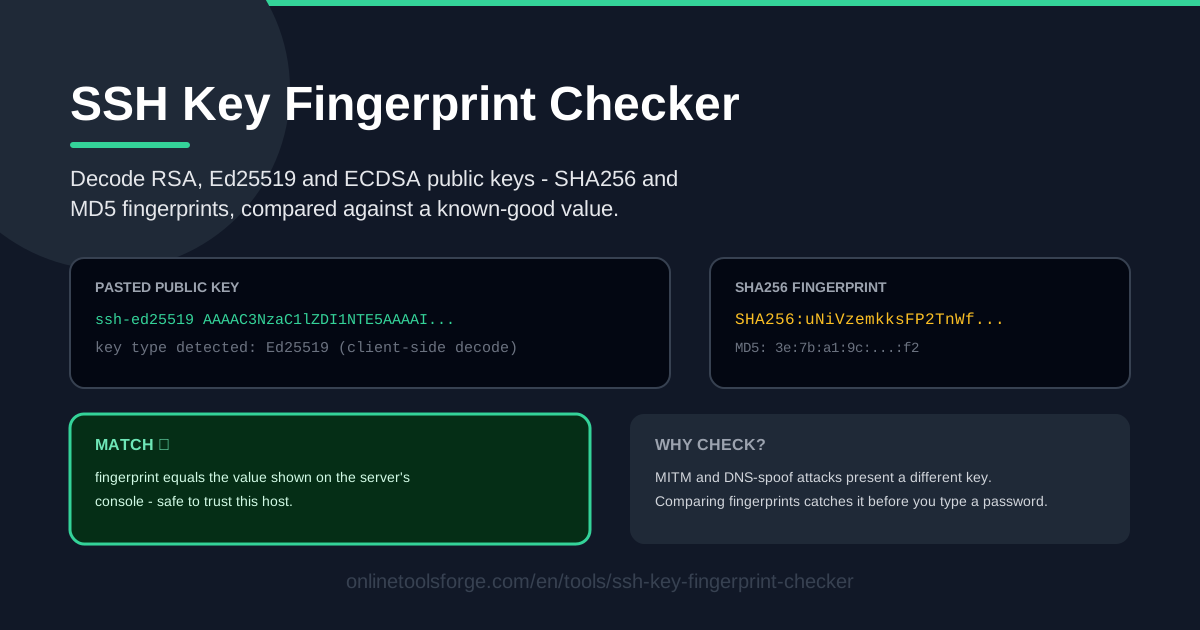
Table of Contents
Every SSH connection begins with an act of trust. When your terminal asks whether to continue connecting, it is really asking whether you believe the machine at the other end of the wire is the server you meant to reach — and the SSH Key Fingerprint Checker turns that guesswork into a thirty-second verification.
The tool decodes RSA, Ed25519, and ECDSA public keys entirely in your browser. Paste a key, get its SHA256 and MD5 fingerprints instantly, and compare them against a known-good value before you type a password or passphrase. There is no upload, no account, and no command-line syntax to memorize.
This guide covers why fingerprint checking matters, how to use the tool step by step, what a fingerprint actually proves, and the habits that keep SSH connections safe across your whole team.
Why Use SSH Key Fingerprint Checker?
-
Catch a man-in-the-middle before you type your password. An attacker who redirects your SSH traffic will present their own host key and hope you click through the warning. Comparing the fingerprint against the real one exposes the substitution immediately.
-
Support all three common key types. RSA, Ed25519, and ECDSA public keys all decode correctly, whether you are checking a legacy box or a freshly provisioned cloud instance.
-
Show both modern and legacy formats. You get the SHA256 fingerprint that current OpenSSH clients display plus the older MD5 colon-separated format, so you can match whatever your provider console prints.
-
Make comparison effortless. Paste the known-good fingerprint next to the computed one and read a clear match or mismatch verdict — no squinting at two terminals trying to diff random-looking characters.
-
Keep keys on your machine. Decoding and hashing run entirely in your browser, which matters when you are handling production host keys.
-
Skip the installation. No ssh-keygen flags to memorize and no terminal required on a locked-down workstation; the browser tab you already have open is enough.
Key Features
| Feature | What it does |
|---|---|
| Key type detection | Paste an RSA, Ed25519, or ECDSA public key and the tool identifies the type automatically |
| SHA256 fingerprint | Computes the modern SHA256:Base64 format used by current OpenSSH clients and most provider dashboards |
| MD5 fingerprint | Produces the legacy MD5 colon-separated hexadecimal format for older servers and consoles |
| Known-good comparison | Paste a trusted fingerprint and get an unambiguous match or mismatch result |
| Client-side decoding | The key is decoded and hashed in your browser; nothing ever leaves your device |
| Instant results | Fingerprints appear as soon as you paste, with no uploads and no waiting |
A few details worth calling out:
- The dual-format output matters more than it sounds. Runbooks, ticket comments, and older consoles still quote MD5, so having both formats side by side prevents false alarms caused by comparing mismatched formats.
- The verdict is designed to be read at a glance — a clear match or an explicit mismatch — so the decision to proceed or abort takes seconds.
How to Use SSH Key Fingerprint Checker
-
Get the fingerprint from the server console. Before connecting, retrieve the trusted value out-of-band: the cloud provider's dashboard, the recovery console, or the provisioning documentation. This reference is the anchor for everything that follows.
-
Paste the key into the checker. Open the tool and paste your public key or the server's host public key (usually under /etc/ssh on the server, or retrievable through the provider console). The type is detected and decoded in your browser.
-
Paste the known-good value. Drop the fingerprint from step 1 into the comparison field exactly as shown. SHA256 and MD5 look very different, so compare like with like.
-
Read the match result. A match confirms the key is the one you expect. A mismatch means something has changed and needs investigating before you go any further.
-
Proceed or abort. Match: connect with confidence. Mismatch: stop, enter no credentials, and investigate — check whether the server was rebuilt, ask your provider, or treat it as a possible interception.
What a Fingerprint Actually Proves
A key is the identity; the fingerprint is its summary. An SSH public key is a blob of hundreds of characters. The fingerprint is a short cryptographic hash of that blob: SHA256 yields 43 Base64 characters, while MD5 yields 16 colon-separated hex bytes. Two different keys producing the same fingerprint is computationally infeasible, so the short form is safe to compare. You never compare whole keys — you compare their unique summaries.
SHA256:Base64 is modern; MD5:colon is legacy. OpenSSH switched its default display from MD5 to SHA256 in version 6.8, released in 2015. Both formats hash the same key, so every key has exactly one fingerprint in each format — two views of the same identity, not two competing claims. When a provider quotes MD5 and your terminal shows SHA256, both are correct; they simply need to be compared in the same format, which is exactly why the checker computes both.
The trusted value must come from somewhere other than the connection itself. A fingerprint fetched over the very connection you are verifying proves nothing — an attacker would happily serve a matching value. The reference has to arrive out-of-band: the provider's web console, the provisioning email or ticket, or a screen at the datacenter. Once you have verified it once, your known_hosts file becomes the local record, and later warnings against that record are meaningful.
A man-in-the-middle attack on SSH looks like this. You connect to what you believe is your server, but an attacker intercepts the traffic — through compromised DNS, a hostile network, or ARP spoofing — and presents their own host key. Your client warns you; if you accept, every keystroke, password, and passphrase flows through the attacker. The fingerprint comparison is the defense this attack cannot survive: the attacker's key produces a different fingerprint, and no amount of network positioning can change that.
The browser-local check is safe by construction. Because decoding and hashing happen in JavaScript on your own machine, the tool never sees your key. There is no upload endpoint to compromise and no server-side log that could leak key material. You get the rigor of ssh-keygen -l with the convenience of a web page.
Practical Use Cases
First connection to a new VPS
You have just created an instance and the provider printed the host key fingerprint in the creation summary. Before your first ssh command, compare what your client displays on first connect against that reference. Thirty seconds of checking eliminates the classic "accept the unknown key" moment — exactly when an interception is easiest to hide.
Verifying a key a coworker sent you
A teammate pastes a public key into chat and asks you to add it to authorized_keys. Public keys are safe to share, but typos and truncation happen. Ask them to include the fingerprint, decode the key on your side, and confirm the match before touching the server file.
CI deploy keys
Deploy keys in pipelines grant SSH access to servers or write access to repositories. When auditing them, the fingerprint is the handle: verify the key stored in your CI secret manager matches the fingerprint recorded at creation, so a swapped or stale key cannot ride along unnoticed.
Auditing authorized_keys entries
Servers accumulate authorized_keys entries over the years. Fingerprints make cleanup practical: decode each entry, record its fingerprint, and compare against your records of who should have access. Anything you cannot attribute gets removed and its owner asked to re-provision.
Best Practices
-
Always get the reference fingerprint out-of-band. Provider consoles and provisioning tickets are good sources; fetching it over the connection you are verifying is not.
-
Prefer SHA256 over MD5 when both are available. MD5 remains useful for matching old documentation, but record SHA256 for the future — it is what current clients display.
-
Treat a mismatch as an incident, not an inconvenience. Do not clear known_hosts just to make the warning disappear. Was the server rebuilt? Did DNS change? If you cannot explain it, escalate.
-
Remove stale entries from known_hosts. Old fingerprints for decommissioned hosts clutter the file and train you to ignore warnings; update records deliberately when a host is retired or rebuilt.
-
Record fingerprints at provisioning time. Capture the fingerprint in your runbook or password manager when the server is created, so future verifications take seconds.
-
Re-verify after infrastructure changes. Rebuilds, OS reinstalls, and provider migrations all regenerate host keys — check the new fingerprint before the team reconnects.
Host key verification costs thirty seconds and prevents catastrophic outcomes. The SSH Key Fingerprint Checker makes it effortless: paste a key, read both fingerprints, compare against your known-good value, and connect — or don't — with certainty. Next time a host key warning appears, you will know exactly what to do.
Related Tools You Might Like:
- SSH Config Generator — build clean per-host SSH client configurations without hand-editing config files
- Hash Generator — compute SHA256, MD5, and other hashes for files and text integrity checks
- Password Generator — create strong, unique passwords and passphrases for accounts and secrets
Stay safe out there!
Frequently Asked Questions
Q: Is it safe to paste an SSH public key into a web tool? A: Yes, with this tool. Public keys are not secrets by design, and the SSH Key Fingerprint Checker decodes and hashes them entirely in your browser — nothing is uploaded or stored anywhere. Never paste a private key into any web page, though; only public keys belong here.
Q: Why do my terminal and my provider console show different fingerprints for the same server? A: They are almost certainly using different hash formats. Modern OpenSSH clients display SHA256:Base64 by default, while older consoles and documentation often show MD5 colon-separated hex. Both derive from the same key, so both are correct — compute the matching format and compare like with like.
Q: What should I do if the fingerprint does not match? A: Stop and do not enter any credentials. A mismatch means the host key changed or your connection is being intercepted. Verify out-of-band: check the provider console, ask whether the server was rebuilt, and inspect DNS. Reconnect only once the discrepancy is explained.
Q: Does a matching fingerprint guarantee the server is safe? A: It guarantees you are talking to the holder of the key you expect, which defeats interception and DNS hijacking. It says nothing about the server's software health — a correctly-keyed server can still run a vulnerable application. Fingerprint checking is one layer, not the whole defense.