How to Query CSV Files with SQL in Your Browser: A Complete Guide
Learn how to query CSV files with real SQL — filter with WHERE, summarize with GROUP BY, join multiple files and export results as CSV or JSON, right in your browser.
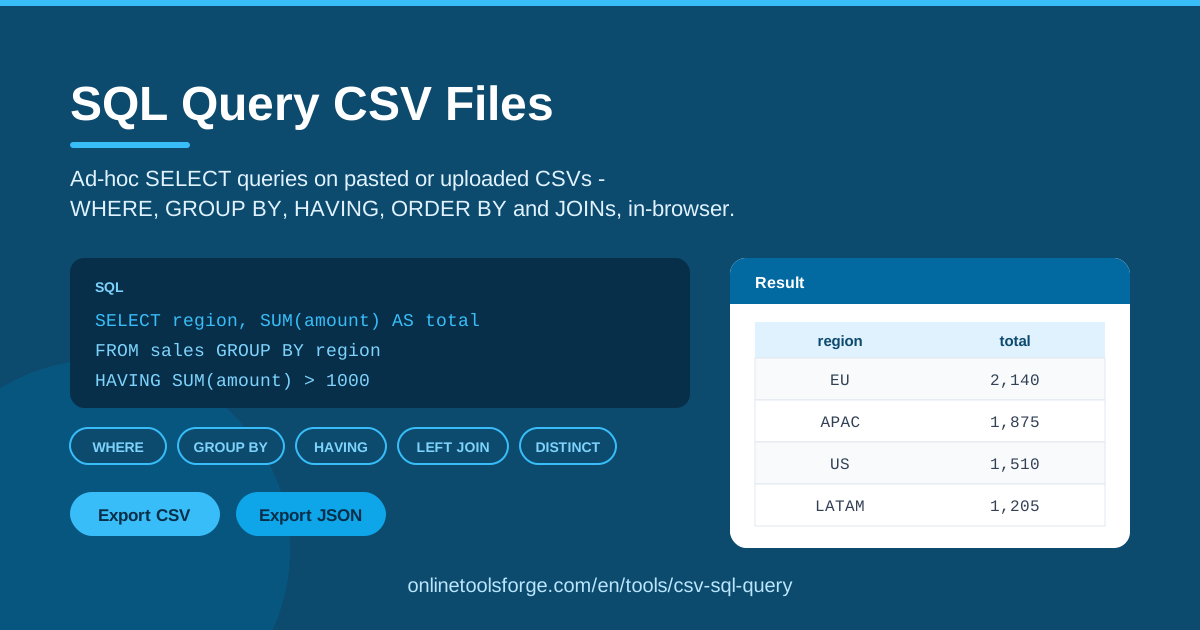
Table of Contents
Every analyst knows the folder: a pile of CSV exports — orders, customers, inventory — from three different systems, and no database in sight. The usual answer is a spreadsheet, fragile lookup formulas, and hope. There is a cleaner path. With CSV SQL Query on Online Tools Forge, you point real SQL at those files and get answers in seconds: no installation, no account, and no upload of your data to a server.
The tool runs entirely in your browser. Paste CSV content or upload files, register each one as a table, then write ad-hoc SQL SELECT queries against them. Filtering, grouping and sorting are all covered — WHERE, GROUP BY, HAVING, ORDER BY, DISTINCT, IN and LIKE — plus aggregates like SUM and COUNT, and LEFT JOINs that combine rows across multiple files.
This guide walks through how the tool works, which SQL you can use on CSV data, and practical scenarios you can reproduce with your own exports today.
Why Use CSV SQL Query?
- Zero setup. No database engine to install, no connection string to configure. Open the page and start querying.
- Your data stays local. All parsing and query execution happens in your browser, which makes it safe for internal or sensitive exports.
- Real SQL, not formulas. One JOIN or GROUP BY often replaces a dozen nested VLOOKUPs — and stays readable a month later.
- Query multiple files at once. The Add table button lets you load several CSVs and join them in a single statement, as if they were database tables.
- Fast iteration. Run a query, check the export preview, tweak a clause, rerun. The loop takes seconds.
- Forgiving by design. Controls like Clear query and friendly errors such as "Could not read that file." keep small mistakes from becoming frustrating ones.
Key Features
| Feature | What it does |
|---|---|
| Paste or upload CSV | Add data by pasting content or uploading files from disk |
| Add table | Register multiple CSV files so each becomes a queryable table |
| Ad-hoc SQL SELECT | Free-form queries with WHERE, GROUP BY, HAVING, ORDER BY, DISTINCT, IN and LIKE |
| Aggregates | Summarize with SUM, COUNT and the usual aggregate functions |
| LEFT JOIN across files | Combine rows from two or more CSVs on a matching key |
| Export preview | Inspect the result table before committing to a download |
| CSV or JSON export | Download results in whichever format the next step needs |
| Clear query | Reset the editor and workspace in one click |
| 100% browser-side | Nothing is uploaded; all computation happens locally |
A few details worth knowing:
- Table names come from your files, so keep them short and SQL-friendly.
- The Export preview doubles as a sanity check — verify row counts before you download anything.
- Because everything is client-side, refreshing the page clears the workspace; export what you want to keep.
How to Use CSV SQL Query
- Load your CSV. Paste the content into the input area or use the upload control to pick a file from your computer.
- Add more tables if needed. Click Add table for each additional CSV you want to query or join — say customers.csv alongside orders.csv.
- Write your SELECT. Type a query in the editor, referencing your tables by name, for example SELECT customer, SUM(amount) FROM orders GROUP BY customer.
- Run it. The results appear in the preview grid. If something is wrong — a corrupt file, a typo — you get a plain-language error instead of a stack trace.
- Export the results. When the output looks right, use Download to save it as CSV or JSON.
That is the whole workflow: paste, add, query, run, export.
SQL You Can Use on CSVs
SELECT and WHERE basics
Start simple. SELECT * FROM orders returns every row and column, and WHERE narrows it down:
SELECT order_id, customer, amount FROM orders WHERE amount > 500
Combine conditions with AND / OR, use IN for lists or LIKE for pattern matching — for example WHERE region IN ('EMEA', 'APAC') or WHERE email LIKE '%@gmail.com'.
GROUP BY and aggregates
Aggregation is where SQL starts paying for itself. SELECT region, COUNT(*), SUM(amount) FROM orders GROUP BY region returns one row per region with the order count and total revenue. The usual aggregates — SUM, COUNT, MIN, MAX, AVG — work on any column.
HAVING vs WHERE
They look similar but act at different stages. WHERE filters individual rows before grouping; HAVING filters the groups afterwards. To show only regions with more than ten orders, the condition belongs in HAVING, because COUNT(*) does not exist until after the GROUP BY:
SELECT region, COUNT() AS orders FROM orders GROUP BY region HAVING COUNT() > 10
Rule of thumb: conditions on raw rows go in WHERE, conditions on aggregated values go in HAVING.
LEFT JOIN across two CSV files
This is the feature that surprises spreadsheet users most. Load orders.csv and customers.csv as two tables, then write:
SELECT o.order_id, c.name, o.amount FROM orders o LEFT JOIN customers c ON o.customer_id = c.id
LEFT JOIN keeps every order even when the customer is missing from the lookup file — exactly what you want when auditing incomplete data.
DISTINCT for unique values
SELECT DISTINCT country FROM customers collapses duplicates into a quick list of the unique values in any column. It is the fastest way to profile a new file.
Exporting your results
Every result set can be exported. Check the export preview first, then Download as CSV to feed another spreadsheet, or as JSON if a script or API comes next.
Practical Use Cases
Joining orders.csv with customers.csv
The classic. Sales systems export orders without customer names; the CRM exports customers separately. Load both files, LEFT JOIN them on the customer ID, and you get one enriched dataset with names, emails and amounts — ready to export as a single CSV.
Monthly sales rollups
Paste a year of transactions and ask for the summary in one query: SELECT month, SUM(amount) FROM orders GROUP BY month ORDER BY month. Add a WHERE clause to restrict to one product line, or HAVING to show only months above a revenue target. What takes a pivot table and several clicks in a spreadsheet is a single reusable statement here.
Cleaning exports before a database load
CSVs from other teams are rarely load-ready. Use SELECT DISTINCT to spot duplicate or empty keys, WHERE to drop test rows, and an explicit column list to reorder fields. Export the cleaned result as CSV, or polish the statements themselves with the SQL Formatter before running them against your database.
Quick ad-hoc reporting without Excel formulas
When a colleague asks "how many orders over 1,000 did we ship to APAC last quarter?", you do not need to build a workbook. Load the export, run one query with WHERE and COUNT, and read the number off the preview. Most ad-hoc questions die within sixty seconds of being asked.
Best Practices
- Clean your headers first. SQL-friendly column names (no spaces or special characters) save you quoting headaches in every later query.
- Quote fields containing commas. A value with a comma inside must be wrapped in double quotes, or the column layout shifts.
- Filter early. Add a WHERE clause before running SELECT * on a large file — smaller results are easier to read and faster to export.
- Check the export preview. Confirm row counts and columns look sane before downloading, not after someone downstream asks.
- Export when it works. The workspace lives in browser memory; once a result is correct, download it immediately.
- Start small, then generalize. Prove a query on a few rows before running it against the full file.
Try it now: open CSV SQL Query, paste a CSV, and run your first query — your spreadsheet formulas will not miss you.
Related Tools You Might Like:
- SQL Formatter — beautify and validate the queries you write
- JSON to CSV Converter — turn JSON exports into query-ready CSVs
- CSV Merger — combine multiple CSV files into one before querying
Happy querying!
Frequently Asked Questions
Q: Do I need to install anything to query CSV files with SQL? A: No. CSV SQL Query runs entirely in your browser — paste or upload your files, write your query, and export the results. Nothing is installed and no data is sent to a server.
Q: Can I join two CSV files together? A: Yes. Add each file as its own table with the Add table button, then reference both in a single SELECT with a LEFT JOIN on the shared key column.
Q: Which SQL clauses and functions are supported? A: The tool supports SELECT with WHERE, GROUP BY, HAVING, ORDER BY, DISTINCT, IN and LIKE, aggregate functions such as SUM and COUNT, and LEFT JOIN across multiple files.
Q: What formats can I export my query results in? A: You can preview the results and download them as CSV or JSON, whichever fits the next step in your workflow.