CSV to vCard: Convert Your Contact List to a .vcf File in Seconds
The CSV to vCard Converter turns CSV contact lists into vCard 3.0/4.0 .vcf files with automatic field mapping for names, emails, phones and companies — bulk download ready for phone import, entirely client-side.
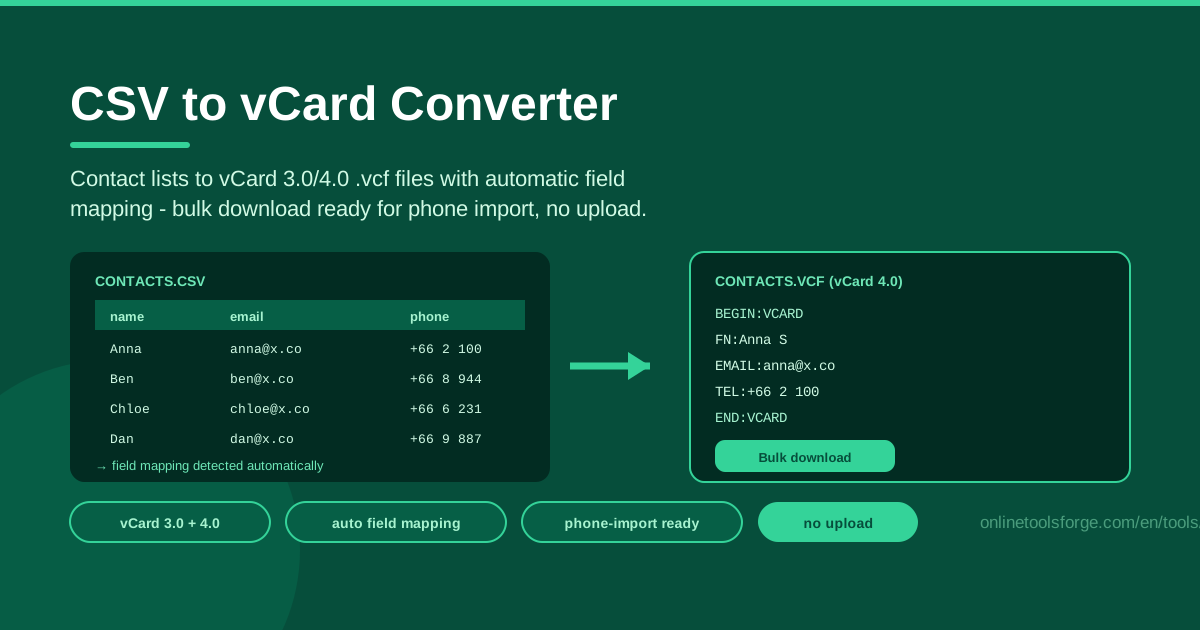
Table of Contents
Export contacts from a spreadsheet, a CRM, or an old email client and you hit the same wall: phones do not speak CSV. They speak vCard — the .vcf format that iOS and Android import natively. The CSV to vCard Converter closes that gap. Paste or upload a CSV of contacts, let the tool map your columns to the right fields automatically, and download a single .vcf file containing every contact, ready to import straight into your phone.
The whole process runs entirely in your browser. Contact data never leaves your device — which matters when you are handling names, phone numbers, and email addresses, some of the most sensitive personal data there is. No account, no upload queue, no waiting.
This guide covers why the tool is useful, how CSV-to-vCard mapping works, step-by-step instructions, real-world use cases, and best practices for clean, duplicate-free imports.
Why Use CSV to vCard Converter?
- Phones import .vcf, not .csv. iOS and Android both import vCard natively; a raw CSV has nowhere to go, so converting is the only practical route.
- Automatic field mapping saves hours. The tool detects columns like name, email, phone, and company and maps them to the correct vCard fields for you.
- Bulk conversion in one file. Every CSV row becomes a vCard record, and all contacts are bundled into a single downloadable file.
- Choose vCard 3.0 or 4.0. Older devices and some email clients prefer 3.0; modern phones handle 4.0 well. Pick the version that fits.
- Privacy by design. Conversion happens client-side in your browser, so contact details are never uploaded to a server.
- Free and instant. No sign-up, no watermarks, no hidden limits — load your CSV and download the result immediately.
Key Features
| Feature | What it does |
|---|---|
| Paste or upload | Load contacts by pasting CSV text or uploading a .csv file |
| Automatic field mapping | Maps names, emails, phones, companies and more to the right vCard fields |
| vCard 3.0 / 4.0 output | Generate .vcf files in either version |
| Bulk download | All contacts in one .vcf file for a single import |
| Phone-ready output | Imports directly into iOS and Android Contacts |
| Client-side processing | Everything runs in your browser; nothing is uploaded |
A few details worth noting:
- The mapping preview lets you confirm each CSV column landed on the correct vCard field before downloading.
- Rows with missing values are handled gracefully — a contact without an email simply gets no EMAIL property.
- The output follows the standard vCard structure (BEGIN:VCARD ... END:VCARD per contact), so it works with any app that supports the format.
How to Use CSV to vCard Converter
- Prepare your CSV with a header row. The first row should name each column, for example: First Name, Last Name, Email, Phone, Company. Headers are what enable automatic mapping, so keep them simple and descriptive.
- Load the file into the tool. Open the CSV to vCard Converter, then paste your CSV text or upload your .csv file. The tool parses the rows instantly.
- Verify the field mapping. Check that each column (name, email, phone, company) landed on the correct vCard field, and adjust anything that is off before continuing.
- Choose your vCard version. Pick 3.0 for maximum compatibility with older phones and email clients, or 4.0 for modern iOS and Android devices.
- Download the .vcf and import to your phone. Download the bulk file, send it to your phone (AirDrop, email, or cloud drive all work), then open it — your phone will offer to import all contacts in one tap.
That is the whole workflow: most people go from spreadsheet to imported contacts in under two minutes.
CSV Headers and vCard Fields
vCard stores each contact as a set of standard properties, and your CSV headers map onto them directly:
| CSV header examples | vCard property | Purpose |
|---|---|---|
| Name, Full Name, Display Name | FN | Formatted display name shown in the contact list |
| First Name / Last Name | N | Structured name (family, given) |
| Email, Email Address | One or more email addresses | |
| Phone, Mobile, Phone Number | TEL | Voice numbers, optionally typed (cell, work, home) |
| Company, Organization | ORG | Organization name |
vCard also supports properties like ADR (address), TITLE (job title), and NOTE, and the tool maps common extra columns automatically.
vCard 3.0 vs 4.0. Version 3.0 is the long-standing standard supported virtually everywhere, including older phones, Outlook, and many email clients. Version 4.0 adds richer value typing and better-defined parameters, and current iOS and Android support it fully. Rule of thumb: use 4.0 for modern phones, 3.0 if the file is headed for older software.
One contact per row. Each CSV row becomes exactly one vCard record. This one-to-one mapping keeps results predictable: 500 rows produce 500 cards in the .vcf file.
Multiple phones and emails. If a row has several phone columns (for example Phone 1 and Phone 2), the converter emits multiple TEL properties on that one contact, each typed. The same applies to several email columns becoming multiple EMAIL entries on one card. Structure your data as multiple columns in one row, not multiple rows per person.
Why client-side matters. A contact list maps out someone's personal and professional life: who they know, where they work, how to reach them. Uploading that to an unknown server creates a copy you cannot control. Because this tool parses and generates vCards entirely in your browser, data stays on your machine — nothing is transmitted, stored, or logged.
Practical Use Cases
Migrating a company directory to phones
An HR team exports the internal directory — name, title, department, email, extension — as a spreadsheet. Converting it to one .vcf file lets every employee import the full directory onto their phone in a single tap instead of copy-pasting hundreds of numbers.
Event attendee lists
Organizers collect registrations in a CSV with attendee name, email, and mobile number. A bulk .vcf makes it effortless for staff to keep attendees on hand during the event and share follow-up contacts with the team afterward.
CRM exports into personal contacts
Sales professionals export leads or clients from a CRM — almost all of which output CSV — and convert the file to vCard so key accounts live in their phone contacts, searchable and callable even offline.
Classroom or team rosters
Teachers, coaches, and team leads maintain rosters with guardian or parent phone numbers. Converting the roster CSV to vCard puts the whole group into the contacts app, grouped and searchable, before a field trip or match day.
Best Practices
- Clean headers first. Make sure the first row clearly labels each column (Name, Email, Phone, Company); automatic mapping is only as good as the headers it reads.
- Dedupe before import. Remove duplicate rows in your spreadsheet first — imported duplicates create messy repeated contacts that are tedious to clean up.
- Test with 2-3 contacts. Run a small sample through the converter and import it to confirm the mapping looks right on your device before committing a large list.
- Use vCard 4.0 for modern phones. Current iOS and Android handle 4.0 well; fall back to 3.0 only for older software.
- Keep phone formats consistent. Use international format (for example +66 2 123 4567) so numbers dial correctly anywhere.
- Remove personal data after use. Once imported, delete the CSV and .vcf from drafts, downloads, and cloud drives — treat contact files as the sensitive data they are.
Start Converting Your Contacts Today
Turn that spreadsheet of names and numbers into a phone-ready contact book in one pass. Open the CSV to vCard Converter, paste or upload your CSV, check the automatic field mapping, and download a single bulk .vcf — all in your browser, with your data staying on your device.
Related Tools You Might Like:
- vCard Parser — inspect and extract details from existing .vcf files
- vCard QR Generator — turn a contact into a scannable QR code
- Bulk QR Code Generator — generate QR codes for many values at once
Happy importing!
Frequently Asked Questions
Q: What is the difference between CSV and vCard? A: CSV is a plain spreadsheet format of rows and columns that phones cannot import as contacts. vCard (.vcf) is the standard contact format that iOS and Android import natively. Converting CSV to vCard makes a contact list usable on a phone.
Q: Which vCard version should I choose, 3.0 or 4.0? A: Use 4.0 for modern iOS and Android phones, which support it fully. Choose 3.0 if the .vcf file will be opened by older phones, Outlook, or legacy email clients that only understand 3.0.
Q: Does my contact data get uploaded to a server? A: No. The converter runs entirely client-side in your browser. Your CSV is parsed and the .vcf is generated on your device; nothing is transmitted or stored anywhere.