Duplicate File Finder: Reclaim Wasted Space with SHA-256 Exact Matching
The Duplicate File Finder compares files by SHA-256 hash, groups true duplicates, and suggests which copies to keep or delete — entirely in your browser, with nothing uploaded.
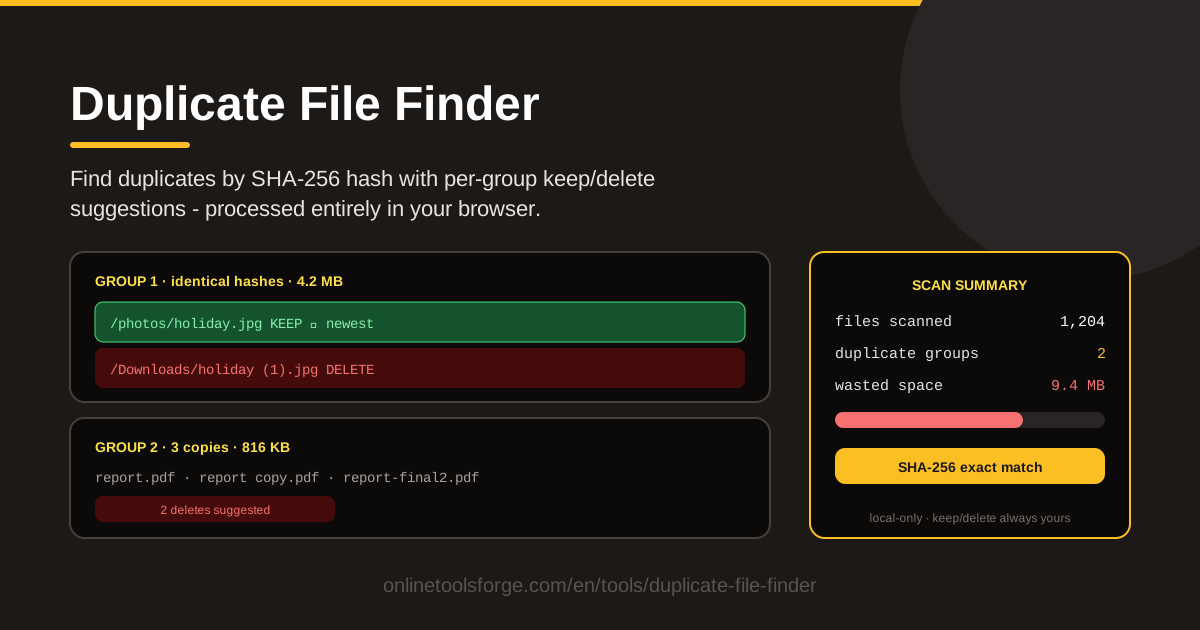
Table of Contents
Duplicate files are the quiet tax you pay for years of downloading, copying, and backing up. A PDF grabbed twice, a photo synced into three folders, an installer living in both Downloads and Desktop — every extra copy does nothing but consume storage. The Duplicate File Finder hunts those copies down for you, with an accuracy that filename-based tools simply cannot match.
Instead of guessing from names or sizes, the tool computes a SHA-256 hash for every file you select and compares those hashes. Two files with the same SHA-256 hash contain exactly the same bytes, so every group it reports is a true duplicate rather than a look-alike. Identical files are collected into groups, and each group comes with a keep/delete suggestion so you can act quickly instead of agonizing over which copy survives.
Best of all, everything happens inside your browser. No file ever leaves your computer, no account is required, and there is no upload queue to wait for — even for large folders.
Why Use Duplicate File Finder?
- Hash-exact matching, not guesswork. Files are compared by their SHA-256 cryptographic hash, so a duplicate only appears when contents are genuinely identical. Same content under different names and folders? Caught. Similar name, different content? Never flagged.
- Total privacy by design. Every scan is processed entirely in your browser. Your documents, photos, and work files never touch a server, which makes the tool safe to use on confidential material.
- Smart keep/delete suggestions per group. For every group of identical files, the tool suggests which copy to keep — typically the newest — and which are safe to delete, so you never start from a blank slate.
- A clear picture of wasted space. The scan summary totals the storage your redundant copies consume, so you know what a cleanup is worth before deleting anything.
- Files or entire folders. Select loose files or point the tool at a whole folder and let it walk through everything inside.
- Nothing to install. It runs in any modern browser on Windows, macOS, or Linux — no downloads, no admin rights, no trial limits.
Key Features
| Feature | What it does |
|---|---|
| File and folder selection | Pick individual files or scan an entire folder in one pass |
| SHA-256 hash comparison | Builds a cryptographic fingerprint of each file's content for exact duplicate detection |
| Duplicate grouping | Collects all identical files into one group so every copy is visible at once |
| Keep/delete suggestions | Recommends which copy to keep (such as the newest) and which to delete |
| Wasted space report | Totals the storage consumed by redundant copies so the payoff is clear |
| In-browser processing | Performs all hashing and comparison locally — no uploads, accounts, or waiting |
Two details are worth calling out:
- Suggestions are defaults, not commands. You can flip any keep/delete decision in a group — for example, keeping the copy in your organized archive rather than the newest download.
- The summary doubles as a scorecard. Note the wasted space figure, clean up, and you have a concrete number for how much disk you just reclaimed.
How to Use Duplicate File Finder
- Select your files or folder. Open the tool and either pick individual files or a folder such as Downloads or a project directory.
- Run the scan. The tool reads each file locally, computes its SHA-256 hash, and compares every hash. Large folders simply take a little longer.
- Review the duplicate groups. The results show groups of files with identical content, plus a scan summary of how much space the duplicates waste.
- Apply or adjust the suggestions. Accept the per-group recommendations — usually keep the newest copy — or override them by marking a different file to keep.
- Clean up. Delete the marked duplicates, then empty your trash or recycle bin so the space is actually freed.
Why SHA-256 Beats Filename Matching
Consider a common scenario. You download report-final.pdf, later grab the same document again as report-final (1).pdf, and months later copy the newer one into an Archive/2025 folder. Three files, three names, three paths, three timestamps — yet all three contain exactly the same bytes. A filename comparison sees nothing in common; a size comparison only sees files that look similar. A SHA-256 hash, by contrast, is computed from the file's actual contents: feed it those three files and it produces the identical fingerprint for each, which is how the tool knows they are duplicates regardless of what they are called.
The reverse failure matters just as much. Name-based finders flag IMG_2041.jpg in two folders as duplicates even when one is a full-resolution original and the other a compressed edit that happens to share the name — false positives that cause real data loss. With SHA-256, a match means the contents are bit-for-bit identical, the same property that makes the algorithm a standard for verifying downloads. If the bytes differ, the hash differs, and the files are never grouped together.
Once files are grouped, the keep/delete suggestion weighs the same metadata you would weigh yourself, only faster: the modification time (favoring the newest copy), the file path (preferring an organized location over a downloads or temp folder), and the file name (preferring a clean name over one littered with "copy" and "(1)"). Every decision stays editable until you confirm.
Finally, because hashing happens locally in your browser, your files never travel anywhere. The scan works identically for personal photos and confidential client documents — privacy here is a structural property of the tool, not a promise.
Practical Use Cases
Downloads Folder Cleanup
The Downloads folder is where duplicates breed: invoices fetched twice, installers downloaded again after a failed attempt, email attachments saved more than once. Scan the folder, accept the keep-newest suggestions, and delete the rest. It is the fastest way to make a chaotic folder browsable again.
Photo Deduplication Before Backup
Backups faithfully copy your mess. Before backing up a photo library, scan it: photos exported twice, edited copies that are byte-identical to another file, images imported into two libraries. Removing exact duplicates first shrinks the backup, speeds up every future sync, and makes restores faster too.
Project Folder Hygiene
Shared project folders accumulate final, final-v2, and final-FINAL, plus copies dragged between subfolders during reorganizations. A hash-based scan tells you which of those files genuinely contain the same content, so you can consolidate to one authoritative copy per document without risking a version that actually differs.
Pre-Migration Deduplication
Moving to a new laptop, an external drive, or cloud storage? Duplicates you carry over are duplicates you pay to store and back up forever. Run a dedup pass first and migrate the lean version of your data — the before-and-after numbers are usually surprising.
Best Practices
- Review each group before deleting. Suggestions are reliable, but you know your filing habits — a few seconds per group confirms the marked file is the one you want gone.
- Keep exactly one copy per group. Every member of a group is interchangeable, so one survivor is enough.
- Watch out for intentional copies. Some duplicates are deliberate — a template copied into every project, or a file an application expects in a specific location. Skip those groups.
- Empty the trash after cleanup. Deleted duplicates usually sit in the recycle bin or trash; space is only reclaimed once you empty it.
- Re-scan after big changes. Duplicates reappear whenever files get copied around, so run the tool again after a heavy download session or a folder reorganization.
Curious how much space your duplicates are stealing? Open the Duplicate File Finder, select a folder, and get a hash-exact report with keep/delete suggestions in minutes — every byte processed on your own machine.
Related Tools You Might Like:
- File Hash Checker — verify a file's SHA-256 hash against a known value
- Hash Generator — generate MD5, SHA-1, SHA-256 and other hashes from text or files
- File Size Calculator — convert and estimate file sizes across bytes, KB, MB, and GB
Happy cleaning!
Frequently Asked Questions
Q: Are the files I scan uploaded to a server? A: No. The Duplicate File Finder reads and hashes your files entirely within your browser. Nothing is uploaded, stored, or transmitted anywhere.
Q: Can it find duplicates with different file names? A: Yes. Matching is based on the SHA-256 hash of file content rather than the name, so a duplicate is detected even when the copies have completely different names, folders, or timestamps.
Q: What if two files have the same name but different content? A: They will not be grouped. Name-based tools flag such files as duplicates, but hash matching only reports files whose bytes are truly identical, which prevents false positives and accidental data loss.
Q: How do I decide which copy to keep in a group? A: Start with the tool's suggestion, which typically favors the newest copy, then adjust if you would rather keep the version stored in your organized archive. Only one file per group needs to survive, and all choices stay editable before you delete anything.