Favicon Finder: Audit Every Icon Declaration in Your HTML Head
Favicon Finder parses your pasted head markup or page source and lists every icon declaration - favicon, apple-touch-icon, manifest icons, and mask-icon - with sizes and a copy-paste link-tag block.
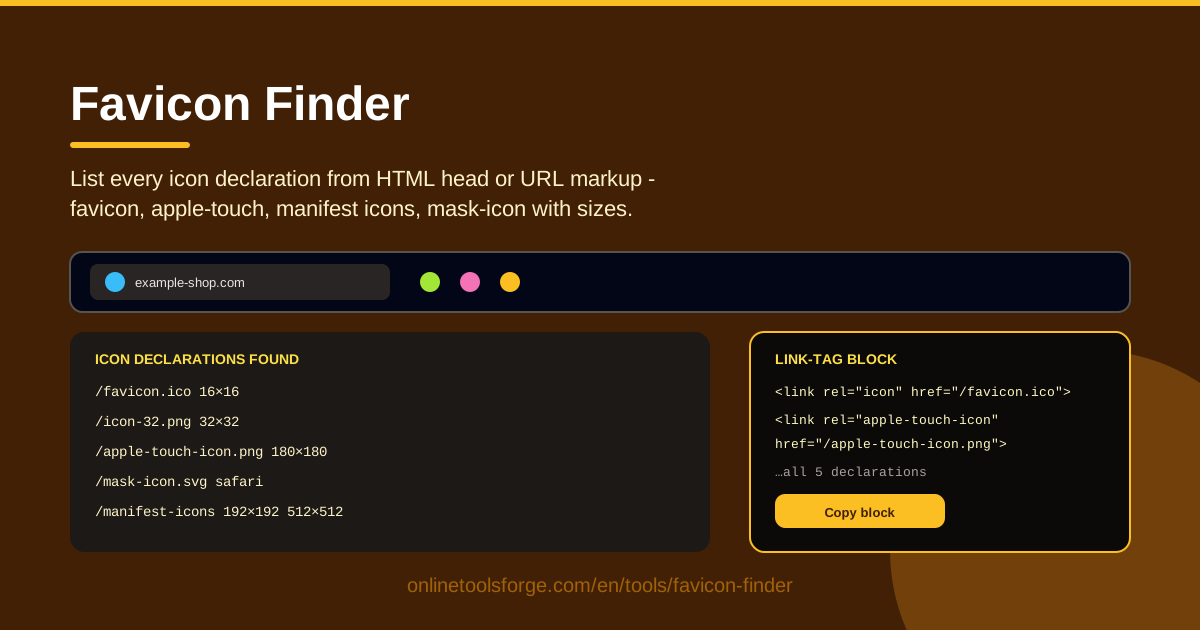
Table of Contents
Every website has a favicon, but a favicon is no longer a single file. Between favicon.ico, PNG icons, apple-touch-icon declarations for iOS, manifest icons for installable PWAs, and the mask-icon for Safari pinned tabs, a modern site may carry five or more icon declarations inside its head markup. Miss one and the consequences are subtle but real: blurry icons on iPhone home screens, blank squares in bookmark lists, or a PWA that quietly fails its install check.
Favicon Finder is a free, browser-based favicon checker built for exactly this problem. Paste your HTML head markup or page source into Favicon & App Icon Finder and it instantly lists every icon declaration it finds - favicon.ico, icon PNGs, apple-touch-icon, manifest icons, and mask-icon - together with the size of each icon and a copy-paste link-tag block you can drop straight into your own template.
In this guide we will look at why a head markup audit matters, walk through the tool in five steps, and break down the complete icon set a modern website actually needs.
Why Use Favicon Finder?
- One view of every icon declaration. Instead of grepping through source code or digging through DevTools, you see favicon.ico, PNG icons, apple-touch-icon, manifest icons, and mask-icon listed together in seconds.
- Sizes shown per icon. A link tag claiming 32x32 that actually serves a 180px file is a silent quality bug. The tool surfaces each declared size so mismatches are obvious at a glance.
- Catches the gaps that hurt. A missing apple-touch-icon means iOS crops a screenshot of your page instead of showing your logo. Missing manifest icons can block PWA installs. The list format makes these gaps jump out.
- Copy-paste link-tag block. Once you know what is missing, the generated link-tag block is ready to paste into your template - no hand-writing rel attributes from memory.
- Runs entirely in your browser. Your markup never leaves your machine, so it is safe to audit unreleased pages, staging environments, or confidential client work.
- Fast enough for repeated checks. Paste, review, adjust, paste again - a workflow that suits redesigns and framework migrations alike.
Key Features
| Feature | What it does |
|---|---|
| Head markup parser | Accepts pasted HTML head markup or full page source and extracts every icon-related declaration |
| Complete declaration list | Surfaces favicon.ico, icon PNGs, apple-touch-icon, manifest icons, and mask-icon in a single list |
| Size display | Shows the declared size of each icon so you can verify coverage across contexts |
| Copy-paste link-tag block | Produces a ready-to-paste block of link tags reflecting a complete icon setup |
| Browser-only processing | Parses everything locally in your browser - no uploads, no accounts, no waiting |
A few details worth knowing:
- The parser tolerates messy input: minified source, head fragments, or a full page dump all work.
- Because everything runs client-side, results appear instantly and the tool keeps working even on a flaky connection.
- The declaration list doubles as documentation you can share with a team as a launch checklist.
How to Use Favicon Finder
- Paste your head markup. Copy the head section from your page source or template file and paste it into the input area. A full page source works just as well.
- Review the declarations with sizes. The tool lists every icon declaration it finds - favicon.ico, PNG icons, apple-touch-icon, manifest icons, mask-icon - each with its declared size.
- Spot the gaps. Compare the list against the icon set your site should have. Missing apple-touch-icon? A manifest without icons? A favicon.ico that is really a 32px PNG? The gaps are now visible.
- Copy the link-tag block. Take the generated block of link tags, which mirrors a complete, correctly sized icon configuration.
- Paste it into your site. Drop the block into your head markup, upload the matching icon files to the referenced paths, and deploy.
Every Icon a Modern Site Needs
The classic favicon.ico
The original favicon is a small .ico file at the root of your site, traditionally 16x16 or 32x32. Browsers request /favicon.ico by default even when no link tag exists, so keeping a real ICO file at the root remains the safest baseline. This is the icon most browser tabs and many bookmark lists display.
PNG icons and size variants
Modern practice declares PNG icons with explicit sizes: 16x16 and 32x32 for browser chrome, plus 96x96 as a general fallback. Declaring sizes lets browsers pick the sharpest asset instead of scaling a single file up or down, which is exactly what causes fuzzy tab icons.
apple-touch-icon for iOS home screens
When someone adds your site to an iOS home screen, Safari looks for the apple-touch-icon declaration. Without it, iOS crops a screenshot of the page - usually an unrecognizable result. Ship a 180x180 PNG and declare it; adding 120px, 152px, and 167px variants covers older devices.
Manifest icons for PWA installs
A web app manifest references icons of its own, commonly 192x192 and 512x512. Install prompts and Android home screens pull from these. Missing or undersized manifest icons are among the most common reasons a PWA fails its installability check.
mask-icon for Safari pinned tabs
Safari pinned tabs use a monochrome SVG silhouette declared through the mask-icon link tag. Without it, pinned tabs fall back to a screenshot thumbnail. A single-color SVG on a transparent background is all it takes.
So which declarations affect what? Browser tabs and bookmarks read favicon.ico and the small PNG icons; iOS home screens read apple-touch-icon; PWA installers read manifest icons; Safari pinned tabs read mask-icon. Search engines mostly source favicons from their own indexing rather than these tags alone, but a complete, consistent set strengthens brand recognition everywhere your URL appears - which is precisely what a head markup audit verifies.
Practical Use Cases
Completing a new site's icon set
You just launched a marketing site and the designer delivered one logo file. Run the head through the tool and you will likely find a single favicon declaration - or none. Work from the generated link-tag block to ship the full set: favicon.ico, 32px and 180px PNGs, apple-touch-icon, and manifest icons. Twenty minutes that eliminates every blurry-icon support ticket.
Auditing after a rebrand
The logo changed, but old icon files often survive in public folders and cached templates. Paste the production head into the tool and confirm every declaration points at the new assets - and that no stale favicon.ico is still serving the old mark from the site root. Rebrands fail quietly in exactly this spot.
PWA readiness checks
Before enabling install prompts or submitting a PWA for review, confirm the manifest icon declarations are present and correctly sized. Paste the head markup, verify the 192px and 512px icons are declared, and fix anything missing before your Lighthouse audit flags it in red.
Competitor head analysis
Curious how a polished competitor handles icons? View their page source, copy the head, and paste it in. You get a clean inventory of their icon strategy - which sizes they ship, whether they use mask-icon - that you can match or improve on.
Best Practices
- Ship at least 32px and 180px. A 32x32 PNG covers modern browser tabs; a 180x180 apple-touch-icon covers iOS home screens. These two sizes are the minimum credible set.
- Keep paths stable. Icon URLs are cached aggressively by browsers and CDNs. If you must change them, keep serving the old files or redirect them.
- Use one canonical set. Declare one authoritative icon set once and reference it from every page template. Duplicated or conflicting declarations lead to unpredictable icon selection.
- Re-audit after every redesign. Template changes and framework migrations are where icon declarations get dropped. A 30-second paste after each deploy catches it.
- Match declared sizes to real file dimensions. A tag claiming 32x32 that serves a 180px image wastes bandwidth and can render soft.
- Test on real devices. Pin the tab in Safari, add the site to an iPhone home screen, install the PWA - declarations only prove themselves in context.
Ready to see exactly which icon declarations your site is missing? Paste your head markup into Favicon Finder and get the full declaration list with sizes plus a copy-paste link-tag block - free, private, and done before your coffee cools.
Related Tools You Might Like:
- Favicon Generator - create a complete favicon set in every required size from a single image
- Favicon Previewer - preview how your favicon looks in browser tabs and bookmarks before you ship
- HTML Alt Text Checker - audit the other accessibility-critical attributes across your markup
Happy auditing!
Frequently Asked Questions
Q: What is the difference between favicon.ico and the PNG icon declarations? A: favicon.ico is the legacy file browsers request from your site root by default, while PNG icons are declared explicitly with link tags and sizes. Best practice is to ship both: the ICO file as a universal fallback and sized PNGs for crisp rendering in tabs, bookmarks, and touch screens.
Q: Which icon sizes do I actually need for a modern website? A: At minimum, a 32x32 PNG for browser tabs and a 180x180 apple-touch-icon for iOS home screens. Add 16x16 and 96x96 PNGs, manifest icons at 192x192 and 512x512 if you support PWAs, and a mask-icon SVG if Safari pinned tabs matter to your audience.
Q: Does Favicon Finder upload my markup to a server? A: No. The tool parses your pasted head markup entirely in your browser. Nothing is transmitted or stored, which makes it safe for staging URLs, unreleased pages, and confidential client work.
Q: My site has no icon declarations at all. Can I still use the tool? A: Yes. Paste any head markup - even a nearly empty one - and use the copy-paste link-tag block as a starting template. Fill in your icon paths and sizes, paste the block into your template, and your icon set is complete.