HTML WYSIWYG Editor: Write Visually and Export Clean HTML
Learn how to use the HTML WYSIWYG Editor to format content with a contentEditable toolbar, watch a live HTML source view as you type, and export clean markup — 100% client-side.
Free Interactive Tool
HTML WYSIWYG Editor
Write formatted text in a visual editor and get clean HTML - toolbar with bold, lists, links and headings, a live source view, and copy or download export. 100% in your browser.
Table of Contents
Picture the task: a product announcement with a heading, a paragraph, a bullet list, and a link. Writing that HTML by hand is slow unless you type tags daily, and copy-paste is worse — most visual editors produce messy markup full of inline style attributes, empty tags, and editor-specific cruft.
The HTML WYSIWYG Editor takes a different approach. You format content in a familiar what-you-see-is-what-you-get (WYSIWYG) pane — bold, lists, links, headings — while a live HTML source view updates beside it in real time. The clean-HTML export then hands you exactly the markup you earned, no attribute soup attached.
Because the tool is 100% client-side, everything happens in your browser. No account, no upload, no waiting — equally suitable for a quick internal note and for learning how HTML structure works.
Why Use HTML WYSIWYG Editor?
- Visual writing speed with real markup underneath. Click Bold or make a list and the pane updates instantly — while producing genuine, semantic HTML, not a proprietary format that needs converting later.
- WYSIWYG plus a live source view means you learn while you write. Every action is mirrored as tags, so the link between what you see and the underlying HTML becomes obvious within minutes.
- Clean export by design. The editor generates structural tags rather than stacking inline style attributes, so the exported HTML stays readable, portable, and small.
- No setup and no risk. Everything runs in the browser, so pasting drafts from a CMS, an email body, or internal notes never sends your text anywhere.
- Precision when you want it. The source view is not just a spectator — when a tag needs fine-tuning, you see exactly where and fix the result at its root.
- One tool, many outputs. The same content works as an email body, a CMS draft, a landing section, or a documentation snippet.
Key Features
| Feature | What It Does |
|---|---|
| Rich-text toolbar | Apply bold, italic, headings, lists, and links with a click. |
| contentEditable pane | Type and format directly in the browser, like a word processor. |
| Live HTML source view | Watch the markup update in real time beside the visual pane. |
| Clean-HTML export | Copy markup built from semantic tags, free of style clutter. |
| 100% client-side | Formatting and generation happen locally; nothing is uploaded. |
Three points deserve emphasis:
- The source view is the teaching layer. Seeing strong appear the instant you press Bold makes the concept stick.
- The toolbar stays minimal on purpose. Formatting that maps cleanly to tags keeps the export predictable.
- Formatting is structural, not decorative. The editor reasons in tags, so the same content renders sensibly in email clients, CMS fields, and web pages.
How to Use
- Open the editor and type your content. Start with plain text — a heading line, a paragraph, whatever the document needs. The pane behaves like any familiar text field.
- Apply formatting from the toolbar. Select a line and make it a heading, select words and make them bold, select a few lines and turn them into a list.
- Watch the source view mirror your work. As each action lands, the HTML source view updates in sync — headings become heading tags, bold becomes strong, lists become ul and li.
- Fine-tune in the source view when precision matters. Need an exact tag or an adjustment the toolbar does not cover? Edit the markup surgically and confirm the visual pane still looks right.
- Export the clean HTML. When the content is ready, copy the generated markup into your email tool, CMS, or project — structural HTML, with no surprise wrappers and no style soup.
WYSIWYG and Source, Side by Side
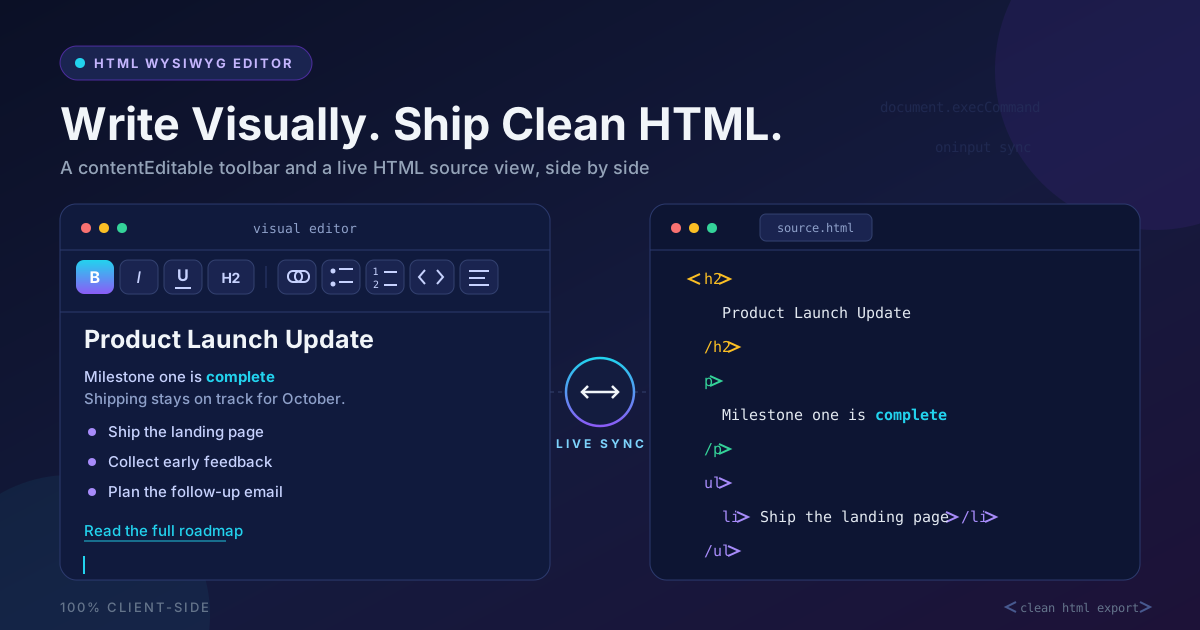
The heart of the tool is pairing two views that are usually kept apart. On the left, a contentEditable pane renders your typing as rich content — a faithful preview of the result. On the right, the source view exposes the markup that content produces, updating live as you work.
Each toolbar action maps to a specific tag. Bold wraps the selection in a strong; italics produce em. A heading choice converts the line to an h2 or h3. A bulleted list generates a ul with an li per item, and the link button inserts an a with an href. The mapping is one-to-one, so the source view doubles as a legend: within minutes you know exactly which button produces which tag.
The live sync keeps the loop tight. Format visually and the source view keeps pace, so nothing the editor does under the hood stays a mystery. When something looks off — a stray nested tag, an empty paragraph — you spot it in the markup immediately instead of after export.
The clean export is the payoff. Visual-minded editors often emit span after span, each carrying an inline style attribute with hardcoded fonts and colors — markup that renders once, in one place, and degrades everywhere else. Structural tags instead mean the HTML survives being moved: a CMS applies its stylesheet, an email client its defaults, documentation its own typography.
The source view is also your precision instrument. Toolbars are convenient but general; sometimes you need the exact heading level the hierarchy calls for, or want to delete an empty paragraph the pane barely shows. Adjust the markup directly and the visual pane confirms instantly.
Practical Use Cases
Email and Newsletter Bodies
Rich text is the native language of email. Compose the announcement, bold the key sentence, structure the agenda as a list, then export markup for any email builder that accepts HTML. Clean tags mean fewer rendering surprises across clients.
CMS Content Drafts
Many content systems accept HTML in article bodies but offer cramped editing fields. Draft in the WYSIWYG pane where formatting is comfortable, scan the source view for anything unnecessary, then paste the clean export straight into the CMS.
Learning HTML by Doing
If you are new to HTML, this is one of the fastest ways to build intuition. Write what feels natural — "make this a heading, make that a list" — and watch the source view translate your intent into tags in real time. Within one session, h2, ul, li, strong, and a become reflexes rather than vocabulary.
Quick Landing Sections
Need a hero paragraph, a feature list, and a call-to-action link for a landing page? Compose it visually, sanity-check the markup, and export. The result slots into any template, and the page's own styles dress it correctly.
Best Practices
- Paste as plain text, then re-style. Pasting rich content drags its old formatting along. Paste unformatted, then apply bold, lists, and links with the toolbar.
- Check the source view before exporting. A five-second scan for empty paragraphs, duplicated tags, or stray wrappers prevents hours of cleanup downstream.
- Keep headings semantic. Use heading levels in document order — one top heading, then h2 and h3 as the structure deepens — so screen readers, search engines, and site styles interpret the outline correctly.
- Prefer lists over manually dashed lines. A real ul renders and reflows properly everywhere; a column of hyphens does not.
- Write link text that means something. "Read the release notes" beats a bare URL, for accessibility and for skimming readers alike.
- Resist pixel-level fiddling. If formatting cannot be expressed with the toolbar, it belongs in your site's stylesheet, not inline on this fragment.
Start Writing Visually Today
Formatting content should take a minute, not an afternoon of tag-wrangling. Open the HTML WYSIWYG Editor, type your announcement, watch the markup build itself beside your words, and export clean HTML you can paste anywhere.
Related Tools You Might Like:
- Markdown Preview — write Markdown and see it rendered live, side by side.
- HTML to Markdown Converter — convert existing HTML back into portable Markdown.
- Markdown to HTML Converter — turn finished Markdown into clean HTML for the web.
Write visually, ship semantically — the source view will keep you honest.
Frequently Asked Questions
Q: Is my content uploaded anywhere?
A: No. The editor is 100% client-side. All formatting and HTML generation happen in your browser, and nothing you type is sent to a server or stored.
Q: What does the clean-HTML export actually remove?
A: The export produces structural tags such as headings, lists, strong, em, and a — without the inline style attributes, empty elements, and editor-specific wrappers that many visual editors scatter through their output.
Q: When should I write HTML by hand instead?
A: For complex layouts, forms, or anything beyond document-style content, a proper code editor is the better tool. For announcements, article bodies, email drafts, and landing sections, the WYSIWYG workflow is faster and cleaner.