Markdown to Confluence: Convert Markdown to Wiki Markup Instantly
Convert Markdown to Confluence wiki markup in your browser with the Markdown to Confluence Converter — headings, tables, lists, quotes and panel macros, ready to paste into the insert-markup dialog.
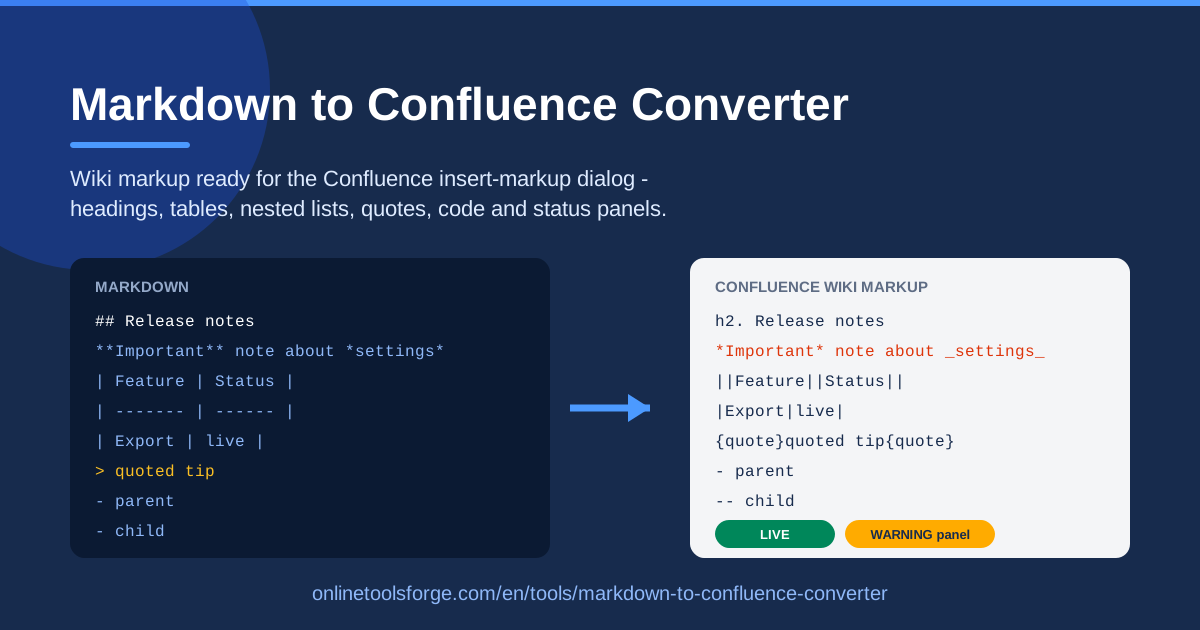
Table of Contents
If you write in Markdown — and these days, most of us do — you have probably hit the same wall: your team's READMEs, specs, and meeting notes live in Markdown, but your company wiki runs on Confluence. Confluence's editor understands its own wiki markup dialect, complete with quirks like h2. headings and || table cells, and retyping a polished Markdown document by hand into that dialect is slow, tedious, and easy to get wrong.
That is exactly the problem the Markdown to Confluence Converter solves. Paste your Markdown, and the tool instantly produces clean Confluence wiki markup — headings, bold and italic text, pipe tables converted to ||header|| and |row| syntax, nested lists, links, quotes, code blocks, and even status and warning panel macros. Everything runs in your browser, so nothing is uploaded anywhere, and the output is ready to drop straight into Confluence's insert-markup dialog.
In this guide, we will walk through why the tool exists, how each Markdown construct maps to its wiki markup equivalent, and the fastest workflow for getting your Markdown content published to a Confluence space.
Why Use Markdown to Confluence Converter?
- Skip the manual retyping. Hand-converting a document means rewriting every heading as h1. or h2., rebuilding every table cell by cell, and re-indenting every nested list. The converter does all of that the moment you paste.
- Avoid formatting mistakes. A single misplaced pipe character can break a Confluence table, and a forgotten period after h2 renders your heading as plain text. Automated conversion keeps the syntax consistent across the entire document.
- Keep your source of truth in Markdown. Many teams draft in Markdown because it works everywhere — GitHub, GitLab, Notion, AI assistants, static site generators. With a converter, Markdown remains your authoring format and Confluence becomes just another destination.
- Everything happens in your browser. The conversion is client-side. Your documentation — including anything confidential — never leaves your machine, which matters for internal specs and drafts.
- Preserve structure, not just text. Headings, lists (including nested ones), links, quotes, code blocks, and tables all survive the trip, so the converted page reads like a real Confluence page, not a wall of flattened text.
- Free and instant. No sign-up, no upload, no waiting. Paste, convert, copy, done.
Key Features
| Feature | What it does |
|---|---|
| Paste Markdown | Drop any Markdown document into the input panel — README-style specs, release notes, or meeting docs. |
| Headings | Converts #, ##, ### into Confluence h1., h2., h3. heading syntax. |
| Bold and italic | Maps **bold** and *italic* to the Confluence *bold* and _italic_ conventions. |
| Tables | Turns Markdown pipe tables into Confluence ||header|| and |row| table markup. |
| Nested lists | Preserves list hierarchy, converting - and -- indentation into the right dash depth. |
| Links and quotes | Keeps inline links intact and converts > quotes into {quote} blocks. |
| Code blocks | Wraps fenced code in Confluence {code} macro blocks. |
| Status panels | Recognizes IMPORTANT, WARNING, and CAUTION markers and emits status/warning panel macros. |
A few of these deserve extra attention:
- Tables are the biggest time-saver. Confluence tables use a completely different syntax from Markdown pipes, and they are the most painful construct to convert by hand. The tool maps the header row to ||...|| and every data row to |...| automatically.
- Panel macros add polish. If your Markdown uses IMPORTANT, WARNING, or CAUTION callouts, they become proper Confluence panel macros instead of plain shouting text, so critical notes actually stand out on the published page.
How to Use Markdown to Confluence Converter
- Paste your Markdown. Open the Markdown to Confluence Converter and paste your Markdown document into the input panel.
- Convert instantly. The tool generates Confluence wiki markup automatically as you paste — headings, tables, lists, quotes, code blocks, and panel macros all mapped according to their own rules.
- Copy the wiki markup. Select the output panel and copy the generated wiki markup to your clipboard.
- Open the Confluence insert-markup dialog. In the Confluence editor, choose the insert markup option (depending on your Confluence version, via the insert menu or the + → Markup path) and switch it to wiki markup.
- Paste and insert. Paste the converted markup into the dialog, confirm, and Confluence renders it as a fully formatted page. Review the result, adjust any macros if needed, and publish.
Markdown vs Confluence Wiki Markup
Understanding how the two formats differ explains what the converter is actually doing under the hood — and helps you sanity-check the output with confidence.
Headings. Markdown counts levels with hashes: # for the top level, ## for the next, and so on. Confluence wiki markup puts the level first, followed by a period: h1., h2., h3.. So ## Installation Guide becomes h2. Installation Guide. The period is mandatory — omit it and Confluence treats the line as plain text.
Bold and italic. Markdown's most common conventions are **bold** and *italic*. Confluence uses a single asterisk for bold — *bold* — and underscores for italic — _italic_. That means **release candidate** in Markdown maps to *release candidate* in wiki markup, and *italic* becomes _italic_. This apparent collision between Markdown emphasis marks and Confluence emphasis marks is one of the classic gotchas when converting by hand, and it is exactly the kind of detail the converter handles for you.
Tables. This is where the two formats diverge most. Markdown builds tables from pipe-separated lines with a --- divider row. Confluence uses || to delimit header cells — a header row looks like ||Name||Status|| — and a single | for body cells, like |API|shipped|. Confluence needs no divider row and no alignment syntax; every row is simply cells wrapped in pipes. The converter takes your pipe table, promotes the first row to double-pipe headers, and converts every following row to single-pipe cells.
Nested lists. Markdown nests with indentation (spaces or tabs under a -); wiki markup expresses depth with repeated dashes, so a second-level item becomes -- and a third becomes ---. The converter reads the Markdown indentation and emits the correct dash depth for each level.
Quotes and code. A Markdown > blockquote becomes a {quote}...{quote} block in wiki markup, and a fenced code block becomes a {code}...{code} block, keeping your snippets monospaced and visually distinct inside Confluence.
Status panels. Plain Markdown has no equivalent for Confluence's eye-catching info and warning panels, but plenty of docs use IMPORTANT / WARNING / CAUTION callout conventions. The converter recognizes these markers and produces the corresponding status or warning panel macros, so warnings actually look like warnings once the page is published.
Practical Use Cases
Publishing README-Based Specs to a Confluence Space
Product and engineering teams often draft specifications as Markdown files kept next to the code. When a spec needs wider review — from QA, support, or business stakeholders — it belongs in Confluence. Convert the spec once, paste it into the insert-markup dialog, and the whole team can comment on a properly formatted page with real tables and a clean heading hierarchy.
Turning Release Notes into Confluence Pages
Release notes are usually written in Markdown: a version heading, a changelog table, bullet lists of fixes, and the occasional WARNING about breaking changes. Pasted through the converter, the changelog table lands as a genuine Confluence table, and breaking-change warnings render as warning panels that readers cannot scroll past unnoticed.
Formatting Meeting Notes the Confluence Way
Weekly sync notes written as quick Markdown — attendees, a decisions list, action items with owners — become a structured Confluence page in seconds. Nested action items keep their hierarchy, and notable quotes from the discussion become {quote} blocks, so the page is easy to scan when the group meets again.
Migrating Docs Your Team Wrote in Markdown
If a team has been keeping documentation in a Git repository, a wiki migration usually stalls because nobody wants to reformat hundreds of pages. Make it incremental: convert document by document, paste, insert. Because the heading and table mappings stay consistent across every conversion, the resulting Confluence space ends up looking uniform.
Best Practices
- Proofread the converted output before inserting. The converter handles standard Markdown well, but unusual nesting or a malformed source table is worth a quick scan.
- Keep one heading level per step. Jumping from # straight to #### produces odd hierarchies in Confluence; keep your source Markdown clean and the output will be too.
- Use IMPORTANT, WARNING, and CAUTION deliberately. Reserve panel macros for content that genuinely needs emphasis — panels lose their power when every paragraph is a warning.
- Test tables with a small example first. If your Markdown table came from a spreadsheet export, check for stray pipes inside cells before pasting the full document.
- Standardize on the insert-markup dialog for imports. Agreeing on one paste path avoids the copy-paste-into-the-visual-editor problems that silently strip formatting.
- Keep your Markdown as the master copy. Store the source file in your repo and regenerate the Confluence page whenever the Markdown changes, rather than maintaining both by hand.
Ready to stop retyping your documentation? Try the Markdown to Confluence Converter now — paste your Markdown, copy the wiki markup, and publish to Confluence in under a minute.
Related Tools You Might Like:
- Markdown to HTML Converter — render Markdown into clean HTML for websites and emails.
- Markdown Table Formatter — align and clean up Markdown tables before conversion.
- HTML to Markdown Converter — pull web content back into Markdown when the flow runs the other way.
Happy documenting!
Frequently Asked Questions
Q: Is my Markdown uploaded to a server? A: No. The conversion runs entirely in your browser, so your document never leaves your machine.
Q: Does the output work in both Confluence Server and Confluence Cloud? A: Yes. The wiki markup produced — h2. headings, || tables, {quote} and {code} macros — is accepted by the insert-markup dialog across Confluence versions, though panel macro styling can vary slightly between versions.
Q: Can it convert nested lists and tables together in one document? A: Yes. Headings, nested lists, pipe tables, links, quotes, code blocks, and status panels can all appear in the same document, and each is converted according to its own rules.
Q: What happens to Markdown the tool does not recognize, such as images or footnotes? A: Unsupported constructs pass through as plain text rather than being dropped, so you can spot them in the output and finish them by hand in the Confluence editor.