Motion Sensor Tester: Test Accelerometer, Gyroscope and Compass on Any Phone
Motion Sensor Tester visualizes DeviceMotion and DeviceOrientation data from your phone in real time, showing acceleration, gravity, rotation rate, orientation angles and compass heading — fully client-side, no app required.
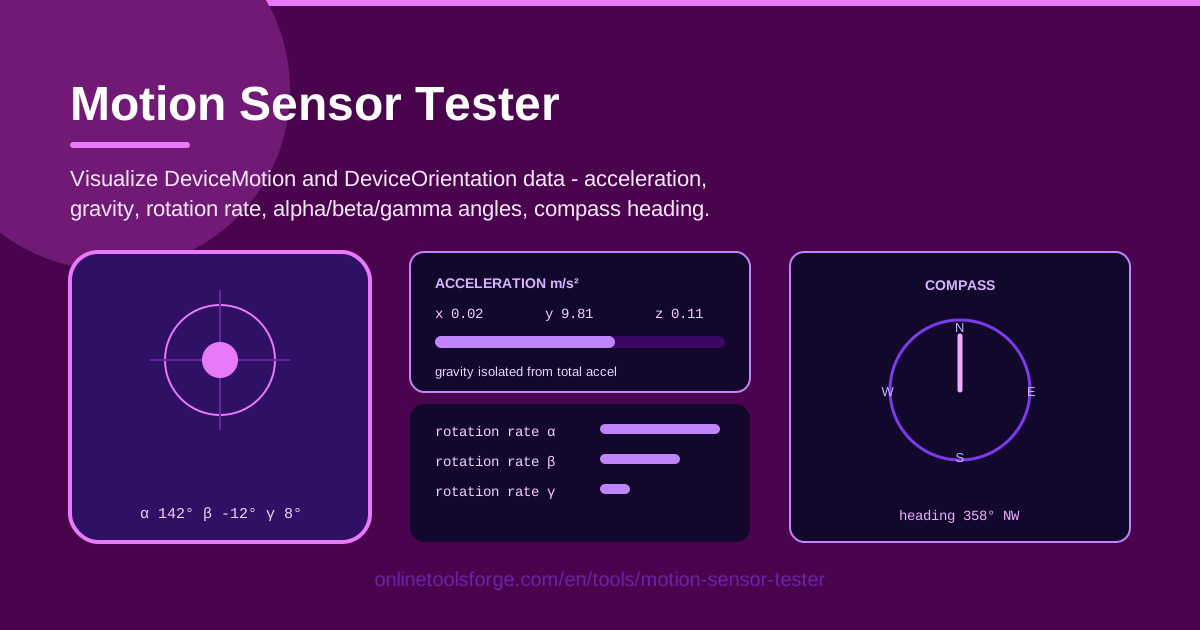
Table of Contents
Every smartphone hides a small cluster of motion hardware: an accelerometer that measures linear acceleration, a gyroscope that tracks rotation, and a magnetometer that acts as a digital compass. When an app that relies on tilt or shake stops behaving, or a leveling feature suddenly feels inaccurate, the culprit is usually one of these sensors. Motion Sensor Tester puts you directly in front of the raw data, so you can see what your phone is actually reporting.
The tool is a browser-based viewer for the standard DeviceMotion and DeviceOrientation APIs. It visualizes acceleration, gravity, and rotation rate in real time, alongside the alpha/beta/gamma orientation angles and the compass heading, updating live as you move the device. Everything runs fully client-side: no installation, no account, and no data leaving your phone.
Whether you are vetting a second-hand phone, debugging a web app that reacts to tilt, or showing students how motion sensing works, this guide covers how to run the test and how to read every stream.
Why Use Motion Sensor Tester?
Rich motion data exists inside every phone, yet almost nothing on the surface exposes it. A dedicated tester fills that gap.
- Diagnose hardware faults instantly. If the acceleration stream stays flat while you shake the phone, or the heading jumps around wildly, you have concrete evidence of a sensor problem instead of a vague suspicion.
- No app installation. Open the page in a mobile browser and testing begins immediately — handy when inspecting a device in a shop or when you would rather not install software on a temporary phone.
- Built-in iOS 13+ permission handling. Apple blocks motion data until the user explicitly grants access. The tester detects this requirement and guides you through it instead of failing silently.
- Every stream side by side. Acceleration, gravity, rotation rate, orientation angles, and heading appear together on one screen, which makes it easy to spot which channel is missing or frozen.
- Completely private. All processing happens inside the browser on your device; no sensor values are transmitted or stored anywhere.
- Free and unlimited. Run the test as often as you like, on as many devices as you like.
Key Features
The tool packs the entire sensor pipeline into a single screen.
| Feature | What it does |
|---|---|
| Acceleration and gravity | Streams linear acceleration plus the gravity vector from DeviceMotion, so you can tell a shake apart from a tilt. |
| Rotation rate | Shows how fast the device spins around each of its three axes, in degrees per second. |
| Alpha/beta/gamma angles | Renders the three DeviceOrientation angles that describe how the phone is tilted in space. |
| Compass heading | Displays heading from the magnetometer, including the webkitCompassHeading value on iOS. |
| iOS 13+ permission handling | Detects when motion access must be requested and walks you through the one-tap approval. |
| Real-time visualization | Refreshes every reading live as you move, flip, or spin the phone. |
A few details worth knowing:
- Every stream comes from the physical device itself. The page never sends data over the network, so it works even on a phone without a SIM card.
- The layout is designed for phones first, but the same page works on tablets that include motion hardware.
- Because everything is client-side, the readings reflect only the device you are holding, not a server-side simulation.
How to Use Motion Sensor Tester
- Open the tool on your phone. Visit Motion Sensor Tester in your mobile browser. Desktop computers usually have no motion hardware, so always test on the real device.
- Grant the motion permission. On an iPhone or iPad running iOS 13 or newer, the page asks you to allow access to motion and orientation data — tap allow once. Chrome on Android normally starts streaming right away.
- Move the device. Tilt the phone forward and back, roll it left and right, shake it gently, then spin it flat on a table while watching the numbers respond.
- Read the acceleration and angle readouts. A phone lying still should report roughly 9.81 m/s² of gravity on one axis, and the alpha/beta/gamma values should track your tilts smoothly, with no stuck positions.
- Check the compass. Lay the phone flat and rotate it slowly, confirming that the heading follows the direction you are pointing, ideally matching a known compass or map bearing.
What Each Sensor Stream Means
The tester exposes two different browser APIs, and understanding the difference is the key to reading the numbers correctly.
DeviceMotion fires many times per second and reports three groups of values. Acceleration is the linear acceleration of the device with gravity removed, so a phone resting on a table reads close to zero on every axis. Acceleration including gravity keeps the gravity vector in, which is why the same still phone reads about 9.81 m/s² on the axis pointing toward the ground. Rotation rate, in degrees per second, tells you how quickly the device is spinning around each of its three axes at that instant.
DeviceOrientation describes the physical attitude of the phone with three angles. Alpha is rotation around the vertical z axis — in practice, which way the top of the phone points; on iOS, prefer the companion webkitCompassHeading value, a true compass heading in degrees, because raw alpha behaves differently across platforms. Beta is front-to-back tilt around the x axis, and gamma is left-to-right tilt around the y axis.
The iOS 13+ permission requirement deserves special mention. Safari delivers no motion or orientation events at all until the user explicitly approves access, and the approval must occur inside a user gesture such as a tap on a button. That is exactly why the tester includes a dedicated request step: without it, a page simply receives silence.
When sensors report zeros, the cause is almost always environmental rather than broken hardware: permission was denied or never requested, the page is not running in a secure HTTPS context, the device genuinely lacks the sensor — true of most desktop machines and some budget tablets — or the browser blocks motion APIs in private windows. Test the same page in another browser before concluding that the phone is at fault.
Practical Use Cases
Verify a Refurbished or Second-Hand Phone
Sensors are easy to misjudge in a shop and impossible to assess from photos. Before paying, open the tester, tilt and shake the device, and confirm that every stream responds. A phone with a dead gyroscope shows a flat rotation rate and stuck orientation angles — a deal-breaker for games and camera stabilization alike.
Debug a Web App That Relies on Tilt
If your parallax hero section, steering mini-game, or in-browser level misbehaves on certain devices, run the tester on the same phone. You can confirm whether events arrive at all, whether the values fall inside the range you expect, and whether the iOS permission gate is the real culprit rather than your JavaScript.
VR Cardboard Sanity Check
Cardboard-style viewers depend entirely on orientation tracking. Spend thirty seconds confirming smooth beta and gamma response and a stable alpha before blaming the headset for drift or jitter.
Teaching Sensor APIs
In a programming class or workshop, the tester is a live demonstration of DeviceMotion and DeviceOrientation: students watch abstract axis names turn into concrete numbers the moment they tilt the phone.
Best Practices
- Test in multiple orientations. Hold the phone upright, lay it flat, and rotate it through every face — some sensor faults only appear in specific positions.
- Compare against the known gravity constant. A still device should show roughly 9.81 m/s² across the gravity-including axes; large deviations point to calibration or hardware issues.
- Remember that sensors differ between devices. Sample rates, noise levels, and even axis signs vary across manufacturers, so never assume two phones will produce identical numbers.
- Re-test after OS updates. System updates occasionally change how motion data is delivered, so re-run the tester whenever behavior suddenly changes.
- Use a secure context. Motion APIs require HTTPS; if every value reads zero, check the address bar before suspecting the hardware.
- Cross-check the compass away from metal. Magnetic cases, cars, and speakers skew the magnetometer, so verify heading in an interference-free spot.
Ready to find out what your phone's sensors are really doing? Open Motion Sensor Tester on your device, tap allow, and watch the data flow in — it takes under a minute and costs nothing.
Related Tools You Might Like:
- Bubble Level — uses the same orientation data to check whether a surface is truly flat.
- Speaker Test — verify the audio side of a refurbished phone with tones and sweeps.
- Camera Tester — exercise the front and rear cameras and the flash right in the browser.
Happy testing!
Frequently Asked Questions
Q: Why does the tool ask for permission on my iPhone? A: Since iOS 13, Safari requires an explicit, user-initiated approval before any page can receive motion and orientation data. The tester shows a request button; tap it once and the streams begin immediately.
Q: Why do all the values stay at zero? A: The most common causes are a denied permission, an insecure HTTP page, a browser that blocks motion APIs in some private modes, or a device with no motion hardware at all. Try another browser on the same phone before assuming the sensor is broken.
Q: How accurate is the compass heading? A: It comes from the magnetometer and is influenced by nearby metal and magnets. It is reliable enough for orientation checks, but verify critical bearings against a dedicated compass and keep the phone away from magnetic cases.
Q: Is my motion data sent anywhere? A: No. The tool runs fully client-side, so every reading is processed and displayed on your device and never leaves it.