How to Convert OpenAPI Specs into MCP Tools with OpenAPI to MCP Converter
OpenAPI to MCP Converter turns your OpenAPI or Swagger spec into validated MCP server tool definitions in seconds — connect your REST API to Claude Desktop, Cursor, and VS Code with zero boilerplate.
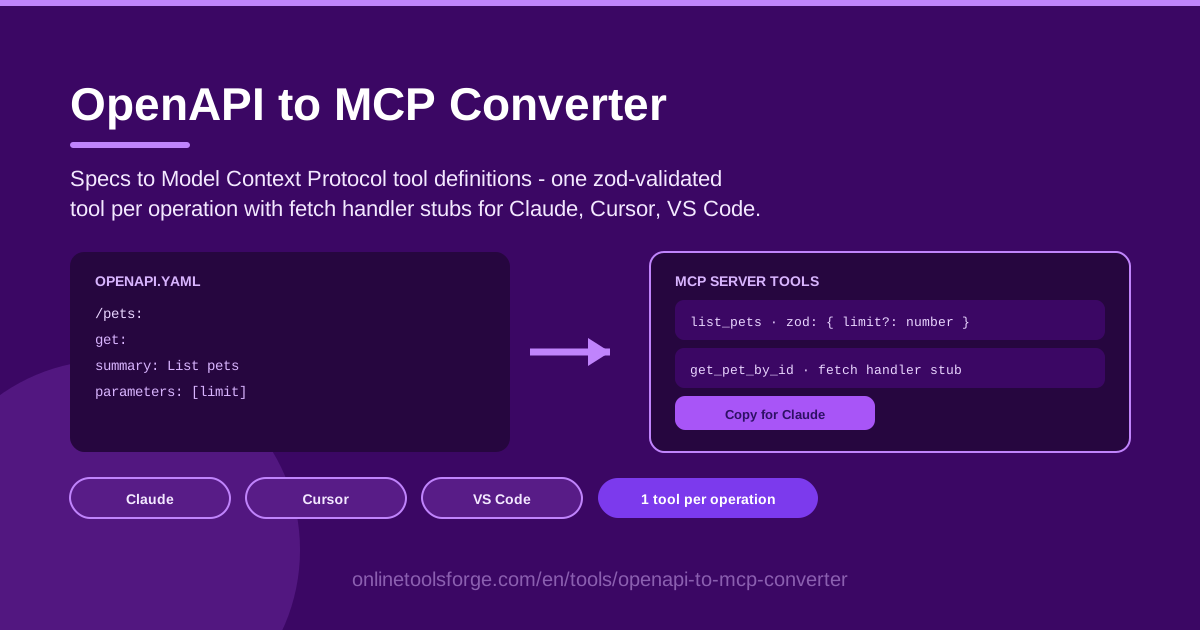
Table of Contents
Every REST API you maintain almost certainly already has an OpenAPI or Swagger spec sitting in your repository. At the same time, AI assistants like Claude Desktop, Cursor, and VS Code extensions increasingly expect to interact with your services through MCP — the Model Context Protocol that lets large language models discover and call tools. The OpenAPI to MCP Converter bridges these two worlds: paste your spec and it generates ready-to-register MCP server tool definitions in seconds.
Instead of hand-writing tool declarations, parameter schemas, and handler boilerplate for every endpoint, the converter reads your existing specification and produces structured output: one tool per operation, each with zod schema validation for parameters and a fetch handler stub you can fill in. It runs entirely in the browser, so nothing is uploaded to a server.
This guide explains why converting OpenAPI into MCP matters, how to use the tool step by step, what happens under the hood when a REST endpoint becomes an AI tool, and the security practices you should follow before wiring your API into any assistant.
Why Use OpenAPI to MCP Converter?
- APIs are becoming AI-callable. The fastest way to give an assistant real capabilities is to expose your existing REST surface as MCP tools, rather than inventing a parallel integration layer from scratch.
- Skip the scaffolding. Writing tool definitions by hand is repetitive work; the converter generates them mechanically from documentation you already trust.
- Validated inputs by design. Every generated tool carries a zod schema, so malformed arguments are rejected before your code ever runs.
- Client-ready output. The result is formatted for Claude Desktop, Cursor, and VS Code MCP configs, so registration is a paste away.
- Works with the specs you have. Both modern OpenAPI documents and older Swagger files are accepted.
- Nothing leaves your machine. Conversion happens entirely in the browser, which matters for internal or pre-release API documentation.
Key Features
| Feature | What it does |
|---|---|
| Spec pasting | Accepts an OpenAPI or Swagger specification directly in the browser. |
| One tool per operation | Maps each endpoint operation to a dedicated MCP tool definition. |
| Zod schema validation | Generates zod schemas for parameters so inputs are checked at call time. |
| Fetch handler stubs | Provides a ready-to-fill fetch handler for each tool's network call. |
| Client-formatted output | Structures the result for Claude Desktop, Cursor, and VS Code MCP configs. |
| In-browser processing | All parsing and generation happen locally; no spec upload required. |
- The one-tool-per-operation mapping matters more than it sounds: each endpoint gets its own name, description, and schema, so a model can choose between "get order by ID" and "list orders" without guessing from a single overloaded tool.
- Parameter handling covers the path, query, and body inputs commonly declared in OpenAPI specs.
- Because output is deterministic, teams can regenerate tool definitions whenever the spec changes and diff them like any other code artifact.
How to Use OpenAPI to MCP Converter
- Paste your spec. Copy your OpenAPI or Swagger YAML or JSON and paste it into the converter's input area. Parsing happens instantly in your browser.
- Review the generated tools. The tool lists one MCP tool per operation, derived from each endpoint's path, method, and operation metadata. Scan the list and confirm the set matches what you want the model to see.
- Check the zod schemas. Each tool includes a zod schema for its parameters. Verify that required fields, types, and constraints were carried over sensibly from your spec, and tighten anything too loose.
- Copy the config. Copy the generated server definition, formatted to slot into Claude Desktop, Cursor, or VS Code MCP configuration files.
- Register in your MCP client. Add the entry to your client's MCP config, restart or reload it, and your API's operations appear as callable tools the assistant can invoke.
That is the whole loop: spec in, validated tools out, config pasted, assistant connected.
From REST Endpoints to AI Tools
What MCP actually is. The Model Context Protocol is a standard that lets AI applications discover the tools a server exposes, learn each tool's name, purpose, and expected arguments, and invoke them on the user's behalf. Where a REST client calls endpoints directly, an MCP client asks the model — and the model asks the server.
Why one tool per operation. Models reason best when capabilities are discrete and well named. Collapsing an entire API into a single "call endpoint" tool forces the model to construct method, path, and payload by hand, which is an invitation to mistakes. One tool per operation gives each capability a clear identity, its own description, and its own schema, which dramatically improves selection accuracy.
How zod schemas protect against bad calls. The generated schemas act as a gatekeeper: arguments arriving from the model are validated against the declared types and constraints before the handler executes. A missing required ID, or a string passed where a number is expected, fails fast with a clear error the model can read and correct — instead of propagating garbage into your API.
What the fetch handler stub does. Each tool ships with a fetch handler stub: a function whose inputs are already typed and validated, but whose network call is left for you to fill in. This keeps the generated code transport-agnostic — you decide how to authenticate, which base URL to target, and how to map the response, without ever touching the schema layer.
A security note. Converting a spec is not an authorization decision. The generator faithfully reflects whatever the spec describes, so only expose what you intend: review the operation list, drop anything sensitive, and remember that every tool you register is a capability a model may choose to use.
Practical Use Cases
Exposing an Internal API to Claude Desktop
Give a team assistant genuine reach. Convert the spec for an internal catalog or ops API, fill the stubs with your base URL and authentication, and team members can ask Claude Desktop for live answers — "what is the status of order 4821?" — instead of opening a dashboard.
Prototyping Agent Integrations
Before committing to an agent framework, paste a spec into the converter and register the output in Cursor. Within minutes you can watch how a model tries to sequence your endpoints, revealing which operations need better names, clearer ordering, or extra guardrails — cheap feedback before you write any orchestration code.
Migrating Legacy Swagger Specs
Older services often live on as Swagger 2.0 documents that modern generators barely support. The converter accepts these directly, so legacy endpoints can join AI workflows without a spec-migration project. The legacy API stays untouched while its capabilities become model-callable.
Standardizing Tool Servers Across Editors
Because the output is formatted for Claude Desktop, Cursor, and VS Code MCP configs alike, a single conversion run gives every developer on the team the same tool surface regardless of editor — no per-editor forks of hand-written definitions drifting out of sync.
Best Practices
- Curate operations before exposing. Not every endpoint deserves to be a tool; trim the list to what an assistant genuinely needs.
- Name tools clearly for the model. Prefer operation IDs and names that describe intent, since the model picks tools largely on wording.
- Add descriptions everywhere. Generated descriptions come from your spec, so rich summary and description fields translate directly into better tool selection.
- Test with a real client. Register the tools in Claude Desktop or Cursor and exercise edge cases before trusting the setup.
- Never include secret-bearing endpoints. Skip anything that reads, writes, or reveals credentials, keys, or tokens — generated schemas do not hide sensitive parameters.
- Regenerate when the spec changes. Keep converted output in sync with the source of truth instead of editing it ad hoc.
Ready to make your API AI-callable? Open the OpenAPI to MCP Converter, paste your OpenAPI or Swagger spec, and walk away with validated MCP tool definitions for Claude Desktop, Cursor, and VS Code — no signup, no upload, and no hand-written boilerplate.
Related Tools You Might Like:
- OpenAPI to TypeScript Converter — generate typed client interfaces from the same spec you just converted.
- OpenAPI to Postman Converter — turn specs into Postman collections for manual testing alongside your AI tools.
- AI Tool Schema Builder — design custom tool schemas for AI agents from scratch.
Happy converting!
Frequently Asked Questions
Q: Does the converter work with both OpenAPI 3.x and Swagger 2.0 specs? A: Yes. Paste either format and the converter parses the specification, generating one MCP tool per operation along with its corresponding zod parameter schema.
Q: Do I still need to write code after conversion? A: The tool definitions and zod schemas are complete, but each tool's fetch handler stub is left for you to fill in with your actual request logic — base URL, authentication, and response mapping.
Q: Is my API spec uploaded anywhere? A: No. The tool runs entirely in your browser; parsing and generation happen locally, so the spec never leaves your machine.
Q: Which MCP clients can use the generated output? A: The output is formatted for Claude Desktop, Cursor, and VS Code MCP configurations. Copy the generated definition into the client's config file and reload it to register the tools.