Text to Braille Translator: Convert Text to Grade 1 Unicode Braille and Back
A free in-browser Text to Braille Translator that converts text to Grade 1 Unicode Braille and back, handling numbers, capitals, and punctuation. Runs entirely in your browser.
Free Interactive Tool
Braille Translator
Translate text to Grade 1 Unicode Braille and back. Letters, numbers, and punctuation — all in your browser.
Table of Contents
Braille is more present in everyday computing than most people realize. The Unicode standard dedicates an entire block — U+2800 through U+28FF, the Braille Patterns — to the six-dot cells of the braille writing system, making braille characters ordinary text: they render anywhere fonts and braille displays work, and no special hardware is needed to read them visually. The Text to Braille Translator turns that into a two-way bridge: type English and get Grade 1 Unicode Braille instantly, or paste braille and read back the original text.
The tool handles the conventions that trip people up when they first meet braille — number signs, capital prefixes, and punctuation cells — applied automatically in both directions with one-click copy and a built-in reference chart.
Everything runs 100% client-side in your browser. Nothing you type is uploaded or stored, there is no sign-up, and the converter is ready the moment the page loads.
Why Use Text to Braille Translator?
- True two-way translation — Encode text into Grade 1 Unicode Braille or decode braille back into readable text, with a swap button that flips direction instantly.
- Correct indicator handling — The tool inserts the number sign before digit runs and the capital sign before capitals, following real braille conventions rather than naive substitution.
- Readable anywhere Unicode goes — The output is plain text, so it works in READMEs, docs, chat apps, and code editors with no plugins.
- Runs entirely in your browser — Every conversion happens on your device, so nothing you type ever reaches a server.
- Built-in reference charts — Letter, digit, indicator, and punctuation charts sit on the page, so you learn the system while you use it. Free, with no account, limits, or watermarks.
Key Features
| Feature | What it does |
|---|---|
| Two-way modes | Converts text to Grade 1 Braille and back in real time. |
| Number sign | Prefixes digit runs with the number sign and reuses cells a to j. |
| Capitalization prefix | Adds the capital sign per letter, doubled for an all-caps word. |
| Punctuation mapping | Maps period, comma, apostrophe, hyphen, and quotes to braille cells. |
| Swap and copy | Reverses direction and copies the result in one click. |
| Reference charts | Shows letter, digit, indicator, and punctuation tables. |
- The letter sign is applied when a letter from a to j follows a number sequence, so room numbers and serial codes decode cleanly.
- The decode mode reconstructs the original capitalization and digit runs, which makes round-tripping reliable.
How to Use
- Open the tool at Text to Braille Translator. It loads with Text to Braille mode active.
- Choose your direction. Use the Text to Braille button to encode or Braille to Text to decode; the swap button flips direction mid-task.
- Enter your text. Type English text in encode mode, or paste braille characters in decode mode. A Load sample button fills in an example.
- Copy the result. Output updates as you type, rendered at large size. Press Copy for the clipboard or Clear to start over.
- Verify with a round trip. Paste the braille output back in decode mode; if it matches your original, the conversion is correct.
Grade 1 Braille Mechanics
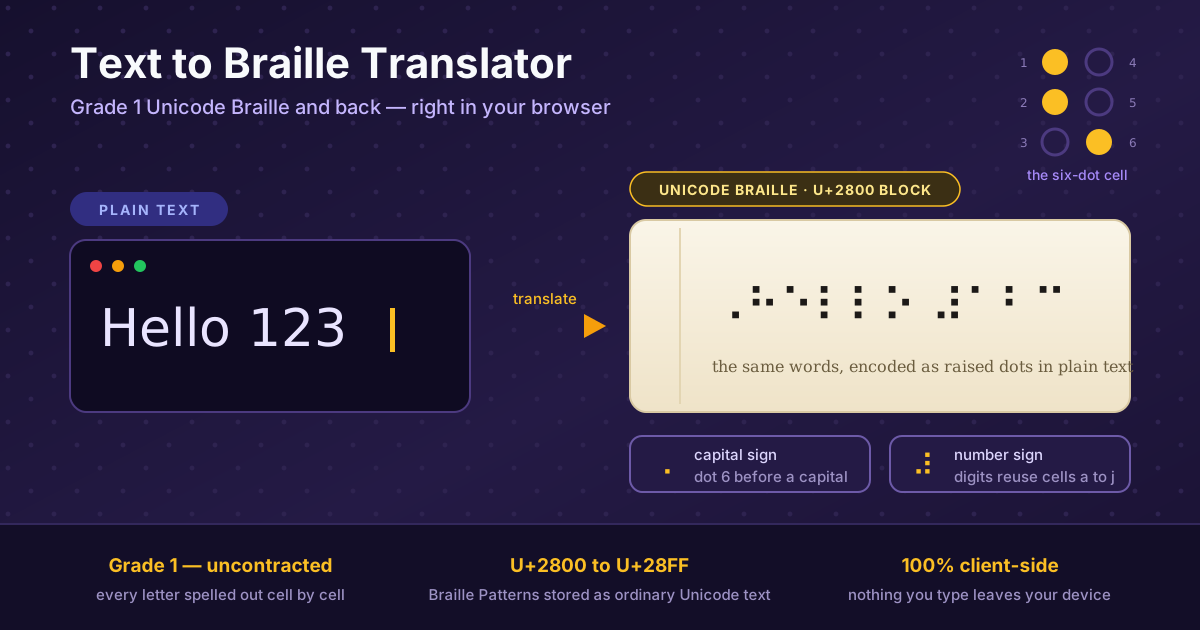
The six-dot cell. Every braille character fits in a cell of six dot positions, numbered 1-3 down the left column and 4-6 down the right. With each dot raised or flat, a cell represents 64 patterns — every letter, digit, mark, and indicator in this tool is one of them. A blank cell is U+2800.
The Unicode offset trick. The Braille Patterns block stores each cell as a byte whose bits map onto the dots: dot one adds one, dot two adds two, up to dot six adding thirty-two, all on top of the base U+2800. The letter a is a single raised dot one, so it is exactly U+2801; h, raising dots one, two, and five, is U+2813.
The number sign and digits. Digits reuse the cells for a through j: one shares a cell with a, two with b, and zero with j. The number sign (dots three, four, five, and six) switches the reader into numeric mode, so 123 becomes the number sign followed by the cells for a, b, and c.
The capitalization prefix. There is no separate uppercase alphabet. A single capital sign (dot six) marks the next letter as uppercase, and a doubled sign marks a whole word in capitals — applied automatically, including for all-caps runs like NYC.
Punctuation cells. Common marks each have dedicated cells — the period is dots two, five, and six; the comma is dot two; the apostrophe is dot three — while symbols like parentheses use two-cell sequences. Unsupported characters pass through unchanged.
Two-way translation. Decoding reverses every rule: the number sign puts following cells back into digit mode until a space or letter sign appears, and two-cell punctuation is matched before single cells to resolve ambiguity.
A worked example. Take Hello 123. The capital sign comes first, then the cells for H, e, l, l, o. After the space, the number sign appears, followed by the cells that double as a, b, and c. The result is ⠠⠓⠑⠇⠇⠕ ⠼⠁⠃⠉, and decoding it returns exactly Hello 123.
The limits. This tool produces Grade 1 (uncontracted) braille, where every word is spelled out letter by letter. Most real-world braille is Grade 2, which compresses common words into single cells. Grade 1 is ideal for labels, teaching, and testing, but not a substitute for a certified transcription.
Practical Use Cases
Accessibility Signage Mockups
Designers mock up room numbers and wayfinding signage long before anything is embossed. Rendering the braille line with real Unicode cells previews the exact sequence the sign will carry, catching wrong room numbers early.
Education and Braille Literacy
Teachers and parents can generate practice material on demand: type a spelling list and get the exact cell sequence a student is working through. The on-page chart doubles as a self-study aid for sighted learners.
Testing Braille Display Rendering
Developers building accessibility features can paste the generated cells into an app and confirm the pipeline handles the U+2800 block, wrapping, and indicator cells.
Badges, Cards, and Creative Projects
A profile README or event badge with a real braille line is a memorable touch, and because the output is text it survives copy-paste everywhere. Pair it with the ASCII Art Generator for a meaningful header.
Best Practices
- Treat Unicode Braille as text that needs a braille-aware context. It renders wherever fonts and braille displays work, but without a font covering the U+2800 block, cells can appear as hollow boxes.
- Never use the output as a substitute for certified transcription. Physical braille for signage or publications must follow certified embossing standards for dot height, spacing, and grade.
- Round-trip before you publish. Decode your own output and compare it to the source to catch typos and unsupported symbols.
- Keep numbers and capitals intentional. A digit run ends at a space, and capital marks apply per letter or word, so unusual casing shows up faithfully.
- Use Grade 1 for teaching and testing, and commission Grade 2 for prose. Uncontracted passages take significantly more space.
- Pair it with real accessibility work. Accessible products still need semantic HTML, proper headings, and alt text.
Start Translating Text to Braille Today
Whether you are preparing a signage mockup, supporting a braille learner, or simply curious how six dots carry an alphabet, the Text to Braille Translator is ready in one click. Type a phrase, watch the cells appear, and copy the result anywhere Unicode text is welcome.
Related Tools You Might Like:
- Text Case Converter — Switch text between uppercase, lowercase, and title case to keep capitalization consistent before encoding.
- Heading Structure Checker — Audit your heading hierarchy so screen readers and braille displays present content in a logical order.
- ASCII Art Generator — Turn plain text into bold block-letter banners for the same READMEs and badges where a braille line shines.
Happy translating — six dots at a time!
Frequently Asked Questions
Q: Is the braille this tool produces real, readable braille?
A: Yes. It is Grade 1 (uncontracted) English braille in the Unicode Braille Patterns block, following standard conventions for number signs, capital signs, and punctuation. Any braille display or screen reader can consume it.
Q: What is the difference between Grade 1 and Grade 2 braille?
A: Grade 1 spells every word letter by letter. Grade 2 adds contractions — common words compressed into single cells — and is what most published material uses. This tool outputs Grade 1, ideal for learning, labeling, and testing.
Q: Does anything I type get sent to a server?
A: No. The conversion runs entirely in your browser, and nothing leaves your device. You can even go offline after the page loads and the tool keeps working.