Transparent Image Maker: Remove Backgrounds Online Without Uploading a Thing
Transparent Image Maker removes solid or near-uniform backgrounds from PNG and JPG files in your browser, using corner-pixel color-keying with a tolerance slider and flood-fill edge cleanup — no uploads required.
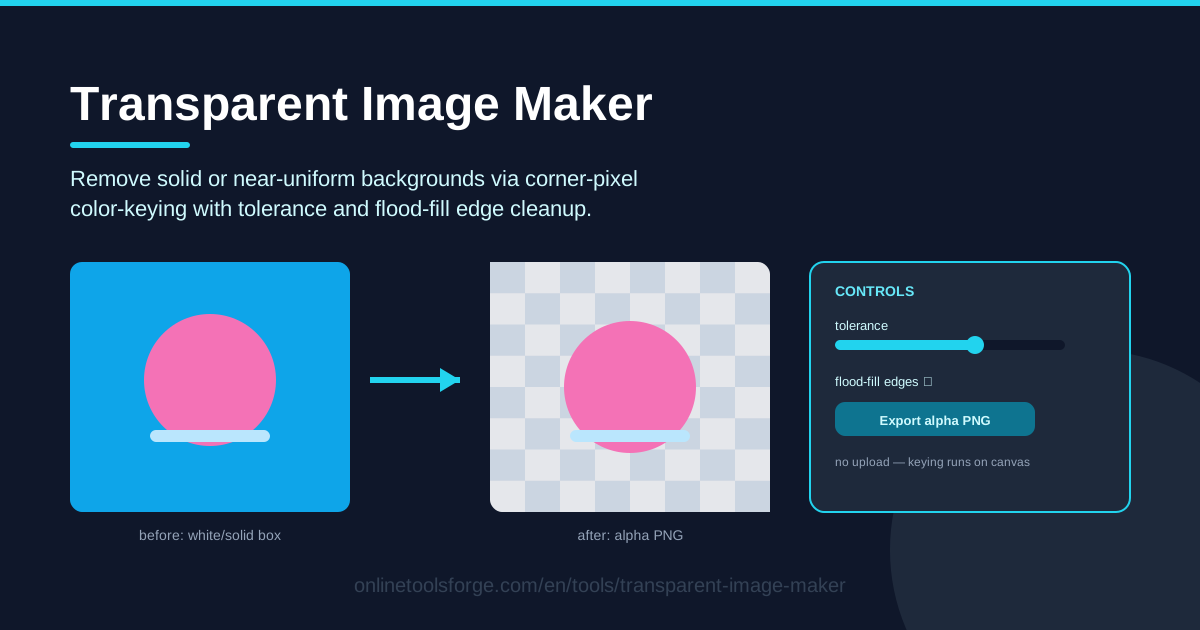
Table of Contents
A transparent background is one of those quiet details that separates amateur-looking graphics from polished, professional ones. Logos drop onto any slide without a white box trailing behind them, product shots blend into marketplace layouts, and sprites layer cleanly inside game engines. The quickest way to get there is the Transparent Image Maker, a free browser tool that strips solid or near-uniform backgrounds from PNG and JPG images in seconds.
Unlike most online background removers, nothing ever leaves your computer. The tool loads your file locally and processes it entirely on an HTML canvas: it reads the color at the corners of your image to identify the background, removes every matching pixel within a tolerance you control, cleans up leftovers with a flood-fill pass, and exports a crisp alpha PNG.
This guide covers how to use the tool step by step, how color-keying differs from AI cutouts, and the habits that produce clean, reusable transparent images.
Why Use Transparent Image Maker?
- No-upload privacy. Your image never touches a server. Everything happens in browser memory, so sensitive screenshots, unreleased products, and client work stay completely private.
- Instant results. No upload wait, no processing queue, no download links to chase. Adjust the tolerance, re-run the key, and export — all in real time.
- Predictable, precise cutouts. AI removers guess where a subject ends. Color-keying follows an exact color rule, so flat backgrounds vanish without nibbling into hair, text, or thin logo strokes.
- Works with PNG and JPG. JPG has no alpha channel, but the tool reads it on canvas and re-exports it as a true transparent PNG.
- Free and unlimited. No sign-up, no watermark, no daily quota.
- Clean alpha PNG export. Results keep full alpha transparency, ready for slides, marketplaces, game engines, and design tools.
Key Features
| Feature | What it does |
|---|---|
| Local image loading | Opens any PNG or JPG from your device onto a canvas; the file is never uploaded. |
| Corner-pixel color-keying | Samples the corner pixels to identify the background color, then removes every matching pixel. |
| Tolerance slider | Widens the match so near-identical shades — soft shadows, gentle gradients, compression noise — are removed too. |
| Flood-fill edge cleanup | Mops up leftover background, including interior gaps like the holes in a letter "O". |
| Alpha PNG export | Saves a PNG with a real alpha channel and crisp transparent edges. |
A few details worth knowing:
- Corner sampling assumes the background reaches the frame's edges — true for most studio shots, scans, and exported logos.
- The tolerance slider is the control you will touch most: too low leaves halos, too high eats into the subject.
- Processing is pure canvas math, so even large images key in well under a second.
How to Use Transparent Image Maker
- Load your image. Open the Transparent Image Maker and choose a PNG or JPG from your device. It appears on the canvas instantly — there is no upload progress bar, because there is no upload.
- Adjust the tolerance. Start low and preview the result. If patches of background remain, nudge the slider up until the backdrop disappears completely.
- Run the color-keying. The tool samples the corner pixels, locks onto the background color, and transparentizes every pixel within your tolerance range in one pass.
- Clean the edges with flood-fill. Leftover slivers along outlines and interior gaps — holes in letters, gaps under chair legs — get swept out by the flood-fill cleanup pass.
- Export your alpha PNG. Download the result; the checkerboard areas are genuinely transparent and will sit cleanly on any background.
How Color-Keying Differs from AI Cutouts
Corner-pixel sampling logic. The tool assumes the background is whatever color it finds at the image's corners. That is a safe bet for studio shots, scanned line art, and exported logos, which all put background color at the frame's edge. Those corner readings become the key color that defines exactly what gets removed.
What the tolerance catches. Real backgrounds are never one flat value. Studio paper vignettes, phone photos cast soft shadows under the subject, and JPG compression smears color slightly. The tolerance slider sets how far a pixel may drift from the key color and still count as background — how shadows and gradient backdrops get removed instead of surviving as ugly outlines.
Flood-fill versus global keying. A naive remover deletes every matching pixel anywhere in the image — including white areas inside your subject, like a mug's rim. Flood-fill works from the keyed background inward, clearing only regions connected to it plus enclosed interior gaps, so similarly colored details inside the subject survive.
When color-keying beats AI. AI removers shine on busy, real-world photos. Give one a logo on white, a product on seamless paper, or scanned line art, and the model can misjudge: keeping part of the backdrop, erasing thin strokes, or leaving soft halos where you want a hard edge. Color-keying follows a rule you set, so geometric subjects come out pixel-perfect, and switching tolerance takes one click — no re-upload.
Alpha channel basics. Transparency lives in the alpha channel, a fourth value stored alongside red, green, and blue for every pixel: 255 is fully opaque, 0 is fully transparent, and the values between create soft anti-aliased edges. JPG cannot store alpha at all, which is exactly why the export is PNG. The checkerboard you see in the preview is genuine transparency, not a pattern painted into the image.
Practical Use Cases
Product Photos for Marketplaces
Amazon, Etsy, and Shopee favor — or outright require — clean white or transparent backgrounds. Shoot your product on plain paper, key out the backdrop, and export a transparent PNG that drops onto any listing template. One caution: a white product on white paper cannot be keyed safely — shoot on a contrasting color first, since the tool removes what matches the corners, not what "looks like" a background.
Logo Cleanup for Slides and Documents
Logos usually arrive on a solid background that shows up as an ugly white box on colored slides. Key it out once and the logo becomes reusable everywhere — presentations, letterheads, website headers, and dark-mode designs where that white box would glare.
Game Sprite Preparation
Sprites need hard transparency with no fuzzy halos, or you get fringing every time the engine scales the art. Color-keying produces exactly those hard edges, and the tolerance slider lets you match your art program's exact backdrop shade before export.
Sticker Making
Messaging apps, print-and-cut machines, and print-on-demand shops all start from a subject with its background removed. Key the backdrop, inspect the contour at zoom, and export a clean alpha PNG that cuts and displays with a tidy edge.
Best Practices
- Shoot or scan on a plain, contrasting background. Seamless white or a solid color opposite your subject gives the corner sampler an unambiguous key.
- Raise tolerance gradually. Stop the moment the background is fully gone; every extra step risks eating light-colored areas of the subject.
- Check edges at zoom. Halos are invisible at 100% and glaring on dark backgrounds. Inspect the outline before exporting.
- Keep a layered original. Archive the untouched source file so you can re-key later with different settings instead of salvaging a flattened PNG.
- Mind same-color collisions. The tool keys by color, not meaning — a white shirt on white paper needs a different backdrop, not a higher tolerance.
- Finish with other tools. Crop to a tight frame and convert formats as final polish for platform-ready assets.
Ready to free your images from their boring backdrops? Open the Transparent Image Maker, drop in a file, and export your first alpha PNG in under a minute — no account, no upload, no cost.
Related Tools You Might Like:
- Image Background Remover — for complex, multi-color photos where color-keying is not the right fit.
- Image Cropper — trim your transparent PNG to a tight frame before export.
- Image Format Converter — switch to PNG, WebP, and other formats once your transparency is in place.
Happy creating!
Frequently Asked Questions
Q: Is my image uploaded to a server? A: No. The tool opens your file with the browser's local file API and processes it on an HTML canvas. The image never leaves your device, making it safe for confidential and client work.
Q: Why does the tool look at the corners of my image? A: In studio shots, scans, and exported logos, the corners are always background. Sampling them yields a reliable key color without manual picking.
Q: My export looks fine on white but fuzzy on dark backgrounds. What now? A: That is a leftover anti-aliasing halo. Lower the tolerance a step or two, re-run, and check the outline at zoom before exporting again.
Q: Can I export a transparent JPG? A: No — JPG has no alpha channel, so transparency is impossible in that format. The tool exports PNG, which supports full alpha. If you later flatten to JPG for file size, the transparency becomes a solid background color.