Video Frame Extractor Guide: Capture the Exact Frame as PNG
Learn how to scrub a video timeline and capture the exact frame as a crisp PNG in your browser. A complete guide to the Video Frame Extractor tool, with single and batch downloads.
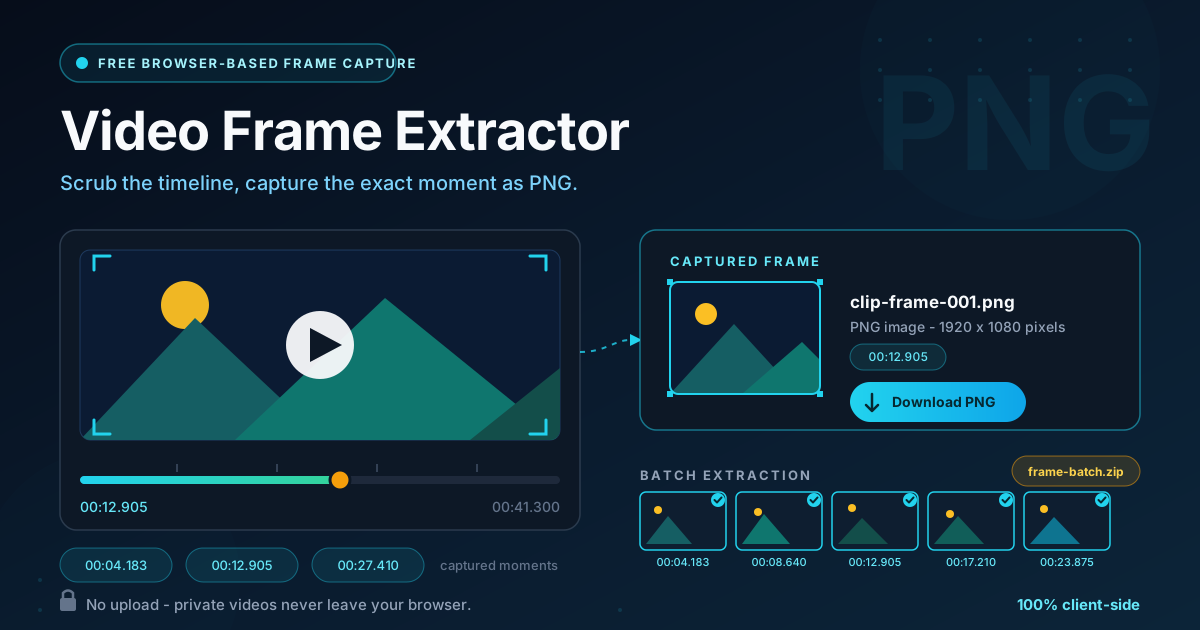
Free Interactive Tool
Video Frame Extractor
Seek through an uploaded video and capture any frame as a PNG or JPG image with frame stepping, exact time jump, and resolution scaling — entirely in your browser.
Table of Contents
Anyone who has paused a video and hammered the screenshot key knows the result: a blurry, motion-smeared image captured a few milliseconds away from the moment you actually wanted. The Video Frame Extractor solves this properly. Load any video file, scrub the timeline to the exact moment, and capture that precise frame as a clean PNG — entirely inside your browser.
The difference comes down to method. A screenshot of a playing video grabs whatever your display happens to be rendering, complete with motion blur and scaling artifacts. Seeking instead asks the video decoder to land on one specific frame and render it at full native resolution. The result is a pixel-perfect still — and that matters whenever a single frame has to look right: a thumbnail, a piece of evidence, a documentation image.
Privacy is built in, too. The tool runs entirely client-side: your video is decoded locally by your own browser and never uploaded anywhere — a safe choice for confidential screen recordings, unreleased product footage, or personal clips you would rather not hand to a web service.
Why Use Video Frame Extractor?
- Frame-accurate captures. Scrub the timeline to land on the exact frame you want instead of hoping a paused player is close enough. At 30 FPS, one frame lasts just 33 milliseconds.
- No upload, total privacy. The video never leaves your device — no upload queue, no account, no server copy of your footage.
- Native-resolution PNG output. Captured frames are lossless PNGs at the video's own resolution, so a 1080p clip yields a full 1920 x 1080 still.
- Single or batch downloads. Grab one perfect frame, or mark several timestamps along the timeline and download them together as a batch.
- Common video formats. MP4, WebM, MOV, and anything else your browser can decode — no transcoding required first.
- Free and friction-free. No installation, no sign-up, no watermarks. Open the page, drop in a video, and start capturing.
Key Features
The extractor keeps the workflow deliberately small: find the moment, capture it, download it.
| Feature | What it does | Why it matters |
|---|---|---|
| Timeline scrubber | Move smoothly through the video, forward and back. | A nearby frame can be a blink off from the one you need. |
| Exact-moment PNG capture | Freeze and capture the displayed frame as a lossless PNG. | Crisp stills straight from the decoded video, not the screen. |
| Single frame download | Save the current capture as an individual PNG file. | Ideal for one hero image on a thumbnail or article. |
| Batch frame download | Mark multiple timestamps and download all captures together. | Compare candidate frames side by side instead of one at a time. |
| Native-resolution output | Frames export at the video's own pixel dimensions. | No rescaling, so the still matches the source quality exactly. |
| 100% client-side | All decoding, seeking, and encoding happen locally in your browser. | Confidential footage stays on your machine; no account needed. |
Two details worth knowing under the hood:
- PNG is lossless, so the file preserves every pixel exactly as the decoder rendered it — no JPEG-style ringing around text or sharp edges.
- Large files are handled by the browser's own media pipeline, which is highly optimized; there is no server-side size limit to worry about.
How to Use the Video Frame Extractor
Capturing a frame takes five short steps:
- Load your video. Drag and drop an MP4, WebM, or MOV file onto the page, or click to browse. The file loads locally — nothing is uploaded.
- Scrub the timeline. Drag the scrubber to move through the video and find the general area of your moment.
- Fine-tune the position. Step backward and forward frame by frame until the preview shows exactly the composition you want. Neighboring frames can differ more than you expect during fast motion.
- Capture the frame. Grab the current frame as a PNG at the video's native resolution.
- Download single or batch. Save the capture immediately, or keep marking additional timestamps and download the whole set of frames together.
Frames, Keyframes, and Seeking
To get consistently good results, it helps to understand what a frame actually is inside a compressed video — and why seeking behaves the way it does.
Frames versus keyframes. Modern codecs such as H.264 and VP9 do not store every frame as a complete picture. They place a full keyframe every second or two and encode the frames between as compact deltas. A 30 FPS video has 30 real frames every second, but perhaps only one keyframe among them.
Why seeking has precision limits. When you seek, the decoder must reconstruct a complete picture. Good players seek to the nearest keyframe and then decode forward to the exact timestamp, but some players and embedded video elements simply snap to the nearest keyframe — a noticeable fraction of a second off. That is why screenshotting a paused player is unreliable. A dedicated frame extractor decodes forward to the precise frame, so what you scrub to is what you capture.
Scrub, then capture at native resolution. The reliable workflow is to scrub to the moment, confirm the composition in the preview, and capture from the decoded frame itself — native pixels at native resolution, not a rescaled screenshot of a player window.
Batch extraction for thumbnails. The first frame you land on is rarely the perfect thumbnail. Marking several nearby timestamps and downloading them as a batch lets you compare candidates side by side and pick the frame with the best expression, composition, or motion peak.
Private videos never leave the browser. Because decoding and capture happen entirely client-side, the tool is safe for footage you cannot upload anywhere: internal demos, security recordings, client material. Close the tab and nothing remains — there is no server-side copy to delete.
These strengths shine in several everyday jobs, from thumbnails to bug reports to sports analysis.
Practical Use Cases
YouTube Thumbnails
A great thumbnail is usually a single, perfectly chosen frame: peak emotion, clearest action, best composition. Extract a batch of candidates, compare them, and download the winner as a full-resolution PNG ready for a 1280 x 720 crop — no screenshot blur, no lucky timing.
Documentation Stills
Step-by-step guides, manuals, and tutorials are far clearer with exact stills from a screen recording. Capture one frame per step, and every dialog, cursor position, and menu state matches precisely what the user will see — not an approximation paused by hand.
Bug-Report Evidence
Some visual glitches flash across a single frame, and a manual screenshot will almost always miss them. Seek to the failing moment, capture the exact frame, and attach it to the issue with its timestamp so developers can reproduce it against the same instant.
Sports and Technique Analysis
Coaches and athletes analyze form frame by frame: knee position at foot strike, wrist angle at release, body line mid-lift. Extracting a sequence of frames across one movement turns fast, blurred action into crisp, comparable stills.
Best Practices
- Seek roughly, then fine-tune. Jump near your target first, then nudge frame by frame — far faster than hunting along the whole timeline.
- Use the highest-quality source you have. A frame can only be as sharp as its source, so capture from the original export, not a low-bitrate re-encode.
- Note the timestamp of each capture. An exact time such as 00:12.905 keeps frames reproducible and easy to reference.
- Capture at native resolution. You can always shrink a PNG later — never the reverse.
- Batch related moments in one pass. Mark every frame you need from a video, then download them together.
- Prefer PNG for stills you will edit. Lossless files survive cropping and annotation; convert to JPG only at the final publishing step.
Start Capturing Perfect Frames Today
The Video Frame Extractor is free, private, and runs entirely in your browser. Drop in a video, scrub to the exact moment, and download crisp PNG frames one at a time or as a batch — no uploads, no accounts, no watermarks. Your next thumbnail, bug-report still, or analysis sequence is one scrub away.
Related Tools You Might Like:
- FFmpeg Command Builder — Compose precise ffmpeg commands without memorizing flags.
- Image Annotator — Add arrows, boxes, text, and highlights to captured frames before sharing.
- Video to GIF Converter — Turn short clips into lightweight animated GIFs with custom frame rate and quality.
Happy frame hunting!
Frequently Asked Questions
Q: Which video formats can I extract frames from?
A: Any format your browser decodes natively — typically MP4, WebM, MOV, and MKV with common codecs like H.264, VP9, and AV1. Support depends on your browser, not on the tool.
Q: Is my video uploaded to a server?
A: No. The tool is 100% client-side: your file is read locally, decoded in the browser, and every frame is generated on your device. Nothing is transmitted or stored.
Q: Why is the captured frame sometimes one frame away from where I paused in my media player?
A: Many players snap to the nearest keyframe when seeking, which can land a fraction of a second off. The extractor decodes forward to the exact frame you scrub to, so its captures are precise — which is why they may differ slightly from a paused-player screenshot.
Q: Can I extract many frames at once?
A: Yes. Mark several timestamps as you scrub and download them together as a batch — a fast way to gather thumbnail candidates.
Q: Why PNG instead of JPG?
A: PNG is lossless, so the frame is saved exactly as the decoder rendered it, with no compression artifacts around text or edges. Use JPG only when file size matters more than pixel-perfect quality.