AI Tool Schema Builder: Design OpenAI, Anthropic and MCP Tool Schemas the Easy Way
Learn how AI Tool Schema Builder turns a simple visual form into validated JSON schemas for OpenAI function calling, Anthropic tool use and MCP tool definitions.
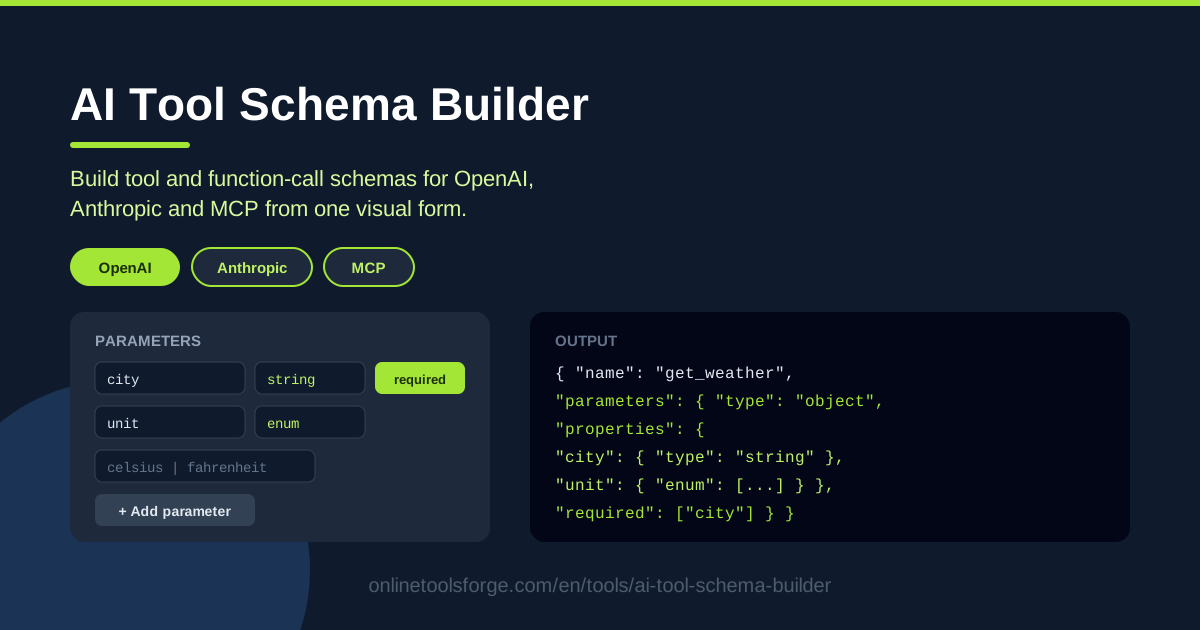
Table of Contents
Giving an LLM the ability to call your own tools is one of the most powerful patterns in modern AI development, but it starts with a chore: writing the JSON schema that describes each tool. Every provider wants one — OpenAI for function calling, Anthropic for tool use, and the fast-growing ecosystem of MCP (Model Context Protocol) servers — and each wraps the same underlying idea in a slightly different envelope. The AI Tool Schema Builder on Online Tools Forge turns that chore into a five-minute form.
Instead of hand-editing a JSON object and hoping you got the nesting right, you fill out a visual form: give the tool a name, describe what it does, then add parameters one by one with their types, array element types, enum values, descriptions and required flags. A live validation engine watches everything you type and surfaces any problem in an Errors panel, so mistakes appear immediately rather than at API-call time.
When you are happy, the builder generates ready-to-paste schemas for all three providers at once. Copy the output, download it as a file, or load the built-in get-current-weather example to see exactly what a well-formed tool looks like. This guide walks through how the tool works and how to think about tool schemas across providers.
Why Use AI Tool Schema Builder?
- One form, three providers. Define the tool once and get output shaped for OpenAI function calling, Anthropic tool use and MCP tool definitions — no need to memorize three slightly different envelope formats.
- Live validation as you type. The Errors panel flags problems the moment they appear, from an empty tool name to a malformed enum, so you never ship a broken schema to production.
- Structured parameters without the syntax. Add parameter types, array element types, enum values, descriptions and required flags through form fields while the tool assembles the correct JSON Schema structure for you.
- A realistic example built in. The Load example button fills the form with a complete get-current-weather tool, giving you a concrete reference for how each field maps to the schema output.
- Copy or download instantly. Grab the generated JSON from your clipboard or download it as a file and drop it straight into your application, agent configuration or MCP server.
- No setup required. Everything happens in the browser on Online Tools Forge — open the page, build the schema, move on.
Key Features
| Feature | What it does |
|---|---|
| Tool name field | Names your tool; the name is required and validated so you never export a schema the API will reject. |
| Description field | Captures what the tool does — the text the model reads when deciding whether and how to call it. |
| Parameter builder | Adds parameters with types such as string, number and boolean, plus array element types, enum values, descriptions and required flags. |
| Errors panel | Validates the form live as you type and lists every issue with clear messages until the schema is clean. |
| Load example | Populates the form with a complete get-current-weather tool you can edit instead of starting from scratch. |
| Copy and Download | Exports the finished output to your clipboard or as a downloaded file, ready for your codebase. |
| Multi-provider output | Generates schemas in the shapes OpenAI function calling, Anthropic tool use and MCP expect. |
- The required flags you toggle in the form flow into the required array of the generated schema, which is what actually stops the model from omitting parameters.
- Enum values defined per parameter are emitted as enum lists, letting you constrain the model to a fixed set of choices such as unit being celsius or fahrenheit.
- Because validation is continuous, the fastest workflow is to type and glance at the Errors panel rather than save-and-check in a separate tool.
How to Use AI Tool Schema Builder
-
Name the tool. Open the AI Tool Schema Builder and enter a name in the tool name field. Use lowercase, verb-style names such as get-current-weather, search-orders or create-ticket — providers expect identifiers that read like function names. The field is validated, so if the name is missing or malformed the Errors panel will tell you before you export anything.
-
Describe what it does. Fill in the description with one or two sentences a model can act on, such as "Get the current weather for a given city." This text is what the LLM reads to decide when to invoke the tool, so describe the job clearly rather than the implementation.
-
Add parameters with types, enums and required flags. Add each parameter in the form and pick its type — string, number, boolean, or an array with its own element type. Add enum values wherever the input should be one of a few options, write a short description per parameter, and tick Required for anything the tool cannot run without.
-
Review the live validation. Watch the Errors panel as you work and clear every message — a missing name, an empty enum, a required field with no type — before moving on. If you want a sanity check, click Load example to load the get-current-weather tool and compare shapes.
-
Export for your provider. Choose the output for OpenAI function calling, Anthropic tool use or MCP, then copy the JSON to your clipboard or download it and paste it into your API request, agent configuration or MCP server manifest.
Tool Schemas Across Providers
What function calling actually is. Function calling is a contract: you describe tools in JSON, the model reads those descriptions, and when a user request matches, the model returns structured arguments instead of prose. Your code executes the real function and hands the result back to the conversation. How precisely the schema describes the inputs directly determines how reliably the model calls the tool.
The OpenAI function calling shape. OpenAI expects a list of tools, each with a type set to function and a function object containing name, description and parameters — the parameters being a standard JSON Schema object with an object type and a properties map. Mistakes here, such as leaving parameters empty when they are needed, produce either silent misfires or rejected requests.
The Anthropic tool use shape. Anthropic also uses a tools array, with each entry carrying name, description and an input_schema object. The schema inside input_schema is again standard JSON Schema, so the same parameter definitions you built transfer over — only the outer wrapper changes.
MCP tool definitions. The Model Context Protocol standardizes how applications expose tools to models, and an MCP server declares each tool with name, description and inputSchema. If you are building an MCP server that should serve many clients, getting this declaration right is the whole game.
Where enums and required flags matter. These two fields do most of the reliability work. A required flag keeps the model from omitting the city when calling get-current-weather; an enum keeps it from inventing unit values like "C" or "degrees" when your API only understands celsius and fahrenheit. Tight enums plus honest required flags turn "usually works" into "predictably works."
Practical Use Cases
Weather and API Tools for Agents
The classic first tool: get-current-weather with a required city string, a unit parameter constrained to celsius and fahrenheit via an enum, and optionally an array parameter for multiple locations using the array element type option. The built-in example mirrors this pattern exactly, and the same structure extends to any REST API your agent should reach — searching products, checking order status or fetching exchange rates.
Structured Extraction Helpers
Not every tool performs an action; some structure information. Define an extract-invoice-details tool with parameters like invoice_number (string, required), total_amount (number), currency (string with a small enum) and line_items (array). The model then returns clean, predictable JSON instead of free-form text you have to parse with regex — and the schema doubles as documentation for your team.
MCP Server Tools
If you maintain an MCP server, every tool it exposes needs a precise inputSchema. Build each tool definition in the form, download the JSON and drop it into your server's tool list. Because the builder also emits OpenAI and Anthropic shapes, you can offer the same capability to direct-API clients without re-authoring anything.
Teaching Function Calling
Schema files are the fastest way to teach what function calling really is. Load the example, show how the form fields map to the JSON output, then let students edit a parameter and watch the Errors panel react. It turns an abstract concept into something they can poke at in a browser tab.
Best Practices
- Write descriptions for the model, not for humans. Keep each description to one or two action-oriented sentences; the model uses this text to decide when a tool applies, so vagueness here causes wrong calls.
- Prefer enums over free text whenever the input is a closed set. Units, currencies, sort orders and status filters — anything with a fixed option list belongs in an enum.
- Mark only truly necessary parameters as required. Over-marking forces the model to invent values, while under-marking lets it skip essentials.
- Validate before you deploy. Clear the Errors panel first, then paste the exported JSON into a schema validator for a second opinion.
- Keep names consistent and verb-shaped. get-current-weather beats weatherData2; models pick up naming conventions and choose tools better when they are predictable.
- Iterate with real transcripts. Watch how the model actually calls your tool, then tighten descriptions, types and enums based on the mistakes you see.
Ready to stop fighting JSON syntax by hand? Open the AI Tool Schema Builder, load the example, and have validated schemas for OpenAI, Anthropic and MCP in the next five minutes.
Related Tools You Might Like:
- JSON Schema Validator — double-check any schema you export
- JSON Formatter — pretty-print and inspect the generated JSON
- JSON to TypeScript — turn parameter shapes into typed interfaces
Happy building!
Frequently Asked Questions
Q: Do I need to know JSON Schema syntax to use AI Tool Schema Builder? A: No. The visual form handles all of the nesting for you — you pick types, add enum values and toggle required flags, and the tool assembles the correct JSON Schema structure behind the scenes. Reading the generated output is also a good way to learn the syntax along the way.
Q: Can one definition really work for OpenAI, Anthropic and MCP? A: Yes. All three providers wrap the same core — a tool name, a description and a JSON Schema of parameters — in slightly different envelopes. The builder emits the correct shape for each provider from your single form definition.
Q: When should I use an enum instead of a plain string parameter? A: Whenever the valid inputs are a small, fixed set: temperature units, currency codes, sort directions or status names. Enums stop the model from guessing variants your backend does not support, and they are far cheaper than runtime error handling.
Q: How do I verify a schema before shipping it? A: Fix everything in the Errors panel first, since it validates as you type. Then paste the exported JSON into the JSON Schema Validator linked below for an independent check before it reaches a production API request.