ChatGPT Export Viewer: Read, Search, and Export Your Chat History
Turn your ChatGPT or Claude conversations.json export into a searchable, readable thread view with one-click Markdown export — right in your browser. A step-by-step guide to the ChatGPT Export Viewer.
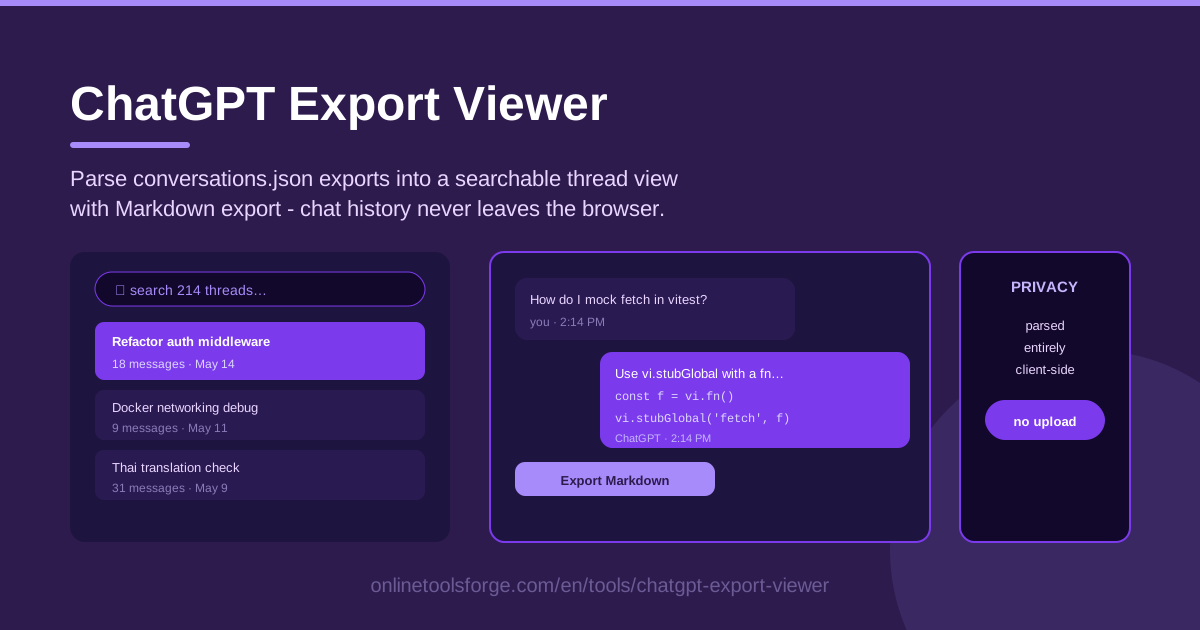
Table of Contents
Every conversation you have had with ChatGPT or Claude is more than a transcript — it is a personal archive of solved problems, refined prompts, and decisions worth revisiting. But when you request your data, the platforms hand you a compressed archive built around one intimidating file: conversations.json. Open it and you find thousands of lines of nested JSON that look nothing like the conversations you remember.
The ChatGPT Export Viewer closes that gap. Drop your conversations.json into the tool and it parses the export entirely in your browser, turning every thread into a clean, readable conversation. A searchable sidebar lists all of your threads with message counts and dates, and one click exports any thread as Markdown.
Because everything runs client-side, your chat history never leaves your browser. No upload, no account, no server in the middle — just the readability of the original chat interface with the portability of a plain file.
Why Use ChatGPT Export Viewer?
- Your chat history stays private. The tool is entirely client-side: your browser parses the file and nothing is ever transmitted anywhere. For something as personal as your AI chat logs, that matters more than any feature on this list.
- Read exports the way they were meant to be read. Instead of raw JSON, you see proper user and assistant turns laid out like the conversation you actually had.
- Find any thread in seconds. The searchable list shows every conversation with its message count and date, so one keyword surfaces a chat from months ago.
- One-click Markdown export. Save any thread as a clean .md file to keep, share, or paste into your notes.
- Works with both ChatGPT and Claude. The same viewer handles exports from either platform.
- No installation and no account. Open the page, load the file, start reading.
Key Features
| Feature | What it does |
|---|---|
| conversations.json loader | Accepts a ChatGPT or Claude export file and parses it locally in your browser |
| Searchable thread list | Displays every conversation with message counts and dates, filterable by keyword |
| Readable thread view | Renders each thread as alternating user and assistant turns that match the original chat |
| One-click Markdown export | Saves any individual thread as a portable Markdown file |
| Fully client-side processing | Keeps the entire workflow in your browser — no uploads, no servers |
A few details worth noting:
- The thread list doubles as an inventory of your history — great for spotting conversations you forgot you had.
- Clear role separation makes it easy to tell your prompts from the model's answers when reviewing old work.
- Exported Markdown keeps the conversation structure intact, so threads are usable in note apps right away.
How to Use ChatGPT Export Viewer
- Request the export from settings. In ChatGPT, open Settings, choose Data Controls, and select Export Data; in Claude, use the export option in your account settings. You will receive an email with a download link for a .zip archive — this can take a while for large accounts.
- Unzip the archive. Among the files inside is conversations.json, which holds every one of your conversations.
- Load conversations.json into the viewer. Open the ChatGPT Export Viewer and select the file. Parsing happens instantly and locally.
- Search your threads. Type a keyword to filter the list, and use the message counts and dates to find the conversation you remember.
- Export a thread as Markdown. Open it, click export, and save the .md file wherever you keep your notes.
That is the whole workflow — request, unzip, load, search, export. Most people finish in under five minutes once the export email arrives.
What Is Inside conversations.json
A conversations.json file is an array of conversation objects. Each object is one thread and carries metadata such as a unique ID, the thread title, and creation and update timestamps. The messages live in a structure called a mapping: a dictionary of nodes, each holding one message with its author role (user, assistant, or system), its content, and its own timestamp, linked to parent and child nodes.
That tree structure is why the raw file is so hard to read. Messages are not stored as a simple top-to-bottom list; they are scattered across the mapping as keyed nodes, content is often split into multiple parts, and everything is packed into one long line of JSON. Reading it by eye means mentally reassembling the conversation from fragments.
The viewer does that reassembly for you. It walks the node mapping, follows the parent-child links to recover the true chronological order, filters out system and metadata entries, and maps each remaining node to either a user or assistant turn. The result is a thread view that reads exactly like the conversation did in the original app.
The Markdown export preserves that reconstruction: the thread title, the turns in order with their roles, and the full message content — including code blocks — in a plain, portable format that any editor or notes app can open.
Practical Use Cases
Finding a Half-Remembered Solution
Three weeks ago the model helped you fix a stubborn build error, and now the same error is back. You do not remember the thread title — you remember the phrase "circular dependency." Search your export for it, open the matching thread, re-read the fix, and export it so the answer is saved for next time.
Archiving Prompts That Worked
When a prompt produces a genuinely great result, it is an asset. Search for the project or topic, confirm which wording delivered, and export the thread as Markdown. Over a few months this becomes a personal prompt library — reusable, searchable, and independent of any single app.
Moving Conversations Into Notes and Obsidian
Markdown is the native language of Obsidian, Notion, and Logseq. Export the threads that contain research or drafted content, drop the .md files into your vault, and link them beside your other notes. Your AI conversations become part of your knowledge base instead of a scattered log.
Auditing What You Shared
It is easy to forget how much context you paste into a chat window. Search your export for your company name, client identifiers, or anything sensitive, and see exactly which conversations contain it — all without sending that history to a third-party scanning service.
Best Practices
- Export regularly, before you delete anything. A data export is the only complete copy of your history — there is no way to export what is already gone.
- Treat the export file as private. conversations.json contains everything you have ever typed. Keep it in an encrypted or access-controlled folder.
- Export important threads as Markdown immediately. When a conversation produces a fix, a plan, or a prompt, save it on the spot; future you will not remember which thread it was in.
- Search by keyword, not memory. Exact titles rarely come back to you — search error messages, product names, or distinctive phrases instead.
- Re-export every few months. The export is a snapshot, not a live sync. A quarterly refresh keeps your Markdown archive current.
Ready to see what is buried in your chat history? Open the ChatGPT Export Viewer, load your conversations.json, and turn a wall of JSON into a library you can actually search — with everything staying on your own machine.
Related Tools You Might Like:
- Token Counter — check the size of prompts and documents before sending them to a model.
- System Prompt Builder — design and refine reusable system prompts for your AI workflows.
- AI Tool Schema Builder — generate structured schemas that make your tools easy for models to call.
Happy archiving!
Frequently Asked Questions
Q: Is it safe to load my conversations.json into the viewer? A: Yes. The tool runs entirely client-side: your file is parsed by your own browser and is never uploaded, stored, or transmitted to any server. Closing the tab leaves nothing behind.
Q: Does it work with Claude exports as well as ChatGPT? A: Yes. The viewer accepts conversations.json exports from both ChatGPT and Claude, so one tool covers your history on either platform.
Q: How long does it take to get an export from ChatGPT? A: The export is requested in your account settings, and the platform emails you a download link, which can take anywhere from minutes to a day for large accounts. Once you have the .zip file, the viewer parses it almost instantly.
Q: Can I edit or delete my chats with this tool? A: No. The viewer is read-only by design — it displays and exports your history but never modifies the source file or your account. Edits and deletions happen in ChatGPT or Claude itself.