Slack Export Viewer: Browse Your Workspace Archive Offline, No Upload Required
Slack exports are raw JSON files that are painful to read by hand. See how Slack Export Viewer turns them into a searchable offline reader for channels, threads, users and activity stats — entirely in your browser.
Free Interactive Tool
Slack Export Viewer
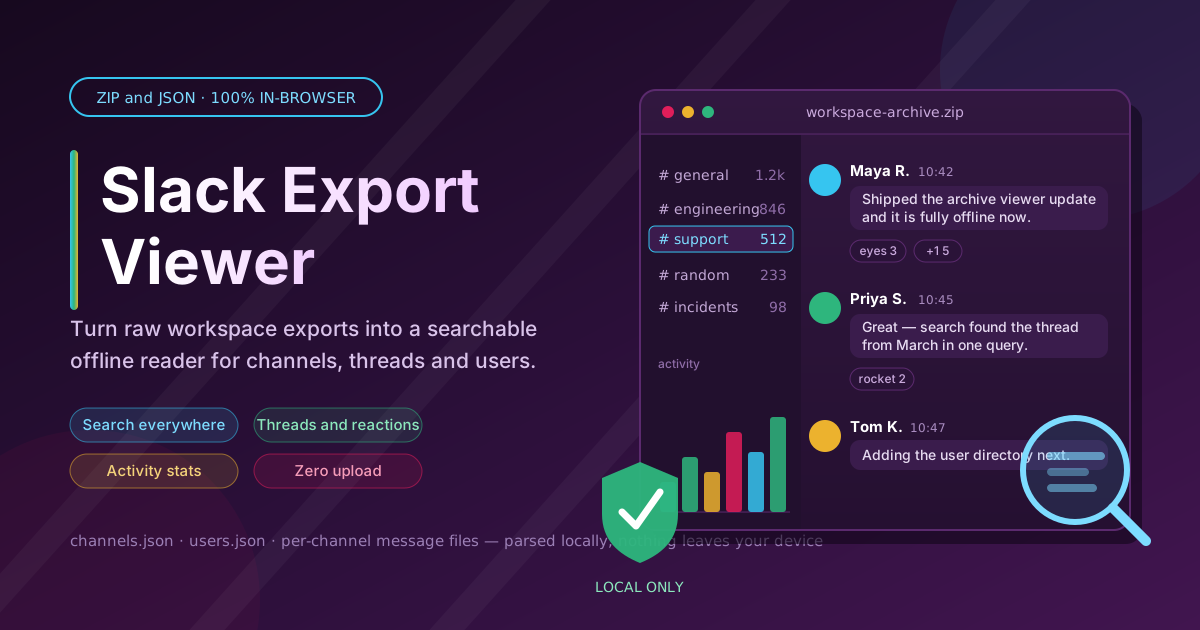
Parse Slack workspace export JSON files in-browser: browse channels, threads, and users in a searchable offline reader with activity stats — no upload.
Table of Contents
When a workspace is archived, a team offboards, or you request your own data, Slack hands you a single ZIP file and wishes you luck. Inside there is no friendly interface — just raw JSON: one file per channel, a users.json, and thousands of message objects full of opaque user IDs and epoch timestamps. Open one in a text editor and you get a wall of braces that tells you almost nothing. The Slack Export Viewer exists to fix exactly that: drop the export in and read your workspace like a workspace again.
The design constraint that matters most is privacy. A Slack export is one of the most sensitive artifacts a company can produce — HR conversations, customer escalations, legal discussions, unreleased plans. Uploading it to an online converter means sending your organization's institutional memory to somebody else's server. This viewer takes the opposite approach: every byte is parsed in your browser and the archive never leaves your machine.
In this guide you will learn how to export a workspace, what the archive contains under the hood, and how to browse channels, threads, users, and activity stats — all offline.
Why Use Slack Export Viewer?
- Sensitive workspace data never leaves your browser. Parsing happens entirely client-side. Exports full of HR threads, customer names, and confidential decisions are processed locally, so they are safe to open even on a locked-down corporate laptop.
- Raw export JSON is unreadable without help. Messages reference senders as IDs like U023BECGF, timestamps are floats, and mentions are encoded as markup. The viewer resolves all of it into human-readable conversations.
- Search across every channel at once. Instead of writing grep scripts per file, type a query once and search the whole archive, with results you can click through.
- Threads and reactions are reconstructed. Replies and emoji reactions are scattered conventions in the raw format. The viewer reassembles them so conversations read the way they did in Slack.
- Activity stats show the shape of the archive. Message counts per channel tell you immediately where the important conversations happened.
- No install, no account, no limits. It runs in any modern browser, with nothing to deploy and no paywall.
Key Features
| Feature | What It Does |
|---|---|
| ZIP and JSON loading | Accepts the export as a ZIP or raw JSON files directly |
| Channel browser | Lists every exported channel with its message count |
| Threaded message reader | Renders messages in order with replies under their parent |
| User resolution | Maps user IDs to real names via the export's user list |
| Full-text search | Searches messages across all channels, with author filters |
| Activity statistics | Summarizes message volume to spotlight the busiest channels |
Two details stand out: channel counts come from the actual files in the archive, and user resolution covers deactivated accounts too — which matters for older archives where half the participants have left.
How to Use
- Request the export from Slack. An admin goes to Settings and administration, then Workspace settings, then Import/Export Data. Free plans get full history immediately; paid plans need an approved request for private conversations.
- Download the ZIP file. Slack emails a link when the export is ready. Store it carefully — this file contains your workspace's conversation history.
- Drop the file into the viewer. Drag the ZIP (or extracted JSON files) onto the Slack Export Viewer page. Parsing runs locally and finishes in seconds for most workspaces.
- Browse channels and threads. Pick a channel from the sidebar to read its messages in order. Replies appear grouped under their parent, with reactions attached.
- Search and check the stats. Search every channel at once, filter by author, and use the activity summary to see which channels carried the most conversation.
What Is Inside a Slack Export
Understanding the raw format explains why a viewer is worth having. The archive is a folder of flat JSON documents with no interface layer:
- One JSON file per channel. general.json, support.json, and so on each hold a plain array of message objects in chronological order. There is no pagination, no index, and no cross-file search.
- Messages identify people by ID, not name. The user field holds a string like U02ABCD12EF. To know who said anything you must join against users.json, which maps IDs to display names and profile fields. Replies carry a thread_ts pointing at the parent, and reactions pair emoji names with arrays of user IDs.
- Timestamps are epoch floats. The ts field is seconds since 1970; rendering a human date is your job.
- Mentions and links are markup. Text like Hey <@U02ABCD12EF> check <#C03XYZ|support> encodes user and channel references that must be decoded before the message is readable.
This is the gap the viewer closes: it joins messages to users, expands mentions into names, groups replies under parents, aggregates reactions, and builds the per-channel index that search runs against.
Practical Use Cases
Workspace offboarding and archival
When a product sunsets or a subsidiary closes, the Slack archive is often the last complete record of decisions and vendor agreements. Export it, open it in the viewer, and future maintainers can look things up without a Slack seat — or without the workspace existing at all.
Compliance and e-discovery reviews
Audits and internal investigations often require reviewing chat history without touching a live system. Because the viewer is fully local, reviewers can load an export on an isolated machine and search it without the archive crossing a network boundary.
Project post-mortems
Before a retrospective, export the project's channels and read the timeline end to end. Activity stats show when discussion peaked; search by author or keyword surfaces the moment a decision was made.
Personal knowledge mining
Your own export is a searchable diary of everything your team figured out — snippets, runbooks, links, half-remembered fixes. Loading it locally means you can mine that history any time, even offline.
Best Practices
- Practice export scope hygiene. Request only the channels and date ranges you need. A smaller archive is faster to parse, easier to store securely, and simpler to justify in an audit.
- Redact before sharing. If the archive will circulate beyond the original team, review it in the viewer first and remove sensitive threads, customer names, or credentials.
- Keep exports per your retention policy. An export is a copy of production data: store it encrypted, restrict access, and delete it on the same schedule as the source.
- Search by user plus keyword or date range. Broad queries drown in noise; narrowing by author and period turns search from a firehose into a scalpel.
- Treat the export as a snapshot. It reflects the moment of export, not current state — note the date when citing findings.
- Expect deactivated users in the mapping. People who left still appear in users.json — useful for history, but not proof they were active.
Open Your Archive Today
If you have ever opened a Slack export to a screen of raw JSON, you already know the problem. The Slack Export Viewer turns that archive into a clean, searchable, offline reader in seconds — with zero uploads, so the most sensitive file your company owns stays on your machine.
Related Tools You Might Like
- JSON Formatter — inspect the raw channel and users.json files when you need the underlying structure
- Markdown Preview — turn exported notes and summaries into clean, readable documentation
- Find and Replace — clean or redact patterns across extracted export text before sharing
Your workspace history, readable again — privately, offline, in your browser.
Frequently Asked Questions
Q: Is my Slack data uploaded anywhere?
A: No. Parsing happens entirely in your browser. The export is read from your disk, processed in memory, and never transmitted to any server.
Q: Do I need to be a workspace admin to get an export?
A: Exports are requested by admins or owners, or provided to you under your organization's data policies. On paid plans, exporting private channels and DMs requires an approved request.
Q: How large an export can the viewer handle?
A: It depends mainly on your device's memory, since parsing is local. Most workspaces load in seconds; very large archives are best narrowed to fewer channels.
Q: Does the export include uploaded files and images?
A: No. Slack exports contain message text, reactions, and user and channel metadata, but attachments are not part of the archive — messages reference them by link.
Q: Can I open an archive someone else exported?
A: Yes. The tool reads any standard Slack export ZIP or JSON files, which also means archives shared with you deserve the same careful handling as your own.