Voice Recorder: Record Audio in Your Browser with Live Waveform Preview
Learn how to record voice and audio directly in your browser with the free Voice Recorder tool, featuring a live waveform preview, pause and resume controls, and WebM or MP4 downloads with no uploads.
Free Interactive Tool
Voice Recorder
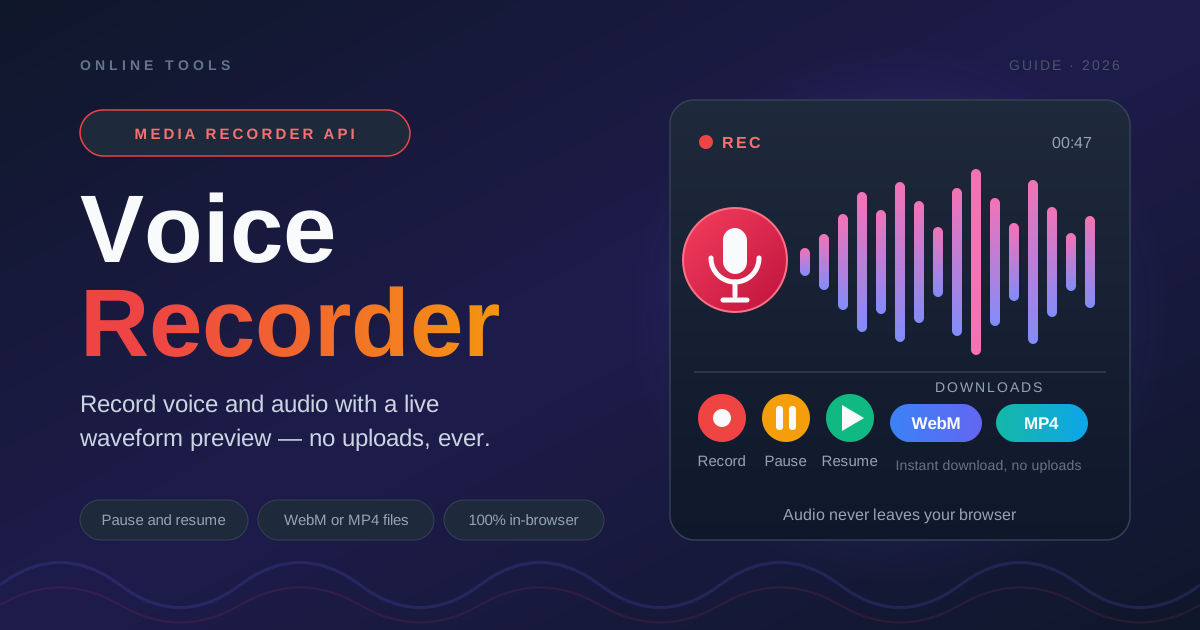
Record your voice or any audio directly in your browser with a live waveform. Pause, resume, and download as WebM or MP4 — 100% client-side, no uploads, no installs.
Table of Contents
Quick voice notes and pronunciation practice become urgent at the worst moment. You need to capture an idea before it disappears, check how a foreign phrase sounds, or send a short voice message — and the tools that should help insist on an account first, an app store download second. By then, the thought you wanted to save is gone.
The Voice Recorder takes the opposite approach. It is a free, browser-based recorder built on the MediaRecorder API: open the page, allow microphone access, press record, and speak. A live waveform confirms audio is being captured, pause and resume let you skip mistakes, and the take downloads as a WebM or MP4 file. Nothing is uploaded — the recording lives entirely in your browser until you save it.
Why Use Voice Recorder?
- Your audio never leaves the browser — Sound is processed entirely on your device using web APIs. Recordings of private thoughts, meeting notes, or client feedback are never uploaded, stored in someone else's cloud, or attached to an account.
- Live waveform feedback — A real-time waveform confirms the microphone is picking you up before you deliver a two-minute take in silence. Flat bars mean check the input device immediately.
- Pause and resume instead of restarting — Fluffed a line? Pause, collect yourself, and resume. No re-recording a perfect passage over one stumble.
- WebM or MP4 output — Download the format that fits: WebM for compact playback, MP4 for maximum compatibility with older players, messaging apps, and editors.
- No account, no install, no cost — Nothing to sign up for, nothing to install. It works on any device with a modern browser and a microphone, including borrowed machines.
Key Features
| Feature | What It Does |
|---|---|
| MediaRecorder capture | Records your microphone via the browser's native API — no plugins. |
| Live waveform preview | Renders incoming audio in real time so you can verify levels at a glance. |
| Pause and resume | Suspend a take mid-recording and continue later without separate files. |
| WebM and MP4 downloads | Save the finished recording in either container format. |
| Fully client-side processing | All capture and encoding happens locally in your browser. |
- The live waveform is a sanity check, not decoration — it separates usable takes from silent disappointments.
- Pause and resume let you cut dead air as you go.
- Two formats mean the file you save is the file your recipient can actually play.
How to Use
- Allow microphone access. Open Voice Recorder and press record. Your browser shows a permission prompt — choose Allow. Nothing is captured until you start.
- Record and watch the waveform. Speak and confirm the waveform moves with your voice. If it stays flat, check that the correct microphone is selected.
- Pause and resume as needed. Pause when you need to think or check notes, then resume. Paused time is not recorded.
- Stop when the take is complete. Stopping finalizes the recording; preview it before committing.
- Download as WebM or MP4. Pick a format, save, then rename the file to something meaningful.
Browser Recording in Practice
The MediaRecorder API explains the tool's quirks. When you press record, the browser opens a capture stream from your microphone, encodes the audio with a codec, and hands over encoded chunks that the tool assembles into a playable file when you stop. The codec is chosen by the browser, not by you: Chrome and Firefox typically produce WebM using the Opus codec, while Safari generally produces MP4 (AAC audio). Both formats are offered because the tool reflects what your browser genuinely delivers.
Pause and stop have very different semantics. Pause halts the audio while keeping the session alive; when you resume, new chunks continue from where the pause began, and the final file reads as one continuous take. Stop ends the session and finalizes the file — stop by accident and you start a new take, so when in doubt, pause first.
The live waveform doubles as a level sanity check. A healthy recording dances confidently during speech and settles near the baseline during silence. A barely-moving waveform suggests low gain, too much distance, or the wrong device; one slamming the top of its range suggests clipping. Reading it in real time is the cheapest quality check you will ever get.
A few notes on files. Rename the download right away instead of keeping the default name. WebM/Opus plays natively in every modern browser and most desktop players, but older apps and car stereos prefer MP4/AAC — outside tech circles, MP4 is safer. And because the take exists only in your browser until saved, download before closing the tab.
Practical Use Cases
Language Pronunciation Practice
Repeating a phrase aloud tells you how it feels; recording it tells you how it sounds. Capture yourself, compare against a native speaker, and re-record until the two converge. Pause and resume are perfect for drilling vocabulary lists — one study file instead of dozens of fragments.
Voice Memo Notes
Ideas rarely arrive when your hands are free. Driving, walking, or cooking, speaking a memo beats typing one. Record the idea with context for your future self, download, done — and because nothing is uploaded, it suits memos you would not want sitting in a third-party cloud.
Podcast Segment Tests
Before committing to a full episode, test the pieces: your intro line, microphone position, room sound, and pace. A thirty-second take reveals whether levels are too hot, whether the fan next door is audible, and whether your opening lands.
Meeting Quick-Captures
When a discussion produces a decision nobody writes down, a fast capture preserves it. Record a thirty-second summary while it is fresh and drop it into the meeting notes. Local-only processing means sensitive internal discussion stays internal.
Best Practices
- Record in a quiet space. Fans, open windows, and bare walls all show up in playback. A closet full of clothes is an improvised studio; a busy cafe is not.
- Run a ten-second test take first. Confirm the waveform moves and the audio sounds right.
- Test playback before deleting anything. The take exists only in your browser until saved — verify the download before closing the tab.
- Mind codec differences. Chrome and Firefox usually give WebM (Opus); Safari usually MP4 (AAC). Prefer MP4 for older software.
- Keep takes short and rename immediately. A focused two-minute memo beats a wandering twenty, and a descriptive filename is findable later.
- Pause instead of stopping to restart. Stumble, pause, breathe, resume — one clean take beats three abandoned ones.
Ready to Capture Your First Take?
Open the Voice Recorder, allow microphone access, and record a ten-second test right now to confirm your setup. For related checks, the Decibel Meter measures how loud your room actually is, the Tone Generator produces reference tones for speakers and hearing, and the Dead Pixel Test keeps your screen as healthy as your audio.
Related Tools You Might Like:
- Decibel Meter — measure the noise level of your recording environment in real time.
- Tone Generator — play reference frequencies to test speakers, headphones, and hearing.
- Dead Pixel Test — check your display for stuck or dead pixels.
Record confidently, pause freely, and keep every take on your own machine — that is the browser-native way to capture audio.
Frequently Asked Questions
Q: Is my recording uploaded anywhere?
A: No. Audio is captured and encoded entirely on your device using the MediaRecorder API; it exists only in your browser until you download it.
Q: Will I get a WebM or an MP4 file?
A: It depends on your browser: Chrome and Firefox typically produce WebM (Opus), while Safari produces MP4 (AAC). The tool offers whichever format your browser supports.
Q: Why is the waveform flat even though I am speaking?
A: Usually the wrong input device is selected, the microphone is muted, or the input gain is too low. Check your microphone settings, then run a short test take.
Q: Does pause split my recording into multiple files?
A: No. Pause halts capture while keeping the session alive, and resume continues from where you left off, so the download is one continuous take.