Online Whiteboard: Sketch Ideas in Your Browser and Export as PNG or SVG
Use the free online whiteboard to sketch ideas, draw diagrams, and export your work as PNG or SVG — fully local in your browser, no signup needed.
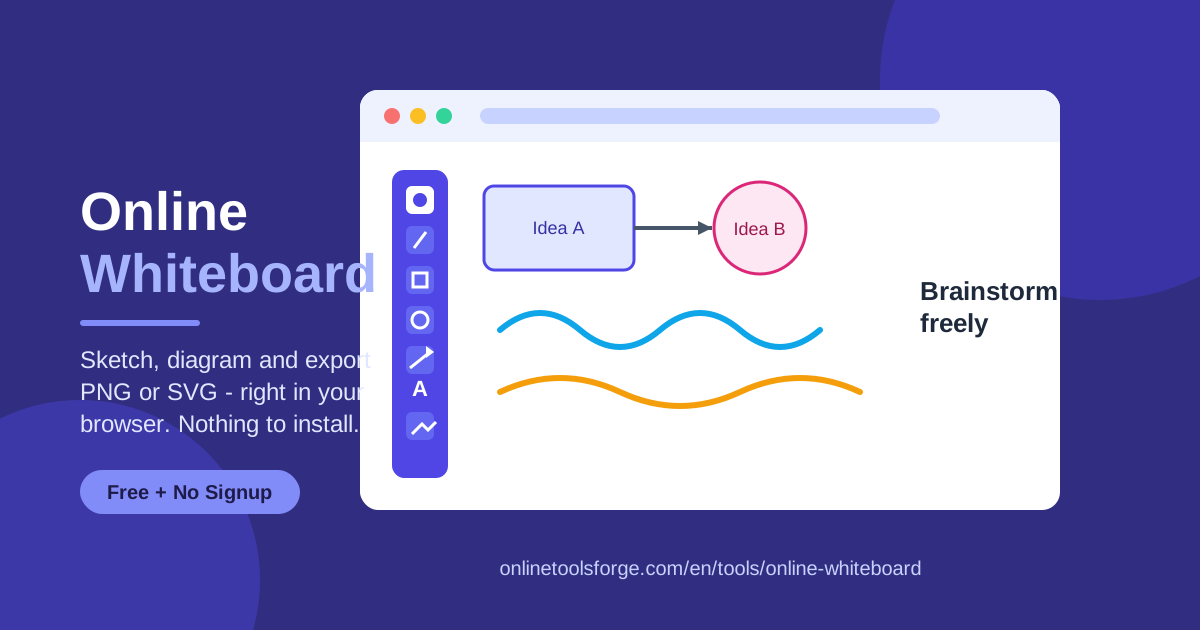
Table of Contents
Some ideas are easier to draw than to describe. Whether you are mapping a user flow, sketching a system architecture, or scribbling a quick illustration for a document, a blank canvas beats a wall of text. That is exactly what the online whiteboard at Online Tools Forge gives you: a large drawing board that opens instantly in your browser, with no signup, no installation, and no data leaving your machine.
This guide covers everything the tool can do, from the pen and shape tools to stroke width control and PNG or SVG export, along with practical use cases, workflow tips, and answers to common questions. By the end you will know how to get real value from this free whiteboard online in just a few minutes.
Why Use Online Whiteboard?
- Instant access. Nothing to download and no account to create. Open the page and you are drawing within seconds, which is perfect for moments when an idea cannot wait.
- Runs fully local. Every stroke is rendered in your browser and nothing is uploaded to a server, so your sketches stay private even when they contain sensitive plans or client work.
- Complete drawing kit. Pen, eraser, line, shapes, arrows, and text cover the essentials of any diagram drawing tool, so you never have to switch apps mid-thought.
- Adjustable stroke width. Thin lines for fine detail, thick strokes for emphasis — one control gives your sketch visual hierarchy with no extra effort.
- Vector and raster export. Export SVG when you need infinitely scalable graphics, or export PNG when you need a universal image for slides, docs, and chat.
- Free with no limits. Unlike many boards that lock features behind subscriptions, this virtual whiteboard keeps its full toolset free for everyone.
Key Features
| Feature | What it does |
|---|---|
| Canvas drawing board | A large, responsive surface for freehand sketching and diagram layout |
| Pen tool | Draws smooth freehand strokes for doodles, underlines, and rough shapes |
| Eraser tool | Removes individual strokes cleanly so you can refine without starting over |
| Line tool | Draws straight connectors and dividers with precision |
| Shapes | Adds rectangles and other geometric building blocks for structure |
| Arrows | Connect boxes and ideas to show direction, flow, and relationships |
| Text tool | Labels elements so diagrams stay readable long after you draw them |
| Adjustable stroke width | Controls line thickness for visual hierarchy and emphasis |
| Export PNG | Saves a raster image ready for slides, docs, and messaging apps |
| Export SVG | Saves a vector file that scales infinitely for print or web |
A few details worth calling out:
- The canvas is deliberately generous, giving you room to spread an entire flow across the screen instead of cramming ideas into a small box.
- Tool switching is immediate, so you can draw a shape, label it, and connect it with an arrow without breaking rhythm.
- Because this sketch tool online runs entirely in the browser, it stays responsive even on modest hardware and slow connections.
How to Use Online Whiteboard
- Open the board. Visit the tool page and the drawing board online loads instantly with the pen tool ready to go.
- Pick your tool. Choose the pen for freehand sketching, shapes for structure, arrows for relationships, or text for labels.
- Set your stroke width. Adjust thickness before you draw so headings, boxes, and fine details each get the right visual weight.
- Build your sketch. Draw and arrange elements freely, using the eraser to clean up mistakes without disturbing the rest of the canvas.
- Export your work. Click Export PNG for a shareable image, or Export SVG when you need a scalable vector for design work.
Understanding Canvas-Based Sketching
Getting comfortable with a canvas-based tool mostly comes down to knowing which tool to reach for at each moment.
Pen versus eraser versus shapes. The pen is the tool of expression — rough outlines, circles around ideas, hand-drawn emphasis. The eraser is the tool of correction, removing individual strokes while leaving everything else intact. Shapes and arrows are the tools of structure: one rectangle, one text label, and one arrow communicate far more clearly than a hand-drawn approximation, especially when someone else has to read the diagram later. A good rhythm is to rough things out with the pen, then formalize the important parts with shapes and straight lines.
Stroke width as hierarchy. Line thickness is one of the fastest ways to make a sketch readable. Use thicker strokes for main flows and container boxes, thinner ones for secondary connections and detail work. Since you set stroke width before each element, you can plan emphasis as you go instead of redrawing later.
SVG export versus PNG export. This is the most consequential choice you make at the end of a session. SVG is a vector format: it stores the geometry of your lines and shapes, so the file stays razor sharp at any size and remains tiny. Choose Export SVG for anything that will be resized or reused — presentation graphics, printed handouts, documentation diagrams, or assets a designer will edit next. PNG is a raster format: it fixes the sketch into a fixed grid of pixels. Choose Export PNG for universal compatibility — pasting into chat apps, email, or any tool that handles images. In short: SVG when scale matters, PNG when compatibility does.
Practical Use Cases
Quick wireframes
Product managers and founders can block out an app screen in about a minute: a rectangle for the header, boxes for cards, arrows for navigation. Export the result as PNG and it drops straight into a ticket or a team chat, turning "imagine a screen like this" into something everyone can actually see.
Team brainstorm capture
Share your screen with the board open and it becomes a brainstorm board online for the whole meeting. Capture ideas as text labels, group them with shapes, and draw arrows to show how they connect. When the session ends, export the board so nobody has to reconstruct the discussion from memory.
Teaching diagrams
Teachers and trainers can explain a process live, drawing a water cycle, a database architecture, or a grammar structure step by step while talking. The large canvas keeps the whole picture visible, and SVG export produces clean handouts that print beautifully.
Quick doodles for docs
Sometimes a README or internal wiki page needs a simple sketch more than a polished graphic. Draw it, export SVG, and embed it. Vector files stay crisp in dark mode and light mode alike, and they weigh almost nothing.
Best Practices
- Sketch rough, refine selectively. Explore with the pen, then redraw only the elements you plan to export using shapes and straight lines.
- Set stroke width before drawing. Switching thickness between elements builds hierarchy far faster than fixing it afterward.
- Label as you go. A two-second text label today saves ten minutes of decoding the diagram next week.
- Leave breathing room. Spread elements across the canvas; cramped diagrams are hard to read and hard to extend.
- Match the export format to the job. Export SVG for anything that will be resized or edited, PNG for quick sharing.
- Export at milestones. The board lives in your browser session, so save a PNG or SVG periodically so no work is lost if the tab closes.
Your next idea does not need a meeting, a license, or an installation. Open the online whiteboard, pick up the pen, and draw and export PNG or SVG in under a minute — free, private, and ready whenever inspiration strikes.
Related Tools You Might Like:
- SVG Optimizer — shrink exported SVG files without losing quality
- Image Compressor — reduce PNG file sizes for faster sharing
- Color Palette Generator — build color schemes for polished diagrams
Happy sketching!
Frequently Asked Questions
Q: Is the online whiteboard really free? A: Yes. The full toolset — pen, eraser, shapes, arrows, text, adjustable stroke width, and both PNG and SVG export — is completely free, with no signup and no usage limits.
Q: Do my sketches get uploaded anywhere? A: No. The tool runs fully local in your browser, so every stroke is processed on your own device. Nothing is sent to a server, which makes it safe even for confidential work.
Q: Should I export my diagram as PNG or SVG? A: Choose SVG when the image will be resized, printed, or edited later, because vectors stay sharp at any scale. Choose PNG when you need maximum compatibility for chat apps, email, and documents.
Q: Can I use it on a phone or tablet? A: Yes. The canvas-based drawing board online works in any modern mobile browser, though a larger screen and a stylus make detailed sketching more comfortable.