The Complete Guide to a Kanban Board Online: Master Your Tasks with WIP Limits
Learn how to organize work and life with Kanban Board — a free, no-signup drag-and-drop task board with WIP limits, colored labels, and localStorage persistence.
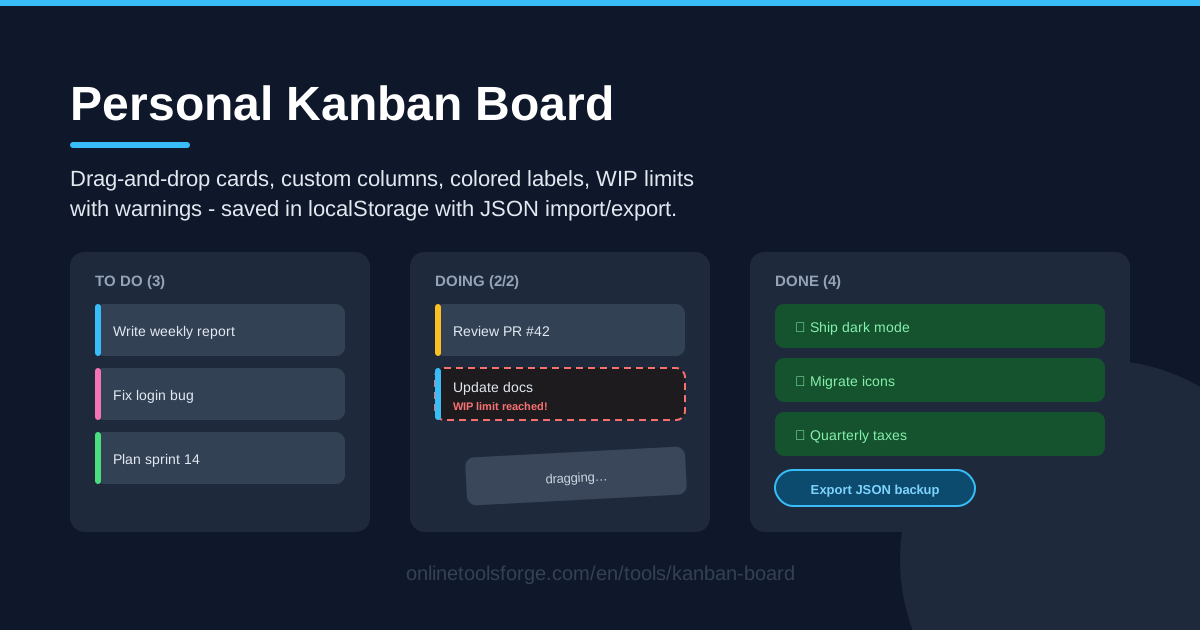
Table of Contents
Most productivity advice stops at the to-do list, but a flat list tells you nothing about what you are actually working on right now. A kanban board fixes that by turning tasks into cards you physically move through stages — from idea, to in progress, to done. Kanban Board gives you that entire workflow directly in your browser: drag-and-drop cards across custom columns, colored labels for instant sorting, per-column WIP limits with over-limit warnings, and automatic persistence in localStorage with JSON import and export for backups and migration.
Unlike heavyweight project management suites, this is a personal kanban built for one person. There is no signup, no workspace to configure, and no cloud account holding your data hostage. You open the page, create your columns, and start dragging cards within seconds. Everything you do is saved automatically to your own browser, so your board is exactly where you left it the next time you visit.
This guide walks through what makes the tool worth adopting, how to set up your first board in five steps, why work-in-progress limits matter more than prioritization, and several concrete ways people use a personal board for side projects, households, freelance work, and studying.
Why Use Kanban Board?
- No signup required. There is no account, no email verification, and no onboarding tour. Open the page and your board is ready — the fastest possible path from intention to organized work.
- Local persistence you control. Every card, column, and label is saved in your browser's localStorage, so your board survives closing the tab, and your data never leaves your device.
- WIP limits that actually warn you. Set a maximum number of cards per column, and the board flags an over-limit warning the moment you exceed it — a gentle but persistent nudge to finish before you start.
- Custom columns that match your real process. Rename, add, or remove columns freely, so the board mirrors how you actually work instead of forcing you into a rigid template.
- Colored labels for instant context. Tag cards by project, urgency, or energy level, and the board becomes scannable at a glance even when it holds dozens of cards.
- Portable JSON backup. Export the entire board as a JSON file and import it on any other computer — perfect for backups, moving between machines, or starting fresh without losing history.
Key Features
| Feature | What it does |
|---|---|
| Drag-and-drop cards | Move any card between columns, or reorder cards within a column, with a simple drag of the mouse. |
| Custom columns | Add, rename, and remove columns so the board structure reflects your actual workflow. |
| Colored labels | Attach color-coded labels to cards to group them by project, priority, or type of work. |
| WIP limits | Set a maximum card count per column and receive an over-limit warning when the cap is exceeded. |
| localStorage persistence | Your board saves automatically in the browser — no account, no cloud, no sync conflicts. |
| JSON import and export | Download the full board as a JSON file for backup or migration, and restore it anywhere. |
| Runs entirely in the browser | All logic executes locally on your device; your board data is never sent to a server. |
Three details deserve extra attention. The over-limit warning is the quiet hero of the tool: when a column passes its cap, the visual warning makes the cost of overcommitment visible, which is exactly the feedback loop most to-do apps never provide. Labels stay deliberately lightweight — a click to attach, a click to remove — so you will actually use them instead of maintaining a tagging bureaucracy. And the JSON export doubles as a migration path, meaning your board is never trapped inside one browser profile or one laptop.
How to Use Kanban Board
- Create your columns. Start with the classic three — To Do, Doing, Done — then adapt them. If ideas pile up faster than you act, add a Backlog column to the left so uncommitted work has a parking place instead of cluttering To Do.
- Add cards with labels. Write each task as a card, phrased as a finishable outcome ("Publish pricing page," not "Website stuff"), then attach a colored label for its project or priority so the board stays scannable.
- Drag cards between columns. When you begin a task, drag its card into Doing; when it is genuinely finished, drag it to Done. Reorder cards within a column by priority — the top card is your next move.
- Set WIP limits. Open the column settings and cap Doing at two or three cards. From then on, the over-limit warning fires whenever you try to exceed the cap, protecting your focus automatically.
- Export a JSON backup. Once a week, export your board as a JSON file and store it with your other backups. If you ever switch computers or browsers, importing the file restores the board exactly as it was.
That is the whole loop. Most people are productive with the tool within their first five minutes, and the habits that matter — WIP limits and regular backups — take effect immediately.
WIP Limits and Personal Flow
Here is the uncomfortable truth about personal productivity: prioritization alone does not work, because prioritizing a list of twenty tasks still leaves you free to juggle all twenty at once. A priority is only a suggestion until something enforces it. Work-in-progress limits are that enforcement. By capping the Doing column, you convert prioritization from an opinion into a physical constraint: there is literally no room to start something new until something old is finished.
The over-limit warning is what turns this constraint into changed behavior. Without it, adding a fourth in-progress task feels harmless — the board absorbs it silently, and multitasking creeps back. With the warning, that same action produces a visible signal that you have broken your own rule. In practice, people respond in one of three healthy ways: they finish the card that is closest to done, they consciously park a card back in To Do, or they delete a card that was never going to happen. All three responses beat the default of silently accumulating half-started work.
For column design, a four-column layout works exceptionally well for personal work: Backlog, To Do, Doing, Done. The Backlog is your pond — everything you might do someday, with no limit and no guilt. To Do holds only what you have actually committed to this week, ideally a short list. Doing is the WIP-limited heart of the board, capped at two or three. Done is your archive and your motivator; watching finished cards accumulate is quiet proof that the system works. If your weeks are predictable, you can drop Backlog and run the classic three columns instead.
Labels earn their place when your board mixes different kinds of work. If one board carries your day job, a side project, and household tasks, colored labels let you filter mentally by context without maintaining three separate boards. Keep it to three to five colors — beyond that, labels stop meaning anything.
Practical Use Cases
Side-project task tracking
A solo builder working on a small web app can run columns like Ideas, This Sprint, Building, and Shipped. Labels distinguish frontend (blue), backend (green), and marketing (orange) work, so even on a chaotic week you can see what kind of progress you made. Set a WIP limit of two on Building — side projects die from ten half-finished features, not from moving too slowly on two. The Done column, renamed Shipped, becomes a public-facing résumé of what you have actually completed.
Weekly household chores
Turn recurring chores into cards and label them by room or by frequency (daily, weekly, monthly). Dragging a card to Done after each task gives the whole household a visible scoreboard — on a shared family computer, everyone can see the laundry has been done without being told. At the end of the week, the Done column is proof of everything that happened, which is more satisfying than any chore chart on the fridge.
Freelance client pipeline
Freelancers can model their pipeline as columns: Leads, Pitched, Active, Invoiced, Paid. The WIP limit on Active is the key move — it forces you to finish and invoice current work before chasing new leads, which protects both cash flow and quality. Labels can flag retainer clients versus one-off projects. A monthly JSON export gives you a lightweight record of your pipeline history without any client-management software.
Study plans
For exam preparation, use columns like Not Started, Reviewing, and Mastered, with one card per topic and labels per subject. As your confidence in a topic grows, move the card rightward; a topic only reaches Mastered when you can explain it without notes. The WIP limit on Reviewing prevents the classic student failure mode of skimming fifteen chapters superficially instead of truly learning three. Done becomes a map of your syllabus, and gaps in it show you exactly what to study next.
Best Practices
- Cap Doing at two or three cards. This is the single highest-leverage setting on the board; resist the temptation to raise it during busy weeks, when you need it most.
- Export a JSON backup weekly. It takes ten seconds and protects you from cleared browser data, a failed laptop, or an accidental experiment gone wrong.
- Prune the Done column regularly. Keep the last twenty finished cards for morale and archive the rest; a Done column with three hundred cards stops motivating and starts cluttering.
- Write one card, one outcome. Cards phrased as finishable results ("Draft newsletter intro") move smoothly through the board; vague cards ("Work on newsletter") stall in Doing forever.
- Keep the Backlog honest. Once a quarter, delete cards you have not touched — a backlog full of dead weight makes the whole board feel like a guilt ledger.
- Review the board at fixed times. A five-minute planning pass on Monday and a five-minute wrap-up on Friday are enough to keep the board truthful without turning it into a chore.
Ready to see your week clearly instead of vaguely? Open Kanban Board, set up your columns, cap your Doing column at three, and drag your first card. It takes about thirty seconds, requires no signup, and your board will be waiting for you — saved locally — every time you come back.
Related Tools You Might Like:
- Pomodoro Timer — work through your Doing cards in focused 25-minute sprints.
- Habit Tracker — turn the recurring cards that keep reappearing into tracked daily habits.
- Gantt Chart Generator — zoom out from the board to a timeline when a project spans several weeks.
Happy organizing!
Frequently Asked Questions
Q: Do I need an account to use the Kanban Board? A: No. The board runs entirely in your browser with no signup, no email, and no server-side account. Your cards, columns, and labels are saved automatically in your browser's localStorage.
Q: What happens to my board if I clear my browser data or switch computers? A: Export a JSON backup before clearing data or moving machines. Importing that same JSON file on any other computer or browser restores your board exactly as it was, including columns, labels, and WIP limits.
Q: Which columns should get WIP limits? A: Start with only the Doing column, capped at two or three cards. That is where overcommitment actually happens. Once the habit holds, some people add a small limit to To Do as well to keep the committed list honest.
Q: Can I manage more than one project on a single board? A: Yes. Use colored labels to tag cards by project so one board serves several contexts. Alternatively, export a JSON file per project and import the one you want to work on, keeping truly separate boards.