Excel to CSV Converter: Turn .xlsx and .xlsm into Clean CSV or JSON
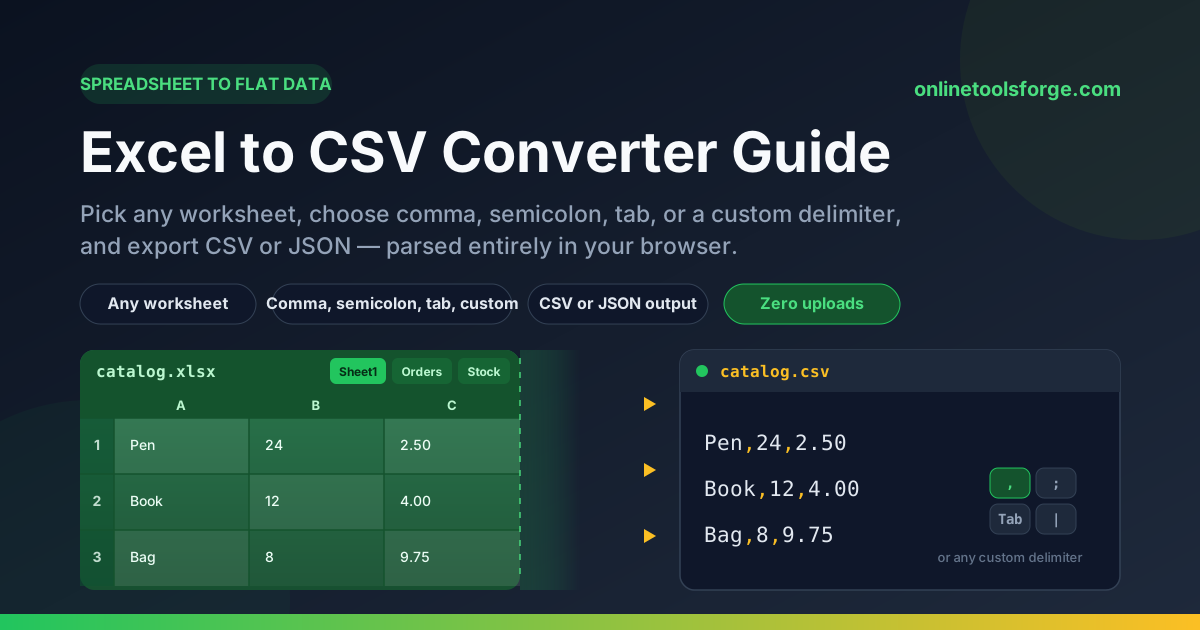
Convert Excel .xlsx and .xlsm workbooks to CSV or JSON entirely in your browser. Pick any worksheet, choose comma, semicolon, tab, or custom delimiters — no upload needed.
Free Interactive Tool
Excel to CSV Converter
Convert Excel .xlsx and .xlsm workbooks to CSV or JSON in your browser - pick any worksheet, choose your delimiter, no upload needed.
Table of Contents
Excel workbooks are everywhere, but almost nothing else wants them. Databases, import wizards, scripts, and command-line tools all speak CSV or JSON — not .xlsx. The Excel to CSV Converter bridges that gap: open the page, drop in your workbook, pick a worksheet, and get clean delimited output in seconds.
The most important design decision is also the easiest to miss: your file never leaves the browser. The converter parses .xlsx and .xlsm archives entirely on your machine, using the same Office Open XML structure Excel itself writes. Nothing is uploaded and no account is required. If your workbook holds payroll figures, customer records, or unreleased plans, that distinction is the whole point.
This guide walks through the converter step by step, explains what happens inside an .xlsx file, and shows when JSON beats CSV.
Why Use Excel to CSV Converter?
- Complete privacy by design. Parsing happens in JavaScript inside your browser tab, so sensitive spreadsheets never cross the network.
- Pick exactly the worksheet you need. The converter lists every worksheet in the file so you can export only the one you want, without deleting tabs first.
- Flexible delimiter control. Choose comma, semicolon, tab, or any custom character, matching your locale and the system you are importing into.
- CSV or JSON output. Switch to JSON and each row becomes an object keyed by the header row — ready for JavaScript, Python, or a REST payload.
- Handles .xlsx and .xlsm. Macro-enabled workbooks share the same Office Open XML container as .xlsx files, and the converter reads both.
- Free, instant, and unlimited. No signup, no row caps, no conversion queue. Copy the result or download it immediately.
Key Features
| Feature | What it does | Why it matters |
|---|---|---|
| Local Open XML parsing | Reads the .xlsx/.xlsm zip archive in-browser | Zero uploads; private even for confidential data |
| Worksheet picker | Lists every sheet and exports the selected one | No need to delete, reorder, or split sheets |
| Delimiter selection | Comma, semicolon, tab, or custom character | Matches regional dialects and strict importers |
| CSV and JSON modes | Delimited rows or header-keyed objects | Serves both spreadsheets and scripts |
| Column-letter handling | Resolves A, B, ..., AA to ordered columns | Preserves sheet column order |
| Copy and download | Clipboard or file output | Fits quick pastes and archival workflows |
Two details deserve extra emphasis:
- Shared strings are resolved. Excel stores most text once and references it from cells; the converter maps those references to real values.
- Empty cells stay honest. Grid gaps become empty fields rather than being dropped, so rows stay aligned in the destination.
How to Use
- Open the converter. Navigate to the Excel to CSV Converter in any modern browser — nothing to install or configure.
- Select or drop your workbook. Choose a .xlsx or .xlsm file, or drag it onto the drop zone — parsing begins immediately and runs locally.
- Pick the worksheet. The tool lists every sheet in the workbook; select the one to export.
- Choose delimiter and output format. Pick comma, semicolon, tab, or a custom character, then choose CSV or JSON output.
- Copy or download the result. Review the output, then copy or download it, ready for your destination system.
Understanding the Conversion
What an .xlsx file actually is
Rename a .xlsx file to .zip and open it: an .xlsx workbook is simply a ZIP archive of XML parts:
- The workbook part — an XML index of the sheets, listing their names and pointing at their data.
- Relationship files (.rels) — mappings that connect identifiers to worksheet parts, so every sheet can be located.
- Worksheet parts — one XML document per sheet, where each cell carries a reference like A1 plus a type and value.
- The shared strings table — one XML file holding all workbook text; text cells store an index into it, which keeps files small.
Conversion is mechanical: decompress the archive, follow the relationships to the chosen worksheet, walk cells in column-letter order (A, B, ..., AA), resolve shared strings into text, and emit one delimited line per row — deterministic XML parsing that runs instantly, with no Excel installation and no macros executed.
Choosing the right delimiter
The delimiter looks trivial until it silently breaks an import. Two pitfalls dominate. First, European locales prefer semicolons: where the decimal comma (1.234,56) is standard, many banking and government systems expect semicolon-separated files. If a comma-CSV looks fine in a text editor but imports as one giant column, the semicolon dialect is the fix. Second, tab separation sidesteps quoting problems when data itself contains commas — addresses and free-text notes are notorious offenders — and yields the TSV dialect many Unix tools accept natively.
A custom delimiter such as a pipe handles data containing both commas and semicolons. Whichever you choose, configure the receiving importer to match; a mismatch is the most common cause of corrupted imports.
When JSON beats CSV
CSV is a flat table: every row has the same columns, and everything is a string unless the consumer guesses otherwise. Choose JSON when the destination is code — a script, a test fixture, an API payload — where an array of objects parses with one call and numbers and nulls keep their types. JSON also keys values by the header row, so field names survive round-trips. For spreadsheets and bulk imports, CSV remains right — which is why the converter offers both.
Practical Use Cases
Preparing data for system imports
Most SaaS import wizards — CRMs, accounting tools, inventory systems — accept CSV and nothing else. Convert the relevant worksheet with the delimiter your vendor specifies, and upload a clean file instead of debugging a failed template match afterward.
Exporting i18n strings from spreadsheets
Translation teams love spreadsheets; applications want structured files. Keep your string table in a worksheet — keys in column A, languages across the other columns — then convert whenever strings change. JSON drops straight into a locales folder; tab-delimited output feeds tools that reject Excel formats.
Quick JSON for scripts and tests
Need fixture data for a unit test or a body for an API call? Convert the worksheet to JSON and embed the resulting array directly in code — no libraries, and no uploading proprietary data anywhere.
Converting privacy-sensitive spreadsheets
Payroll runs, customer lists, and unreleased financials should never leave your control. In-browser parsing converts the file on the machine where it already lives — you can truthfully tell compliance reviewers the data is never transmitted.
Best Practices
- Match the destination's dialect. Check whether the importer expects comma, semicolon, or tab before converting.
- Clean headers before you convert. Give row 1 unique, machine-friendly column names — they become JSON keys and CSV headers directly.
- Convert one worksheet at a time. Selecting exactly the sheet you need keeps output small and keeps stray tabs out of your import.
- Beware cells containing your delimiter. Free text with commas or semicolons can shift columns in some parsers; tab or a custom delimiter avoids it.
- Use JSON when types matter. Numbers, booleans, and nulls stay typed in JSON output but become strings in CSV.
- Spot-check the first and last rows. A two-second glance catches truncated rows and shifted columns before they reach production.
Start Converting Your Workbooks Today
Excel is a magnificent place to create data and a terrible place to leave it. Next time a workbook needs to become a CSV, a TSV, or a JSON array, open the Excel to CSV Converter, drop in the file, and be done in seconds — without a single byte leaving your browser.
Related Tools You Might Like
- CSV to Excel Converter — turn delimited files into styled .xlsx spreadsheets
- JSON to CSV Converter — flatten API responses and JSON arrays into spreadsheet rows
- CSV and JSON Converter — convert both ways between CSV lines and structured JSON
Happy converting!
Frequently Asked Questions
Q: Is my Excel file uploaded anywhere during conversion?
A: No. The converter parses the archive entirely in your browser; the file is never transmitted, stored, or logged. You can even disconnect after the page loads.
Q: Does the converter support macro-enabled .xlsm workbooks?
A: Yes. They use the same Office Open XML zip container as .xlsx files, so worksheets convert normally. Macros are never executed — only sheet data is read.
Q: Why would I export with semicolons instead of commas?
A: Many European locales use commas as decimal separators, so tools in those regions expect semicolon-separated files. If a comma-CSV imports as a single column, semicolons almost always fix it.
Q: When should I choose JSON output instead of CSV?
A: Choose JSON when code consumes the data — scripts, tests, API payloads — because values keep their types and rows become objects keyed by headers. Choose CSV for spreadsheets and bulk imports.