FFmpeg Command Builder: Generate Perfect Video Commands Without the CLI
Build copy-paste ffmpeg commands for converting, compressing, trimming, GIF-making, audio extraction, and resizing — six task modes, tuned defaults, and zero CLI memorization.
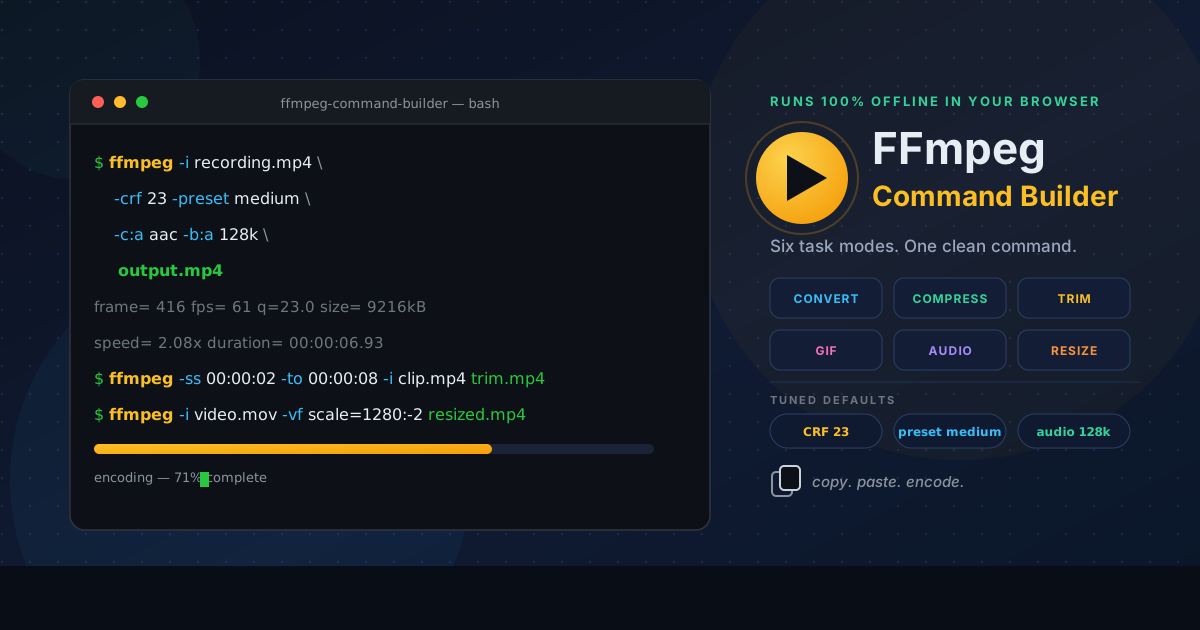
Free Interactive Tool
FFmpeg Command Builder
Build copy-paste ffmpeg commands for converting, compressing, trimming, GIF-making, audio extraction, and resizing videos — no CLI memorization needed.
Table of Contents
FFmpeg is the most capable media tool ever shipped as a single binary: it converts, compresses, trims, makes GIFs, rips audio, and resizes video. The catch is that every job depends on getting a long flag string exactly right — a missing -crf or misplaced -ss is the difference between a crisp 4 MB file and a bloated 40 MB one. The FFmpeg Command Builder removes that guesswork by turning six common video tasks into clean, copy-paste-ready commands.
Rather than making you memorize dozens of flags, the builder offers guided modes for the jobs people actually do: convert, compress, trim, gif, audio-extract, and resize. Pick a mode, adjust options such as CRF quality or encoder preset, and the tool assembles the precise command your terminal expects. Everything runs client-side in your browser — it works offline and nothing you configure is ever uploaded. This guide walks through the tool and decodes the generated flags.
Why Use FFmpeg Command Builder?
- No CLI memorization required. You never recall whether -ss goes before or after -i; the builder composes correct syntax for you.
- Six guided task modes. Convert, compress, trim, gif, audio-extract, and resize each expose only the options that matter, so the command stays minimal.
- Sensible defaults. CRF 23 with the medium preset is the community-standard starting point for H.264, and AAC at 128 kbps covers most audio needs.
- Copy-paste ready output. The result is the exact string your terminal expects — no placeholder surgery, no retyping, no transcription mistakes.
- Fully offline and private. Your file names and settings never leave your machine, and it keeps working with the Wi-Fi off.
- Transparent by design. You see and keep the final command, so every session quietly teaches you ffmpeg — a tutor, not a black box.
Key Features
| Feature | What It Gives You |
|---|---|
| Six task modes | Convert, compress, trim, gif, audio-extract, and resize workflows with mode-appropriate options |
| CRF quality control | Constant Rate Factor setting defaulting to 23, the balanced quality and size sweet spot |
| Encoder preset | Speed choices from ultrafast to veryslow, defaulting to medium |
| Audio options | Codec and bitrate selections, including AAC, MP3, and lossless FLAC |
| GIF width setting | Scales animated GIFs to a target width for crisp, chat-friendly output |
| One-click copy | The finished command lands on your clipboard exactly as ffmpeg expects it |
| Offline operation | Entirely client-side — no uploads, no accounts, no network calls |
- Each mode exposes only what its job needs, so a trim never asks about GIF width and a resize never asks about audio bitrates.
- Generated commands use plain names such as input.mp4 and output.mp4; swap in your own before running.
How to Use
- Open the builder. Load the FFmpeg Command Builder in any modern browser — no installation, no signup.
- Pick a task mode. Choose convert, compress, trim, gif, audio-extract, or resize.
- Set your files and options. Enter input and output names, then adjust CRF, preset, or GIF width.
- Review the generated command. It updates live, so you can watch each change map onto a flag.
- Copy, paste, and run. Click copy, paste into your terminal, and press Enter — ffmpeg handles the rest.
Understanding the Generated Flags
CRF: the quality and size dial. For H.264, the -crf flag controls quality on a logarithmic scale from 0 to 51, where lower is better. Around 18 the output is visually lossless — indistinguishable from the source at normal viewing — while 28 approaches heavy compression with visible softening. The default of 23 sits in the balanced middle: quality holds and sizes stay reasonable. Move toward 18 for archival masters; push toward 26-28 when a clip must fit inside an email.
Preset: trading time for compression. The -preset flag selects how hard the encoder works, from ultrafast through veryslow. Slower presets yield smaller files at equal quality but cost time. medium is the sensible default; drop to slow for final renders, jump to veryfast while iterating.
Audio codec and bitrate. -c:a aac with -b:a 128k is a dependable default for stereo sound. Speech survives 96k happily; music deserves 192k or more. To repackage without touching audio, -c:a copy passes the original stream through untouched.
Trimming with -ss and -to. The pair -ss 00:00:02 -to 00:00:08 cuts a clip from two seconds to eight. Placing -ss before -i performs a fast seek: the input jumps almost instantly to the start point instead of decoding everything before it — a huge win on hour-long recordings.
A note on GIF palettes. GIF supports only 256 colors, so quality lives or dies by the palette. The two-pass palettegen and paletteuse filters analyze a clip first, then apply a custom palette — dramatically cleaner than default conversion.
Three commands the builder produces:
ffmpeg -i recording.mp4 -crf 23 -preset medium -c:a aac -b:a 128k compressed.mp4
ffmpeg -ss 00:00:02 -to 00:00:08 -i clip.mp4 -an trimmed.mp4
ffmpeg -i video.mov -vf scale=1280:-2 resized.mp4
Practical Use Cases
Compressing Screen Recordings
Screen captures balloon fast: an hour of 1440p capture can exceed 8 GB. Use compress mode, keep CRF at 23-26 for text-heavy content, and pick a slower preset. Text stays razor sharp because H.264 spends its bits where detail lives.
Making Documentation GIFs
Short looping GIFs explain UI flows better than paragraphs. Use gif mode to fix a target width — 480 pixels suits most docs — and apply the palette tip above for color-accurate output. To skip the terminal entirely, the Video to GIF Converter does the same job in the browser.
Extracting Podcast Audio
Recorded a video podcast and only need the sound? Audio-extract mode pairs your container with the right codec flag: AAC into .m4a, MP3 for maximum compatibility, or FLAC when the archive must stay lossless. Speech at 96-128 kbps keeps episodes small.
Batch-Friendly Resize Commands
The output is a real command, so resizing becomes scriptable: generate one scale=1280:-2 line, confirm it, then reuse it across a folder in a shell loop. The -2 keeps height divisible by two, as encoders require.
Best Practices
- Start at CRF 23 and adjust once. Encode, inspect, then move two points at a time.
- Keep -ss before -i for trims. Fast seek turns a minutes-long cut into a near-instant one.
- Match the preset to the job. veryfast for drafts, medium for everyday work, slow for final renders.
- Never re-encode what you can copy. -c:a copy for audio, or full stream copy when only the container must change.
- Preview on a short segment first. Trim a ten-second sample with the same flags before a full encode.
- Keep a commands file. Saved lines that worked become documentation as much as tooling.
Start Building Commands Today
The next time a video task stalls because you cannot quite remember the right invocation, open the FFmpeg Command Builder, pick a mode, and copy the answer. Free and fully browser-based, it turns ffmpeg from a memorization exam into a five-second copy-paste.
Related Tools You Might Like:
- Video to GIF Converter — turn clips into polished animated GIFs entirely in your browser
- Audio Converter — convert audio between MP3, WAV, FLAC, and more without installing anything
- Image Format Converter — switch images between PNG, JPEG, WebP, and AVIF in seconds
May your commands always be copy-paste ready — happy encoding!
Frequently Asked Questions
Q: Do I need to install ffmpeg for the builder to work? A: The builder runs entirely in your browser and needs no installation. The generated command, however, is meant to be run with ffmpeg installed on your system.
Q: Is my video uploaded anywhere? A: No. The tool only assembles command text from the options you choose; no files are processed or transmitted, and it works fully offline.
Q: Why does CRF 23 look fine on some videos and soft on others? A: CRF is relative to content complexity. Detailed or grainy footage needs a lower CRF, while clean talking-head video compresses gracefully. Start at 23 and step down if artifacts appear.
Q: Can the generated commands handle formats other than MP4? A: Yes. The output is a plain ffmpeg command, so container extensions such as .mov, .webm, or .mkv can be swapped freely.