Shell Command Explainer: Understand Every Flag Before You Hit Enter
Shell Command Explainer turns any shell command into per-flag plain-English and Thai explanations for git, docker, curl, tar, ssh, and npm, entirely in your browser.
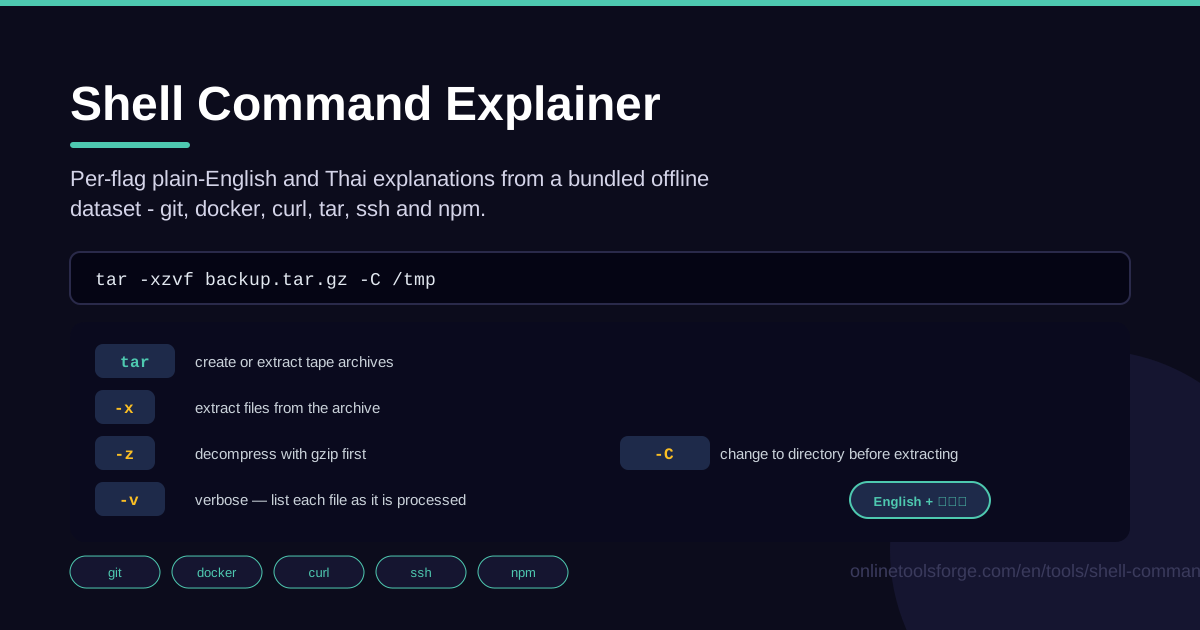
Table of Contents
Every developer has done it: found a command on Stack Overflow, pasted it into the terminal, and hit Enter without knowing what the flags do. Usually nothing breaks. Sometimes it deletes a folder, rewrites git history, or ships the wrong branch. The Shell Command Explainer closes that gap: paste any shell command and get a token-by-token breakdown that explains every flag in plain English before anything touches your machine.
The tool is tuned for the commands developers paste most. Its bundled offline dataset covers git, docker, curl, tar, ssh, and npm, so a tar extraction, a docker one-liner from a README, or a cryptic git incantation all resolve into clear, human-readable explanations, in English or in Thai. Everything runs in the browser with no lookup server, so it works offline and your commands never leave your machine.
This guide covers why explaining a command before running it matters, how to use the tool step by step, and how to start reading commands like a native speaker of the shell.
Why Use Shell Command Explainer?
- Understand before you run. Copy-pasted commands are the most common way people break things in a terminal. A ten-second read turns a blind paste into an informed decision.
- Plain language, not man pages. Manual pages are accurate but dense. Each flag becomes a short, friendly sentence you can act on immediately.
- English and Thai for every flag. Explanations come in both languages, which removes the barrier for Thai students and teams.
- Fully offline and private. The dataset ships with the tool and parsing happens in your browser, so commands containing hostnames or internal paths never leave your machine.
- Covers your everyday toolbelt. git, docker, curl, tar, ssh, and npm account for a huge share of pasted commands, and one tool explains them all.
- Learn while you work. Every explained command quietly teaches shell grammar, until you start predicting unfamiliar flags before you check.
Key Features
| Feature | What it does |
|---|---|
| Paste any shell command | Drop a full command line into the box and it is parsed token by token |
| Per-flag breakdown | Every flag and token gets its own plain-English explanation |
| Thai explanations | The same explanations are available in Thai, per flag |
| Bundled offline dataset | Covers git, docker, curl, tar, ssh, and npm with no network calls |
| Runs in the browser | No lookup server, no account, and no data leaves your machine |
- The breakdown is token by token, not just flag by flag: the program, subcommands, flags, and arguments each get their own row, so a git command explains the tool, the verb, and your message separately.
- Because the dataset is bundled, explanations load instantly and keep working on planes, in air-gapped environments, and behind strict proxies.
- It is free with no sign-up, so you can link it straight from onboarding docs or classroom material.
How to Use Shell Command Explainer
- Paste the command. Copy the full command line exactly as you found it into the input box on the tool page.
- Read the token-by-token breakdown. The tool lists the parts in order: the program, any subcommands, then flags and arguments.
- Check each flag. Scan the explanations and slow down for anything forceful or destructive: words like force, recursive, delete, or overwrite deserve a second look.
- Switch to Thai explanations. If English is not your first language, flip the explanations to Thai so each flag reads naturally.
- Run with confidence. Once you can explain every token out loud, run it knowing exactly what will happen, or edit it now that you know which flag you actually need.
Reading Commands Like a Native
Shell commands follow a simple grammar: a program, then flags, then arguments. Take tar -xzvf backup.tar.gz. The program is tar, the flags are -x, -z, -v, and -f, and the argument is the archive name. Once you see commands as sentences with this shape, they stop being magic strings to paste and become statements you can write yourself.
Short and long flags are usually twins: -v and --verbose mean the same thing. Short flags exist for typing speed, long flags for readability. In scripts and documentation, prefer long flags, because curl --silent --show-error tells the next reader far more than curl -sS.
The quirk that catches everyone is combined short flags. In -xzvf the tool reads four separate flags: extract (x), filter through gzip (z), verbose (v), and file (f). Order matters when a flag takes a value: -f expects the next token to be the archive name, which is why the command works — the f flag consumes the name that follows it.
Then come the families. Git commands are almost always git subcommand [flags], with commit, push, or rebase as the verb. Docker adds a level: docker run and docker build pair a program with a verb and bring their own flag sets. Curl, tar, ssh, and npm each carry their own flag vocabulary, but the grammar never changes. The explainer knows these families and picks the meaning that fits the command you pasted, not a generic dictionary entry. The habit it builds, explain first and execute second, is the closest thing the terminal has to a seatbelt.
Practical Use Cases
Auditing forum commands before running them
You find curl -fsSL https://example.com/install.sh | sh in a blog post. Run it through the explainer first: -f makes curl fail on server errors, -s keeps output quiet, -S still shows errors, and -L follows redirects. Reading each flag shows exactly how the download behaves, and reminds you that piping a script into sh runs whatever the server sends.
Teaching juniors the terminal
New developers learn fastest with instant feedback. Instead of lecturing about flags, ask a junior to paste the command they copied and read the breakdown aloud. Each row becomes a micro-lesson, and the habit of checking before running sticks from day one.
Writing documentation with justified flags
If you maintain a README or an internal runbook, paste your own commands into the explainer and keep only the flags you can justify in writing. --depth 1 in a clone, --no-cache in a docker build: every flag that survives the question "what does this actually do?" earns its place in the doc.
Onboarding non-native English speakers
Man pages assume comfortable English. For Thai-speaking colleagues and students, switching the explanations to Thai turns an intimidating wall of jargon into a readable table, so the terminal feels approachable from the first week.
Best Practices
- Never run what you cannot explain. If you cannot say out loud what each token does, you are not ready to press Enter.
- Prefer long flags in scripts. --recursive and --force read unambiguously months later; single letters do not.
- Double-check destructive flags. rm with -r or -f, git with --hard, docker with prune: slow down, re-read, and confirm the target before running.
- Keep a personal snippets file. Save commands you have explained and verified, with a one-line note per flag.
- Explain in your own language. Use the Thai explanations when they make a flag click faster; understanding beats vocabulary.
- Make it a team ritual. Review the commands, not just the code: run CI steps and deploy scripts through the explainer during code review.
The next time a command tempts you to paste first and think later, open the Shell Command Explainer instead. Ten seconds of reading beats an afternoon of recovery, and every command you decode makes the next one easier to read on your own.
Related Tools You Might Like:
- Regex Explainer — decode regular expressions the same way you decode flags
- Cron Parser — read and validate cron schedules before they run
- Dockerfile Linter — catch common Dockerfile mistakes before they reach production
Happy exploring!
Frequently Asked Questions
Q: Does the Shell Command Explainer need an internet connection? A: No. The dataset covering git, docker, curl, tar, ssh, and npm is bundled with the tool, and all parsing happens in your browser, so it works completely offline.
Q: Are my commands uploaded anywhere? A: No. The tool runs entirely in your browser with no lookup server, so anything you paste stays on your machine.
Q: Can it explain commands in Thai as well as English? A: Yes. Every flag has both a plain-English and a Thai explanation, and you can switch between them at any time.
Q: Which commands does the dataset cover? A: The bundled dataset focuses on the most-pasted families: git, docker, curl, tar, ssh, and npm.