How Much VRAM Does Your Local LLM Really Need? A Practical Guide
The LLM VRAM Calculator estimates the GPU VRAM a local model needs, from quantized weights to KV cache and overhead, and matches it against real GPUs and Apple unified memory.
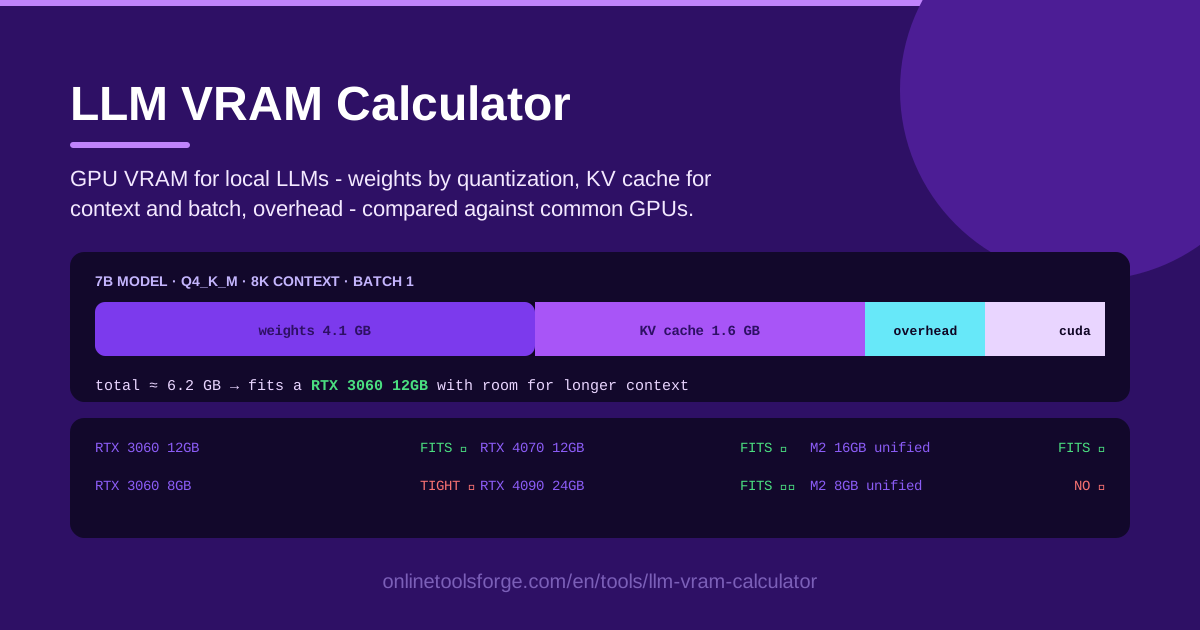
Table of Contents
Running a large language model on your own hardware is one of the best upgrades a developer can make: no per-token bills, no rate limits, and full privacy. But before you download a model, you face the question everyone does: will it actually fit in my GPU? That is exactly what the LLM VRAM Calculator answers. Enter your model size, quantization level, context length, and batch size, and it estimates the total VRAM you need, then compares it against common GPUs and Apple unified memory.
The tricky part is that model size alone tells you very little. A 7B model in FP16 needs roughly 14 GB for weights alone, but the same model at Q4 quantization drops to around 4 GB. Meanwhile the KV cache grows with your context length, and runtime overhead silently eats another slice. Guess wrong and you get out-of-memory crashes mid-generation, or hardware with capacity you never use.
In this guide we break down where VRAM actually goes, show how to use the calculator step by step, and walk through real scenarios like choosing a GPU for a 7B model.
Why Use LLM VRAM Calculator?
- Avoid expensive hardware mistakes. GPUs and high-RAM Macs are big purchases. Checking whether a model fits before you buy — or before a doomed multi-gigabyte download — saves real money and time.
- Understand the full memory picture. Many guides only mention weights. The calculator includes the KV cache for your context and batch size plus runtime overhead, which is what actually determines whether inference survives a long session.
- Compare quantization levels instantly. Switch between FP16, Q8, Q5, and Q4 to see exactly how much memory each level saves and what it means for your hardware choice.
- Match against real hardware. Instead of abstract gigabyte numbers, you get verdicts against cards like the RTX 3060 or RTX 4090 and Apple unified memory, with a clear FITS or NO result.
- Plan for growth. If 8K tokens fit today but your RAG pipeline needs 32K, you can see the jump in KV cache cost before it becomes a production incident.
- Zero friction. The tool runs entirely in your browser. No signup, no uploads, no installation — just numbers you can act on.
Key Features
| Feature | What it does |
|---|---|
| Model size input | Enter the parameter count of your model (7B, 13B, 70B...) as the base for all estimates |
| Quantization level | Choose FP16 through Q4 to scale the weight footprint accordingly |
| Context length | Sets how much KV cache the model must keep for your prompts and history |
| Batch size | Multiplies cache memory when serving multiple requests at once |
| VRAM breakdown | Splits the estimate into weights, KV cache, and overhead |
| GPU comparison | Checks the total against common cards such as the RTX 3060 and RTX 4090 |
| Unified memory check | Compares against Apple Silicon memory configurations for Mac users |
| FITS/NO verdict | Gives a plain-language yes or no per hardware option |
Three details worth highlighting:
- The breakdown view is the most educational part: seeing that a 13B model at Q8 needs ~13 GB of weights but only ~2 GB of cache at 4K context reframes what a big model really costs.
- The FITS/NO verdicts account for practical headroom, not exact-size matching, so a card that technically holds the weights but leaves no room for overhead is flagged correctly.
- Because everything runs client-side, you can tweak numbers and compare a dozen scenarios in a minute.
How to Use LLM VRAM Calculator
- Enter the model and quantization. Type in your model's parameter count and pick the quantization level you plan to run, for example a 7B model at Q4. The calculator immediately sizes the weight memory.
- Set context length and batch size. Add the context you actually need — 4K for chat, 16K-32K for document work — and the number of concurrent requests if you serve more than one at a time.
- Read the VRAM split. The result panel shows weights, KV cache, and overhead separately, plus the total you need to provision.
- Compare against GPUs. Scan the comparison table to see which cards and unified memory configurations return FITS and which come back NO.
- Pick your hardware. Apply the headroom rule and shortlist the cheapest option that comfortably clears your requirement.
Weights, KV Cache and the Forgotten Overhead
Weights are the floor. Uncompressed FP16 weights take about 2 bytes per parameter, so 7B is ~14 GB and 70B is ~140 GB — out of reach for consumer cards instantly. Quantization shrinks this: Q8 stores roughly 1 byte per parameter, Q5 about 0.7, and Q4 about 0.5. That is why a 7B model at Q4 lands near 4 GB and fits an 8 GB card, while a 70B model at Q4 sits near 40 GB and becomes a multi-GPU or high-RAM Mac conversation. Lower precision can cost some quality, but for many workloads Q4 and Q5 are entirely usable.
The KV cache grows with context. To keep attention coherent, the model stores key and value vectors for every token in the context window. The cache scales with both context length and model width, so doubling your context roughly doubles this slice. A 7B model might need ~1 GB of cache at 4K tokens but several GB at 32K. This is the most forgotten cost, and the reason a model that fits at 2K context falls over when you paste a long document.
Batch size multiplies the cache. Serving four requests in parallel does not share KV cache between them — each sequence keeps its own — so cache memory effectively multiplies by your batch size. This matters for anyone building a small API endpoint rather than running a single chat.
Overhead is the forgotten tax. The CUDA context, framework buffers, activations during generation, and fragmentation typically add 1-2 GB or more before your model produces a single token. A weights-plus-cache total of exactly 8.0 GB on an 8 GB GPU will not survive.
Unified memory changes the rules on Macs. Apple Silicon lets the GPU share system RAM, so a 64 GB or 128 GB Mac can hold models no consumer NVIDIA card can — but bandwidth is lower and the OS needs its own share, so treat unified memory totals as optimistic rather than guaranteed.
Practical Use Cases
Choosing a GPU for a 7B Model
You want a local coding assistant and you are eyeing an RTX 3060. Enter 7B at Q4, 8K context, batch 1: the calculator shows roughly 4.5 GB of weights, ~1 GB of cache, and ~1.5 GB of overhead — a comfortable FITS verdict. Bump the context to 32K for long refactors and you can see whether the same card still clears the bar or whether you should plan for a 12 GB card.
Planning a 70B Setup
A 70B model at Q4 needs around 40 GB of weights before you add cache and overhead. That rules out any single consumer card and points toward multi-GPU rigs or a Mac with 64 GB or more of unified memory. Running the numbers first tells you whether your build needs two 24 GB cards or whether an M-series Mac is the pragmatic choice.
Sizing Context for RAG
RAG pipelines stuff retrieved documents into the prompt, so context is the whole point. Model your real retrieval window — say 16K tokens — and compare it against 8K to see what each extra chunk of context costs in cache memory. Often the answer is that a smaller model with more context beats a bigger model with less.
Deciding Local vs API
If the calculator says your workload needs 48 GB of VRAM for acceptable latency, renting API tokens for burst traffic may be far cheaper than buying hardware. The verdict table also supports the opposite decision: if a modest model fits with plenty of headroom, going local is probably a clear win on cost and privacy.
Best Practices
- Leave 10-20% headroom. Aim for a GPU whose capacity exceeds the estimate by at least 10-20%; exact fits fail in practice once fragmentation and framework buffers appear.
- Re-check when you change quantization. Moving from Q8 to Q4 changes the weight footprint dramatically — rerun the numbers instead of reusing an old estimate.
- Test with your real context length. Do not size hardware against a 2K chat context if your application sends 20K-token prompts; the KV cache bites hardest here.
- Remember activations during generation. Long generations and larger batches add transient memory on top of the steady-state estimate — another reason headroom matters.
- On Macs, subtract the OS share. Unified memory is shared with macOS, so plan against roughly 70-75% of the advertised total.
- Validate with a real load test. The calculator is an estimate; run the model once with your longest prompt to confirm the numbers behave as predicted.
Ready to find out what your next model actually costs in memory? Open the LLM VRAM Calculator, plug in your model size, quantization, context, and batch size, and get a FITS or NO verdict against real GPUs in seconds — before you spend a single dollar on hardware.
Related Tools You Might Like:
- LLM Context Packer — plan how much context your prompts and documents really consume before they hit the model.
- Token Counter — count tokens in your prompts to pick the right context length for the calculator.
- Model Training Cost Calculator — go beyond inference and estimate what training or fine-tuning a model would cost.
Happy building!
Frequently Asked Questions
Q: How accurate is the VRAM estimate? A: It is a solid planning estimate based on standard formulas for weights, KV cache, and overhead. Real usage varies by framework and model architecture, so keep 10-20% headroom and validate with a real load test before buying hardware.
Q: Does quantization from Q8 to Q4 hurt output quality? A: Usually only slightly, and for many tasks Q4 models are nearly indistinguishable. The loss is task-dependent, so test the specific model and quantization on your own prompts before committing.
Q: Why does my model fit at short context but crash with long prompts? A: The KV cache scales with context length, so long prompts can add gigabytes on top of the weights. Re-run the calculator with your actual maximum context length to see the true requirement.
Q: Can I run large models on a Mac with unified memory? A: Often yes — unified memory lets Apple Silicon GPUs address far more memory than typical consumer cards. The OS needs its share, so plan against about 70-75% of the total, and expect lower throughput than a discrete GPU.