Markdown Table Formatter: Clean Up and Align Messy Markdown Tables Online
Use the free Markdown Table Formatter to re-align columns with consistent padding, preserve alignment markers, and tidy messy Markdown tables right in your browser.
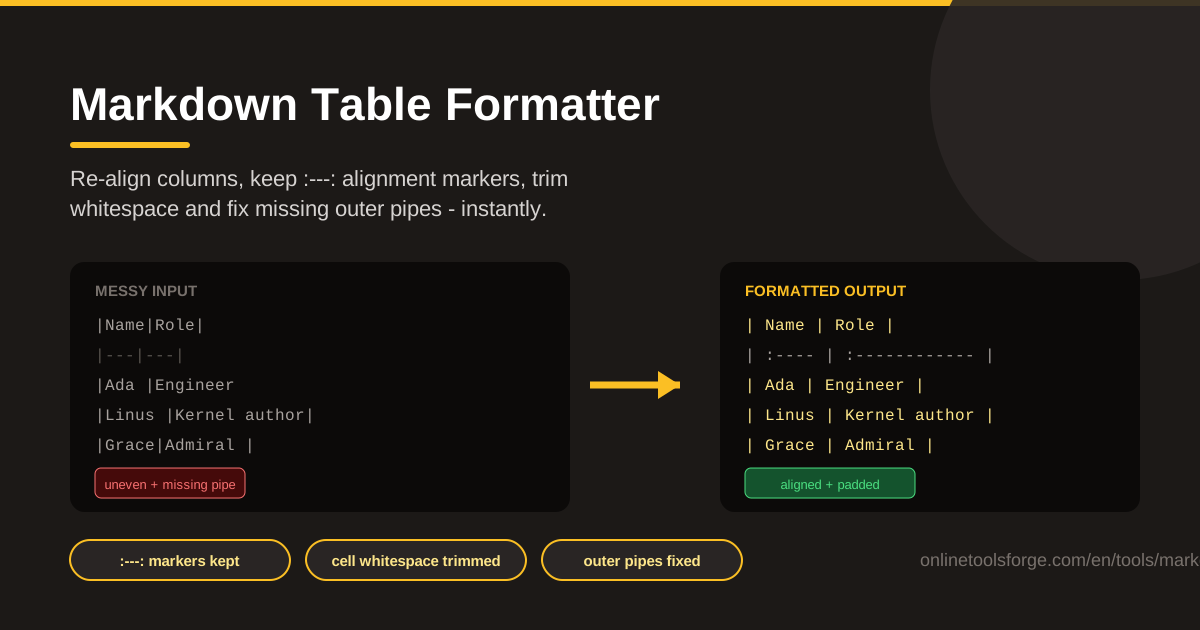
Table of Contents
Every developer and technical writer knows the scene: you paste a table into your README and the pipes land at random positions across the screen. Columns refuse to line up, some cells have three spaces while others have none, and half the rows are missing their leading pipe. The Markdown Table Formatter from Online Tools Forge cleans all of that up in a single click.
Here is the thing about Markdown tables: the renderer does not care how messy your source is. |Name|Role|Team| produces exactly the same HTML as a carefully padded grid. But raw source is not written for machines alone. It is read by teammates, code reviewers, documentation maintainers, and by you six months from now. Messy tables make all of that harder.
In this guide you will learn what the tool does, how to use it step by step, why column alignment matters more than most people realize, and where a formatter fits into a real documentation workflow.
Why Use Markdown Table Formatter?
Re-aligning a table by hand means counting characters in your head for every row. The formatter automates all of it:
- Diff-friendly aligned pipes. When every pipe sits in the same column, a git diff shows only the cells you actually changed instead of every row shifting around. Aligned tables make pull requests dramatically easier to review.
- Consistent column padding. Every cell is padded to the widest cell in its column, so the source reads like a clean grid instead of a jagged staircase.
- Alignment markers preserved. :---:, :---, and ---: centering and right-align markers are detected, kept, and normalized, so the rendered table looks exactly the same after formatting.
- Whitespace cleanup. Stray spaces inside cells are trimmed, so | John | and |John | stop looking like two different things.
- Missing outer pipes repaired. Tables pasted from other tools often drop the leading and trailing pipes; the formatter tolerates that and restores them.
- Runs entirely in your browser. No uploads, no sign-ups, no installs. Paste, format, copy.
Key Features
The tool does one job and does it thoroughly. Here is what happens to your table:
| Feature | What it does |
|---|---|
| Column re-alignment | Pads every cell to the widest cell in its column so all pipes line up vertically. |
| Alignment markers | Preserves and normalizes :---:, :---, and ---: delimiters in the separator row. |
| Whitespace trimming | Strips stray leading and trailing spaces from inside every cell. |
| Outer pipe repair | Accepts tables missing their leading or trailing pipes and rebuilds them. |
| One-click copy | Sends the formatted output straight to your clipboard. |
| Fully client-side | All parsing and formatting happens locally in your browser. |
- The padding logic is deliberately simple: each column is as wide as its widest cell, with one space of breathing room on either side. That is the convention most editors and style guides converge on.
- Because alignment markers survive formatting, you can run the tool on tables with centered or right-aligned numeric columns without breaking anything.
- Since everything runs in the browser, you can safely format tables containing internal or confidential data.
How to Use Markdown Table Formatter
The whole workflow takes under a minute:
- Paste your messy table. Open the tool and paste the table exactly as it is — inconsistent pipes, random spacing, missing outer pipes and all.
- Format the table. The formatter parses the rows, measures each column, and re-emits the table with consistent padding so every pipe lines up.
- Verify the alignment markers. Check the separator row: :---: centers a column, :--- left-aligns it, ---: right-aligns it.
- Copy the formatted output. One click sends the aligned table to your clipboard.
- Replace the table in your document. Paste it back into your README or docs, commit, and enjoy the clean diff.
Why Table Alignment Matters
This is the part most people underestimate, so let us go deeper.
Markdown renders identically regardless of padding. A parser reading |A|B| produces precisely the same table as one reading a beautifully padded grid. Extra spaces mean nothing to the machine. If rendering were the only concern, alignment would not matter at all.
Humans and diffs are not indifferent. Unpadded source is what teammates see in a pull request, what appears in git diff output, and what you scroll through in an editor without preview. When pipes align vertically, your eye walks down a column instantly. When they do not, every row becomes a small puzzle. Worse, when someone edits a single cell in a misaligned table, git may report every row as changed because the pipe positions moved, drowning the real change in noise.
Column padding conventions. The widely accepted convention is to pad each column to the width of its widest cell, with one space between the pipe and the content on each side. That keeps tables compact but readable, and it is exactly what the formatter produces. Because headers are usually the widest row or close to it, the table stays stable as rows are added.
Alignment marker semantics. The separator row controls rendered alignment: --- or :--- left-aligns (the default), :---: centers, and ---: right-aligns. Right alignment is especially pleasant for numeric columns because digits line up by place value. These markers are orthogonal to padding — a centered column can be padded exactly like a left-aligned one — so formatting never has to sacrifice alignment.
Missing outer pipes are still valid. GitHub-Flavored Markdown does not require the leading or trailing pipe; A | B on its own line parses as a table row. Valid does not mean pleasant, though. Most teams standardize on including outer pipes for symmetry, and the formatter normalizes your table to that style.
Practical Use Cases
Tidying README tables before a pull request
README tables are edited by many hands and drift quickly. Before opening a pull request, run the table through the formatter so reviewers see a clean grid and a diff that shows only real changes.
Normalizing documentation across a team
When five people write docs, you get five spacing styles. Adopt the formatter's output as the team standard and reformat existing tables as you touch them. Consistent tables make shared documentation feel maintained rather than accumulated.
Cleaning up tables exported from other tools
Spreadsheets, databases, notebooks, and converters happily emit tables with no padding at all. Paste the export into the formatter and you get a version that fits the rest of your Markdown.
Code review hygiene
Reviewer attention is limited; do not spend it on whitespace. A formatted table signals that the author cared about the diff, which builds trust for the substantive parts of a change.
Best Practices
- Keep tables narrow. Three to five columns is the sweet spot; beyond that, padding pushes lines past comfortable widths.
- Prefer left alignment for text, right alignment for numbers. Centered headers look tidy, but centered long text is harder to scan.
- Format before you commit, not after review comments arrive. Aligning upfront is cheaper than explaining a noisy diff to a reviewer.
- Keep header cells short. Column width is driven by the widest cell, so a verbose header inflates every row beneath it.
- Re-run the formatter after adding rows. One new cell wider than the rest misaligns the whole table again.
- Treat the formatted output as the source of truth. Paste the aligned version back immediately so hand-edited copies do not diverge.
Clean tables take seconds to produce and pay off every time someone reads or diffs your documentation. Try the free Markdown Table Formatter now — paste a messy table and watch the aligned version appear instantly.
Related Tools You Might Like:
- JSON to Markdown Table Converter — turn JSON arrays into a Markdown table, then format it for perfect alignment.
- Markdown to HTML Converter — render your cleaned-up Markdown, tables included, as HTML.
- Word Counter — check word and character counts for docs and content drafts.
Happy formatting!
Frequently Asked Questions
Q: Does re-padding a Markdown table change how it renders? A: No. Markdown renderers ignore padding entirely, so the rendered table is identical before and after formatting. Only the raw source becomes easier to read and diff.
Q: Will my column alignment markers be preserved? A: Yes. The formatter preserves and normalizes :---:, :---, and ---: markers, so centered and right-aligned columns stay exactly as they were.
Q: What if my table is missing the outer pipes? A: The tool tolerates and repairs tables without leading or trailing pipes, then outputs the table in the standard style with outer pipes included.
Q: Is my table data uploaded anywhere? A: No. Everything runs locally in your browser, so your data never leaves your machine.