PDF Page Numbering: Stamp Page X of Y on Any Document
Add page numbers to PDFs online with position, format, font size, and start-offset options. Stamp Page X of Y on any document, processed fully in your browser.
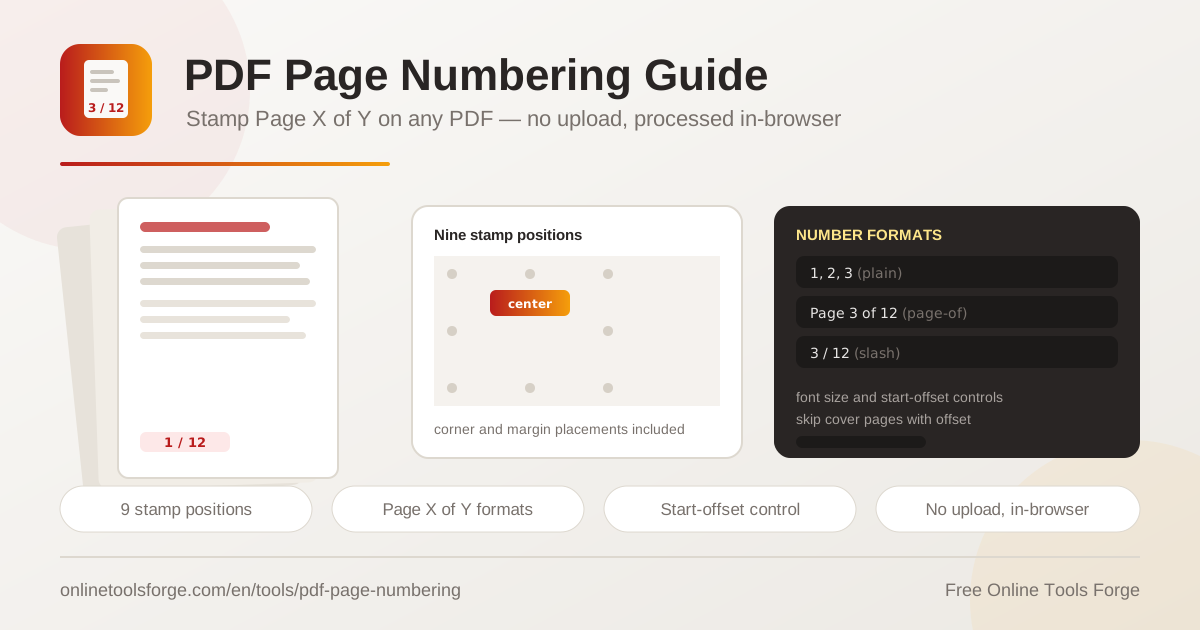
Table of Contents
Flip through any professionally produced document and you will notice one small detail: every page is numbered. Page numbers turn a loose stack into something you can cite, reference, and reassemble in the right order. Yet many PDFs — scans, exports from design tools, or files assembled from several sources — arrive with no numbers at all, which makes printed copies hard to navigate and awkward to reference in meetings or reviews.
That is exactly what the PDF Page Numbering tool solves. Drop in your file, choose where the numbers should sit, pick a format, and stamp every page in seconds. Because the tool runs on pdf-lib entirely inside your browser, nothing is ever uploaded to a server — your contract, thesis, or financial report never leaves your machine.
In this guide you will learn how the tool works, how to choose between positions and formats, and when a start offset helps keep cover pages clean.
Why Use the PDF Page Numbering Tool?
- Makes documents referenceable: Once pages are numbered, instructions like review the clause on page 7 or see the chart on page 12 become precise and verifiable.
- Satisfies formal requirements: Contracts, court filings, tenders, and academic submissions frequently mandate numbered pages, and a missing count can get a document bounced back.
- Keeps covers pristine: The start-offset option skips the first pages, so title pages and front matter stay unnumbered while the body starts at page 1.
- Protects confidential files: Everything is processed by pdf-lib inside your browser, so sensitive documents never travel to an external server.
- Requires no installation: The tool works in any modern browser on desktop or mobile, with no account, no plugins, and no watermarked exports.
- Gives you full control: Nine positions, three formats, and an adjustable font size let the stamp match your document instead of fighting it.
Key Features
| Feature | What it does |
|---|---|
| Nine placement positions | Choose bottom-center, corners, top edges, or side margins with one click |
| Three number formats | Plain (1, 2, 3), Page X of Y, and slash style (3 / 12) |
| Adjustable font size | Scale the stamp from subtle to prominent to fit dense or airy layouts |
| Start offset | Skip the first pages so covers and front matter remain unnumbered |
| Client-side pdf-lib engine | Stamps every page locally; the file is never uploaded |
- The Page X of Y format totals your pages automatically, so the final page reads Page 12 of 12 with no manual counting.
- All pages are stamped in a single pass, so a 200-page report takes about as long as a two-page memo.
How to Add Page Numbers
- Open the PDF Page Numbering tool and drop your PDF onto the drop zone.
- Select a position from the nine-zone picker; bottom-center is the classic choice for reports.
- Choose a format: plain numbers, Page X of Y, or slash style.
- Adjust the font size, and set a start offset if the first page or pages should stay blank.
- Stamp the document, then download the numbered PDF — your original file is never modified.
Choosing Positions, Formats, and Offsets
The nine placement zones map to a three-by-three grid: bottom-left, bottom-center, bottom-right, top-left, top-center, top-right, and three side-margin slots. Bottom-center suits most reports and manuals. Bottom-right is popular for legal documents because it sits away from binder holes, while top corners work well for handouts that get stapled along the bottom edge. Whatever you choose, the stamp lands in the same spot on every page, which is what keeps a numbered document looking deliberate.
Format is a question of audience. Plain numbers (1, 2, 3) are the least intrusive and suit dense documents where every millimetre of margin matters. Page X of Y is the most reassuring because readers can confirm nothing is missing — ideal for contracts, exam papers, and tender packs. The slash format (3 / 12) sits between the two: compact, but still showing the total.
Plain:        1   2   3
Page X of Y:  Page 3 of 12
Slash:        3 / 12
Font size should follow page density. For reports packed with tables and figures, a small stamp tucked into a corner or margin stays visible without colliding with content. For slide-style pages or documents with generous white space, a larger size improves legibility in print and on screen. When in doubt, go one size smaller than feels natural — numbering should be findable, not focal.
The start offset exists for covers and front matter. A contract with a signature page on top, a thesis with a title page and abstract, or a report with an unnumbered cover all look better when numbering begins after them. Set the offset to the number of leading pages to skip, and the first stamped page shows 1 — or use Page X of Y and the totals stay correct across the whole file.
Finally, consider where the processing happens. Because pdf-lib runs entirely in your browser, the document is parsed and re-saved on your own device. For nondisclosure agreements, medical records, draft financials, or anything covered by client confidentiality, that difference matters: there is no upload, no temporary server copy, and no retention policy to trust.
Practical Use Cases
Numbering Contracts and Agreements
Long agreements accumulate exhibits, schedules, and amendments that all too easily get separated. Adding Page X of Y across the full document gives every party an easy completeness check, and clause references like section 4 on page 9 stop being ambiguous. With a start offset, the signature cover stays clean while the numbered body begins at page 1.
Academic Submissions and Theses
Universities and journals commonly require numbered pages on submissions. Stamp plain numbers or Page X of Y from the first page of the main text, using the start offset to skip the title page and abstract. Consistent numbering also makes supervisor feedback — fix the figure on page 23 — actionable at a glance.
Report Handouts and Board Packs
Meeting attendees instinctively say turn to page 14 — but only if the pages are numbered. Stamp quarterly reports, board packs, and training handouts before printing so discussion flows smoothly. The slash format is a tidy fit here, giving page and total without crowding the footer.
Assembling Merged Documents
When chapters or appendices are combined from several files, source page numbers restart at every seam. The cleanest fix is to assemble the file first, then stamp the final document once so the numbering runs continuously from cover to appendix. If you also need branding, apply a watermark after numbering so the stamp stays fully readable.
Best Practices
- Stamp after merging or splitting, never before, so the numbers reflect the final page order.
- Check the last page of the output to confirm the total reads correctly, especially after an offset.
- Match stamp size to page density: small and tucked-in for dense tables, larger for airy layouts.
- Prefer bottom positions for print documents, since footers survive duplex printing and binding best.
- Keep one format across a document family — contracts, exhibits, and amendments should all read the same way.
- Test an offset on a short file first to confirm which pages get skipped before running a long document.
Ready to make every page count? Open the PDF Page Numbering tool, drop in a document, and stamp Page X of Y across all pages in seconds — free, private, and processed entirely in your browser.
Related Tools You Might Like:
- PDF Watermark Stamper — brand every page with a text or image watermark.
- PDF Page Counter — confirm page totals before you stamp.
- PDF Merge & Split — combine or divide files, then number the result.
Happy stamping!
Frequently Asked Questions
Q: Is my PDF uploaded to a server when I add page numbers?
A: No. The tool uses pdf-lib to process the file entirely inside your browser. Your document never leaves your device, and nothing is stored anywhere.
Q: Which format is best for a legal contract?
A: Page X of Y is the safest choice. It lets every party verify that no pages are missing, which is exactly the assurance a contract needs.
Q: How do I keep the cover page unnumbered?
A: Set the start offset to the number of leading pages to skip. Numbering then begins on the following page, and the cover stays clean.
Q: Will the number overlap existing content?
A: The stamp is drawn on top of the page at your chosen position. Picking a corner or margin and a modest font size keeps it clear of body text.
Q: Does it work with scanned PDFs?
A: Yes. The tool works on any valid PDF regardless of how the pages were created, including scans of printed documents.