PDF Page Organizer: Reorder, Rotate, and Delete Pages Visually
Reorder, rotate, and delete PDF pages with live thumbnails, then download the reorganized PDF. Built with pdf-lib and pdf.js — no upload, free in your browser.
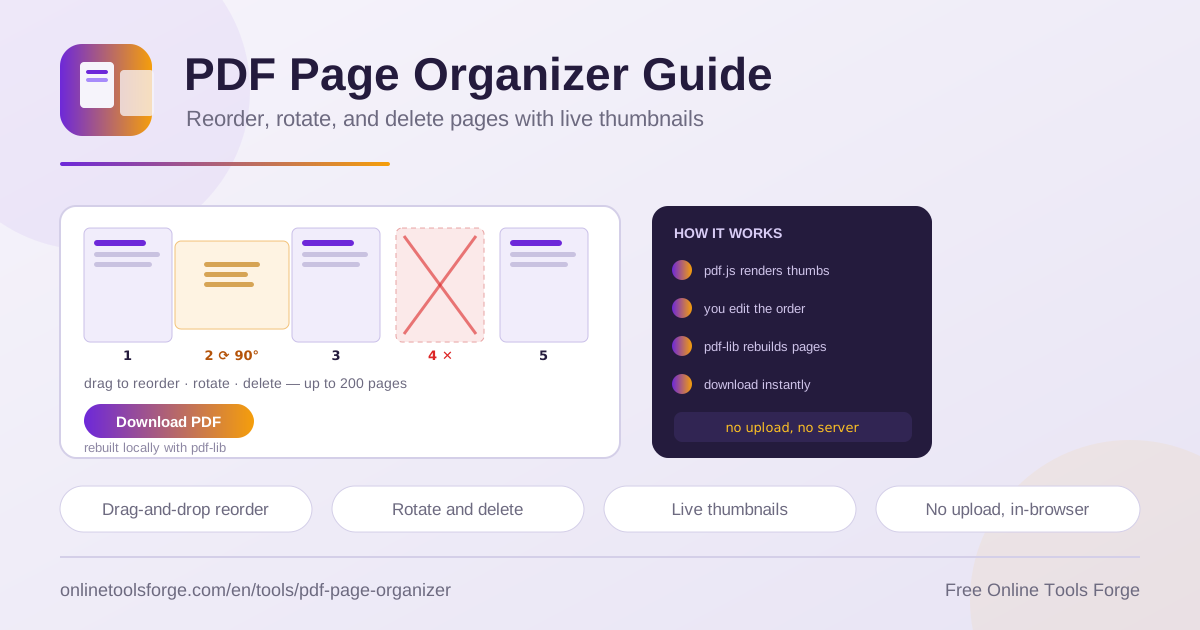
Table of Contents
PDFs rarely arrive in perfect shape. A duplex scanner feeds pages back to front, a slide export interleaves appendix slides with the main deck, and a combined report stitches chapters together in the wrong sequence. Fixing these problems usually means installing heavyweight desktop software or uploading confidential files to an unknown web service. There is a better way: the PDF Page Organizer lets you reorder PDF pages, rotate them, and delete the ones you do not need — visually, with live thumbnails, entirely inside your browser.
The tool is free, requires no account, and never uploads your document to a server. Everything happens on your machine: pdf.js renders each page as a thumbnail you can see and drag, and pdf-lib rebuilds the final file locally when you are done. The result downloads instantly, ready to share or archive.
This guide explains what the tool does, walks through the workflow step by step, and peeks under the hood so you know exactly what happens when you rebuild a PDF.
Why Use the PDF Page Organizer?
- Visual editing instead of page-number guesswork. Most tools make you type ranges such as 3,1,4-7 and hope for the best. Here you see real thumbnails and drag them into place, so mistakes are obvious before you download anything.
- Three operations in one workflow. Reordering, rotation, and deletion live in the same interface, which matters when a document needs all three fixes at once — a common situation with scanned contracts.
- Nothing leaves your computer. Processing is 100% in-browser, so sensitive files such as tax forms, medical records, or signed agreements never touch a third-party server.
- No installation, account, or cost. The organizer runs in any modern browser with nothing to install and no sign-up wall between you and a fixed PDF.
- Live previews build confidence. Thumbnails are rendered from the actual document, so a rotated page or a page marked for deletion is visible at a glance.
- Handles real-world documents. Support for up to 200 pages covers the size of typical reports, slide exports, and scan batches.
Key Features
| Feature | What it does |
|---|---|
| Live page thumbnails | pdf.js renders every page as a small preview, so you can identify content at a glance |
| Drag to reorder | Grab any thumbnail, drop it into a new position, and the new sequence is applied to the rebuilt file |
| Rotate pages | Turn a landscape scan or sideways slide upright with a single click |
| Delete pages | Mark unwanted pages and they are removed from the final PDF |
| Up to 200 pages | Covers reports, deck exports, and multi-document scan batches comfortably |
| Instant local download | pdf-lib assembles the reorganized PDF on your device and the download starts immediately |
A few details worth noting:
- Thumbnails are true renders, not placeholder icons — you can tell a blank page from a chart page without opening the original file.
- Edits are non-destructive until download; your source file on disk is never modified.
- The output is produced by pdf-lib, a widely used open-source library, entirely inside your browser.
How to Organize PDF Pages
- Load your PDF. Open the PDF Page Organizer and select a file. It is parsed locally and thumbnails appear in a grid.
- Review the pages. Scroll through the thumbnails to spot pages that are out of order, rotated, duplicated, or blank.
- Drag thumbnails into the right order. Move pages where they belong; the grid always shows the final page sequence.
- Rotate or delete as needed. Rotate sideways pages upright and mark pages for deletion, such as blank backs of scanned sheets.
- Download the reorganized PDF. pdf-lib rebuilds the file in your new order and the download starts within seconds.
Rebuilding a PDF Locally
Knowing what happens behind the grid makes the tool easier to trust. When you load a PDF, pdf.js — the rendering engine behind Firefox's built-in viewer — decodes each page and draws it into a small canvas. Those canvases are your thumbnails, and because they are exact previews, a blank or sideways page is impossible to miss.
Every edit updates one simple structure: an ordered list of page references. Dragging a thumbnail moves its reference to a new position. Rotating a page attaches a rotation value to its reference, which tells viewers how to display it without touching the underlying content. Deleting a page drops its reference from the list, so the page is simply excluded from the output.
When you click download, pdf-lib reads your source document and copies pages into a brand-new PDF, following your edited order:
Original order:  1, 2, 3, 4, 5
Your edits:      delete 2, move 3 first
Rebuilt PDF:     3, 1, 4, 5
The 200-page ceiling keeps the browser responsive: rendering 200 thumbnails and assembling a file of that size completes quickly on ordinary hardware. Local processing matters just as much. Because the entire pipeline runs in your browser, confidential documents — contracts, invoices, identity scans — are never transmitted anywhere. You could go offline after the page loads and the tool would still finish the job.
Practical Use Cases
Fixing Scanner Output Order
Flatbed and duplex scanners often produce reversed or interleaved sequences. Load the scan, drag thumbnails into reading order, rotate anything that came through sideways, and download a clean, correctly sequenced document.
Trimming Slide Deck Exports
A 60-slide export rarely needs every slide in a client handout. Delete the sections that do not apply, reorder the remainder to match your narrative, and share a compact deck instead of the full file.
Assembling Signed Contract Pages
When a contract is signed across several sittings, signature pages often arrive as separate scans. Arrange them in sequence — cover page, terms, then signatures — and produce one authoritative PDF for your records.
Removing Blank Pages
Back-to-back scanning routinely generates empty sheets. Spot them in the thumbnail grid, mark them for deletion, and ship a leaner document that is easier to read, print, and store.
Best Practices
- Work from a copy of important documents so the original stays untouched no matter what.
- Scan the whole grid before editing so you catch every duplicate and blank in a single pass.
- Fix rotation first, then reorder — upright thumbnails are much easier to place correctly.
- Keep edits focused. Reorganize, download, and verify rather than stacking dozens of changes in one session.
- Check the downloaded file for order and orientation before sending it onward.
- Add page numbers afterward with the PDF page numbering tool so readers can follow the new sequence.
Organize Your Next PDF in Seconds
If a messy scan or an oversized slide export is sitting on your desktop, open the PDF Page Organizer, drop the file in, and have a clean document a minute later. It is free, it is fast, and your pages never leave your browser.
Related Tools You Might Like:
Happy organizing!
Frequently Asked Questions
Q: Is my PDF uploaded to a server when I use the page organizer?
A: No. The tool runs entirely in your browser. pdf.js renders the thumbnails locally and pdf-lib rebuilds the file on your device, so your document never leaves your computer.
Q: How many pages can the PDF Page Organizer handle?
A: Up to 200 pages per document. That covers most reports, slide exports, and scan batches while keeping the thumbnail grid fast and responsive.
Q: Does rotating a page change its content?
A: No. Rotation adds a display instruction to the page, so viewers and printers show it upright while the underlying content stays exactly as it was.
Q: Can I undo changes after downloading the new PDF?
A: The download creates a new file and leaves your original untouched. If the result is not right, reload the original and adjust the thumbnails again.