PDF Redact Without the Risk: Black Out Sensitive Text Right in Your Browser
PDF Text Redactor blacks out sensitive text in PDFs right in your browser — search a term, review every per-page match, stamp opaque boxes over them, and download the redacted file with no upload.
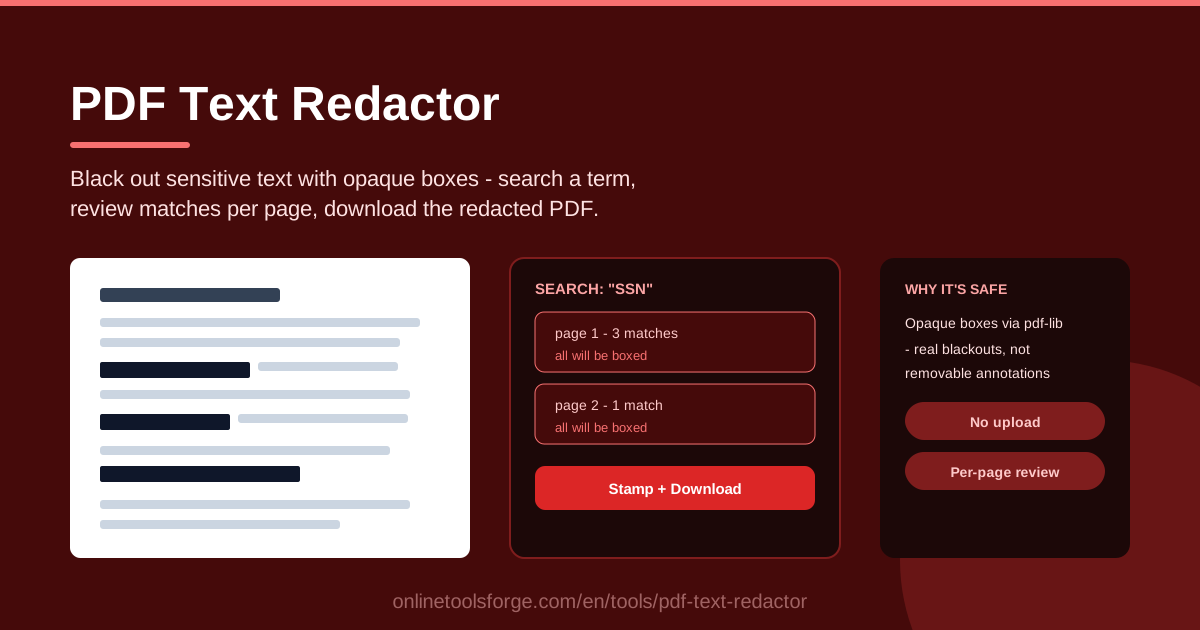
Table of Contents
Redacting a PDF sounds simple: draw a black box over the text and send the file off. But that box only hides text visually — underneath, the words are still there, and anyone who knows where to click can copy them out. That mistake has leaked bank details and client names more times than anyone can count. The PDF Text Redactor tool at PDF Text Redactor was built to solve exactly this: it searches your document for the terms you want gone, shows every match grouped by page, and stamps opaque boxes over them so the covered text can no longer be read.
What makes it different is where the work happens. Everything runs locally in your browser: the PDF is loaded from your computer, analyzed in memory, and the redacted copy is saved straight back to your machine. No upload, no server, no third party ever touching your sensitive data — exactly what you want when the document itself is the sensitive thing.
Why Use PDF Text Redactor?
- No-upload privacy: your document never leaves the browser. Files with contracts, IDs, or financial data stay on your machine from the first click to the final download.
- True opaque boxes, not covers: matches are stamped onto the page as opaque rectangles via pdf-lib, so covered text stops being visually accessible rather than hiding behind a removable layer.
- Per-page match review: every hit is listed by page, so you confirm exactly what gets covered before you commit — no blind automation.
- Search-driven precision: type an account number, client name, or email, and every occurrence in the document is found — faster and more reliable than eyeballing dozens of pages.
- Fast, repeatable workflow: load, search, review, stamp, download — one cycle takes under a minute, and you can rerun it with other terms until you are done.
- Free and frictionless: no account, no watermark, no install. Open the page in any modern browser and start redacting immediately.
Key Features
| Feature | What it does |
|---|---|
| Local PDF loading | Opens a PDF straight from your computer — no upload step at all |
| Term search | Finds every occurrence of the term you want to redact |
| Per-page match list | Groups matches by page so you can review them one page at a time |
| Opaque box stamping | Draws solid opaque rectangles over each match using pdf-lib |
| Redacted download | Saves the finished file back to your device |
| Fully client-side | All processing happens in your browser's memory — nothing is transmitted |
- The stamping step is the heart of the tool: boxes are drawn into the page content itself, so they hold up under copy, print, and zoom.
- The per-page list doubles as a quality gate — an unexpected match count is your cue to look closer before stamping.
How to Use PDF Text Redactor
- Open the tool. Go to PDF Text Redactor in your browser — nothing to install, nothing to sign up for.
- Load your PDF. Choose the document from your computer. It is read into browser memory locally, so the file stays on your machine.
- Search the term. Type the word, name, or number you want removed — an account number, an email address, a client name — and run the search to find every occurrence.
- Review the matches per page. Walk through the per-page list and confirm each hit genuinely needs covering. Catching a false positive now takes seconds; catching it after sending is far more painful.
- Stamp and download. Stamp opaque boxes over the matches and download the redacted file to your computer.
Redaction Done Right
Most redaction failures come from mistaking "covered" for "removed." The classic offender is the black highlight annotation. In many PDF viewers it looks exactly like redaction — until you click the black area or run the file through a text extractor and watch the original words copy out intact. An annotation is a layer sitting on top of the text; the text itself is untouched and fully extractable. It has embarrassed courts and corporations for years.
Stamped opaque boxes work differently. Instead of adding a removable overlay, the tool stamps solid, opaque rectangles into the page content itself with pdf-lib. The covered region no longer displays the underlying text on the visible page, which removes visual access to those words in viewers, prints, and screenshots — a far stronger posture than a highlight.
Redaction also stops at the visible page. PDFs carry metadata — author, title, creating software, timestamps — and that context can identify you even when the content is blacked out. Before sharing a sensitive file, inspect and clean its properties with a dedicated tool such as the PDF Metadata Editor linked below.
Finally, local processing. For genuinely confidential documents — contracts, medical records, ID scans — the file arguably should not be uploaded anywhere just to be redacted. A fully client-side tool keeps the chain of custody simple: disk, browser memory, disk. Nobody else ever holds a copy.
Practical Use Cases
Sharing Invoices Without Exposing Account Numbers
Freelancers and small businesses often need to show proof of payment without full bank details. Search the account number or bank name, review the per-page hits, stamp, and send a copy where the sensitive digits are covered but totals and dates stay readable.
Preparing Legal and HR Documents for Release
Contracts, settlement drafts, and HR files often need to circulate beyond the audience they were written for. Search party names, compensation figures, or reference numbers, review every match, and produce a shareable copy where only the confidential portions are covered.
Sending ID Images for Support Tickets
Support teams regularly ask for a photo of an ID to verify an account. Instead of sending the full document, redact everything except the fields the agent actually needs and keep the rest covered before attaching the file.
Removing Personal Data Before Publishing
Case studies, documentation screenshots, and public reports sometimes contain incidental personal information — a customer email in a toolbar, a real name in a chat log. Searching and stamping those terms takes minutes and prevents a permanent, indexed leak.
Best Practices
- Search variants of the term. If you redact a company name, also search its abbreviation, common misspellings, and related reference numbers — the search only finds what you type.
- Review the per-page list deliberately. Read every page's match count and placement, not just the total; an unexpected hit is either a typo or something you forgot was there.
- Check metadata with a separate tool. Redacting page content does not clean document properties. Run the file through a metadata editor and strip author, title, and software fields before sharing.
- Verify the output by re-extracting text. Open the redacted PDF in a text extractor and confirm the sensitive terms no longer come out. Verify before you send, not after.
- Keep the original safe. The redacted copy is the one you share; the original stays in your private storage. Never send the unredacted source "for context."
- Repeat the search for each sensitive term. Most documents contain more than one thing worth covering — run a full pass per term rather than relying on a single search.
Ready to black out sensitive text the safe way? Open PDF Text Redactor, load your document, and review every match before any box is stamped — with your file never leaving the browser.
Related Tools You Might Like:
- PDF Metadata Editor — inspect and clean the document properties that redaction leaves untouched
- PDF Merge & Split — extract just the pages you need before or after redacting
- PDF to Text Extractor — re-extract your redacted file's text to verify nothing sensitive remains
Happy redacting!
Frequently Asked Questions
Q: Is my PDF uploaded to a server during redaction? A: No. PDF Text Redactor runs entirely in your browser. The file is loaded locally, processed in memory, and the redacted copy downloads straight back to your device — the document never leaves your computer.
Q: How is this different from drawing a black box myself? A: Hand-drawn black boxes are usually annotation layers sitting on top of the text, and the text beneath them typically remains extractable. This tool stamps opaque boxes into the page content itself instead of a removable highlight.
Q: Can I redact more than one term in the same document? A: Yes. Run a search for each sensitive term — account number, name, email — review its matches, and repeat until everything is covered, then download the final file.
Q: Does redacting also remove the text from the file's metadata? A: No. Redaction covers text on the page. Document properties such as author and title live elsewhere in the file, so check them with a separate metadata tool before sharing.