PDF Table Extractor: Turn PDF Tables into CSV and Excel in Your Browser
Learn how PDF Table Extractor detects and extracts tables from PDFs into CSV or Excel right in your browser — no upload, no retyping.
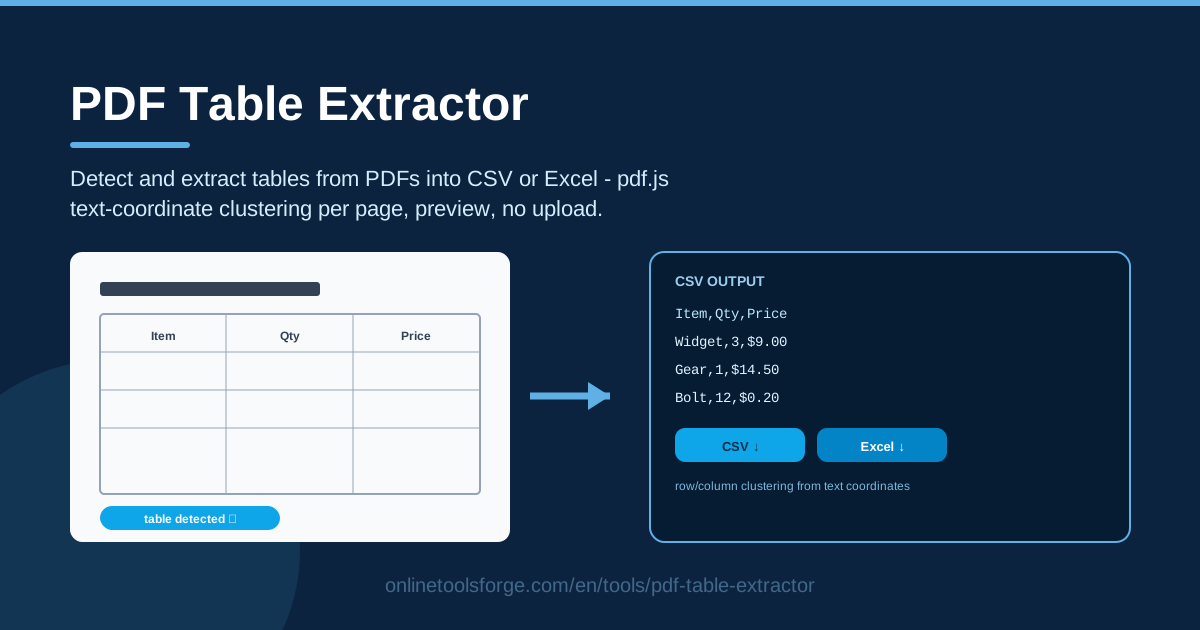
Table of Contents
Every professional eventually meets the same problem: a PDF full of tables that need to live in a spreadsheet. It might be a quarterly financial statement, a supplier price list, a lab report, or a government form. Getting it into Excel usually means copy-pasting cell by cell and repairing rows that break across lines.
PDF Table Extractor removes that chore entirely. It loads your PDF locally in the browser, detects the tables inside, and rebuilds them into clean rows and columns you can preview and download as CSV or Excel in one click. Everything runs client-side on pdf.js, so your file never leaves your computer.
Why Use PDF Table Extractor?
- No upload, full privacy. The PDF is processed entirely in your browser with pdf.js — nothing is sent to a server, so confidential invoices, contracts, and reports never leave your machine.
- No more copy-paste retyping. Copying a table out of a PDF yields a scrambled mess of line breaks. The extractor reads text coordinates and hands you a structured grid instead, saving hours on a ten-page report.
- Detects bordered and borderless tables. Many PDFs use whitespace instead of ruled lines; coordinate clustering still finds rows and columns when no borders are visible.
- Page-by-page control. Tables are detected per page, so a 40-page annual report becomes a set of manageable, page-scoped tables rather than one giant jumble.
- CSV or Excel, your choice. Download CSV for scripts and data pipelines, or Excel for colleagues who live in spreadsheets.
- Free and instant. No account, no watermark, no queue — load the file, review the preview, download.
Key Features
| Feature | What it does |
|---|---|
| Local PDF loading | Opens your PDF through a file picker — read in the browser, never uploaded. |
| Automatic table detection | Scans each page for table-like text arrangements and extracts every table found. |
| Text-coordinate clustering | Groups characters into rows and columns by X/Y position, rebuilding the grid. |
| Per-page table preview | Shows detected tables page by page so you can confirm structure before export. |
| CSV download | Exports any detected table as a comma-separated file for Sheets, Excel, or code. |
| Excel download | Exports the table as a spreadsheet workbook for immediate editing and formulas. |
- The engine is built on pdf.js text-coordinate clustering, the same rendering engine browsers use, so text is read exactly as it appears on the page.
- The preview-before-download workflow means you always see what you will get — no blind exports followed by cleanup.
How to Use PDF Table Extractor
- Load your PDF. Open PDF Table Extractor, click the load button, and pick a PDF from your computer. The file is parsed locally — wait for the page count to appear.
- Review detected tables per page. Move through the pages and check what the detector found; each page with a table-like block shows up as an extracted table with rows and columns reconstructed.
- Check the preview. Compare the grid against the original page: header row on top, columns aligned, no rows merged or split unexpectedly.
- Download as CSV or Excel. When the table looks right, click the CSV or Excel download button. Repeat for other tables or pages you need.
- Clean up in your spreadsheet. Fix merged header cells, adjust number formats, and remove artifacts like repeated footers — two minutes and the data is ready.
How Table Detection Rebuilds Rows
A PDF has no concept of a "table". It stores individual text runs, each with exact X and Y coordinates on the page, plus drawing commands for lines and rectangles. Visually we see columns and rows; the file itself only sees floating words at positions.
Coordinate clustering into rows and columns. The extractor takes every text item pdf.js reports and groups it in two passes: items whose vertical positions fall within a tolerance band become one row, then items whose horizontal positions align join the same column. The result is a grid of cells, each holding the text of the words sharing its region. Because tolerances adapt to each page's fonts and spacing, dense financial tables and airy price lists both reconstruct correctly.
Multi-page handling. Detection runs per page rather than across the document. Real reports restart tables on every page and repeat headers, so page-scoped detection keeps a table crossing a page break from fusing with an unrelated table — and lets you export only the pages you care about.
Bordered versus borderless tables. Ruled lines reinforce the detected grid but are not required. Borderless tables — common in exports from web pages, Word, or design tools — are recovered purely from alignment: consistent left edges create columns, consistent baselines create rows.
When cells merge or split — and manual fixes. A long cell that wraps onto two lines may come out as two rows; merge them back in your spreadsheet. Multi-level headers — "Revenue" spanning three month columns — often export as a merged row plus sub-headers; restructure them manually. Columns with very wide gaps may be treated as two columns; delete the spacer. Each fix takes seconds compared with retyping the whole table.
CSV versus Excel export. CSV is plain text: universal, tiny, perfect for imports and scripts, but with no data types — "0012" stays text until your spreadsheet reinterprets it. Excel preserves the layout in a real spreadsheet where formulas and formatting are possible. Rule of thumb: CSV when the data feeds another system, Excel when a human will keep working with it.
Practical Use Cases
Financial statement figures
Quarterly and annual reports pack income statements, balance sheets, and cash-flow tables into PDFs. Extract line items and period columns straight into a spreadsheet, then build your own ratios, charts, and comparisons — without retyping a single figure.
Supplier price lists
Procurement teams receive catalogs and quotations as PDFs. Extract item codes, descriptions, unit prices, and discount tiers into CSV for your purchasing system, or use the Excel export to build side-by-side vendor comparisons.
Scientific paper data
Research papers present measurements, statistics, and model comparisons in tables. Extract them into CSV so you can replot the data, run your own statistics, or feed the numbers into analysis scripts instead of eyeballing values off a chart.
Government form tables
Tax forms, customs declarations, and regulatory filings are full of structured grids. Because the tool works locally, sensitive personal and business data on these forms can be extracted without leaving your organization — an important compliance consideration.
Best Practices
- Always preview before export. Ten seconds comparing the grid to the page beats discovering a shifted column downstream.
- Verify key numbers against the page. For financial or compliance work, spot-check totals and a few line values before circulating the export.
- Handle merged header rows manually. Two-row headers rarely survive automatic detection — flatten them into one header row after download.
- Batch page by page. For long documents, export the tables you need per page rather than assuming every detected block is one continuous table.
- Keep the source PDF. Store it next to the export so any value can be re-checked against the page later.
- Choose the export format deliberately. CSV for pipelines and imports, Excel for human analysis — pick per destination, not per habit.
Ready to stop retyping tables? Load a PDF into PDF Table Extractor, watch the rows and columns rebuild themselves, and download clean CSV or Excel in seconds — without your file ever leaving the browser.
Related Tools You Might Like:
- PDF to Text Extractor — pull plain text out of any PDF when you need words, not grids.
- Excel to CSV Converter — convert spreadsheet files between formats after extraction.
- PDF Compressor — shrink oversized PDFs before storing or emailing them.
Happy extracting!
Frequently Asked Questions
Q: Is my PDF uploaded to a server? A: No. The entire extraction runs in your browser with pdf.js, and the file never leaves your computer.
Q: Does it work on scanned PDFs? A: The tool reads the text layer, so it works on any PDF with selectable text. Pure image scans have nothing to cluster — run them through OCR first to produce a text-based PDF.
Q: Will multi-page tables be joined into one table? A: Detection is page-scoped, so a table continuing on the next page is extracted separately. Export both pages and append the rows in your spreadsheet.
Q: CSV or Excel — which should I download? A: Choose CSV for databases, scripts, and imports where a plain universal file works best; choose Excel when someone will keep editing or adding formulas.