PPTX Text Extractor: Turn PowerPoint Decks Into Markdown, Text, or CSV in Your Browser
Learn how PPTX Text Extractor pulls titles, bullets, and speaker notes out of any .pptx file in slide order and exports them as Markdown, plain text, or CSV with no upload.
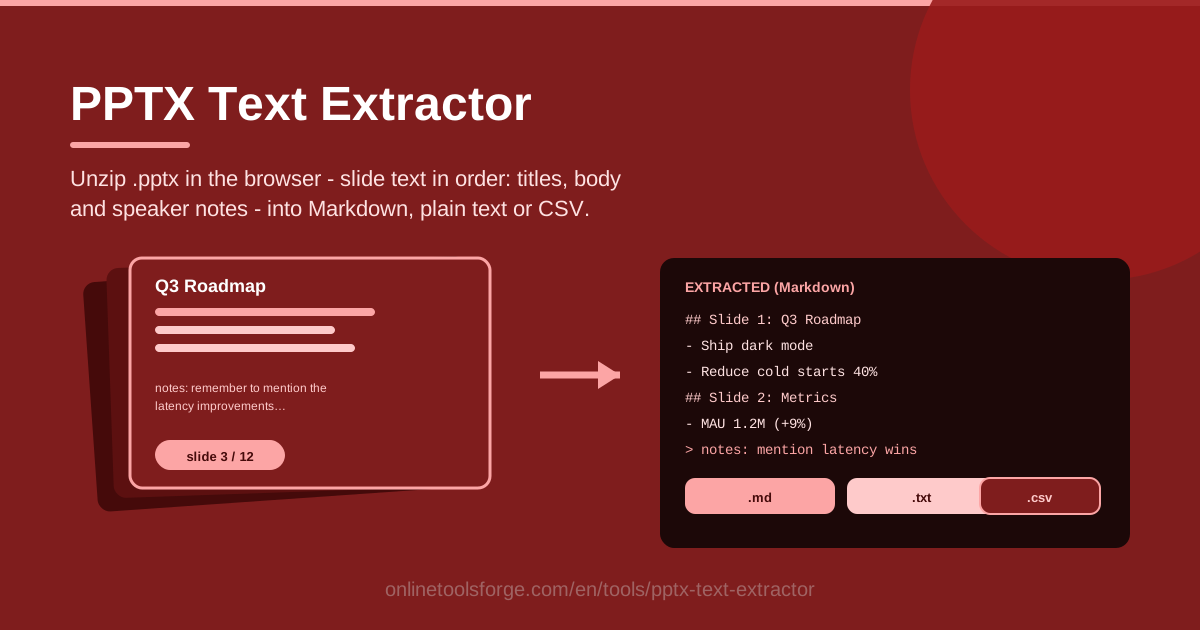
Table of Contents
Slide decks hold some of the most valuable writing a team produces — and some of the least reusable. The words are locked inside a .pptx file that only opens properly in PowerPoint, Keynote, or Google Slides, and the speaker notes are buried even deeper than the bullets. PPTX Text Extractor from Online Tools Forge fixes that. It loads a .pptx file locally, unzips it right in your browser, and pulls out every slide's text in order — titles, body bullets, and speaker notes — ready to export as Markdown, plain text, or CSV.
The best part is what does not happen: no upload. The deck never leaves your machine, so confidential pitches, HR material, and client work stay private. There is no account to create and nothing to install. The tool simply reads the file you hand it, extracts the text, and hands you a clean export.
Whether you need to recover notes from an archived training deck, turn a sales presentation into a blog draft, or audit exactly what a shared deck says, this tool takes you from .pptx to usable text in seconds. Let's walk through how it works and where it shines.
Why Use PPTX Text Extractor?
- Recover speaker notes before they disappear. Notes pages often contain the real story — talking points, caveats, and context the slides themselves omit. When the presenter moves on or the deck is archived, a text export is often the only practical way to preserve that knowledge.
- Nothing is uploaded, ever. Extraction happens entirely in your browser. Because the file is never sent to a server, you can safely process decks that contain financials, contracts, or personal data.
- Three export formats for three different jobs. Markdown when you want to republish, plain text when you want to read or paste quickly, and CSV when you need a structured inventory of every slide.
- Everything comes out in slide order. Titles, bullets, and notes are collected slide by slide, so the output mirrors the deck instead of scattering text randomly.
- Works anywhere a browser runs. No PowerPoint license, no desktop app, no operating system lock-in — use it on Windows, macOS, Linux, or a Chromebook.
- Fast enough for ad-hoc checks. Drop in a file and the text appears immediately, making it just as useful for a quick "what did this slide say?" as for a full deck conversion.
Key Features
| Feature | What it does |
|---|---|
| Load a local .pptx | Pick any PowerPoint file from your machine and the tool reads it directly, with no upload step. |
| In-browser unzip | Treats the .pptx as a zip archive and unpacks it locally in the browser. |
| Slide-order extraction | Walks the slides from first to last and collects each slide's text as it goes. |
| Speaker notes support | Reads the notes content attached to every slide so the presenter's commentary survives the export. |
| Markdown export | Titles become headings and bullets become lists, ready for docs, wikis, and blogs. |
| Plain text export | Clean, stripped text for reading, quoting, or pasting anywhere. |
| CSV export | One structured row per slide, ideal for spreadsheets, inventories, and audits. |
A few details worth calling out:
- Because everything runs locally, sensitive decks — investor materials, legal reviews, HR content — never touch a server or a third-party API.
- The output stays faithful to the deck: slide boundaries are preserved, so you always know which text belongs to which slide.
- The CSV option makes the text machine-readable, which opens the door to search indexing, reporting, and downstream scripts.
How to Use PPTX Text Extractor
- Load the deck. Open the tool page and choose the .pptx file from your computer. The file is read locally and unpacked in the browser within moments.
- Review the per-slide text. Scroll through the extracted output, which follows the deck from slide 1 onward. Titles and body bullets appear in presentation order, so you can verify nothing was skipped.
- Check the speaker notes. Look at the notes that accompany each slide. This is often where the most valuable — and most forgotten — content lives.
- Pick your export format. Choose Markdown for republishing and documentation, plain text for quick reading and pasting, or CSV when you need one row per slide for a spreadsheet.
- Download the file. Save the export to your machine and put it to work — into a wiki, a draft, a spreadsheet, or your archive.
The whole loop takes well under a minute for a typical 20-slide deck, and you can repeat it with different formats without reloading the file.
What Hides Inside a .pptx
A .pptx file is not a mysterious binary blob — it is a ZIP archive that has been given a different extension. Unzip one and you find a small filing system: XML documents describing each slide, separate XML documents holding each slide's speaker notes, a media folder with embedded images, and supporting files for themes, layouts, and metadata. The slides live in a slides folder as slide1.xml, slide2.xml, and so on, while their notes live in a parallel notesSlides folder.
This structure is exactly why unzipping in the browser works. Modern browsers can open zip archives locally with JavaScript, and XML is just text that JavaScript can parse. The tool reads each slide's XML, collects the text runs it finds, pairs each slide with its matching notes file, and assembles the result in order — all on your own device, with no network request carrying your content anywhere.
What gets extracted is every piece of real text in slide order: the title, the body bullets, and the speaker notes. What does not get extracted is text that is not text. Words rendered inside an image — a screenshot, a scanned diagram, a chart exported as a picture — are pixels, not characters, so they cannot be read from the XML. SmartArt and diagram text can also be stored in separate file parts, and text boxes are captured but flattened: the output is a stream of text, not a pixel-perfect reconstruction of the layout.
The three export formats each fit a different job. Markdown is the right choice when the text is destined for publication or documentation, because titles and bullets arrive pre-structured. Plain text suits quick reading, email, chat, and any destination that chokes on formatting. CSV is the structured option: one row per slide means you can sort, filter, and inventory a whole library of decks in a spreadsheet.
Practical Use Cases
Recovering Speaker Notes From an Old Deck
A colleague leaves, and the only thing they leave behind is a deck. The slides are fine; the reasoning is in the notes. Run the file through PPTX Text Extractor, export with notes included, and you have the presenter's explanation of every slide preserved as searchable text before the knowledge walks out the door.
Turning Decks Into Blog Drafts
A webinar presentation is already half an article: it has headings, structure, and supporting points. Extract the deck as Markdown, and the titles become H2s and the bullets become paragraphs waiting to be expanded. The same trick works for newsletters, internal wikis, and course handouts — anywhere you would rather edit text than rebuild it.
Compliance Review of Shared Slides
Before a deck goes to a customer, a partner, or a conference audience, someone should read every word on it — including the notes that the audience will never see. A full-text export makes that review fast and reviewable. Notes in particular deserve a look: casual asides, pricing thoughts, and internal jokes have a way of hiding there.
Accessibility Text Versions of Presentations
People who use screen readers, or who simply prefer reading, benefit from a text version of any presentation. Extracting the deck to plain text or Markdown gives you an accessible transcript almost for free — a courtesy to your audience and an easy win for accessibility guidelines.
Best Practices
- Check the notes for sensitive asides before sharing anything. Extract the deck, read the notes section top to bottom, and strip anything you would not say to the recipient's face.
- Use Markdown when republishing. The heading and list structure saves real editing time compared to raw text.
- Use CSV when you need an inventory. One row per slide makes it easy to audit slide counts, spot empty decks, and track content across a whole folder of presentations.
- Keep the original deck safe. The extractor reads your file but never modifies it, so treat the export as a companion to the .pptx, not a replacement.
- Re-extract after edits. If the deck changes, regenerate the export rather than patching the old one, so the text and the slides never drift apart.
- Pair it with the right tools. Text locked in slide images needs OCR from an image-to-text tool, and PDF handouts deserve a PDF text extractor of their own.
If you have a deck sitting on your drive right now whose contents you cannot fully recall, try PPTX Text Extractor today. Load the file, skim the notes, pick a format, and download clean text — all without the file ever leaving your machine.
Related Tools You Might Like:
- PDF to Text Extractor — pull all text out of PDF documents, also entirely in your browser.
- Excel to CSV Converter — turn spreadsheets into clean CSV files without opening Excel.
- Image to Text Converter — run OCR on images to capture text that slides hide inside pictures.
Happy extracting!
Frequently Asked Questions
Q: Does my PowerPoint file get uploaded anywhere? A: No. PPTX Text Extractor unzips and parses the .pptx entirely inside your browser. The file stays on your machine, which is why the tool is safe for confidential decks.
Q: Can it read text that appears inside images on slides? A: No. The tool extracts text stored as actual text in the file — titles, bullets, text boxes, and notes. Text baked into screenshots or pictures is pixels, so use the Image to Text Converter for that.
Q: Does it work with older .ppt files? A: The tool targets the modern .pptx format used by PowerPoint 2007 and later. If you have a legacy .ppt file, open it in PowerPoint or Google Slides and resave it as .pptx first.
Q: Why are some bullets in a slightly different order than on the slide? A: PowerPoint stores shapes in the order they exist in the XML, which does not always match their visual position. The extraction preserves the file's internal order, which occasionally differs from what the eye sees on the canvas.