Video Audio Extractor: Rip MP4 Sound to MP3 Without Uploading
Extract the audio track from MP4, WebM, or MOV videos into MP3 or WAV with a live preview. No upload, no server — free and private in your browser.
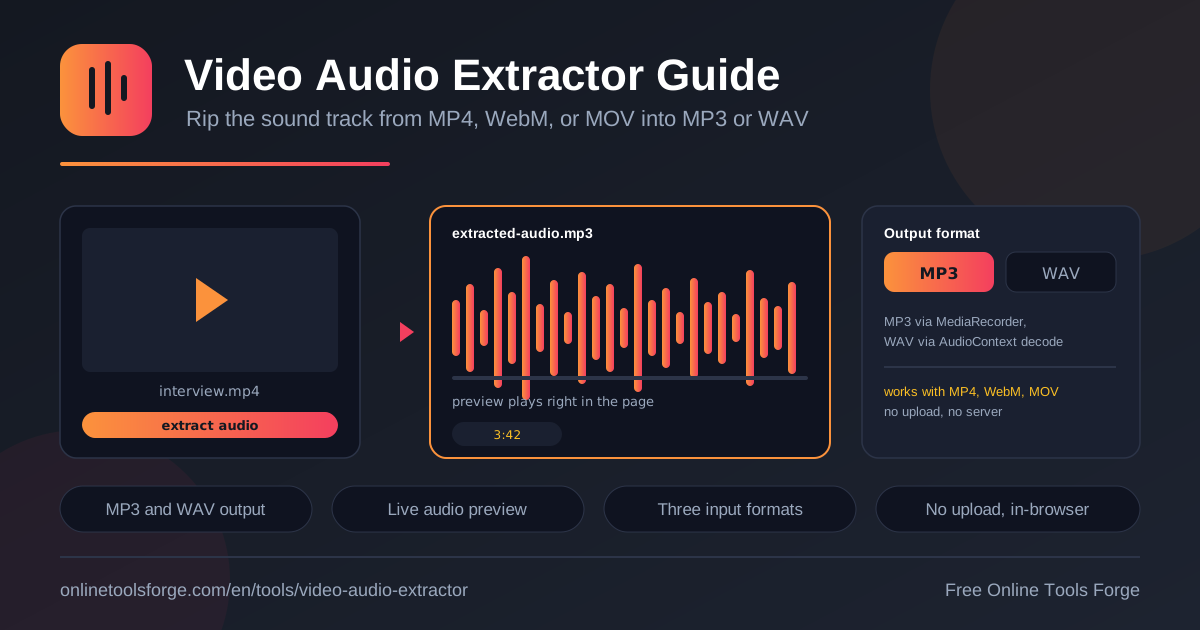
Table of Contents
You have a video file on your device — a recorded interview, a lecture capture, a screen share, a meeting saved as a phone clip — and what you actually need is the sound inside it. The Video Audio Extractor solves exactly that. Drop in an MP4, WebM, or MOV file and the tool rips the audio track into a clean MP3 or WAV, complete with a live preview so you can listen before you download. It is free, and it runs entirely in your browser.
That last point matters more than it seems. Most online converters upload your entire video to a remote server, re-encode it there, and hand back a download link. For a two-hour lecture that means pushing gigabytes of footage to a server you know nothing about and hoping the copy gets deleted afterward. This tool skips all of it. Decoding and encoding run on standard browser APIs, so your video never leaves your machine.
Whether you are building a podcast from a recorded call, keeping lecture audio for revision, or sampling sounds for an edit, the workflow is identical: drop the file, pick a format, preview, download. This guide explains how extraction works, when to choose MP3 versus WAV, and where the tool fits into everyday projects.
Why Use the Video Audio Extractor?
- Nothing is uploaded, ever. The tool decodes your video locally with browser APIs. Footage, audio, and extracted files stay on your device, which makes it safe for confidential interviews and client work.
- No installation and no account. There is no app to download, no signup wall, and no watermark. Open the page, drop a file, and you are working.
- Two output formats built in. Export MP3 for small, universally compatible files, or WAV for lossless audio that is ready for further editing.
- A live preview before you commit. The extracted audio plays directly in the page, so you can confirm you ripped the right track before saving anything.
- Supports the containers you already have. MP4 from phones and cameras, WebM from screen recorders, and MOV from Apple devices all work without conversion gymnastics.
- Free with no limits. No daily caps, no premium tier for longer files, and no forced waiting between conversions.
Key Features
| Feature | What it does |
|---|---|
| Drag-and-drop input | Drop an MP4, WebM, or MOV file onto the page and its audio track loads immediately |
| MP3 export | Records the decoded audio through the MediaRecorder API into a compact, share-friendly MP3 file |
| WAV export | Decodes the track through the AudioContext API and writes a lossless WAV file |
| Live audio preview | Play the extracted audio in the page before downloading to verify the result |
| Fully local processing | All decoding, preview, and encoding happen in your browser; nothing touches a server |
| Broad container support | Handles MP4, WebM, and MOV, the formats most phones, cameras, and screen recorders produce |
A few details worth knowing:
- Only the audio stream is decoded, so processing stays quick even on large files because the heavy video data is never touched.
- MP3 output comes from the MediaRecorder API, which compresses as it records; WAV output decodes the track to raw PCM samples through the AudioContext and preserves them bit for bit.
- Everything happens in memory on your own machine, so the finished file is ready the moment encoding ends — no upload wait, no download queue.
How to Extract Audio From a Video
- Open the tool. Head to the Video Audio Extractor in any modern browser. Nothing needs installing or configuring first.
- Drop in your video. Drag an MP4, WebM, or MOV file onto the drop zone, or click to browse. The tool reads the file locally and loads its audio track.
- Choose your output format. Pick MP3 for a small, portable file for listening and sharing, or WAV for lossless audio ready for editing and transcription work.
- Preview the audio. Press play to hear the extracted track in the page. Check that it captured the sound you wanted at the level you expected.
- Download the file. Save the finished MP3 or WAV to your device. Since nothing was uploaded, there is no copy to delete from a server later.
MP3 Versus WAV, and How Extraction Works
Ripping the audio track means pulling the sound out of a video container while leaving the pictures behind. An MP4, WebM, or MOV file is a wrapper holding a video stream and usually an audio stream, such as AAC in MP4 or Opus in WebM. Extraction never touches the visuals; the tool locates the audio stream, decodes it into raw samples, and writes those samples into a new audio file in the format you picked.
The two formats take different routes. MP3 export uses the MediaRecorder API: decoded audio is routed into a recording stream, and the browser compresses it into MP3 as it records. The result is a compact file that plays everywhere — phones, laptops, podcast apps — which makes MP3 the practical pick for lectures, voice notes, and anything you plan to share. WAV export decodes the full track into raw PCM samples through the AudioContext and wraps them with no compression at all. The file is larger, but the audio is identical to the source.
When do you pick which? Choose MP3 when size and compatibility matter most — a three-minute clip lands in the low megabytes instead of tens of megabytes. Choose WAV when fidelity and editability matter most — cutting, pitching, layering, or feeding audio into a tool that expects uncompressed input.
Container support follows the same logic. MP4 files typically carry AAC, WebM files carry Opus or Vorbis, and MOV files usually carry AAC too. The tool decodes whatever the container holds, so you never need a separate conversion step just because your screen recorder produced a different format.
The live preview closes the loop. Before you download, the extracted audio plays in the page from the same decoded buffer that gets written to your file. What you hear is what you get, which removes the guesswork of upload-based converters that reveal problems only after the file lands.
The whole workflow stays local from start to finish:
Drop video -> audio decoded in the browser
Pick MP3 (MediaRecorder) or WAV (AudioContext)
Preview the track directly in the page
Download the finished file to your device
That is the entire pipeline. No upload, no server, no account — just your browser doing the work a desktop converter used to do.
Practical Use Cases
Saving Lecture Audio
Recorded lectures as video, then found that rewatching a static camera angle is a poor way to revise? Extract the audio and the same material becomes a podcast-style file you can listen to on a commute or a walk. A one-hour seminar that is impractical to rewatch turns into easy, repeatable listening.
Pulling Podcast-Style Voice Notes
Captured a planning call, a client briefing, or your own idea session as a video? Rip the track to MP3 and it behaves like a voice memo you can file, share with teammates, or drop into a shared drive as a lightweight audio summary everyone can actually get through.
Sampling Sounds for Edits
Editors and musicians constantly mine footage for usable sound — room tone, a laugh, a door slam, a line of dialogue. Export as WAV and the track drops straight into a digital audio workstation with no quality loss, ready to cut, pitch, or layer under a new scene, matching the source exactly.
Transcription Preparation
Transcription tools overwhelmingly prefer clean, audio-only input. Extracting the track removes the video payload, shrinks the upload, and often improves processing reliability. Many services also accept WAV directly, so a lossless export gives you a dependable handoff format for automated or human transcription alike.
Best Practices
- Preview before every download. A ten-second listen confirms you extracted the right track at the right level.
- Pick WAV for anything you will edit later. Lossless source survives cutting, pitching, and normalization far better than pre-compressed audio.
- Pick MP3 for storage and sharing. For lectures, meeting notes, and reference audio, the smaller file keeps folders and bandwidth happy.
- Keep the original video. Extraction creates a new file and never alters the source, so you can re-extract in the other format anytime.
- Use a current browser. The MediaRecorder and AudioContext APIs are fully supported in up-to-date Chrome, Edge, Firefox, and Safari.
Ready to Rip Your First Track?
The next time a video lands on your device and all you need is the sound, skip the upload-based converter roulette. Open the Video Audio Extractor, drop in your MP4, WebM, or MOV, and have a clean MP3 or WAV saved locally in under a minute — privately, for free, with nothing sent to anyone.
Related Tools You Might Like:
- Audio Converter — convert audio files between formats without leaving your browser.
- Audio Trimmer — cut unwanted sections out of audio files with precision.
- Audio Waveform Visualizer — see the shape of your audio before you publish it.
Happy extracting!
Frequently Asked Questions
Q: Is my video uploaded to a server?
A: No. The tool runs entirely in your browser. Your file is read locally, decoded locally, and the extracted audio is written back to your device without any network transfer.
Q: Which video formats are supported?
A: The tool works with MP4, WebM, and MOV containers, which covers footage from phones, cameras, screen recorders, and most download sources.
Q: Should I choose MP3 or WAV?
A: Choose MP3 for small, universally compatible files that are easy to share, such as lectures and voice notes. Choose WAV for lossless audio destined for editing, sampling, or transcription.
Q: Does extracting audio reduce its quality?
A: WAV export is lossless and matches the source. MP3 export uses compression, which is fine for everyday listening but is not a bit-perfect copy.