seating-chart-generator: Complete Online Guide, Features & Practical Examples
Learn how to use the free seating-chart-generator in your browser with step-by-step instructions, practical use cases, and expert tips.
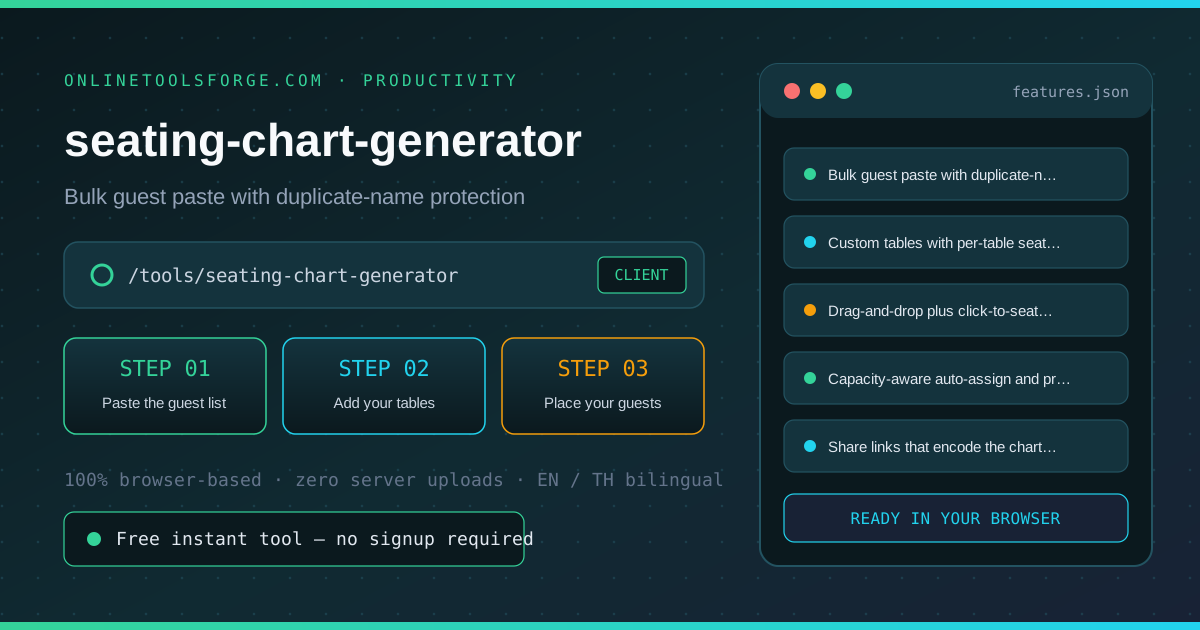
Free Interactive Tool
Seating Chart Generator
Build event seating charts with drag-and-drop or click-to-seat guest placement across custom tables, capacity-aware auto-assign, printable export and view-only share links encoded in the URL. Fully offline.
Table of Contents
The Seating Chart Generator turns a pasted guest list and a set of custom tables into a finished seating chart: drag names onto tables, auto-assign the stragglers by capacity, print a clean copy for the venue, and hand out a share link that carries the whole chart inside the URL. There is no account, no upload and no spreadsheet — the chart lives entirely in your browser, and the view-only link lets family or planners check the plan without touching it.
Whether you are double-checking numbers on a deadline, validating edge cases, or standardizing a repeatable workflow, the seating-chart-generator gives you an interactive, zero-install workspace directly in your browser. Every calculation and transformation runs locally on your device — no account registration, no paywalls, and no sensitive inputs uploaded to external servers.
In this guide, we walk through why dedicated tooling beats manual back-of-the-envelope work, explore every feature inside the interface, and cover step-by-step instructions alongside real-world scenarios.
Why Use seating-chart-generator?
- Immediate Clarity: Bulk paste guests with duplicate protection.
- Focused Workflow: Drag-and-drop or click-to-seat, keyboard friendly.
- Transparent Logic: Capacity-aware auto-assign that never overbooks a table.
- Practical Accuracy: Printable chart straight from the browser.
- Time-Saving Defaults: View-only share links encoded in the URL.
- 100% Client-Side Privacy: Every operation executes inside your browser session, keeping your data private and responsive even on slow connections.
Key Features
| Feature Area | What It Delivers | Execution Mode |
|---|---|---|
| Capability 1 | Bulk guest paste with duplicate-name protection | Instant browser execution |
| Capability 2 | Custom tables with per-table seat counts up to twenty | Instant browser execution |
| Capability 3 | Drag-and-drop plus click-to-seat placement | Instant browser execution |
| Capability 4 | Capacity-aware auto-assign and printable export | Instant browser execution |
| Capability 5 | Share links that encode the chart in the URL itself | Instant browser execution |
- Interactive Feedback: Results recalculate on the fly as you adjust inputs, letting you compare multiple scenarios in seconds.
- Bilingual Interface: Switch seamlessly between English and Thai labels whenever you collaborate across multilingual teams.
- Copy & Export Ready: Grab formatted outputs or summaries with one click so you can paste them straight into docs, tickets, or spreadsheets.
How to Use seating-chart-generator
From a raw guest list to a printable chart in four steps.
- Open the Tool: Head to the seating-chart-generator in any modern desktop or mobile browser.
- Paste the guest list: Paste names into the guest box, one per line. Duplicates are skipped automatically, and you can come back to add late RSVPs at any time.
- Add your tables: Give each table a name — Head, Family, Friends — and a seat count. The chart updates the free-seat count as you place guests.
- Place your guests: Drag a name onto a table, or click the name and then click the table, which also works with a keyboard. Click a seated name to send them back to the pool, or let auto-assign fill tables in order up to capacity.
- Print or share: Print the chart for place cards and the foyer board, or copy the share link, which encodes the whole chart in the URL for a view-only copy anyone can open.
Core Concepts & How It Works
Understanding the underlying mechanics helps you interpret the output with confidence. The Seating Chart Generator turns a pasted guest list and a set of custom tables into a finished seating chart: drag names onto tables, auto-assign the stragglers by capacity, print a clean copy for the venue, and hand out a share link that carries the whole chart inside the URL. There is no account, no upload and no spreadsheet — the chart lives entirely in your browser, and the view-only link lets family or planners check the plan without touching it.
Instead of hiding assumptions behind a single opaque result, the seating-chart-generator surfaces intermediate values and clear labels so you can audit how the final answer is assembled:
- Explicit Input Validation: Boundaries and unit expectations are checked immediately, preventing silent NaN or unit-mismatch bugs.
- Deterministic Output: Given the same inputs, the tool produces identical, reproducible results every time — ideal for team reviews and documentation.
- Edge-Case Visibility: Built-in warnings highlight when inputs approach practical limits or require special interpretation.
Practical Use Cases
1. Wedding reception tables and a foyer seating board
When tackling wedding reception tables and a foyer seating board, manual spreadsheets and ad-hoc scripts often introduce rounding errors or inconsistent assumptions. With the seating-chart-generator, you can load your exact parameters, inspect the breakdown immediately, and verify how each variable affects the outcome before committing to a decision.
2. Banquet and gala rounds with mixed table sizes
When tackling banquet and gala rounds with mixed table sizes, manual spreadsheets and ad-hoc scripts often introduce rounding errors or inconsistent assumptions. With the seating-chart-generator, you can load your exact parameters, inspect the breakdown immediately, and verify how each variable affects the outcome before committing to a decision.
3. Classroom or workshop seating for a term
When tackling classroom or workshop seating for a term, manual spreadsheets and ad-hoc scripts often introduce rounding errors or inconsistent assumptions. With the seating-chart-generator, you can load your exact parameters, inspect the breakdown immediately, and verify how each variable affects the outcome before committing to a decision.
4. Conference dinner planning across many tables
When tackling conference dinner planning across many tables, manual spreadsheets and ad-hoc scripts often introduce rounding errors or inconsistent assumptions. With the seating-chart-generator, you can load your exact parameters, inspect the breakdown immediately, and verify how each variable affects the outcome before committing to a decision.
5. Family holiday seating that changes every year
When tackling family holiday seating that changes every year, manual spreadsheets and ad-hoc scripts often introduce rounding errors or inconsistent assumptions. With the seating-chart-generator, you can load your exact parameters, inspect the breakdown immediately, and verify how each variable affects the outcome before committing to a decision.
Best Practices
- Start with realistic baseline values before testing extreme edge cases so you have a clear reference point to compare against.
- Verify units and formatting on every input field — many discrepancies come from mixing percentages, decimals, or measurement units.
- Test sensitivity by changing one variable at a time in the seating-chart-generator to see which input has the largest impact on your result.
- Document your assumptions alongside the exported output so teammates can reproduce the exact state later.
- Pair with companion utilities in the same category when your workflow spans multiple conversion or validation steps.
Frequently Asked Questions
Q: How do I share the chart with someone? A: Click Share link. The whole chart — guests, tables and placement — is encoded into the URL itself, so the person who opens it sees a read-only copy without any account or server. Nothing is uploaded; the chart lives in the link.
Q: Can I fix a typo in a guest name? A: Add the corrected spelling as a new guest and seat them; the pool ignores duplicate names, so the old and new never both appear. For a single fix it is usually fastest to unseat the typo entry, start over with a corrected list, or build the list fresh before placing guests.
Q: How does auto-assign decide where people sit? A: It walks the guest list in order and fills the first table with free seats, then the next, respecting each table capacity. Already-seated guests keep their seats, so you can hand-place VIPs first and auto-assign the rest.
Q: Is there a limit on guests or tables? A: Guests are limited only by what your browser handles comfortably — hundreds of names work fine. Tables cap at twenty seats each, which covers round tables of eight to twelve with room to spare; add more tables for bigger rooms.
Try seating-chart-generator Today
Ready to streamline your workflow? Open the seating-chart-generator now to run instant, accurate calculations right in your browser — completely free and with zero setup required.
Related Tools You Might Like
Happy building and calculating!