How to Use the XML Formatter: Pretty-Print, Minify, and Pinpoint Errors in Your Browser
Learn how to format, validate, and minify XML online with configurable indentation and exact line and column error locations — free, private, and 100% client-side.
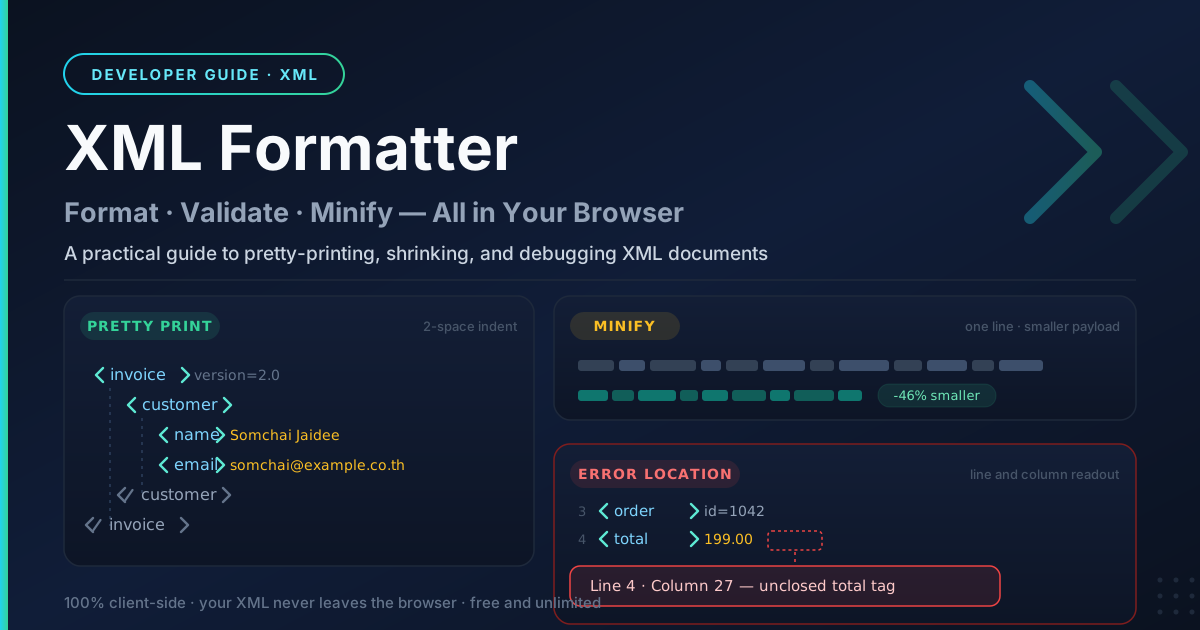
Free Interactive Tool
XML Formatter
Format, validate, and minify XML with configurable indentation and clear syntax error locations.
Table of Contents
XML has a habit of arriving in the least readable form possible. SOAP responses from legacy systems come back compressed onto a single endless line, configuration files lose their indentation after passing through log viewers and email clients, and sitemaps land as a dense wall of tags. The structure is all there — it just is not visible.
The XML Formatter makes that structure visible in one click. It is a free, browser-based tool that formats, validates, and minifies XML with configurable indentation, reporting broken markup with exact line and column locations. Everything runs on the client side, so your XML never leaves your machine — which matters when pasting in SOAP payloads or confidential data. This guide covers how to use it, when to pretty-print versus minify, and how to turn error readouts into two-second fixes.
Why Use the XML Formatter?
- Readable structure in one click — Paste a minified, single-line payload and get a cleanly indented tag tree where every nesting level is obvious.
- Configurable indentation — Pick the indent width that matches your team's conventions, so output slots straight into code reviews without style arguments.
- Precise error locations — Instead of a generic parse error, it reports the line and column where the parser tripped, pinpointing the unclosed tag or stray ampersand.
- Minify for smaller payloads — The same tool that expands XML for humans can compress it back down for machines, stripping insignificant whitespace.
- 100% client-side privacy, zero setup — All parsing, formatting, and validation happen in your browser, so nothing is uploaded, logged, or stored. No account, no installation — just open the page, paste your XML, and work.
Key Features
| Feature | What It Does |
|---|---|
| Pretty-print mode | Expands minified or mangled XML into a properly indented tag tree. |
| Minify mode | Collapses the document to one compact line for transport. |
| Configurable indentation | Picks the indent size that matches your project's style. |
| Validation with error locations | Reports errors with line and column positions, including localized Thai labels such as บรรทัด and คอลัมน์. |
| Client-side processing | Runs entirely in the browser — no network calls, no data retention. |
Worth knowing:
- Error readouts include both a line and a column, which is what makes them actionable — a line alone still leaves you scanning forty fields for the problem.
- The formatter handles XML declarations, comments, attributes, and self-closing tags correctly.
How to Use
- Open the tool. Navigate to the XML Formatter. It loads instantly on desktop and mobile browsers alike.
- Paste your XML. Drop your document, SOAP response, or configuration snippet into the input area.
- Pick a mode and indentation. Choose Pretty to expand the document for reading, or Minify to compress it for transport, then set the indent width.
- Format and inspect. If the XML is invalid, the error message points at the exact line and column where the parser failed.
- Fix, copy, or download. Correct the issues, re-run until the document validates, then copy or save the result.
Pretty, Minified, and the Errors in Between
Formatting XML is not just cosmetic tidying — the two directions serve different purposes, and using the wrong one at the wrong moment can quietly corrupt your data.
When to pretty-print. Pretty-printing exists for humans: reading a response, reviewing a configuration change, or comparing two documents. It is also the fastest way to debug a SOAP envelope — once indented, a missing header or misplaced element jumps off the screen. For diffing, format both versions identically first, so the diff shows real changes instead of whitespace noise.
When to minify. Minifying exists for machines: shrinking payloads in transit, cutting storage footprint, and feeding parsers that ignore indentation. A minified document is functionally identical to its expanded form — with one huge caveat below — so it suits caching, archiving, and transport, but it is the wrong choice for anything a human will edit next.
The whitespace hazard. Here is the trap that catches experienced developers: whitespace between tags is ignorable, but whitespace inside elements can be significant content. An element containing source code, an address with deliberate line breaks, or a document marked xml:space="preserve" treats every space and newline as data. Aggressively reformatting such a document changes its content — and can even break digital signatures, which hash the exact byte sequence. Only reformat documents whose text nodes you understand, and keep the original when in doubt.
How error locations speed things up. XML parsers report the first fatal error and stop, so one missing close tag can hide three more problems behind it. The readout short-circuits the search: an unclosed tag is usually reported at its parent's closing tag, while a stray ampersand is reported exactly where it appears. Jump to the coordinates, fix, re-run. Remember that a raw ampersand must be written as & and angle brackets in text as < and >.
Here is a broken snippet that fails in two ways — an unclosed total element and a raw ampersand:
<invoice version="2.0">
  <customer>
    <name>Somchai Jaidee</name>
    <total>199.00
  </customer>
  <note>Paid in full & awaiting delivery</note>
</invoice>
The parser points at line 5 for the unclosed total and at the ampersand on line 6. The fix closes the element and escapes the character:
<invoice version="2.0">
<customer>
<name>Somchai Jaidee</name>
<total>199.00</total>
</customer>
<note>Paid in full & awaiting delivery</note>
</invoice>
Practical Use Cases
Debugging SOAP and XML APIs
Legacy SOAP services still run banking, logistics, and government integrations, and their fault responses are notoriously dense. Pretty-print the raw envelope and the fault code and detail elements become readable; when a request fails server-side validation, comparing it with the schema's expectations usually exposes a missing namespace in seconds.
Reviewing Configuration Files
Application servers and build tools love XML configuration — sometimes hundreds of lines deep. Format it with a consistent indent before editing so nesting levels are unambiguous, then validate afterward to catch the stray character that would take down a service at startup.
Checking Sitemaps and Feeds
A sitemap with one malformed URL entry can make search engines drop the whole file, and a broken RSS or Atom feed stops updating in every subscribed reader. Run generated files through the formatter before publishing: validation confirms well-formedness, and pretty-printing makes malformed entries easy to spot.
Best Practices
- Validate before parsing upstream. Run third-party XML through the validator before feeding it to a strict parser or import job, so you control the error your users see.
- Diff after formatting — carefully. Format both sides with identical settings, but remember whitespace may be significant content; if a document contains preformatted text, compare the minified forms instead.
- Keep the minified originals. When you pretty-print a production payload to investigate it, save a byte-exact copy of the original — you may need it to reproduce a checksum or signature.
- Fix the first reported error first. Parsers stop at the first fatal problem, and the readout tells you where.
- Escape special characters. Raw ampersands and angle brackets inside text are the most common sources of broken XML in hand-edited documents.
Ready to turn your next wall of angle brackets into something readable? Open the XML Formatter, paste your document, and get a validated, cleanly indented result in seconds.
Related Tools You Might Like:
- JSON Formatter — the same client-side treatment for JSON.
- GraphQL Formatter — beautify and minify GraphQL queries and schemas.
- HTML Tag Remover — strip markup and keep only plain text.
Format boldly, validate often, and may every closing tag find its open.
Frequently Asked Questions
Q: Is my XML uploaded to a server?
A: No. The tool runs entirely in your browser using client-side JavaScript. Your documents never leave your machine, making it safe for confidential payloads and production configuration files.
Q: What does the line and column in an error message mean?
A: It is the exact position where the parser failed — the line counts from the top of the document, the column counts characters from the start of that line. Thai browsers label these บรรทัด and คอลัมน์.
Q: Will minifying change my data?
A: Minifying removes whitespace between tags, which does not change the document's structure. But whitespace inside element text is content in XML, so review documents containing preformatted text before and after compressing them.
Q: Is the tool free to use?
A: Yes — completely free with no sign-up, no usage limits, and no watermarks. Open the page whenever you need it.