Audio Joiner: Merge Audio Files Online with Crossfade — No Upload Required
Learn how to merge multiple audio files into one seamless track with Audio Joiner, a free in-browser tool that adds crossfades or gaps — and never uploads your audio.
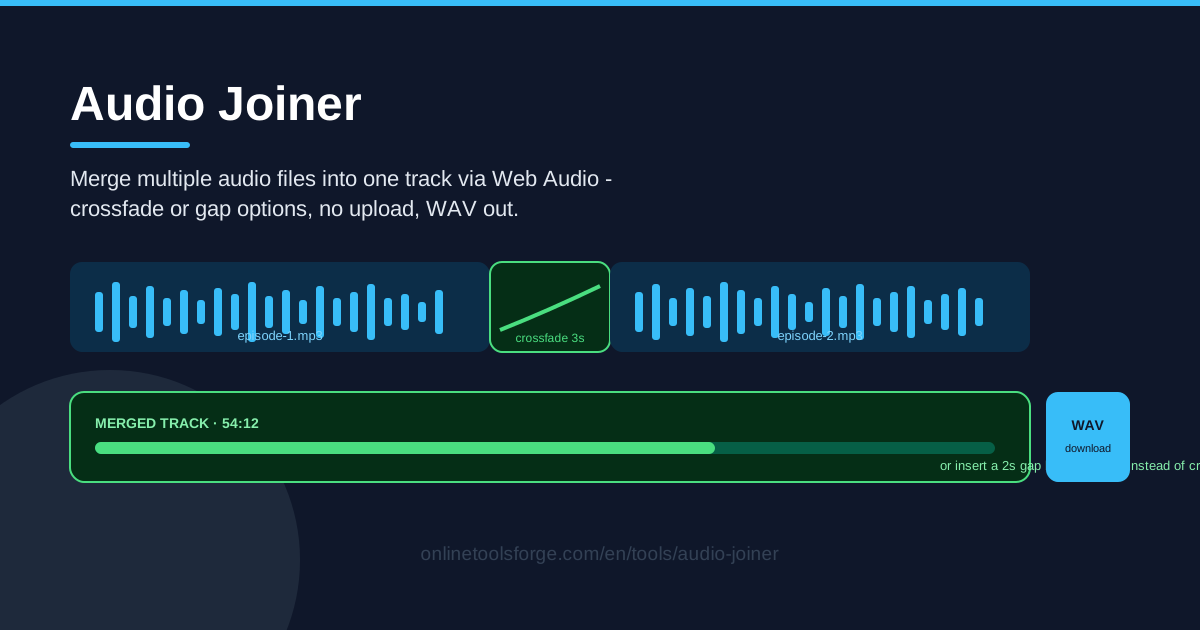
Table of Contents
If you have ever recorded a podcast in three takes, saved a dozen voice memos, or stitched together demo tracks for a mix, you know the pain: your audio lives in fragments, and most desktop editors demand an installer and a lengthy tutorial before they will simply join two clips. Audio Joiner removes all of that friction. It runs entirely in your browser, reads your files locally, and merges them into one continuous track with the Web Audio API — so your recordings never leave your device.
The tool does more than butt clips end to end. You can blend transitions with a crossfade so one clip melts into the next, or insert a deliberate gap when you want a clean pause between segments. When the merge sounds right, you export a single WAV file, ready to publish or archive.
This guide covers what the tool does, how to use it in five steps, and when a crossfade beats a gap.
Why Use Audio Joiner?
- Zero uploads, zero privacy risk. Your files are decoded and mixed by your browser's own Web Audio engine. Nothing is transmitted, so sensitive recordings — interviews, meetings, drafts — stay on your machine.
- No installation, no account. It works in any modern desktop browser. No software to install and no subscription to pay.
- Crossfades built in. Hard cuts sound abrupt. A crossfade overlaps the end of one clip with the start of the next and blends the two, instantly making a merge feel professionally edited.
- Gaps when you need them. Sometimes the right transition is silence. Instead of a crossfade, insert a precise gap between clips for chapter breaks or breathing room.
- Preview before you commit. Listen to the joins before exporting, so a rough transition never gets baked into the final file.
- Lossless WAV output. The merged track renders to WAV, a universal format that drops into any editor, podcast host, or media player.
Key Features
What you get when you combine audio with this tool:
| Feature | What it does |
|---|---|
| Local multi-file loading | Add several audio files from your device at once — nothing is uploaded. |
| Web Audio merge | Clips are decoded and mixed into one continuous track inside your browser. |
| Crossfade transitions | Overlap adjacent clips so the outgoing audio fades down while the next fades in. |
| Gap insertion | Swap a crossfade for a silent gap of your chosen length. |
| Clip length adjustment | Control how much of each clip contributes to the final merge. |
| Live preview | Listen to the whole merged track, joins included, before exporting. |
| WAV download | Export the finished merge as one WAV file. |
A few details worth calling out:
- Ordering is yours to control. Clips merge in the exact sequence you arrange, so sequencing is a decision, not a guess.
- Mixed sources are fine. Phone memos and laptop recordings can share one merge; every clip is decoded to a consistent output.
- One-page workflow. Load, arrange, transition, preview, download — the whole job happens on a single page.
How to Use Audio Joiner
- Load your clips in order. Select the audio files and add them to the timeline in the sequence you want them to play. The merge follows your arrangement exactly.
- Choose crossfade or gap. At each join, decide whether the clips should blend with a crossfade or sit apart with a silent gap. Music transitions usually want a crossfade; spoken-word breaks usually want a gap.
- Adjust clip lengths. Shorten or extend how much of each clip is used — cut a rambling cold open or trim a memo to its key sentence.
- Preview the result. Play the merged track and listen to every join. If a transition sounds rushed, lengthen the crossfade; if it drags, shorten the gap.
- Download the WAV. When it sounds right, export the finished track as a single WAV file, ready to publish or drop into another tool.
That is the whole workflow — from a folder of fragments to a finished track in about two minutes.
Crossfades vs Gaps
The biggest quality lever in any audio merge is what happens at the join.
What a crossfade actually does. A crossfade is an overlap-add operation: the tool overlaps the end of clip A with the start of clip B and applies complementary volume envelopes — A ramps down while B ramps up, and the two are summed across the overlap. Because both curves pass through a midpoint, your ear hears continuous flow instead of a cut. One to two seconds sounds natural for music; even a quarter second smooths a spoken-word join.
When a gap sounds better. Silence is a legitimate transition. A crossfade between two audiobook chapters blurs a boundary the narrator meant you to hear; a two-second gap marks the change cleanly. Podcast segments work the same way — a short pause gives listeners time to reset and leaves a clean spot for a music bed later.
How the merge is rendered. The tool uses Web Audio offline rendering to compute the final track in one pass: every clip is decoded into raw samples, placed on a shared timeline, and summed — envelopes and gaps included — before encoding. Rendering is local and deterministic, so the preview you hear is exactly the file you download.
Format handling. Load common browser-decodable formats such as MP3 or WAV. Everything is decoded to raw PCM samples before mixing, so join quality does not depend on the source codec, and the output is uncompressed WAV — convert it afterward if you need MP3.
Ordering matters. A crossfade depends on what surrounds it — swapping two clips changes both the fade overlap and the musical context. If a join sounds wrong, check the sequence before tweaking fade lengths.
Practical Use Cases
Merging podcast segments
Record an episode as three files — intro, interview, outro — and join them into one publishable track. A half-second crossfade smooths the handoff into the interview, while a two-second gap before the outro lets the ending breathe. Your host receives one clean file, not three loose segments.
Combining voice memos
Brainstorming scattered across a dozen phone memos? Load them in thought order, trim the dead air, add short gaps between ideas, and export a single WAV you can review later. It turns a messy recording habit into an organized audio notebook.
DJ-style mixes
Line up a handful of music tracks and set a one-to-two-second crossfade at every join for a continuous mix that never stops. Trim clips to skip long outros, preview the flow, then export. It will not beat-match like a DAW, but for a party mix or workout playlist it works remarkably well.
Audiobook chapter joins
Narrators often record chapters as separate takes. Merge them in order with gentle crossfades inside a chapter and short gaps between chapters. Because the output is WAV, the merged master drops straight into an audiobook encoder afterward.
Best Practices
- Normalize levels before joining. Clips from different devices rarely match in loudness; run them through a normalizer first.
- Keep sample rates consistent. Starting from clips with the same sample rate avoids resampling artifacts and produces the cleanest joins.
- Preview every join. Scrub to each transition and listen — that is where problems hide.
- Trim silence first. Silence at a clip's head or tail turns a crossfade into a dead zone. Trim leading and trailing silence so fades act on real audio.
- Match fade length to content. Speech joins sound best at a quarter to half a second; music blends comfortably at one to two seconds.
- Archive as WAV. Keep the exported WAV as your master, then compress to MP3 or AAC only for distribution.
Nothing stays fragmented forever. Open Audio Joiner, load your clips, choose your transitions, and download a finished WAV — all in your browser, with your files never leaving your device.
Related Tools You Might Like:
- Audio Trimmer — cut exactly the section you need before you merge it.
- Audio Normalizer — even out loudness across clips for seamless joins.
- Audio Converter — turn your merged WAV into MP3 and other formats.
Happy mixing!
Frequently Asked Questions
Q: Do my audio files get uploaded to a server? A: No. Everything is processed in your browser with the Web Audio API. Files are read locally and never leave your device.
Q: What formats can I load, and what do I get out? A: You can load common browser-playable formats such as MP3 and WAV; the merged result exports as a single WAV file.
Q: How long should a crossfade be? A: Start at a quarter to half a second for speech and one to two seconds for music, then preview and adjust.
Q: Can I combine clips with different sample rates or loudness? A: Yes, but the cleanest results come from normalizing loudness first and keeping sample rates consistent where possible.