DOCX to Markdown: The Complete Guide to Converting Word Documents to Markdown
The DOCX to Markdown Converter turns Word .docx files into clean GitHub-flavored Markdown right in your browser — preserving headings, nested lists, tables, hyperlinks and footnotes with no upload required.
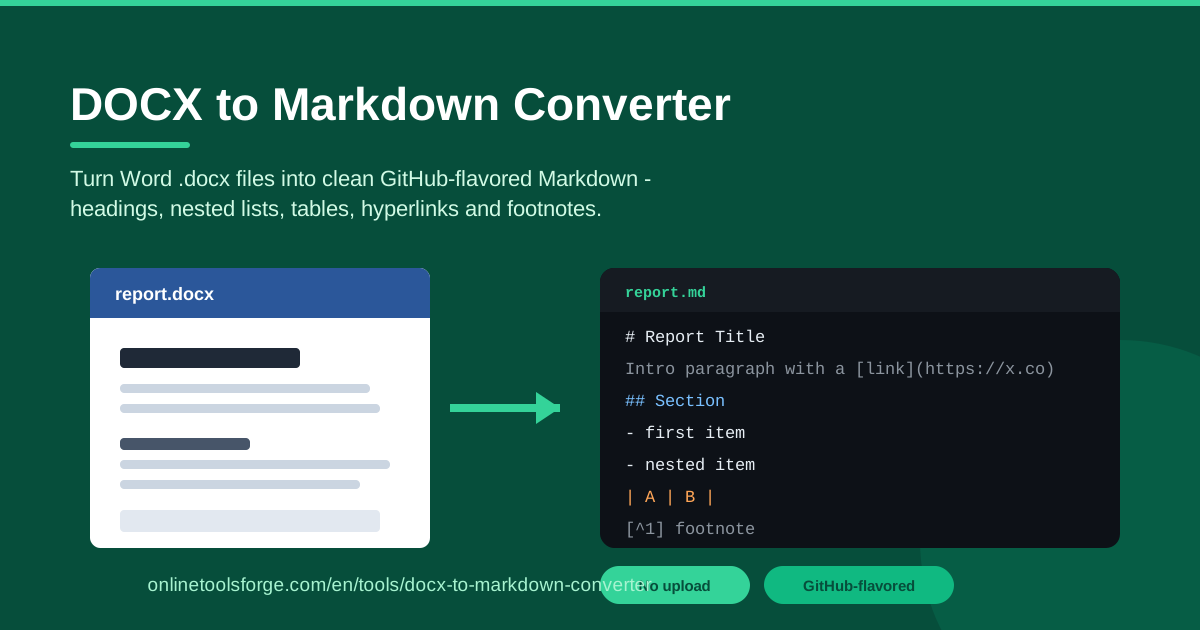
Table of Contents
Every team has them: carefully formatted Word documents sitting on a shared drive, unusable where modern documentation actually lives. Your docs repository, GitHub README and wiki all speak Markdown, not .docx. Copy-pasting from Word produces broken formatting, and rewriting by hand wastes hours.
That is the problem the DOCX to Markdown Converter solves. Pick a Word .docx, and the tool converts it into clean GitHub-flavored Markdown in seconds — headings become # levels, lists nest properly, tables become pipe syntax, and hyperlinks and footnotes survive the trip. The output lands in an editor you can review, tweak and copy in one go.
Everything runs 100% in your browser, so the file never leaves your machine. Contracts, HR policies, internal reports and client documents can be converted confidently, knowing nothing was uploaded to any server. This guide covers what converts well, what to polish by hand, and where it saves the most time.
Why Use DOCX to Markdown Converter?
- No upload, total privacy. Conversion happens locally in your browser. Confidential documents never touch a server, making it safe for the most sensitive .docx files.
- Clean, usable output. Instead of the mangled HTML you get from copying out of Word, you get tidy GitHub-flavored Markdown: proper heading syntax, - bullets, pipe tables and [text](url) links ready to commit.
- Structure is preserved. Word heading styles map to Markdown heading levels, nested lists keep their indentation, and tables survive as real Markdown tables.
- Hyperlinks and footnotes come along. Inline links become Markdown link syntax, and footnotes are carried over so citations do not vanish.
- Zero setup, zero cost. No account, no installation, no plugin. Open the page, drop a file, get Markdown — on any OS.
- Instant iteration. Convert a document, spot an issue, fix the source in Word, and re-convert in under a minute.
Key Features
| Feature | What it does |
|---|---|
| .docx upload or file picker | Load a Word document by dragging it in or choosing it from disk |
| GitHub-flavored Markdown output | GFM syntax that renders correctly on GitHub, GitLab and most static site generators |
| Heading preservation | Maps Word heading styles (Heading 1–6) to #–###### levels |
| Nested lists | Keeps multi-level bullet and numbered lists with correct indentation |
| Tables | Converts Word tables into GFM pipe-table syntax |
| Hyperlinks | Rewrites inline links as [text](url) Markdown links |
| Footnotes | Carries footnote references and definitions into the output |
| 100% in-browser processing | Parses the file locally — no upload, no server round-trip |
Three of these deserve emphasis:
- The in-browser engine is the headline. Everything happens in JavaScript on your device — that is what makes the tool viable for confidential material.
- GFM output fits the whole modern toolchain. Pipe tables, lists and heading anchors render exactly as expected in pull requests, READMEs and docs sites.
- Footnote support is rare. Many converters silently drop footnotes; here they are preserved, which matters for reports and policy documents that rely on citations.
How to Use DOCX to Markdown Converter
- Open the tool. Head to the DOCX to Markdown Converter in any modern browser.
- Drop in your .docx file. Drag the Word document onto the drop zone or select it with the file picker. Nothing is uploaded — the file is read locally.
- Review the converted Markdown. Within seconds the output appears in the editor. Check the heading levels, list nesting, tables, links and footnotes.
- Copy or save the result. Tweak anything that needs polishing, then copy the Markdown to your clipboard or save it as a .md file.
- Paste it into your repo or wiki. Drop the Markdown into your docs repository, README, wiki page or CMS and you are done.
What Converts (and What to Fix by Hand)
No converter is magic, so it pays to know what happens to each part of a Word document.
Heading levels follow your Word styles. The converter reads paragraph styles, so Heading 1 becomes #, Heading 2 becomes ##, and so on to Heading 6. Real heading styles produce a perfect Markdown skeleton; fake headings made of enlarged bold text arrive as plain paragraphs you must promote by hand.
Nested lists keep their hierarchy. Multi-level bullets and numbered lists convert with correct indentation. Glance at deeply nested lists — most come through cleanly.
Tables become pipe syntax. Word tables translate into GFM pipe tables with a header row and separators. Straightforward grids convert beautifully; merged cells, nested tables and heavy cell formatting get flattened, so restructure those by hand.
Hyperlinks are rewritten as Markdown links. A linked phrase arrives as [linked phrase](https://example.com) with the URL intact. Links that were already broken in Word stay broken, so spot-check unusual URLs.
Footnotes are carried over. References become footnote markers and the text is preserved. If you use endnotes or custom numbering, verify the order afterward.
Known messy spots. Several Word features have no Markdown equivalent:
- Tracked changes. Visible revisions can leak into the output as duplicated or struck-through text. Accept or reject all changes before converting.
- Text boxes and floating shapes. Their content sits outside the document flow and may appear out of order or be skipped. Move important text into the body first.
- Images and embedded objects. Binary media cannot be expressed in Markdown; expect omissions and re-embed images in your repo yourself.
- Headers, footers and page numbers. These are print-layout furniture, not content, and are intentionally excluded.
Practical Use Cases
Moving SOPs from Word into a docs repository
Operations teams keep hundreds of SOPs in Word. Each converted SOP becomes a versioned Markdown file: Heading 1 becomes the page title, numbered steps stay numbered, and the approval table becomes a pipe table. Commit the .md files so every future edit goes through code review instead of emailed attachments.
Publishing reports to GitHub
Quarterly reports and technical assessments often start in Word but need to live in a repository. Convert the .docx, paste the Markdown into your README or a /reports folder, and the tables, footnote citations and section structure render natively on GitHub.
Migrating wikis and knowledge bases
When a team moves off a legacy wiki or SharePoint library, bulk conversion is the hard part. Export each page as .docx, run it through the converter, and you get Markdown ready for MkDocs, Docusaurus or a Git-based wiki. Because links are preserved, cross-references mostly survive with minor URL rewrites.
Cleaning legacy docs for LLM ingestion
Retrieval-augmented systems need clean, structured text. A 60-page manual with proper headings becomes Markdown whose heading hierarchy gives chunking algorithms exact boundaries — better retrieval, fewer nonsense snippets. The no-upload guarantee matters here too, since proprietary knowledge bases can be processed without third-party exposure.
Best Practices
- Use real heading styles in Word first. Make sure every section title uses an actual Heading style rather than manual bold formatting — this alone fixes most output issues.
- Resolve tracked changes before converting. Accept or reject all revisions, then save, so you convert the final text rather than a revision-history minefield.
- Review every table after conversion. Check for merged cells that got flattened, re-split them into clean columns, and simplify overly wide tables.
- Extract text-box content into the body. Move anything in floating boxes, callouts or shapes into normal paragraphs before you convert.
- Fix links in the source, not the output. Correct bad URLs in Word and re-convert — it is faster and keeps your source of truth accurate.
- Do a heading-level sanity pass. Skim for skipped levels (an ### directly under a #) and normalize them so your docs site generates a clean table of contents.
Ready to turn your Word backlog into proper documentation? Open the DOCX to Markdown Converter, drop in a .docx, and copy clean GitHub-flavored Markdown in seconds — without your file ever leaving the browser.
Related Tools You Might Like:
- Markdown to DOCX Converter — go the other direction and turn Markdown back into a Word document
- Markdown to HTML Converter — render your Markdown into ready-to-publish HTML
- Word Counter — check word, character and reading-time counts for any text
Happy converting!
Frequently Asked Questions
Q: Is my .docx file uploaded to a server? A: No. The converter parses the file entirely in your browser with client-side JavaScript; your document never leaves your device.
Q: Which Word elements are preserved during conversion? A: Heading styles, nested bullet and numbered lists, tables, hyperlinks and footnotes are all preserved. Elements without Markdown equivalents — text boxes, images, headers and footers — are omitted or flattened and should be handled manually.
Q: Do my tables convert correctly? A: Standard grids with a header row convert cleanly into pipe tables. Merged cells, nested tables and complex formatting cannot be represented in Markdown, so give converted tables a quick review.
Q: Can I convert the Markdown back to a Word document later? A: Yes. Use the Markdown to DOCX Converter to reverse the process whenever you need to share the document with people who still work in Word.