Markdown to DOCX Converter: Turn Markdown Into Word Documents in Seconds
The free Markdown to DOCX Converter turns Markdown into Word .docx files right in your browser - headings, lists, tables, and code blocks intact, with no uploads required.
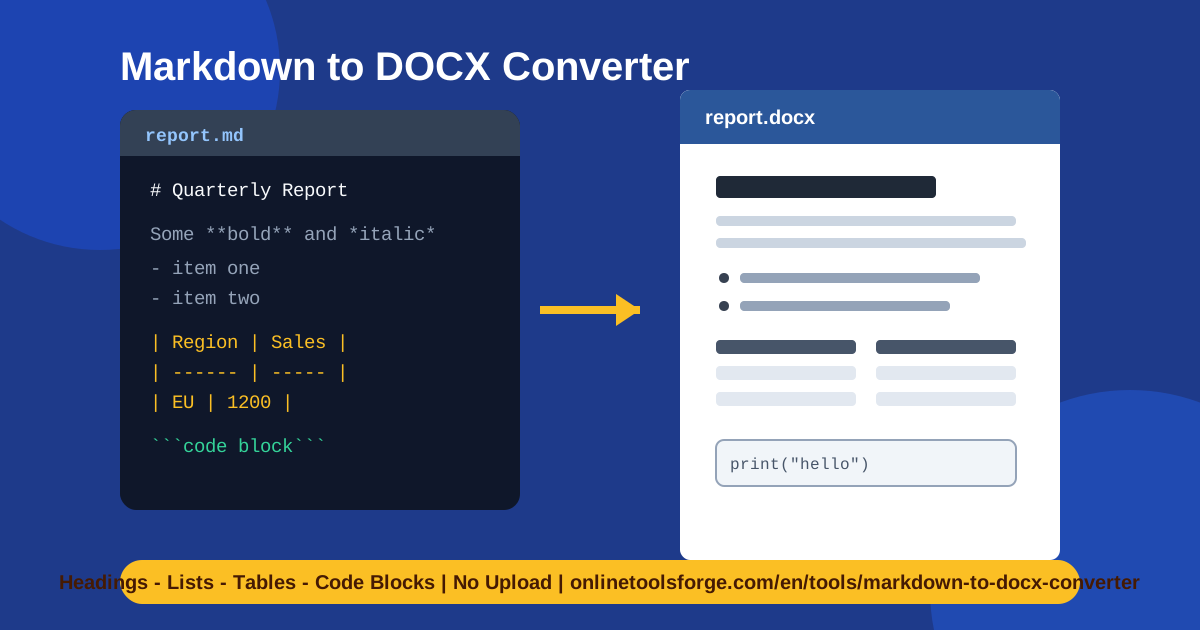
Table of Contents
Markdown is where great documents start. README files, meeting notes, API specs, and first drafts all live happily in .md format — until the day they have to reach a manager, client, or review committee that works in Microsoft Word. The Markdown to DOCX Converter from Online Tools Forge bridges that gap: paste your Markdown into the left panel, click one button, and download a finished Word .docx with headings, lists, tables, and code blocks already in place.
Everything happens in your browser. Powered by the marked and docx libraries, the tool parses your Markdown and builds a real Word document entirely client-side, so nothing is uploaded to a server. That makes it safe for confidential specs, internal reports, and anything you would rather not hand to a third party.
Why Use Markdown to DOCX Converter?
- No uploads, total privacy. The conversion runs locally in your browser, so confidential roadmaps, contracts, and unreleased documentation never touch a server.
- Real Word structure. Instead of pasted plain text, you get genuine Word heading styles, list paragraphs, tables, and formatted code blocks you can restyle further.
- One-click workflow. Paste, convert, download — no account, no watermark, no multi-step wizard between you and the file.
- Built-in quality check. The document summary counts headings, paragraphs, bold spans, italic spans, list items, tables, and code blocks before you download.
- Speaks GitHub-style Markdown. The everyday syntax of READMEs, wikis, and notes — # headings, bold, pipe tables, fenced code — is exactly what it understands.
- Free and frictionless. Runs in any modern browser on Windows, macOS, or Linux with nothing to install.
Key Features
| Feature | What it does |
|---|---|
| Markdown input panel | Paste or type Markdown in the left panel |
| Convert + download .docx | One click builds the Word file and starts the download |
| Headings | # through ###### map to Word heading levels |
| Bold and italic spans | **bold** and *italic* become real character formatting |
| List items | Ordered and unordered lists convert into Word list paragraphs |
| Tables | Pipe tables become true Word tables with rows and cells |
| Code blocks | Fenced blocks convert with monospace formatting and preserved indentation |
| Document summary | Counts headings, paragraphs, bold and italic spans, list items, tables, and code blocks |
| Load sample | Inserts an example document so you can test the pipeline instantly |
The document summary is the quiet hero: if your source contains three tables but the summary reports two, you know to check the pipe syntax before shipping the file. The Load sample button is the fastest way to judge output quality before committing your own content.
How to Use Markdown to DOCX Converter
- Paste your Markdown. Drop your text into the input panel on the left, or click Load sample to start from a complete example document.
- Review the document summary. Compare the counts of headings, paragraphs, bold and italic spans, list items, tables, and code blocks against your source file to catch syntax slips early.
- Click Convert + download .docx. The converter parses the Markdown, builds the Word document in your browser, and starts the download, confirmed by a success message.
- Open the file in Word. Headings, lists, tables, and code blocks arrive as formatted Word elements in Microsoft Word, Word Online, Google Docs, or LibreOffice.
- Polish and share. Apply your template, adjust fonts and margins, add a cover page if needed, and send the document on its way.
What Converts Well (and What to Watch)
The converter focuses on the structures that make up most real-world Markdown, and each one maps cleanly into Word:
- Headings. Every # heading becomes a Word heading level, so the Navigation Pane works, tables of contents can be generated, and styles stay consistent.
- Paragraphs. Plain text blocks become normal Word paragraphs, so line spacing and body styles behave as expected.
- Lists. Ordered and unordered items convert into true Word lists, which keeps numbering and indentation working after future edits.
- Tables. Pipe tables become genuine Word tables you can resize, shade, and restyle — the biggest time-saver, since building tables in Word by hand is tedious.
- Code blocks. Fenced code converts with monospace formatting and preserved indentation, keeping commands and snippets readable.
- Bold and italic spans. Inline emphasis becomes real character formatting, counted individually in the summary so you can verify it survived.
A few limits are worth knowing. Images, footnotes, embedded HTML, and math notation are not part of the conversion set, so plan to re-add those in Word after downloading. Very wide tables may need column adjustments to fit the page, and deeply nested lists are best kept shallow. When in doubt, let the summary arbitrate: a mismatch between your source and the reported counts is your cue to look closer.
Practical Use Cases
README to Word report for stakeholders
Your README already holds the status, architecture, and roadmap — in Markdown. Executives expect a Word attachment instead. Paste the README, download the .docx, drop it into your company template, and deliver a polished report without rewriting a line.
Meeting notes that circulate as Word
Teams take notes in Markdown because it is fast: decisions, action items, tables of owners and deadlines. When notes must reach people outside the Markdown world, the converter produces a Word file in seconds with lists and tables intact.
Technical docs for non-technical reviewers
Compliance officers, procurement teams, and clients review documents but do not read Markdown. Converting the .md source gives them familiar formatting and real tables, while you keep editing the Markdown as the single source of truth.
Academic drafts and supervisor reviews
Researchers draft in Markdown for speed and version control; supervisors comment in Word with tracked changes. A quick conversion bridges both worlds each cycle — send the .docx for comments, fold the edits back into Markdown, and repeat.
Best Practices
- Trust the summary counts. A mismatch between your source and the summary almost always means a syntax typo worth fixing before download.
- Keep tables narrow. Columns carry into Word, so fewer columns mean less resizing afterward.
- Use fenced code blocks. Triple-backtick fences parse reliably and preserve indentation in the final file.
- Keep the heading hierarchy clean. Start at # and step down one level at a time for tidy navigation and table-of-contents generation.
- Convert, then decorate. Treat the .docx as structured content and apply branding, fonts, and cover pages in Word.
- Onboard teammates with Load sample. It is the fastest way to show colleagues what the output looks like before they trust it with real work.
Ready to turn Markdown into a Word document? Open the free Markdown to DOCX Converter, paste your text, and download a formatted .docx in seconds — no upload, no signup, no fuss.
Related Tools You Might Like:
- Markdown to HTML Converter — render Markdown into clean HTML for websites and emails
- DOCX to Markdown Converter — bring Word documents back into Markdown
- Markdown Table Formatter — align, sort, and clean up Markdown tables before converting
Happy converting!
Frequently Asked Questions
Q: Is my Markdown uploaded to a server when I convert it? A: No. The converter runs entirely in your browser using the marked and docx libraries, so your text never leaves your machine — suitable even for confidential documents.
Q: Can I convert a GitHub README or other GitHub-flavored Markdown? A: Yes. Standard GitHub-style syntax — headings, bold and italic text, lists, pipe tables, and fenced code blocks — is exactly what the tool handles. GitHub-only extras such as task lists or embedded HTML fall outside the conversion set and may appear as plain text.
Q: Will the Word file keep heading styles so the Navigation Pane works? A: Yes. Markdown headings become real Word heading levels, so you can navigate the document, restyle headings globally, and generate a table of contents in Word.
Q: Does the converter cost anything? A: It is completely free — no account, no watermark, and no usage limit. Paste your Markdown and download the .docx.