Markdown Slides Converter: Build a Slide Deck from Plain Text in Minutes
The Markdown Slides Converter turns plain Markdown into a navigable slide deck with themes, then exports to PNG, PDF, or a single-file offline HTML deck.
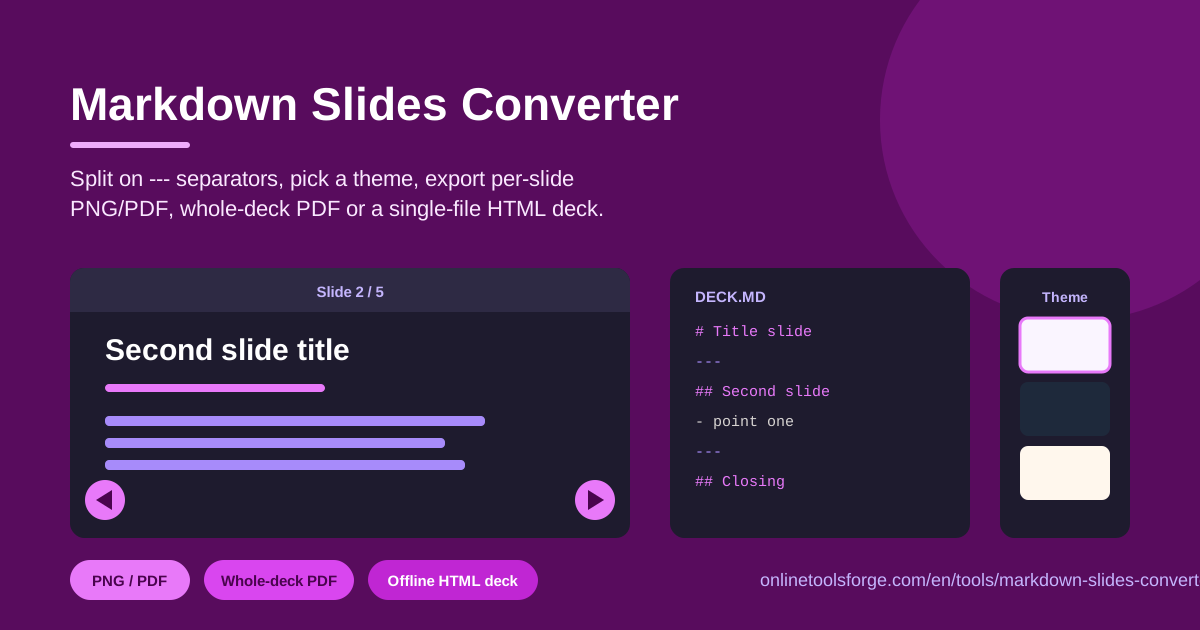
Table of Contents
Every presenter knows the routine: half an hour of dragging text boxes around before a single real sentence is written. Traditional presentation software rewards fiddling, not thinking. The Markdown Slides Converter reverses that workflow — you type your content as plain Markdown, the tool splits it into slides, and you are presenting within minutes. No account, no download, no design skills required.
The premise is simple. Markdown is already the format developers, writers, and students use every day for notes, READMEs, and documentation. Rather than copying that content into a heavyweight editor, this converter treats your document as the deck itself: a separator line marks each slide boundary, a theme gives everything a consistent look, and built-in navigation turns your browser into a presentation screen. In this guide you will learn how splitting works, which export format fits which situation, and how to structure a deck audiences actually enjoy following.
Why Use Markdown Slides Converter?
If you already write in Markdown, turning that habit into presentations has concrete payoffs:
- Write where you already work. Draft your deck in the same editor you use for notes and documentation. The whole presentation is one plain-text file that is easy to edit, diff, and reuse.
- Nothing to install, nothing to sign up for. The converter runs entirely in your browser, and no content is uploaded anywhere — a real advantage for confidential or unpublished material.
- Structure beats styling. Slides are defined by content, not by boxes and fonts, so your energy goes into the message instead of nudging placeholders into alignment.
- Present from any machine. Arrow keys and on-screen previous/next buttons turn a browser tab into a live presentation, which is perfect for a borrowed laptop with no software installed.
- Export exactly what the moment needs. Per-slide PNG, per-slide PDF, a whole-deck PDF, or a single-file offline HTML deck — one tool covers handouts, printing, and rooms with no internet.
- Iterate at text speed. Fixing a typo in a text file takes seconds; fixing one buried in a binary slide file takes an application launch and several clicks.
Key Features
Here is what the tool puts on the table:
| Feature | What it does |
|---|---|
| Markdown input | Paste any Markdown document; the deck splits on --- separators into individual slides. |
| Slide navigation | Step through slides with arrow keys or on-screen previous/next buttons. |
| Theme picker | Apply a visual theme so every slide shares one consistent look. |
| Per-slide PNG | Export each slide as a standalone image for handouts or embedding. |
| Per-slide PDF | Produce a one-page PDF for each slide, for granular sharing or printing. |
| Whole-deck PDF | Export the complete presentation as one PDF document. |
| Offline HTML deck | Bundle the entire presentation into a single HTML file that opens anywhere. |
Three details worth calling out:
- Everything is local. Splitting, rendering, and exporting all happen client-side, so sensitive decks never leave your machine.
- The offline HTML deck is truly offline. The single file carries the slides, the styles, and the navigation logic, so it works from a USB stick with no internet connection.
- Themes apply instantly. Switch themes after the deck is built — no re-layout needed.
How to Use Markdown Slides Converter
From raw text to a presentable deck takes five steps:
- Paste your Markdown. Open the tool and paste your document. Place --- on its own line wherever a new slide should begin; the deck splits immediately as you type.
- Check the split. Step through the preview and confirm each slide carries one idea. If a slide feels crowded, go back and add another separator.
- Pick a theme. Choose the look that fits the room — a dark theme for a dimmed auditorium, a light one for bright rooms and printing.
- Rehearse the navigation. Move through the deck with the arrow keys and the on-screen buttons, exactly as you will during the talk.
- Export. Choose per-slide PNG, per-slide PDF, the whole-deck PDF, or the single-file offline HTML deck, depending on where the presentation is headed.
From Markdown to Deck: How Splitting Works
The whole tool rests on one very old plain-text convention.
The --- separator marks the boundary. Markdown has long used --- to draw a horizontal rule, but inside a deck that marker is repurposed: whenever the converter meets a --- on its own line, everything above it becomes one slide and everything below it starts the next. A ten-slide talk is simply one text file with nine separators, and reordering slides means cutting and pasting paragraphs. Keep the separator on a line by itself — a --- written inline inside a sentence is ordinary content, not a boundary.
One idea per slide is the rule that makes it work. Separators cost nothing, so use them generously. A slide holding a definition, an example, and a caveat forces the audience to read instead of listen. Split it into three slides and the deck paces itself: every click delivers one new thought, which is exactly the rhythm a live talk needs. Giving each slide a single heading also keeps the structure scannable when you rehearse.
Themes carry the design so you do not have to. Because every slide inherits the same theme, consistency is automatic — no mismatched fonts, no half-aligned titles. Choose the theme before rehearsing so you can judge contrast on real content: small text, tables, and code samples all read differently against dark and light backgrounds.
Pick the export that matches the destination. Per-slide PNG suits the moments when slides must travel into other materials — blog posts, wikis, chat messages — because images keep their exact look everywhere. PDF is the archival and print format: the whole-deck PDF is a single document for email or the podium, while per-slide PDFs fit workflows that assemble pages individually. The single-file offline HTML deck is the only export that stays interactive — navigation, keyboard control, and theming all survive — which makes it the right choice when you will present from an unknown machine without internet access.
Practical Use Cases
Tech Talks and Meetups
Conference speakers already live in Markdown. Write the talk in the same repository as the demo code, split sections with ---, and export the whole-deck PDF as the version you submit to organizers. Per-slide PNG exports are handy for the teaser images and social posts that promote the event.
Classroom Lectures
Lectures change every semester, and text files make that cheap: update the slides for this year's cohort in the same editor you use for the course notes, then export a whole-deck PDF for students who want a printed copy. The offline HTML deck is ideal for classrooms with unreliable projectors or no network access.
Team All-Hands Updates
A monthly all-hands does not need a design agency. Keep a standing Markdown file with one slide per topic — metrics, releases, hiring, risks — and update only what changed. Present it live in the browser, or send the single-file HTML deck to colleagues who missed the meeting.
Documentation Walkthroughs
When you need to walk a team through a new README, an API guide, or an onboarding checklist, the content already exists in Markdown. Paste it, add separators at each section, and the walkthrough builds itself — with per-slide exports doubling as ready-made snippets for follow-up messages.
Best Practices
- One idea per slide. If a slide needs the word "and" to describe it, it is probably two slides.
- Keep a consistent heading hierarchy. Give every slide one heading at the same level so the deck reads predictably from the podium and in the PDF.
- Separate first, style later. Add separators freely, then step through the whole deck before touching themes — structure problems are cheaper to fix before styling.
- Rehearse with the real navigation. Run the deck with the arrow keys at least once so the talk and the clicks stay synchronized instead of improvised.
- Test the offline deck before you rely on it. Open the exported HTML file with Wi-Fi switched off to confirm fonts, images, and navigation all behave.
- Match the export to the audience. Present from the browser, archive to PDF, share stills as PNG — each format has a job.
Ready to turn your next document into your next talk? Open the Markdown Slides Converter, paste your Markdown, pick a theme, and export your first deck — all in the time it takes older tools to finish loading.
Related Tools You Might Like:
- Markdown to HTML Converter — turn Markdown documents into standalone HTML pages.
- Markdown to DOCX Converter — convert Markdown into editable Word documents.
- HTML to Markdown Converter — bring existing web content back into clean Markdown.
Happy presenting!
Frequently Asked Questions
Q: Do I need to install anything to use Markdown Slides Converter? A: No. The tool runs entirely in your browser: paste your Markdown, navigate the deck, and export. Nothing is installed and no files are uploaded.
Q: How does the tool know where one slide ends and the next begins? A: It splits on --- separators. Whenever a line contains only ---, the content before it becomes one slide and the content after it starts the next.
Q: Which export format should I choose? A: Present live in the browser, archive or print with the whole-deck PDF, share individual visuals as per-slide PNG or PDF, and use the single-file offline HTML deck whenever you must present without internet access.
Q: Can I change the look of my deck after writing it? A: Yes. The theme picker applies a new theme to the whole deck instantly, so you can restyle the presentation without touching the content.