Email Signature Generator: Build a Professional HTML Signature for Gmail and Outlook
Learn how the free Email Signature Generator builds a table-based HTML signature with inline CSS, a photo, and social links that renders reliably in Gmail, Outlook, and mobile clients.
Free Interactive Tool
Email Signature Generator
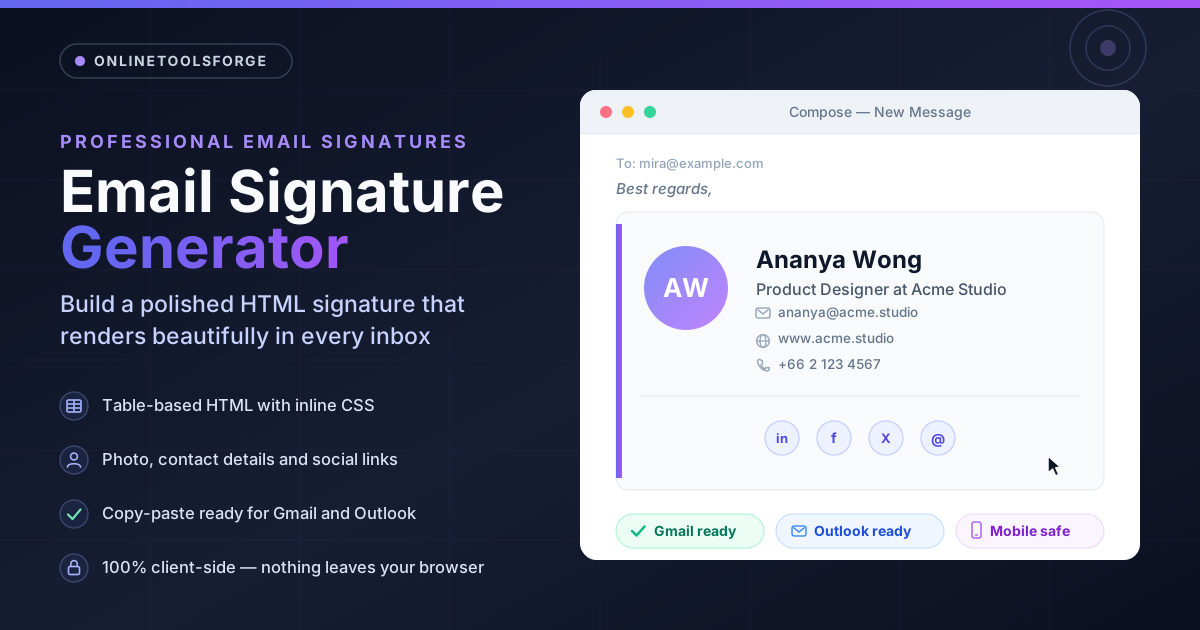
Build a professional HTML email signature with name, title, photo, and social links, ready to paste into Gmail or Outlook.
Table of Contents
Your email signature travels on every message you send, making it one of the most-seen pieces of branding you own — and one of the most neglected. The Email Signature Generator fixes that in minutes: fill in a short form with your name, title, photo, contact details, and social links, and it produces a polished, table-based HTML signature ready to paste into Gmail or Outlook.
The trouble with hand-made signatures is compatibility: what looks perfect in your browser often falls apart in a real inbox. Images get blocked, fonts get substituted, and email clients quietly delete anything fancier than basic HTML.
This guide covers what the tool generates, why it uses old-school techniques on purpose, and how to install the result in Gmail and Outlook step by step.
Why Use the Email Signature Generator?
- It renders reliably everywhere. The output uses table-based HTML with inline CSS — the one combination that survives Gmail's sanitizer and Outlook's Word-based rendering engine.
- Form-driven, zero coding. Type your name, title, company, and contact details, paste a photo URL, add social profiles — the markup assembles while the preview updates live.
- Copy-paste installation. The finished HTML drops straight into Gmail's signature editor or Outlook's signature dialog. No uploads, no plugins, no template shopping.
- Photo and social support. A circular headshot and a tidy row of social icons turn plain text into a branded calling card.
- 100% client-side. Your name, phone number, and photo URL are processed entirely in your browser and never sent to a server.
- Free with no signup. Open the page and build.
Key Features
| Feature | What it does |
|---|---|
| Form-driven editor | Name, title, company, and contact details flow straight into the markup. |
| Photo support | Any image URL becomes a properly sized, rounded avatar. |
| Contact fields | Phone, email, and website lines with clean separators. |
| Social links | Your profiles appear as a compact icon row linking to each network. |
| Table-based output | Nested tables, the most compatible layout structure in email. |
| Inline CSS | Every style is written directly on each element, so nothing can be stripped. |
| Copy button | One click places the complete HTML on your clipboard. |
| 100% client-side | Everything runs in the browser; nothing is uploaded or stored. |
The output is also plain, readable HTML — tweak colors, spacing, or fonts by hand after copying. And it degrades gracefully: if a client blocks images, the text portions still communicate everything essential.
How to Use the Email Signature Generator
- Open the tool. Head to the Email Signature Generator page. Nothing to install or sign up for.
- Fill in your details. Enter your name, title, company, and optional tagline — the preview takes shape as you type.
- Add a photo and links. Paste the URL of a hosted headshot, then add your phone number, website, and social profiles. Skip anything you do not need.
- Copy the generated HTML. When the preview looks right, click the copy button to place the complete markup on your clipboard.
- Paste it into your email client. In Gmail, go to Settings → General → Signature, create a new signature, and paste the HTML into the editor. In Outlook, go to File → Options → Mail → Signatures, create or select a signature, and paste. Save, and every new message carries it automatically.
Why Table-Based HTML With Inline CSS
Nested tables look antiquated next to modern web development, but the tool's old-school output is a direct response to how email clients actually render HTML.
First, most email clients strip <style> blocks. Gmail removes or heavily filters style sheets when a message is processed, silently deleting every class-based rule a signature depends on. A signature styled through a <style> block arrives as unstyled text. Inline styles, written directly on each element, travel with the content and survive the trip.
Second, Outlook on Windows does not use a browser engine at all. Microsoft renders HTML email with the Word processing engine, which supports only a small, idiosyncratic subset of CSS — flexbox, grid, floats, and even ordinary margins misbehave. Tables are the one layout primitive the Word engine respects, which is why table-based layouts remain the industry standard.
Third, mobile clients reflow aggressively and dark-mode themes rewrite colors. Simple table cells with explicit widths and inline styles hold their shape far better than anything cleverer.
Photo hosting matters as much as markup. Host your headshot on a stable HTTPS URL — your company site, a CDN, or a personal domain that permits hotlinking. Avoid expiring links, private albums, and shared drives that require login. Keep the image under roughly 200 pixels wide so it loads fast. Many clients also block remote images until recipients allow them, so the text portion must stand on its own.
Practical Use Cases
Building a Personal Brand
Freelancers, consultants, and job seekers live and die by first impressions. A signature with a professional headshot, a clear title, and portfolio links makes every cold email feel established — a far better closer than the default "Sent from my iPhone."
Keeping Sales Teams Consistent
When every rep builds their own signature, you get ten font choices and five shades of blue. Marketing teams solve this by designing one approved template, then having each rep regenerate a personal copy; tagline updates then take minutes instead of a ticket per employee.
Support Signatures and Legal Disclaimers
Support, HR, and legal teams often need a fixed block beneath every message — confidentiality notices, compliance lines, or escalation contacts. A table-based signature keeps that block visually separate from the body and renders it identically for every agent, which matters when the wording is contractual.
Event and Campaign Signatures
A launch, webinar, or conference is a short window where every sent email is free advertising. Swap your usual signature for a version with a campaign line and a registration link, then swap it back afterward — and because the tool saves you from hand-editing HTML, the change takes minutes.
Best Practices
- Keep it compact. Aim for under about 100 pixels of content height; tall signatures get clipped on mobile.
- Limit yourself to two fonts. One font family, matched to your client's default, reads as intentional.
- Host photos on HTTPS. Insecure images trigger warnings, and an expired photo URL leaves a broken-image icon on every message.
- Test in Gmail, Outlook, and on mobile. A two-minute check in each catches the issues that matter.
- Prefer text over a single image. One-big-picture signatures get blocked, vanish in dark mode, and are invisible to screen readers.
- Review quarterly. Titles change and numbers get reassigned; a stale signature quietly undermines your polish.
Start Building Your Signature Today
A professional signature is a five-minute task with the right tool, and the Email Signature Generator is exactly that: form in, table-based HTML out, processed entirely in your browser. Build yours now and let every message carry a cleaner first impression.
Related Tools You Might Like:
- Email Validator — confirm any address is correctly formatted before you publish or store it
- Social Share Link Generator — build pre-filled share links for the social icons in your signature
- Email Obfuscator — publish your email address on a website without feeding spam harvesters
Happy signing!
Frequently Asked Questions
Q: Will the signature work in Apple Mail and mobile apps? A: Yes. Table-based HTML with inline CSS renders consistently across Apple Mail, the Gmail mobile apps, and Outlook mobile, though spacing can drift a few pixels.
Q: Can I use any photo URL? A: Use a public HTTPS URL that will not expire and whose host permits hotlinking, since some clients block remote images until recipients allow them.
Q: Why does my signature look slightly different in Outlook? A: Outlook on Windows renders email with the Word engine, which interprets spacing and fonts a little differently than browsers. Table-based HTML with inline CSS keeps those differences minor.
Q: Is my information uploaded anywhere? A: No. The tool runs 100% client-side in your browser, so your contact details, photo URL, and the generated markup never leave your machine.