Signature Maker: Draw or Type a Signature and Export a Transparent PNG
Free online signature maker to draw or type a personal signature and export it as a transparent PNG for email signatures and documents. Works entirely in your browser with no uploads.
Free Interactive Tool
Signature Maker
Draw or type your personal signature and export it as a transparent PNG for email signatures, contracts, and documents. Everything happens locally in your browser.
Table of Contents
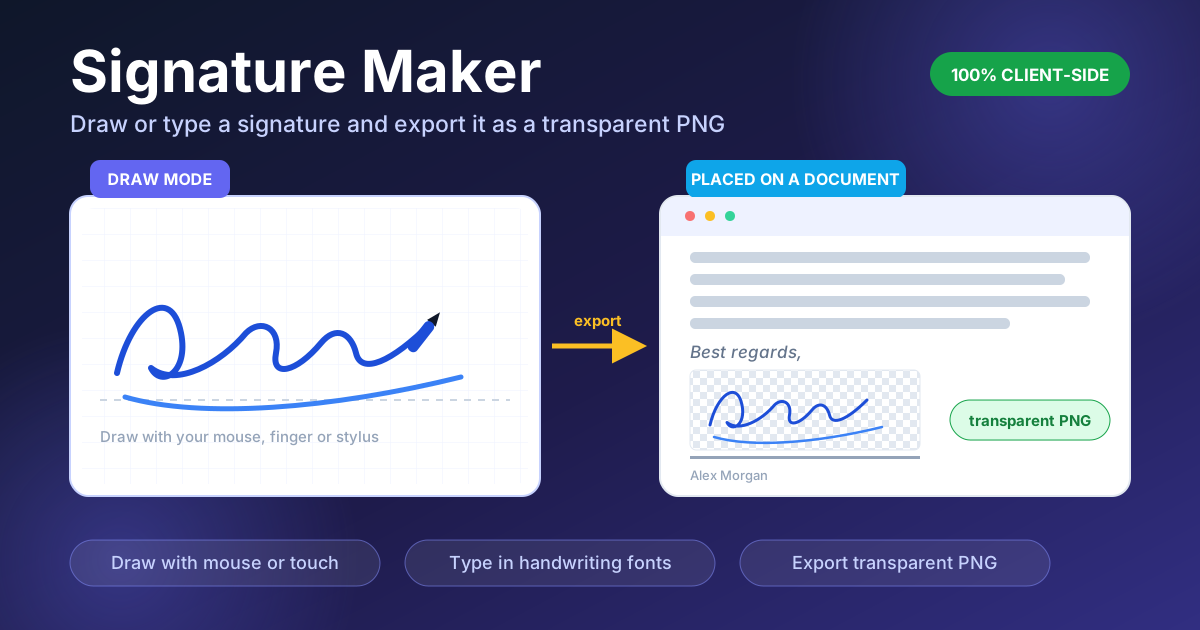
A handwritten signature carries a personal weight that typed text never quite matches, and it shows up everywhere digitally: emails, approval PDFs, internal forms, even slides. The Signature Maker makes creating one effortless. Draw your signature with a mouse, finger, or stylus on a live canvas, or type your name in a handwriting-style font, then export it as a transparent PNG that drops cleanly onto any background.
The old workflow was clumsy: sign, scan, crop, and hope the white background does not become an ugly box on a colored document. A browser-based generator collapses all of that into two minutes. This guide covers both modes, explains why transparency matters most, and shares tips for a signature you will enjoy using.
Why Use Signature Maker?
- A transparent background is the key feature. The export is a PNG with a real alpha channel, so only your ink strokes are visible. Over a document, colored footer, or dark slide, it blends in instead of sitting in a white rectangle.
- Nothing ever leaves your browser. The tool is 100% client-side. No uploads, no account, no server storing your name. Close the tab and your signature exists only on your device.
- Two creation modes. Drawing gives a personal mark; typing gives a clean, consistent signature in seconds.
- Instant PNG export. One click produces a ready-to-use file with sensible padding so nothing gets clipped.
- Free, unlimited, and cross-device. Redraw and re-export as often as you like — no watermark, no usage cap — with a canvas that responds to mouse, trackpad, and touch.
Key Features
| Feature | What it does |
|---|---|
| Draw mode | Sign on the canvas with mouse, trackpad, or touch input |
| Type mode | Enter your name and render it in a handwriting-style font |
| Transparent export | Downloads a PNG with an alpha channel for placement anywhere |
| Instant preview | See the signature as it will export before downloading |
| Clear and retry | Wipe the canvas and redraw as many times as you need |
| Client-side only | All processing happens locally; no data is ever uploaded |
The preview shows the signature exactly as it will export, preventing surprises. And because everything runs locally, the tool keeps working even on a flaky connection.
How to Use
- Open the tool and pick a mode. Head to the Signature Maker and choose Draw or Type. Both produce the same transparent PNG, so this is purely about how you create it.
- Draw your signature on the canvas. Sign as you would on paper — a quick, confident stroke usually beats a slow, careful one. If it looks off, clear and try again.
- Or type your name in a handwriting font. Enter your name, pick the handwriting-style font closest to your personality, and adjust the size until the mark has a natural weight.
- Review the preview. Check that nothing is clipped and the proportions suit the destination — a tall flourish reads differently in a compact email footer.
- Export the transparent PNG. Click export to download, then insert it into your email client's signature editor, a PDF, or a document template.
Draw vs Type, and Why Transparency Matters
Drawing on the canvas
Draw mode captures your gesture in real time, then smooths the raw input so the jagged wobble of a mouse or fingertip becomes a flowing line. It preserves the rhythm and personality of how you sign while removing pixel-level noise. A touchscreen or stylus gives the most natural results — sign in one smooth motion rather than dragging slowly.
Typing with handwriting fonts
Type mode is the consistent option. Script fonts give a polished, repeatable signature that looks identical on every export, useful when the same mark must appear across a whole team's emails. The goal is a distinctive, human-feeling mark rather than a forensic replica of your pen signature.
Transparent PNG versus a white box
Formats matter more than people expect. A JPEG or a flat PNG carries a solid rectangle of white pixels behind your ink. Drop it onto a gray PDF, a blue slide, or a tinted header, and you get an obvious white box that screams "pasted from a scanner." A transparent PNG keeps only the ink strokes and lets the surface underneath show through, so it appears written directly on the page.
Sizing and padding for email signatures
Keep the export roughly 300 to 400 pixels wide and 80 to 120 pixels tall. Most clients display signatures at that scale, so it stays crisp without bloating message size. The tight-cropped export, with a little breathing room, prevents clipped ascenders and descenders while staying neat beside your contact details.
The honest caveat about legality
Be clear about what this tool produces: a visual mark, not a legally binding signature. Drawn or typed images are perfect for informal approvals and personalization, but contracts and regulated documents usually require a proper e-signature service with identity verification, timestamps, and an audit trail.
Practical Use Cases
Email signature blocks
The classic use. A transparent signature above your name and title adds warmth to every message, at home on plain white emails and colored branded footers alike.
Quick PDF approvals
For internal requests — expense claims, leave forms, purchase requisitions — a signature image pasted into the approval field is usually all the formality needed, and takes seconds.
Internal documents and templates
Wikis, SOPs, checklists, and memos often carry an approved-by line. Embedding a signature image into the template keeps those documents consistent without asking a manager to sign each one by hand.
Slides and announcements
On a deck, a signature at the end of a proposal reads as a personal endorsement — far more human than a footer of small print.
Best Practices
- Draw on a touchscreen when you can. Finger or stylus input follows your natural handwriting far better than a mouse, and the smoothing produces cleaner curves.
- Keep the export tight-cropped. Extra empty space makes alignment on a signature line hard and inflates the file for no benefit.
- Test over dark and light backgrounds. A signature that looks great on white can vanish on a navy slide, so preview it on both before committing.
- Use one consistent size everywhere. A standard pixel width keeps your mark looking intentional rather than stretched or shrunken.
- Keep a master copy. Recreating the same drawn signature weeks later is nearly impossible, so save the PNG somewhere safe.
- Redraw until it feels effortless. The best exports come from the fastest, most confident strokes — hesitation shows in the line.
Create Your Signature in Two Minutes
You do not need a scanner, an editor, or an account to have a signature you are happy to put your name to. Open the Signature Maker, draw or type your mark, and export a transparent PNG ready for your email signature, PDFs, and slides — privately and entirely in your browser.
Related Tools You Might Like:
- Email Signature Generator — build a complete HTML signature block around your new image
- QR Code Designer — create a styled QR code for emails and documents
- Photo Collage Maker — combine images into polished collages for announcements and posts
Sign with confidence!
Frequently Asked Questions
Q: Is my signature uploaded anywhere when I use the tool? A: No. Everything runs client-side in your browser. The canvas input and exported PNG never leave your device, and no account is required.
Q: What is the difference between the draw and type modes? A: Draw mode records your own stroke on a canvas and smooths it into a clean line, giving a personal mark. Type mode renders your name in a handwriting-style font, giving a consistent signature in seconds.
Q: Why does the export need a transparent background? A: A transparent PNG contains only your ink strokes, so it can sit on documents, emails, or slides of any color without showing a white box behind the signature.
Q: Is an image signature legally binding? A: No. The exported PNG is a visual mark for informal approvals and personalization. Contracts and regulated documents should go through a proper e-signature service with identity verification and an audit trail.