How to Read EPUB Books in Your Browser — No App Required
EPUB Reader lets you open and read e-books directly in your browser, with chapter browsing, adjustable typography, and text extraction — fully offline, with no upload needed.
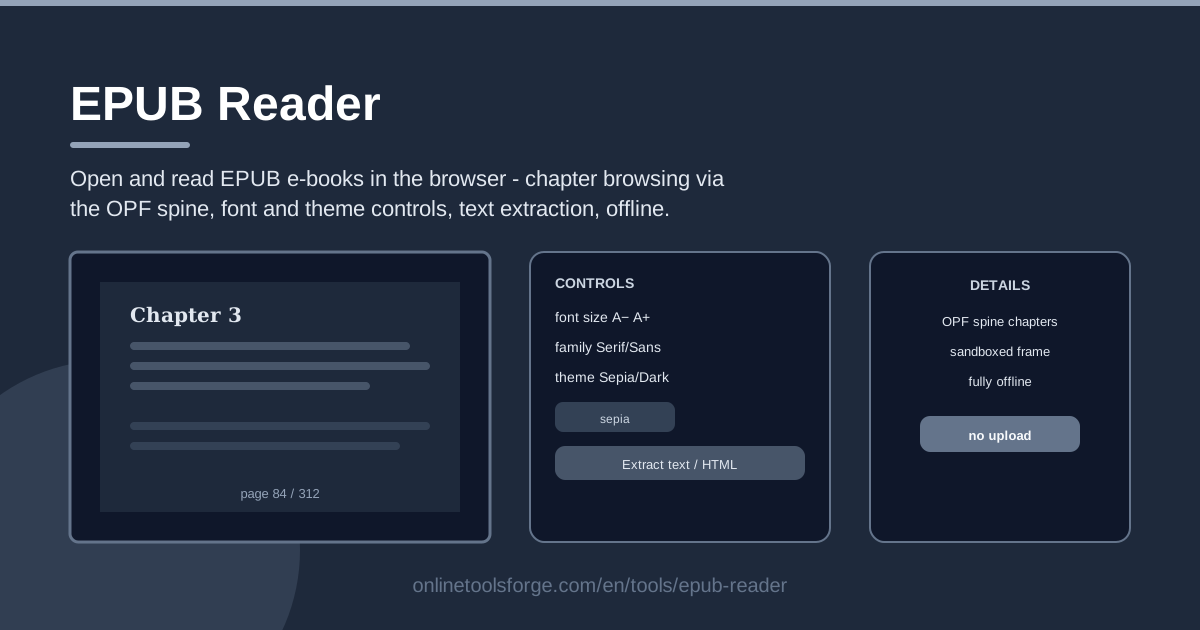
Table of Contents
Somewhere on your drive there is probably a folder of .epub files — classics from Project Gutenberg, guides exported from note-taking apps, or books bought from independent stores. Opening one usually means hunting for an e-reader app, creating an account, and letting a program dig into your system. The EPUB Reader on Online Tools Forge skips all of that: drag the file into your browser and start reading in seconds.
Because everything runs locally in the browser, your book is never uploaded to a server and nothing is installed on your machine. Once the page has loaded, it even keeps working offline — handy on flights, on trains, or anywhere the connection is flaky.
This guide covers how to use the reader, what is actually inside an EPUB file, and a few situations where a browser-based reader beats installing software.
Why Use EPUB Reader?
- No installation required: there is no app to download, no account to create, and no settings to fight with — the browser you already have is the reader.
- Nothing leaves your computer: the file is opened entirely on your device, so private or unpublished manuscripts stay private.
- Chapter navigation that follows the book: the reader reads the OPF spine, so the chapter list matches the author's intended reading order instead of guessing from file names.
- Comfortable typography: adjust font size and family and switch reading themes, so long sessions do not strain your eyes.
- Extraction built in: pull a chapter out as plain text or HTML for notes, quotes, and reformatting.
- Works fully offline: after the first load, no internet connection is needed at all.
Key Features
| Feature | What it does |
|---|---|
| Open local EPUB files | Loads any DRM-free .epub directly from your computer, with no upload step. |
| OPF spine browsing | Builds the chapter list from the book's own package file, in correct reading order. |
| Font size and family controls | Lets you scale text up or down and pick a typeface that suits you. |
| Reading themes | Switches between light, dark, and other palettes inside a sandboxed frame. |
| Plain-text extraction | Strips the book down to clean text you can copy into notes or documents. |
| HTML extraction | Hands back the chapter's structured HTML for accurate reuse. |
- The spine is the source of truth for navigation: if the publisher ordered a preface before chapter one, that is exactly the order you see.
- Extraction pairs naturally with other tools — count the words in a chapter, or turn your highlights into clean markup.
- All processing happens client-side, which is why the tool works without any server round-trips.
How to Use EPUB Reader
- Load your .epub file. Open EPUB Reader and select or drag in your .epub. It stays on your device — the tool unpacks it in the browser.
- Browse the chapters. The sidebar lists the book's chapters in spine order. Click any entry to jump straight to that part of the book.
- Adjust font and theme. Change the font size and family and pick a reading theme until the page feels comfortable, especially for long sessions.
- Read. Move through the book chapter by chapter. Your typography and theme choices apply to every chapter as you go.
- Extract text or HTML. When you need a passage outside the browser, extract the current content as plain text or HTML and copy or save it.
What Is Inside an EPUB
An EPUB is really a ZIP archive wearing a different extension. Inside sit a collection of XHTML files (one per chapter or section), stylesheets, images, and metadata. A small file called container.xml points to the package document — the OPF — which describes the book: its title, author, manifest of resources, and the spine.
The spine is the part that matters most to a reader. It is an ordered list that tells software the correct sequence for the content files. That is why chapter order can differ from alphabetical file names, and it is what EPUB Reader uses to build its chapter browser, so what you see matches how the book was meant to be read.
Book content is rendered inside a sandboxed frame. The book's own markup and CSS are displayed, but they are isolated from the tool's page, so a strangely authored EPUB cannot interfere with the rest of your browsing session. That isolation also gives the theme and typography controls a clean surface: they apply consistent styling on top of the book, whatever fonts and colors the publisher chose.
Extraction is the quiet workhorse. Plain-text mode removes markup and returns the words, which is ideal for study notes, quoting, or pasting into a document. HTML mode preserves structure — headings, paragraphs, emphasis — which matters when you want to keep formatting intact. One limitation is worth stating clearly: EPUB Reader handles DRM-free files. Books wrapped in DRM from major stores cannot be opened here, and the tool does not attempt to remove any protection.
Practical Use Cases
Reading on a Borrowed Computer
You are at a library machine, a hotel business center, or a friend's laptop, and installing software is not an option. Open the browser, load your .epub from a USB stick, and read. When you are done, close the tab — nothing was installed, and no trace of the book sits in an app's library.
Quoting Chapters for a Book Club
Your club is discussing chapter seven and you want exact wording, not a paraphrase. Open the book, jump to the chapter, and extract it as plain text so you can quote precisely in the group chat or newsletter.
Extracting Text for Study Notes
Textbooks, lecture collections, and language readers often ship as EPUBs. Pull chapters out as text, drop them into your notes, highlight what matters, and add your own summaries — much faster than retyping passages.
Checking Self-Published Files Before Release
If you produce EPUBs yourself, use the reader as a final pass: does the spine order the chapters correctly, do the font and theme controls override your styles gracefully, does the extracted text come out clean? It takes two minutes and catches mistakes readers would otherwise find.
Best Practices
- Respect copyright: extraction is for personal notes, quoting within fair use, and books you have the rights to — not for redistributing someone else's work.
- Keep the original .epub file: treat it as the archive copy; extracted text is a convenience copy and can lose footnotes, images, and layout.
- Adjust theme for eye comfort: dark themes in dim rooms, high-contrast light themes in daylight, and a font size that lets you read without leaning in.
- Be sensible about where your books come from: the sandboxed frame adds a layer of protection, but a file from an unknown source still deserves caution.
- Check the spine order when a book seems scrambled: if chapters look wrong, the file's own package document is probably faulty — the reader is showing you what the file actually says.
Ready to open that book you have been meaning to read? Head to EPUB Reader, drop in your .epub, and settle in — no app, no upload, no waiting.
Related Tools You Might Like:
- PDF to Text Extractor — pull plain text out of PDF documents when your reading material comes in that format.
- Markdown to HTML Converter — turn your notes and extracted passages into clean, structured HTML.
- Word Counter — measure the length of extracted chapters before you quote or share them.
Happy reading!
Frequently Asked Questions
Q: Does EPUB Reader upload my book anywhere? A: No. The file is opened and processed entirely in your browser, so the book never leaves your device.
Q: Can it open DRM-protected books from major ebook stores? A: No. The tool works with DRM-free EPUB files only and does not remove any protection layers.
Q: Why are the chapters listed in an unexpected order? A: The list follows the book's OPF spine. If it looks wrong, the file's own package document is likely misconfigured by its creator.
Q: Can I use the reader without an internet connection? A: Yes. After the page has loaded once, reading, theme changes, and extraction all work fully offline.